

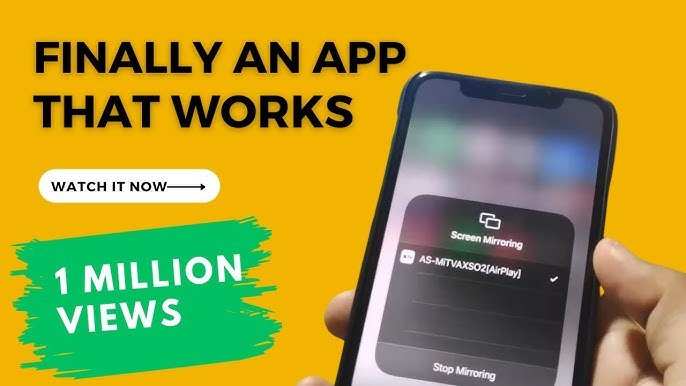
To connect your Android TV with an iPhone, use a third-party app or a Chromecast device for seamless casting. **Simply install a compatible app like AirPlay or Google Cast on your iPhone.**
Open the app, select your Android TV, and start mirroring your screen.
It’s quick and easy, allowing you to enjoy content from your iPhone directly on your Android TV without hassle.

How to Connect Android TV with iPhone
Connecting your Android TV to an iPhone might seem challenging at first, but it is actually quite straightforward when you understand the different methods available. Whether you want to mirror your iPhone screen to your Android TV, cast videos from your iPhone, or stream music, there are multiple ways to achieve a seamless connection. In this guide, we’ll explore each method in detail, providing step-by-step instructions and helpful tips to make the process easy and efficient.
Understanding the Compatibility and Limitations
Before diving into specific methods, it’s essential to understand why connecting an iPhone to an Android TV can be tricky. Unlike Android devices, which often support Google Cast or Miracast, iPhones primarily rely on Apple’s proprietary technologies like AirPlay. Since Android TVs typically do not natively support AirPlay, you’ll need third-party apps or alternative solutions to bridge this gap.
Key points to consider:
- Most Android TVs support Google Cast technology, which works well with Android devices and Chromecast-compatible apps.
- iPhones use AirPlay for wireless streaming, which is not natively compatible with most Android TVs.
- Third-party applications can enable AirPlay functionality on Android TVs, but their performance varies based on the app and your network setup.
Knowing these basics helps you choose the best connection method suited to your devices and needs.
Connecting iPhone to Android TV Using Built-in Casting Options
While most Android TVs do not support AirPlay directly, they do support Google Cast, which is compatible with many streaming apps on your iPhone. Here’s how to cast content from your iPhone to your Android TV using supported apps.
Using Google Cast-Enabled Apps
Many popular streaming apps like YouTube, Netflix, and Hulu support Google Cast natively. To cast content from these apps:
- Ensure your iPhone and Android TV are connected to the same Wi-Fi network.
- Open a supported app (e.g., YouTube) on your iPhone.
- Look for the Cast icon, which resembles a rectangle with a Wi-Fi symbol in the corner.
- Tap the Cast icon and select your Android TV device from the list.
- Choose the video or content you want to play, and it should appear on your TV directly.
This method is straightforward and works well for streaming videos or music from apps that support casting.
Limitations of Casting via Apps
While casting from supported apps works flawlessly, it doesn’t mirror your entire iPhone screen. If you want to display your entire screen or mirror apps that don’t support casting, you’ll need alternative methods.
Using Third-Party Apps for Screen Mirroring
To mirror your iPhone screen to your Android TV, third-party applications are the best option. These apps act as bridges, enabling AirPlay functionality on your Android TV.
Popular Apps for AirPlay on Android TV
– **AirScreen**: A widely used app that adds AirPlay, Google Cast, Miracast, and DLNA support to Android TVs.
– **ApowerMirror**: Supports screen mirroring from iPhone to Android TV with additional features like recording.
– **LotelScreen**: A simple app that facilitates screen sharing between an iPhone and Android TV.
Setting Up AirScreen on Your Android TV
Follow these steps to install and use AirScreen:
- Turn on your Android TV and navigate to the Google Play Store.
- Search for “AirScreen” in the app store.
- Select AirScreen from the search results and install it.
- Open the app once installation is complete.
- Follow the on-screen setup instructions, which usually involve enabling AirPlay support.
- Ensure your iPhone and Android TV are on the same Wi-Fi network.
- Open the Control Center on your iPhone by swiping down from the top right (iPhone X and later) or swiping up from the bottom (older models).
- Tap on “Screen Mirroring” or “AirPlay”.
- From the list of available devices, select your Android TV with AirScreen enabled.
- Your iPhone screen should now mirror onto your Android TV.
Tips for Better Mirroring Experience
– Use a strong Wi-Fi connection for minimal lag and smooth streaming.
– Keep both devices close to your Wi-Fi router.
– Restart the app if the connection drops or lags.
– Update the app regularly for better compatibility and performance.
Connecting via HDMI Cable as a Wired Alternative
If wireless options are unreliable or you prefer a stable connection, an HDMI cable provides a straightforward solution.
Requirements
– A Lightning to HDMI adapter (Apple’s official or third-party).
– An HDMI cable.
– An available HDMI port on your Android TV.
Steps for Wired Connection
- Connect the Lightning end of the adapter to your iPhone.
- Plug one end of the HDMI cable into the adapter.
- Insert the other end of the HDMI cable into an available HDMI port on your Android TV.
- Switch your TV to the corresponding HDMI input.
- Your iPhone screen will appear on the TV, and you can mirror your entire screen or specific apps.
This method offers high-quality streaming and is ideal for presentations or high-resolution viewing.
Using Apple’s AirPlay with an Apple TV or Compatible Devices
If you own an Apple TV or a smart TV that supports AirPlay directly, connecting your iPhone becomes even easier.
Connecting iPhone to Apple TV
– Ensure your iPhone and Apple TV are connected to the same Wi-Fi network.
– Swipe down from the top right corner of your iPhone to access Control Center.
– Tap “Screen Mirroring”.
– Select your Apple TV from the list.
– Your screen will appear on the TV instantly.
Since many Android TVs don’t support AirPlay natively, this method works best if you have an Apple TV or a smart TV that supports AirPlay.
Troubleshooting Common Connection Issues
Sometimes, connecting your iPhone to an Android TV might not go smoothly. Here are common issues and their fixes:
- Devices not discovering each other: Check that both are connected to the same Wi-Fi network and restart your router if needed.
- Lag or stuttering: Use a stronger Wi-Fi signal, reduce network congestion, or switch to wired connections for better stability.
- App crashes or failure to mirror: Ensure all apps are updated and compatible with your devices. Reinstall the app if necessary.
- Video or audio not syncing: Restart both devices and check for software updates.
By keeping these tips in mind, you can minimize issues and enjoy smooth streaming and mirroring sessions.
Final Tips for a Better Experience
– Keep your devices’ firmware and apps updated to ensure the best compatibility.
– Use a 5 GHz Wi-Fi band if your router supports dual-band connections for faster speeds.
– Test different connection methods to find what works best for your setup.
– Place your Wi-Fi router in a central location to improve signal strength.
Connecting your iPhone to an Android TV might seem complex initially, but once you understand the available options, it becomes an easy task. Whether you prefer wireless methods like casting and mirroring or a wired HDMI connection, you can enjoy your favorite content on a larger screen. Be patient during setup, and don’t hesitate to try different methods to find the perfect one suited to your devices and preferences.
Frequently Asked Questions
What methods can I use to connect my iPhone to an Android TV without using a cable?
To connect your iPhone to an Android TV wirelessly, you can utilize screen mirroring apps available on the App Store. Apps like AirScreen or AirPlay-enabled apps can help. Ensure your Android TV supports such apps, and your iPhone and TV are connected to the same Wi-Fi network. Open the chosen app on your Android TV, then access the Control Center on your iPhone, tap Screen Mirroring, and select your TV from the list.
Is it possible to cast videos from my iPhone to Android TV through third-party apps?
Yes, you can cast videos from your iPhone to an Android TV using third-party apps. Apps like AllCast or LocalCast allow you to send videos, photos, and music directly to your TV. Download and install the app on your iPhone, connect both devices to the same Wi-Fi network, open the app, choose your content, and select your Android TV as the target device. Follow the app prompts to complete the connection.
Can I use an Apple Lightning-to-HDMI adapter to connect my iPhone to Android TV?
While the Lightning-to-HDMI adapter is designed for Apple devices, it can work with Android TVs if your TV has an HDMI port. Connect the adapter to your iPhone, then plug an HDMI cable into the adapter and your TV. Switch your TV to the corresponding HDMI input, and your iPhone’s display should appear on the TV. Keep in mind that this method requires a physical connection and may not support all Android TV features seamlessly.
Are there specific settings I need to enable on my Android TV to accept connections from an iPhone?
Typically, you need to enable screen mirroring or casting options on your Android TV. Navigate to your TV’s settings menu, find the ‘Network & Accessories’ section, and turn on ‘Cast’ or ‘Screen Mirroring’ features. Ensure your TV is discoverable and connected to the same Wi-Fi network as your iPhone. This setup allows your device to see your TV when you attempt to mirror or cast content.
What troubleshooting steps can I follow if my iPhone isn’t connecting to my Android TV?
First, verify both devices are connected to the same Wi-Fi network. Restart your iPhone and Android TV to reset network connections. Update your TV’s firmware and your iPhone to the latest software versions. Check that your chosen casting or mirroring app is correctly installed and configured. If connection issues persist, disable and re-enable the casting feature on your TV, or try using a different app or method. Confirm that no other device is currently using the connection, which might interfere with the pairing process.
Final Thoughts
Connecting an Android TV with an iPhone is simple with the right tools. Use a third-party app like AirScreen or ApowerMirror to facilitate the connection. Follow the app instructions to enable screen mirroring between your devices.
Ensure both devices are on the same Wi-Fi network for smooth connectivity. Enable screen mirroring options in your iPhone’s control center, then select your Android TV from the list.
In conclusion, knowing how to connect android tv with iphone makes streaming easy and convenient. These straightforward steps help you mirror your iPhone to your Android TV efficiently.
