

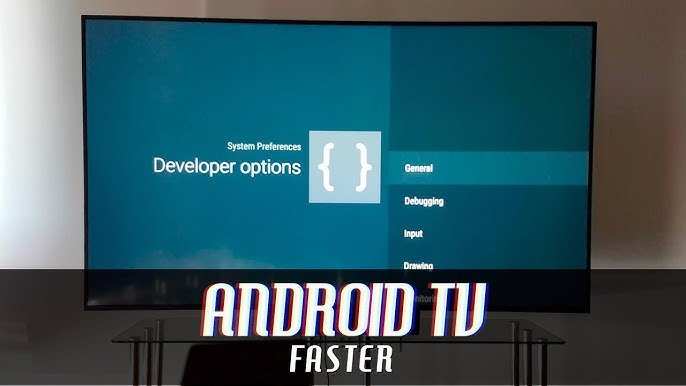
To make Android TV faster using developer options, you should disable background processes and turn off animations. **This simple adjustment can significantly improve your device’s speed.** If you want to optimize performance, accessing developer options is the key.
Knowing how to make Android TV faster developer options helps you customize and enhance your viewing experience. Just a few taps can make your device feel quicker and more responsive, making everyday use smooth and enjoyable.

How to Make Android TV Faster Using Developer Options
When your Android TV feels sluggish, it can ruin your overall viewing experience. Luckily, tweaking some settings through Developer Options can give your TV a noticeable speed boost. These options are designed for developers but are accessible to everyone and can help you optimize your device for better performance. In this guide, we will walk you through the steps to enable Developer Options on your Android TV and adjust specific settings to make your TV run faster and smoother.
Understanding Developer Options on Android TV
Developer Options are a set of advanced features mainly meant for app developers to test and debug their applications. However, these settings can also help regular users improve their device’s speed by preventing unnecessary background processes, reducing animations, and more. It’s important to proceed cautiously, as tweaking the wrong setting could cause issues. Always remember to revert changes if you notice any problems.
How to Enable Developer Options on Android TV
Enabling Developer Options on Android TV is a straightforward process, yet it might differ slightly depending on your device manufacturer or Android TV version. Here is a general step-by-step guide:
- Navigate to the Settings menu on your Android TV.
- Scroll down to the ‘About’ section. This is usually at the bottom of the Settings menu.
- Find the ‘Build number’ option. It might be hidden; you may need to select ‘About’ or ‘Device info’ first.
- Tap the ‘Build number’ repeatedly (about 7 times) until a message appears saying that Developer Options are enabled.
- Go back to the main Settings menu; a new ‘Developer Options’ entry should now be visible.
Once enabled, you can access Developer Options through the main Settings menu and start customizing your Android TV for improved performance.
Key Developer Options to Improve Android TV Performance
Not all Developer Options will be useful for boosting speed. Focus on the settings that reduce unnecessary processes and visual effects. Here are the most effective options to consider:
Limit Background Processes
Background processes consume system resources, which can slow down your Android TV. Limiting these processes ensures that only essential apps run in the background, freeing up memory and CPU power for smoother performance.
- Navigate to Developer Options and find the ‘Limit background processes’ setting.
- Tap on it and choose a limit. Recommended options are:
- 1 process
- 2 processes
- 3 processes
Setting a limit reduces the number of apps running in the background, which can help speed up your TV.
Disable or Reduce Animations
Animations make your interface smooth and appealing but can also slow down the device, especially if your hardware isn’t very powerful. Turning off or reducing animation scales makes transitions quicker.
- Find the options:
- ‘Window animation scale’
- ‘Transition animation scale’
- ‘Animator duration scale’
Set each to either Animation off or 0.5x to speed up visual effects without making your interface feel too abrupt.
Force GPU Rendering
Forcing your device to use GPU rendering instead of CPU for UI drawing can improve graphics performance, especially in games or visually intensive apps.
- Locate ‘Force GPU rendering’ and turn it on.
This setting can help smooth out animations and reduce lag during graphic-heavy tasks.
Disable Hardware Overlays
Hardware overlays are used to optimize rendering, but turning them off can sometimes improve graphics performance on certain devices.
- Find ‘Disable HW overlays’ and enable it.
This forces the system to render graphics entirely through the GPU, which may help if you notice lag or stuttering.
Reduce Background Data Usage
Limiting background data use can prevent apps from updating or syncing in the background, freeing up bandwidth and processing power for your viewing experience.
- In Developer Options, enable ‘Restrict background data.’
Additional Tips for Enhancing Android TV Speed
Beyond Developer Options, there are other simple steps you can take to boost your Android TV’s performance:
Clear Cache Regularly
Over time, cache files from apps can accumulate, slowing your device down. Clearing cache is quick and can free up storage and memory.
- Go to Settings > Apps > Select an app > Clear cache.
- Repeat for other apps that you use frequently.
Uninstall Unused Apps
Having too many apps installed can clutter your device and make it sluggish. Remove apps you no longer use to improve speed and free storage space.
Disable or Remove Bloatware
Many Android TVs come with pre-installed apps you don’t need. Disabling or removing these can reduce background activity and improve overall responsiveness.
Perform a Factory Reset (if necessary)
If your Android TV remains slow despite other efforts, a factory reset can restore it to its original state. Remember to back up important data before doing this.
Summary of Performance-Boosting Settings
| Setting | Recommended Action | Impact |
|---|---|---|
| Limit background processes | Set to 1-3 processes | Reduces background app activity |
| Animation scale | Set to Off or 0.5x | Faster interface transitions |
| Force GPU rendering | Enable | Smoother graphics performance |
| Disable HW overlays | Enable | Improves graphics rendering |
| Restrict background data | Enable | Reduces background app activity |
Adjusting these settings carefully can make your Android TV feel snappier and more responsive, providing a better viewing experience for all your favorite content.
Frequently Asked Questions
How can I reduce background processes to improve Android TV performance?
Go to Developer Options and disable or limit background processes. This reduces the workload on your device, making it run smoother. To do this, find the “Limit background processes” setting and select a lower process limit, such as 4 or fewer processes.
What settings should I adjust in Developer Options to enhance app responsiveness?
Enable options like “Show CPU usage” to monitor performance and turn off animations by reducing “Window animation scale,” “Transition animation scale,” and “Animator duration scale” to 0.5x or off completely. These changes help apps load faster and improve overall responsiveness.
Can enabling or disabling hardware overlays in Developer Options improve Android TV speed?
Yes, toggling “Disable HW overlays” forces the system to use GPU for rendering, which can reduce lag and improve display performance. Enabling this may help in smoother graphics rendering, especially if you notice lag during video playback or UI navigation.
How often should I clear cache and residual data to keep my Android TV running smoothly?
Regularly clearing app cache and residual data prevents storage buildup that can slow down your device. Visit the Apps section in Settings, select individual apps, and clear their cache. Doing this periodically ensures your Android TV stays responsive and free of clutter.
Is it safe to enable “Don’t keep activities” in Developer Options for better speed?
Enabling “Don’t keep activities” forces the system to close activities as soon as you exit them. While it can free up memory, it may also cause apps to reload frequently, leading to a less smooth experience. Use this setting cautiously and only if needed to troubleshoot performance issues.
Final Thoughts
Pour rendre votre Android TV plus rapide, activez les options pour développeurs. Accédez à Paramètres > À propos de la télévision, puis tapez plusieurs fois sur le numéro de build. Ensuite, entrez dans le menu Options pour développeurs.
Désactivez les animations telles que l’échelle d’animation fenêtre, d’animation de transition et la durée de l’animation. Cela réduit la charge sur le système et accélère la navigation.
En ajustant ces paramètres, vous améliorerez la vitesse de votre Android TV. Connaître comment faire Android TV plus rapide developer options devient essentiel pour une expérience fluide.
