

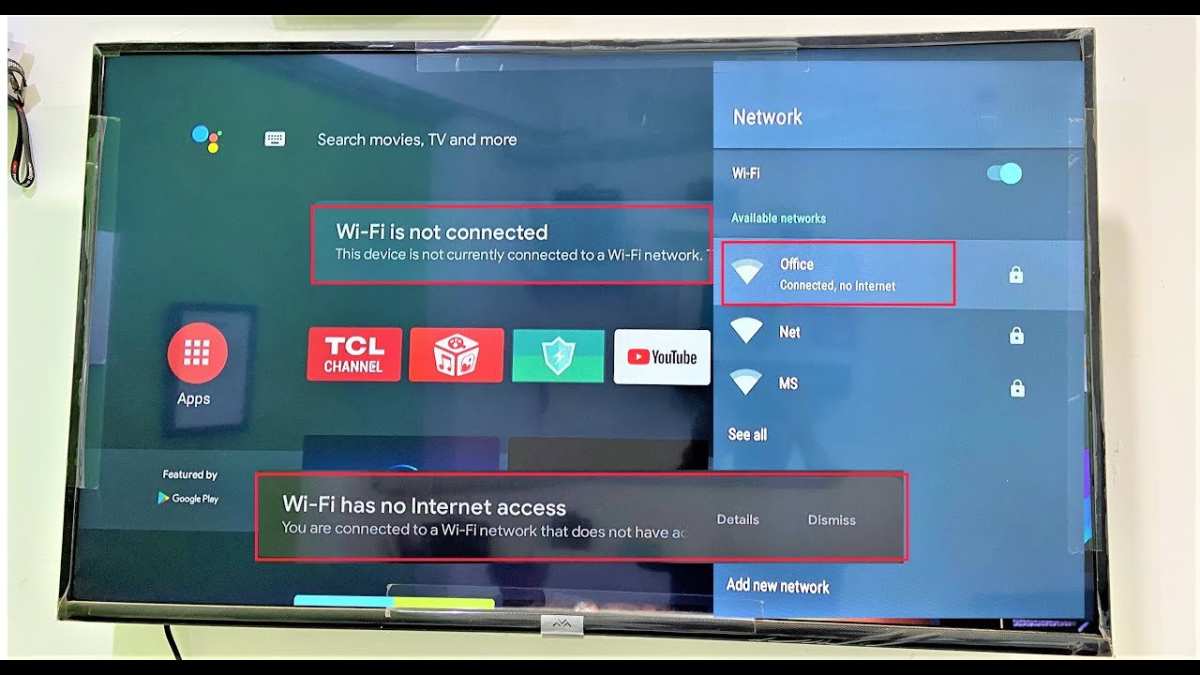
If your Android TV isn’t connecting to Wi-Fi, try restarting your router and reconnecting your device. **This often fixes minor hiccups.** When someone asks why doesn’t my Android TV connect to Wi-Fi, they usually overlook simple issues like signal strength or outdated software.
First, check your Wi-Fi settings and ensure your TV is within range. Sometimes, a quick restart of your TV or router solves the problem. If problems persist, updating your TV’s firmware can make a difference.

Why Doesn’t My Android TV Connect to WiFi?
When your Android TV refuses to connect to WiFi, it can be frustrating. You just want to watch your favorite shows or browse online, but your TV seems stubborn. There are many reasons why your Android TV might have trouble connecting to WiFi, and understanding these causes can help you fix the problem quickly. In this guide, we will explore all the common issues that can prevent your Android TV from connecting to WiFi and provide clear solutions for each.
Understanding the Causes of WiFi Connection Problems on Android TV
Before jumping into troubleshooting steps, it’s helpful to understand why your Android TV might not connect to WiFi. These problems generally fall into a few categories:
- Network issues: The WiFi network itself might be experiencing problems, such as being down or having a weak signal.
- Device-related problems: Your Android TV might have settings or software issues preventing a connection.
- Router problems: The WiFi router might have configuration issues, be overloaded, or have outdated firmware.
- Interference and obstacles: Physical barriers or electronic interference can weaken WiFi signals.
Identifying which category your problem falls into can help you choose the right troubleshooting approach.
Checking Your WiFi Network
The first step is to ensure your WiFi network is working properly. Sometimes, the issue isn’t with the Android TV but with the WiFi router or internet service provider.
Verify Your Internet Connection
– Use another device, such as a smartphone or laptop, to check if you can connect to the WiFi network and access the internet.
– If other devices also struggle to connect or browse, the problem lies with your internet service or router.
Restart Your Router
– Turn off the WiFi router.
– Unplug it from the power source.
– Wait for about 30 seconds to 1 minute.
– Plug it back in and turn it on.
– Wait until all lights stabilize, indicating the internet connection is active.
This simple step can resolve temporary glitches in your WiFi network.
Check for Service Outages
– Contact your internet service provider or visit their website to see if there are any reported outages.
– Sometimes, maintenance work or technical problems outside your home can disrupt WiFi.
Ensure Your Android TV Is Properly Connected to WiFi
Once your WiFi network is confirmed to work, check your Android TV settings.
Reconnect to WiFi
– Go to your Android TV’s home screen.
– Navigate to Settings > Network & Internet.
– Select WiFi, then choose your network again.
– Enter the password carefully, ensuring there are no typos.
Forget and Reconnect
– In the WiFi settings, select your network.
– Choose the option to Forget the network.
– Reconnect by selecting the network and entering your password anew.
This process clears outdated or corrupted network data that could cause connection issues.
Check Network Status
– Confirm that your Android TV recognizes your WiFi network.
– Ensure the signal strength is strong enough; weak signals can cause connection failures.
Troubleshooting Common Software and Settings Issues
Android TV software glitches or misconfigured settings can block WiFi connections.
Update Your Android TV Software
– Outdated software may contain bugs affecting connectivity.
– Navigate to Settings > About > Software Update.
– Follow prompts to install any available updates.
Keeping your device up to date ensures compatibility and security.
Reset Network Settings
– Go to Settings > Network & Internet > Reset Network Settings.
– Confirm the reset.
– Your TV will restart, and network settings will revert to default, allowing for fresh configuration.
Check for Interference
– Keep your Android TV away from electronic devices like microwave ovens, cordless phones, or other WiFi routers that can cause interference.
– Place your router in a central, open location to maximize signal strength.
Router and Network Configuration
If your TV still can’t connect, the problem might involve the router’s settings.
Change WiFi Channel
– Log in to your router’s admin panel.
– Locate wireless settings.
– Switch to a different WiFi channel to reduce interference from neighboring networks.
Adjust Security Settings
– Use WPA2 or WPA3 security protocols.
– Disable MAC address filtering temporarily to see if it’s blocking your TV.
Assign a Static IP Address
– Sometimes, DHCP assignments cause conflicts.
– Set a static IP address on your Android TV within your network settings.
Performing Hardware Checks and Resetting Your Devices
If software adjustments don’t work, hardware checks are next.
Check Your HDMI and Power Cables
– Ensure that your TV is properly powered.
– Disconnect and reconnect all cables to ensure they’re secure.
Perform a Factory Reset
– As a last resort, reset your Android TV to factory settings.
– Go to Settings > Storage & Reset > Factory Data Reset.
– Confirm and wait for the process to complete.
– Reconfigure your device from scratch.
Reset Your Router
– Use the reset button on your router.
– Hold it for 10-15 seconds to restore default settings.
– Reconfigure your network as needed.
Additional Tips for Maintaining a Stable WiFi Connection
Preventing future connection issues is easier when you follow some best practices:
- Position your router wisely: Place it in a central location, away from thick walls and electronic interference.
- Secure your WiFi: Use strong passwords and updated security protocols to prevent unauthorized access that can overload your network.
- Update firmware regularly: Keep your router’s firmware current for optimal performance and security.
- Limit device usage: Too many devices connected at once can slow down your WiFi, affecting your Android TV’s ability to connect reliably.
- Use a WiFi extender or mesh system: If your home has dead zones, these devices can improve overall coverage.
Summary of Key Troubleshooting Steps
Here’s a quick list to follow when your Android TV isn’t connecting:
- Verify your internet connection on other devices.
- Restart your WiFi router.
- Check for service outages.
- Reconnect or forget and reconnect WiFi network on your TV.
- Update your Android TV software.
- Reset network settings or perform a factory reset if needed.
- Adjust your router settings, change channels, or set static IPs.
- Ensure proper placement and interference minimization.
- Update router firmware and secure your network.
By following these detailed steps, you’ll have a better chance of resolving why your Android TV isn’t connecting to WiFi. Remember, patience and careful checking of each potential problem area often lead to the fastest fix. Connecting your Android TV back to WiFi doesn’t have to be complicated once you understand the common issues and how to troubleshoot them properly.
Frequently Asked Questions
How can I check if my Android TV’s Wi-Fi is enabled?
To verify if your Android TV’s Wi-Fi is turned on, go to the Settings menu, then select Network or Wi-Fi. Ensure the Wi-Fi toggle is switched on. If it is off, enable it and see if your TV connects to your preferred network. Sometimes, toggling the Wi-Fi off and on can resolve temporary connectivity issues.
What should I do if my Android TV is connected to Wi-Fi but still cannot access the internet?
If your TV connects to Wi-Fi but lacks internet access, restart your router and modem to refresh the connection. Check if other devices can access the internet through the same network. If they can but your TV cannot, try resetting network settings on your TV or perform a software update. Sometimes, network congestion or IP conflicts cause this problem.
How can I troubleshoot if my Android TV cannot find my Wi-Fi network?
Make sure your Wi-Fi network is active and broadcasting its SSID. Move your TV closer to the router to improve signal strength. Restart your TV and router to refresh network settings. If the network still doesn’t appear, check if your router uses a hidden SSID or has filtering enabled. In such cases, adjust your router settings to broadcast the network name or allow your TV to connect.
What steps can I take if my Android TV forgets saved Wi-Fi networks?
If your TV keeps forgetting saved Wi-Fi networks, it might be due to a software glitch. Restart your device and reconnect to your network by entering the password again. Check for available software updates for your TV and install any available updates. If the problem persists, perform a factory reset to restore default settings, but remember this will erase all custom configurations.
Why do I experience inconsistent Wi-Fi connectivity on my Android TV?
Inconsistent Wi-Fi performance can result from interference from other electronic devices, too many devices connected to the network, or outdated firmware. Try relocating your router to a more central location away from interference sources. Limit the number of devices using the network simultaneously. Also, check for firmware updates for both your TV and router, as updates often address connectivity issues.
Final Thoughts
Pourquoi ne pas connecter mon Android TV au WiFi peut frustrer l’utilisateur. Vérifiez d’abord si votre routeur fonctionne correctement et si votre TV est à portée. Parfois, un simple redémarrage de l’appareil et du routeur résout le problème. Si ces étapes échouent, assurez-vous que votre réseau WiFi n’est pas surchargé ou que les paramètres de sécurité sont corrects.
En résumé, pourquoi ne pas connecter mon Android TV au WiFi ? Ce problème peut résulter de diverses causes, comme des paramètres réseau ou une connexion instable. En vérifiant ces éléments, vous pouvez rapidement résoudre le souci.
