

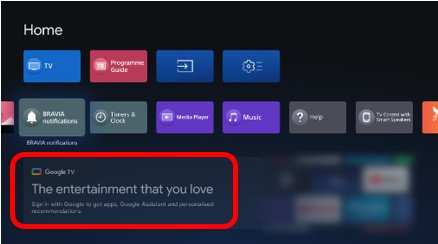
If you’re wondering how do you know if you have an android tv, the answer is often straightforward. **Look for the Android TV logo or interface on your screen.** If your remote has Google Assistant or you see the Google Play Store, chances are high it’s an Android TV. This device runs on the Android TV operating system, making navigation and app access easy. Checking these details helps you quickly identify if your television fits that category.

How Do You Know If You Have an Android TV
Understanding whether you own an Android TV isn’t always straightforward, especially if you aren’t familiar with the various brands and features. Many people buy smart TVs that look similar but operate differently. Knowing if your TV runs on Android can help you make the most of its features, explore apps, and troubleshoot issues more effectively. In this section, we’ll explore detailed ways you can identify if your television is an Android TV, along with some useful tips to help you verify its operating system easily.
Checking the Design and User Interface
One of the first clues about whether your TV is an Android TV comes from looking at its on-screen interface. Android TV has a distinctive user interface that differs from other smart TV platforms like Samsung Tizen, LG webOS, or Roku.
- Home Screen Layout: Android TVs typically display a clean, grid-like layout with rows of app icons. The interface is simple, with a menu bar at the top or side that includes Google Assistant, favorites, and settings.
- App Icons and Layout: Look for familiar Google-made apps such as YouTube, Google Play Movies, or Google Photos. These are pre-installed on Android TVs.
- Navigation Style: Android TV uses a navigation menu with a back button, home button, and voice search feature backed by Google Assistant.
If your TV’s interface resembles this description, chances are good that it runs on Android TV.
Checking the Settings Menu
Diving directly into your TV settings can give you concrete evidence of its operating system. Here’s what to do:
- Turn on your TV and press the “Settings” button on your remote control. This might be labeled as a gear icon.
- Navigate to the “About” or “Device” section within the Settings menu.
- Look for information like “Operating System,” “System Details,” or “Software Version.”
If you see mention of Android, Android TV, or Android OS, you’ve confirmed that your TV operates on Android. Sometimes, it will specify the version number, such as Android 9.0 or Android 10.
Identifying Through Remote Control Features
Most Android TVs come with remote controls that include specialized buttons for voice commands and Google Assistant, which can be a giveaway.
- Google Assistant Button: Look for a microphone or Google Assistant button, usually located at the top of the remote. Holding down this button allows you to ask questions or give commands directly to your TV.
- Voice Search: If your remote supports voice search, it’s a good sign that your TV is Android-based. Many Android TVs integrate seamlessly with Google services.
If your remote control has these features, then your TV most likely runs on Android TV.
Verifying Through App Availability and Google Play Store
Another reliable way to check involves exploring the apps installed or available on your device:
- Pre-installed Apps: Android TVs usually come with Google apps like Google Play Store, YouTube, Google Play Movies, Google Photos, and Google Assistant.
- Accessing the Google Play Store: If you can open the Google Play Store directly on your smart TV, it confirms you’re using Android TV. This app allows you to download a variety of entertainment and utility apps.
- App Compatibility: If your TV has a dedicated “Apps” or “Google Play” section, explore if it offers apps like Netflix, Spotify, or games compatible with Android TV.
If your device features these app options, it indicates the presence of Android TV.
Checking the Model Number and Manufacturer Information
Researching your TV’s model number is an effective way to identify if it’s an Android TV:
- Locate the Model Number: Usually found on the back of the TV or in the user manual.
- Search Online: Enter the model number into your preferred search engine along with keywords like “Android TV” or “smart TV operating system.”
- Official Manufacturer Website: Visit the manufacturer’s website to find product specifications. Brands like Sony, Philips, Sharp, and others often specify if the TV uses Android TV in the specs.
If your model is branded as an “Android TV” or “Google TV,” you’ve got your answer.
Understanding the Differences Between Android TV and Other Platforms
To further clarify, it helps to understand what distinguishes Android TV from other smart TV operating systems:
| Feature | Android TV |
|---|---|
| User Interface | Grid layout with Google services and Voice Search |
| Pre-installed Apps | Google Play Store, YouTube, Google Photos, Google Assistant |
| Remote Control | Often includes a dedicated Google Assistant button and voice support |
| Software Updates | Receives regular updates via Google |
| App Compatibility | Wide range of apps available through Google Play Store |
In contrast, other platforms like LG webOS or Samsung Tizen focus more on their branded app stores and may lack deep integration with Google services.
Using a Mobile App to Verify Your TV
Many Android TVs can be paired with compatible mobile apps for remote control and device management.
- Download the Google TV or Android TV Remote Control App: Available on both Android and iOS devices.
- Connect to Your TV: Ensure your phone and TV are on the same Wi-Fi network.
- Access the App: If the app recognizes and connects to your device, your TV likely runs Android TV.
This method not only helps you identify your device but also provides a smoother way to control it.
Wrapping Up
Finding out if your TV is an Android TV involves checking its user interface, settings, remote control features, app availability, and model information. Each of these steps provides clues that can confirm whether your television runs on Google’s smart platform. Remember, the more clues you gather, the clearer the picture becomes. With this knowledge, you can make the most of your TV’s features, troubleshoot more effectively, and enjoy a seamless entertainment experience. If you still have questions after following these steps, consulting the manufacturer’s website or user manual can give you extra guidance and certainty.
Frequently Asked Questions
What visual features distinguish an Android TV from other smart TVs?
Android TVs typically display a user interface with a Google TV or Android TV logo on startup, and their home screens feature app tiles arranged in a distinctive layout. You may notice the presence of the Google Play Store app, which allows you to download various apps. The interface is designed for easy navigation with a clean, customizable layout that emphasizes app icons and recommendations.
How can I identify the software version running on my TV?
Navigate to your TV’s Settings menu and look for options labeled “About,” “System,” or “Device Preferences.” There, you will find information about the software version. Android TV devices usually list something like “Android TV 11” or “Android 10,” indicating the operating system installed. If your TV’s menu shows Google TV instead of Android TV, it still runs on a version of the Android platform customized for televisions.
Are there physical indicators that suggest my TV runs Android TV?
Physical indicators include a dedicated Google Assistant button on the remote control, which is common with Android TVs. Also, Android TVs often have a sleek, minimalistic appearance with branding on the packaging or user manual stating “Android TV.” Additionally, some models have a Google Assistant or Chromecast logo printed on the TV frame or remote, pointing towards Android TV compatibility.
What remote control features can help identify an Android TV?
Remote controls for Android TVs typically include dedicated buttons for Google Assistant and Google Play Store. These buttons allow quick access to voice commands and app downloads. The remote might also feature a simplified layout with fewer buttons, emphasizing voice control and smart features, which are hallmarks of Android TV systems.
Can I tell if my TV is Android TV by checking for specific apps?
Yes, if your TV comes pre-installed with the Google Play Store app or Google Assistant, it likely runs on Android TV. You can also look for apps such as YouTube, Netflix, or Google Photos, which are common on Android TV. Opening the app drawer or the app menu usually reveals a suite of Google services and apps exclusive to the Android TV platform.
Final Thoughts
To determine if you have an Android TV, check the device’s interface and settings menu. If you see the Google Play Store and the Android TV home screen, you’re likely using an Android TV. You can also verify by searching for ‘Android TV’ in your device’s system info.
Knowing how do you know if you have an android tv helps tailor your entertainment setup effectively. Confirming these features ensures you can access your favorite apps and updates easily.
