

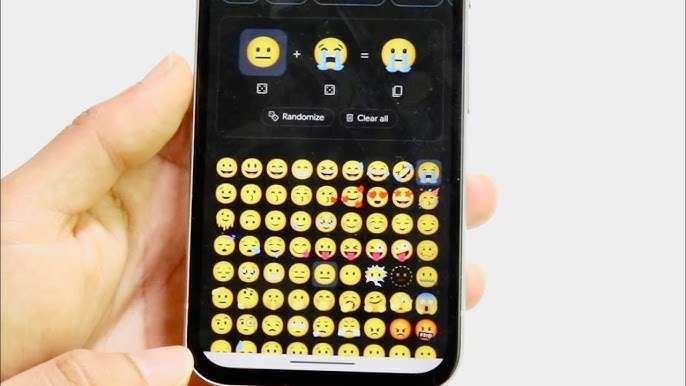
To make your own emoji for Android, start by using a customization app like Bitmoji or Emoji Maker. **This process is simple and quick, requiring just a few steps.** First, select or create your desired facial expression or design. Once finished, save your custom emoji and add it to your keyboard or messaging app. Knowing how to make your own emoji for Android makes messaging more personal and fun, giving your chats a unique touch. Just follow these easy steps, and soon you’ll have emojis that truly represent you.

How to Make Your Own Emoji for Android
Creating your own emoji for Android devices can be a fun and rewarding experience. Whether you want to express yourself more creatively, personalize your messages, or just enjoy the process, making custom emojis offers a way to stand out. In this guide, we’ll walk through each step carefully, giving you detailed tips and tricks to craft emojis that reflect your personality. From designing your emoji to adding it to your keyboard, this article covers everything you need for a personalized emoji experience on Android.
Understanding Why Custom Emojis Are Popular
Custom emojis are more than just images—they’re a reflection of your personality and mood. Unlike standard emojis, which are limited in expressions and styles, personalized emojis let you:
- Showcase specific emotions or inside jokes
- Create unique stickers that match your style
- Enhance your messaging experience with personal flair
- Share your creativity with friends and family
Using custom emojis also makes your conversations more lively and memorable. They provide an emotional connection and add fun to everyday chats.
Preparing Your Tools and Resources
Before starting, gather everything you need. Having the right tools makes the process easier and more enjoyable.
Device Requirements
- Android smartphone or tablet with internet access
- Enough storage space for new files and apps
- Good quality camera (if designing emoji from photos)
Apps Needed
To create and add custom emojis, you’ll need some apps. Here are popular options:
- Photo Editing Apps: Adobe Photoshop Express, PicsArt, or Canva
- Emoji Maker Apps: Bitmoji, ZMoji, or Sticker Maker
- Keyboard Apps for Custom Emojis: Gboard, SwiftKey, or AnySoftKeyboard
Pick the ones that fit your skill level and preferences. Many apps are free and user-friendly.
Other Necessary Resources
- High-quality images or drawings for your emoji design
- Patience to experiment with designs and edits
- Creative ideas—think about what expressions or themes you want
Designing Your Emoji: Step-by-Step
The heart of creating a custom emoji is designing it. Think of it as drawing or designing a small sticker that captures an emotion or idea.
Start with a Concept
Begin by deciding what your emoji will represent. Some ideas include:
- Happy face with sunglasses
- Excited or surprised expression
- Funny or silly character
- Personal symbol or inside joke
Sketch your idea on paper first or jump directly into your chosen design app.
Using Design Apps to Create Your Emoji
Follow these steps to make your emoji digitally:
- Open your preferred graphic design app (like Canva or PicsArt)
- Create a new canvas with a size of around 512×512 pixels—this size works well for emojis
- Use drawing tools, stickers, or upload images to craft your design
- Keep the background transparent to make your emoji versatile
- Refine your design by adjusting colors, outlines, and details
- Save your emoji as a PNG file with a transparent background for best results
Tips for Creating Eye-Catching Emojis
- Use bright, contrasting colors to make your emoji stand out
- Keep designs simple—avoid too many details that look cluttered at small sizes
- Experiment with expressions to convey different feelings
- Test how your emoji looks on different backgrounds by placing it over various colors
Converting Your Design into a Usable Emoji
Once your design is ready, it’s time to make it usable on your Android device.
Resizing and Exporting
Ensure your emoji image is:
- Resized to appropriate dimensions (512×512 pixels recommended)
- Saved as a PNG file to support transparency
Use image editing tools to crop or resize your image if necessary.
Creating Sticker Files
Because Android keyboards typically don’t support custom emojis directly, most users create stickers or images that can be shared as images.
– Use sticker maker apps like Sticker Maker for WhatsApp or similar
– Import your emoji PNG file into the app
– Follow the app’s instructions to cut out or finalize your sticker
– Save your sticker pack for use within messaging apps
Adding Your Emoji to an Android Keyboard
Some keyboard apps like Gboard or SwiftKey let you add custom images or stickers.
– For Gboard, tap on the emoji icon > sticker icon > plus (+) to add new stickers
– Select your saved emoji images
– Now, you can access your custom emojis directly from your keyboard during chats
Alternatively, you can also share your emojis as images in messaging apps manually by attaching them like regular pictures.
Using and Sharing Your Custom Emojis
Your new emojis can now be used in several ways:
- Insert directly into text messages or social media posts
- Share with friends by sending images or stickers
- Set as profile pictures or avatars for fun personalization
Remember, the more creative and personalized your emojis are, the more they stand out.
Tips for Maintaining and Updating Your Emoji Collection
Regularly updating your emoji collection keeps your messaging lively. Consider:
- Designing new emojis for holidays, birthdays, or special moments
- Asking friends for ideas or feedback
- Organizing your emojis into folders or packs for easy access
- Updating your apps and sticker packs to improve quality and features
Don’t hesitate to try different styles and themes to keep your emoji set fresh and engaging.
Exploring Advanced Customization Techniques
If you’re comfortable, you can explore more advanced methods:
Creating Animated Emojis
– Use apps like PicsArt or GIF Maker to create animated emojis
– Export as GIFs
– Use supported apps or keyboard features to send animated stickers
Using Emoji-Design Software
– Explore software like Adobe Illustrator for detailed vector-based emojis
– Import your designs into Android sticker apps
– Share across various platforms seamlessly
Integrating Emojis into Your Keyboard
– Customize your keyboard with third-party emoji skins and themes
– Create personalized emoji sets that match your style
– Use keyboard shortcuts or gestures for quick access to your emojis
Making your own emoji for Android may seem daunting at first, but by following these steps, you can create unique, expressive images that add personality to your messages. Whether you’re designing simple expressions or animated stickers, the key is to experiment and enjoy the process. Remember to keep your designs clear and vibrant, and use the right tools to bring your vision to life. With a little effort and creativity, your messaging app will become a reflection of your style and mood, making every conversation more fun and personal.
Frequently Asked Questions
What are some popular apps to create custom emojis on Android?
There are several user-friendly apps available for Android users to craft personalized emojis. Apps like Bitmoji allow you to create cartoon-style avatars that resemble you. ZMoji offers extensive customization options for emojis and stickers. Another option is Gboard, Google’s keyboard app, which features a built-in emoji creation tool, enabling you to design emojis directly within the keyboard. Each of these apps provides intuitive interfaces to help you design unique emojis easily.
How can I design emojis that resemble my facial features on Android?
To craft emojis that mirror your facial features, start by selecting an emoji creation app like Bitmoji or ZMoji. Use the customization tools to adjust facial shape, eye color, hairstyle, and accessories to match your appearance. Many apps offer real-time previews, so you can make precise adjustments until your avatar feels personalized. Save your design and use it across messaging apps to add a personal touch to your conversations.
Is it possible to incorporate custom images into my emojis on Android?
Yes, some apps let you add custom images or photos to your emoji creations. Apps like Emoji Maker or Personal Emoji enable you to upload pictures from your gallery and modify them into emojis. You can overlay accessories, change backgrounds, or add text to make each emoji unique. Always check app features to ensure they support image customization before starting your design process.
What techniques can I use to make my emoji creations more expressive?
To make your emojis more expressive, experiment with facial expressions, accessories, and backgrounds. Use exaggerated features like wide smiles or raised eyebrows to convey emotions effectively. Adding accessories such as glasses, hats, or jewelry can also enhance personality. Many apps offer stickers and effects that can make your emojis more lively. Play around with different styles to find what best captures your intended expressions.
How do I save and share my custom emojis on Android devices?
After completing your emoji design, most apps offer an option to save your creation directly to your device. Once saved, you can access these emojis from your keyboard or gallery. To share, open your messaging app and insert your custom emoji from the emoji keyboard or gallery. Some apps also provide options to export emojis as images or stickers, which you can send via social media, email, or messaging platforms.
Final Thoughts
Creating your own emoji for Android is simple and fun. Use a graphic design app or emoji maker tool to craft your unique designs. Save your creations in the correct format, like PNG, for compatibility.
Next, import your custom emoji into your device using apps or custom keyboards that support personalized emojis. Test them in messaging apps to ensure proper display.
In conclusion, how to make your own emoji for android involves designing, saving, and importing your creations effectively. Following these steps allows you to personalize your chats, making your conversations more fun and expressive.
