

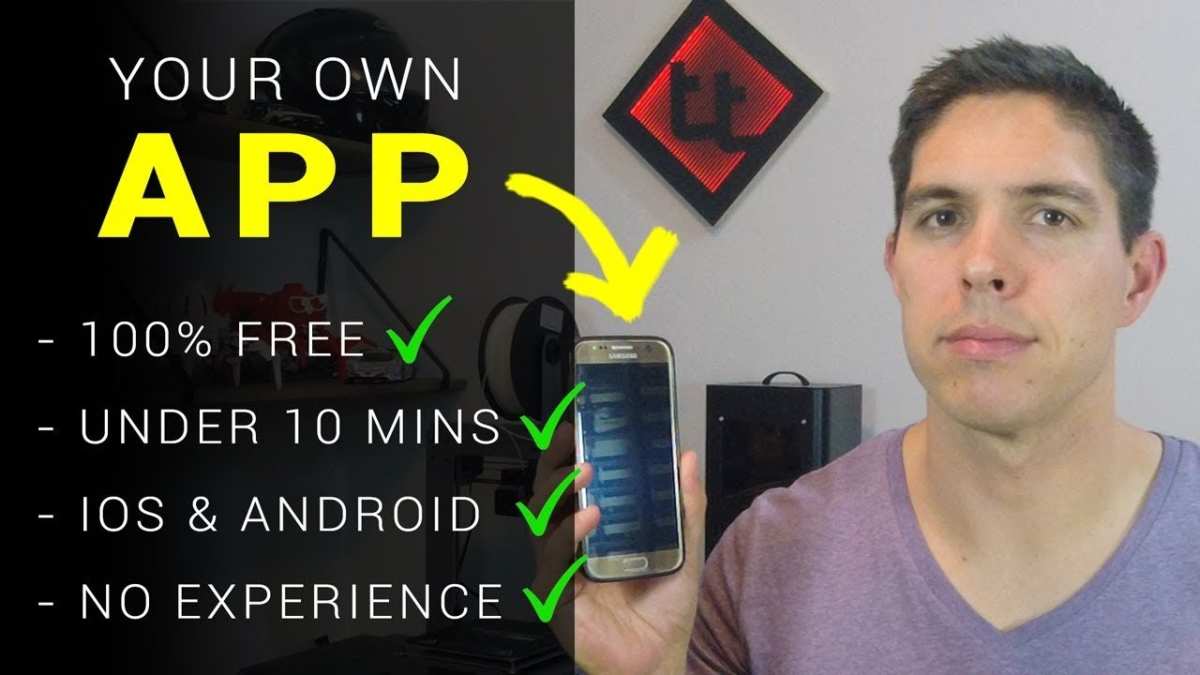
To make your own app for Android free, you just need the right tools and a bit of guidance. **Using free app builder platforms like MIT App Inventor or Thunkable makes the process simple and accessible.** These platforms let you create apps without coding experience, guiding you step-by-step.
Start by choosing a platform that suits your needs, then follow easy tutorials to design your app. Within a short time, you can have a fully functional Android app ready to go, all without spending a dime.

How to Make Your Own App for Android Free
Building your own Android app might sound complicated, but it’s actually easier than you think—especially when you know the right steps and tools. Whether you want to create an app for fun, a small business, or a hobby, making an Android app for free is possible with the right guidance. In this guide, we’ll walk through everything you need to understand, from planning your app to publishing it on the Google Play Store. Let’s get started!
Planning Your Android App
Before you jump into building, it’s important to plan your app thoroughly. Good planning helps you stay focused and avoid unnecessary work later. Here’s what to consider:
Identify Your App’s Purpose
Think about what your app will do. Ask yourself:
- What problem does my app solve?
- Who will use my app?
- What features do I want to include?
Clear goals make your app more effective and easier to design.
Sketch Your App’s Design
Draw simple layouts on paper or use digital tools. This helps you visualize:
- How screens will look
- Where buttons and menus go
- The flow from one screen to another
Planning the design early saves time during development.
Make a List of Features
Write down the main features your app needs. Focus on essential functions first, like:
- Login or registration
- Navigation menus
- Core activities (such as sending messages or viewing content)
Extra features can come later.
Choosing the Right Tools for Free App Development
Now that you have a plan, it’s time to pick tools that are beginner-friendly and free.
Android Studio: The Official IDE
Google’s Android Studio is free, powerful, and the most popular environment for developing Android apps. It’s suitable for beginners because:
- It’s officially supported by Google
- Contains built-in tools to design, code, and test apps
- Has a lot of tutorials and community support
Download Android Studio from the official website and follow the installation instructions.
Alternative App Builders
If coding sounds intimidating, try these free app builders:
- Thunkable
- MIT App Inventor
- Kodular
These tools use drag-and-drop interfaces, making app creation easier without coding experience.
Learning the Basics of App Development
Whether you choose Android Studio or a no-code builder, understanding some basics helps you create better apps.
Programming Languages
Android apps mainly use:
- Java: The traditional language for Android development
- Kotlin: The newer, more concise language supported by Google
No-code tools don’t require programming, but knowing some basics helps if you want more control.
Design Principles
Create user-friendly apps by:
- Using simple and clear layouts
- Ensuring buttons are easy to press
- Keeping the interface clean and uncluttered
Study Android’s Material Design guidelines for best practices.
Creating Your App Step-by-Step
Now, let’s get into the actual process of building your app.
Setting Up Your Development Environment
Start by installing Android Studio:
- Download Android Studio from official website
- Follow the setup instructions
- Create a new project with your app’s name and package name
Choose a template that best fits your app’s goals, such as “Empty Activity” to start from scratch.
Designing the User Interface
Use Android Studio’s Layout Editor:
- Drag and drop UI components like buttons, text boxes, and images
- Arrange elements according to your sketches
- Assign unique IDs to each component for referencing in your code
Experiment with different layouts like LinearLayout or ConstraintLayout to make your interface flexible.
Adding Functionality with Code
Write code to make your app interactive:
- Use Java or Kotlin to add actions to buttons (e.g., what happens when pressed)
- Connect your UI components with code using their IDs
- Test each feature using the built-in emulator or your Android device
Break down complex functions into smaller steps to avoid errors.
Testing Your App
Regular testing helps catch bugs early:
- Use the Android Emulator in Android Studio to simulate different devices
- Test on real devices by enabling developer options and connecting via USB
- Ask friends or family to try your app and give feedback
Make adjustments based on testing results.
Making Your App Ready for Launch
Once you’re happy with your app, it’s time to prepare it for release.
Optimizing Your App
Improve app performance by:
- Compressing images for faster loading
- Removing unused code and resources
- Testing for crashes and fixing bugs
Creating App Store Assets
Prepare for publishing:
- Design an attractive app icon
- Write a clear and engaging app description
- Take screenshots showing your app’s features
Generating a Signed APK
Android requires apps to be signed before publishing:
- Generate a keystore file in Android Studio
- Sign your app using the keystore
- Generate the final APK or App Bundle file
Publishing Your App on the Google Play Store for Free
Finally, you can share your app with the world.
Creating a Developer Account
– Sign up for a Google Play Developer account (a one-time fee of $25)
– Fill in your profile information
Uploading Your App
– Upload the APK or App Bundle file
– Add your app’s title, description, and screenshots
– Select appropriate categories and tags
– Review the policies and submit for review
Promoting Your App
Once published, promote your app by:
- Sharing links on social media
- Encouraging friends and family to download
- Updating your app regularly based on user feedback
Additional Tips for a Successful App
– Keep your app simple and focused
– Listen to user feedback to improve
– Regularly update your app with new features or fixes
– Use analytics tools to understand how users interact with your app
Creating an Android app for free is accessible when you follow these steps carefully. It doesn’t require big investments, and with commitment, you can create an app that others will enjoy. Remember, patience and practice are key. Keep experimenting, learning, and most importantly, having fun designing your own app!
Frequently Asked Questions
What are the best free platforms to develop an Android app without coding?
Several platforms allow you to create Android apps without any coding experience. Tools like MIT App Inventor and Thunkable provide drag-and-drop interfaces that simplify app development. These platforms offer pre-built components and templates, enabling you to design functional apps quickly and at no cost. Simply sign up, select a template or start from scratch, and customize your app according to your needs.
How can I incorporate unique features into my free Android app?
You can add special features by exploring the built-in modules offered by free app builders. Many platforms include options for integrating GPS, camera, notifications, and social media sharing. Additionally, you can utilize third-party plugins or APIs to extend your app’s capabilities further. Ensure that you understand the platform’s documentation to effectively customize and enhance your app’s functionalities.
What are the common steps to publish my free Android app on the Google Play Store?
First, create a developer account on the Google Play Console, which requires a one-time fee. Next, prepare your app for release by generating signed APK files and writing a compelling app description. Follow the submission guidelines for images, app details, and screenshots. After uploading your app, submit it for review, and once approved, your app will be available for download by users worldwide.
How do I ensure my free Android app adheres to Google Play policies?
Review the Google Play Developer Policy Center regularly to understand guidelines on user data, content, and functionality. Make sure your app does not contain prohibited content, respects user privacy, and handles data securely. Testing your app thoroughly before submission helps prevent policy violations and ensures a smooth approval process.
Can I modify my app after publishing without paying extra?
Yes, most app builders and Google Play allow you to update your app freely after publishing. You can add new features, fix bugs, or improve existing functionalities by submitting updates through your developer account. These updates are usually reviewed faster, enabling you to keep your app current and relevant for your users without additional costs.
Final Thoughts
Pour faire votre propre application Android gratuitement, commencez par choisir une plateforme de création d’app, comme MIT App Inventor ou Thunkable. Ces outils offrent une interface intuitive avec des fonctionnalités de glisser-déposer. Testez votre application sur un appareil Android ou un émulateur pour assurer sa performance.
En suivant ces étapes, vous pouvez créer une application Android gratuite rapidement et facilement. Ces plateformes simplifient le processus, même sans expérience en codage. Ainsi, si vous cherchez comment faire votre propre app for android free, ces options constituent une excellente solution.
