

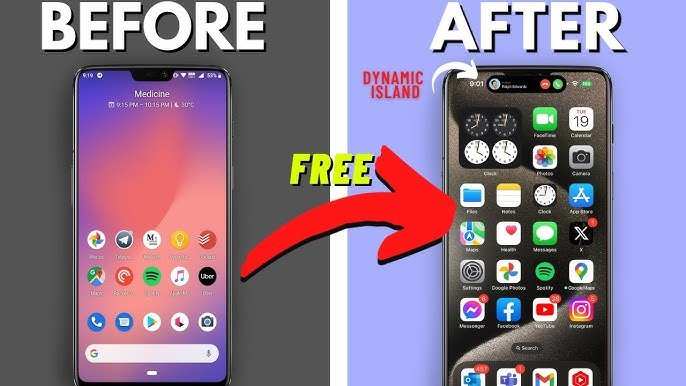
To switch from iPhone to Android seamlessly, you need to transfer your data and set up your new device properly. **The quick answer is to use the official transfer tools and backup options provided by both platforms.** Knowing how to make your iPhone to Android involves installing the right apps, backing up your information, and following a straightforward setup process. It might seem daunting at first, but with clear steps, you’ll be ready to switch without losing important files or contacts. This guide will walk you through each step to make your transition smooth and simple.

How to Make Your iPhone Turn Into an Android Device: A Complete Guide
Bringing the features and flexibility of Android to your iPhone might sound impossible at first. After all, Apple and Android are two different worlds, each with its own operating system and design philosophy. But with some patience and the right tools, you can make your iPhone behave more like an Android device. In this guide, we’ll explore various ways to give your iPhone an Android-like experience, from customizing the interface to installing Android-style apps.
Let’s dive into how you can transform your iPhone into a device that provides an Android feel without needing to replace hardware.
Understanding the Differences Between iPhone and Android
Before jumping into modifications, it’s important to grasp how iPhone and Android settings differ. Recognizing these differences helps you understand what’s possible and what isn’t.
- Operating System: iPhone runs on iOS, which is closed-source and strictly controlled by Apple. Android, on the other hand, is open-source, allowing for more customization.
- User Interface: iOS features a clean, uniform design, while Android offers diverse widgets, launchers, and customization options.
- File Management: iOS has a controlled file system, whereas Android allows exploring and managing files freely through file explorers.
- App Availability: Some apps are exclusive or optimized specifically for Android, limiting the ability to replicate certain functionalities.
Knowing these contrasts helps you set realistic expectations and choose the right methods for customization.
Customizing Your iPhone to Mimic Android’s Interface
One of the easiest ways to make your iPhone feel like an Android device is through interface tweaks. Since iOS doesn’t allow changing the launcher or home screen appearance without jailbreaking, you can instead use widgets, wallpapers, and app icons to craft a similar look.
Using Widgets for a More Dynamic Home Screen
Widgets are a core component of Android’s home screens. iOS also introduced widgets, but with limited customization options. Nevertheless, you can arrange widgets creatively to resemble Android’s layout:
- Select widgets like weather, calendar, and news that fit your style.
- Use third-party app widgets for more customization options.
- Organize widgets in folders or on different screens to mimic Android’s multi-page setup.
Changing Wallpapers to Match Android Themes
Android devices often feature vibrant and customizable wallpapers. To emulate this:
- Download high-quality wallpapers from websites or apps like Unsplash or Zedge.
- Use wallpapers that match Android’s aesthetic, such as colorful themes or nature images.
- Set different wallpapers for your lock screen and home screen for a more Android-like feel.
Rearranging Apps & Using App Icons
While iOS doesn’t let you replace app icons natively, you can use shortcuts to create custom icons that resemble Android app icons:
- Open the Shortcuts app and create new shortcuts.
- Select the app you wish to change and tap ‘Add to Home Screen.’
- Choose an icon image that looks like an Android app icon.
- Save and place the new icon on your home screen.
This method allows you to pair icons with Android-style images, making your interface look more familiar.
Installing Third-Party Apps to Enhance Android-Like Features
iOS limitations mean you cannot replace core system functions like the launcher or settings menus, but third-party apps can add Android-like capabilities.
File Management and Explorer Apps
Android allows users to browse and manage files freely, but iOS restricts this. You can, however, use file explorer apps that provide similar features:
- Documents by Readdle
- Files by Apple (improved in recent iOS versions)
- FileBrowser
These apps let you access shared folders, cloud storage, and manage files more flexibly.
Launcher & Customization Apps
While you cannot install custom launchers on iOS, some apps approximate this functionality:
- Widgetsmith: Create custom widgets that resemble Android tiles.
- Home Screen Widgets: Use apps that allow adding dynamic and interactive widgets.
Remember, these apps work within iOS restrictions but still help mimic an Android-style interface.
Using Emulators and Android Apps on Your iPhone
To run Android apps directly on your iPhone, you need to use specialized emulators or sideloading solutions, which require more technical steps.
Understanding Emulators and Side-loading
Emulators mimic the Android environment within iOS, allowing you to run Android apps. Side-loading involves installing Android APK files directly onto your device, which is complex due to Apple’s restrictions.
Popular Methods & Tools
- Emulators: Apps like iAndroid or Cider (though limited and often requiring jailbreaking).
- Jailbreaking: Tinkering with the device to bypass restrictions, enabling third-party app installation, but voids warranty and poses security risks.
- Alternative Solutions: Use cloud-based Android emulators accessible via your browser, such as Appetize.io, to run Android apps without jailbreaking.
Keep in mind that these methods often come with limitations regarding performance and stability.
Jailbreaking Your iPhone to Get Android Features
Jailbreaking unlocks deeper customization options, including installing Android-style launchers and modifying system files. However, this process has risks:
- Voids your warranty and may brick your device if not done correctly.
- Potential security vulnerabilities.
- Requires technical knowledge and can lead to instability.
If you decide to pursue jailbreaking, research thoroughly and follow trusted guides.
Using Cloud Services and Cross-Platform Apps
To sync data easily and mimic Android’s seamless sharing features, use cloud services:
- Google Drive and Google Photos for files and media.
- Gmail, Google Calendar, and Google Keep for productivity.
- Third-party messaging apps like WhatsApp, Signal, or Telegram for communication.
These help create a cross-platform workflow, making your iPhone function more like an Android device in daily use.
Summary of Key Steps to Make Your iPhone More Android-Like
| Category | Action |
|---|---|
| Interface Customization | Use widgets, change wallpapers, recreate app icons with shortcuts |
| Apps & Features | Install third-party file explorers, widget apps, and custom icon packs |
| Running Android Apps | Explore emulators, cloud-based solutions, or jailbreaking (with caution) |
| Data Management | Use Google services for seamless multi-platform syncing |
Transforming an iPhone into an Android-like device requires a mix of aesthetic tweaks, third-party apps, and technical solutions. While you cannot fully replicate all Android features without jailbreaking, these tips help make your iPhone’s user experience more familiar and versatile.
Remember, aim for gradual changes rather than trying to overhaul your device all at once. This way, you enjoy the process and customize your device to suit your needs without risking stability or security.
Frequently Asked Questions
How can I transfer my data from an iPhone to an Android device?
To transfer your data, use the official Android Data Transfer tool or a third-party app like Google Drive or Move to Android. Ensure both devices are connected to Wi-Fi, then follow the app’s instructions to transfer contacts, photos, videos, and other files seamlessly. Back up your iPhone data beforehand to avoid any loss during the process.
What steps should I follow to set up my Android phone after switching from iPhone?
Start by powering on your Android device and connecting to Wi-Fi. Sign in with your Google account to sync contacts and apps. Follow the setup wizard to customize your preferences, download necessary apps from the Google Play Store, and restore backed-up data. Make sure to disable iMessage on your iPhone to prevent missing messages.
Are there any specific apps I need to replace or find alternatives for when switching from iPhone to Android?
Yes, some apps exclusive to iOS, like iMessage or FaceTime, do not work on Android. Find alternative messaging apps such as WhatsApp or Google Messages. For services like Apple Music or iCloud, switch to their Android-compatible versions or use similar apps like Spotify or Google Photos to access your media and backups.
How do I ensure my contacts and calendar events transfer correctly from iPhone to Android?
Sync your contacts and calendar with your iCloud account, then export them to a compatible format like vCard or CSV. Import these files into your Google Account via the web or the Android setup process. This approach ensures all your contacts and events appear correctly on your new device.
What should I do if my messages do not transfer when switching from iPhone to Android?
Since iMessage does not transfer to Android, disable iMessage on your iPhone before switching. Contact Apple Support to deregister iMessage if necessary. Use messaging apps like WhatsApp or Google Messages for SMS and ensure you have backed up your messages if possible. This prevents messages sent from iPhone users from going missing.
Final Thoughts
To make your iPhone to Android, start by backing up your data with a cloud service or local transfer. Use migration apps designed for cross-platform data transfer to simplify the process. Adjust your settings and reinstall necessary apps on your new Android device.
In conclusion, the key to making your iPhone to Android lies in careful data transfer and setup. Following these steps ensures a smooth switch, making the transition seamless.
