

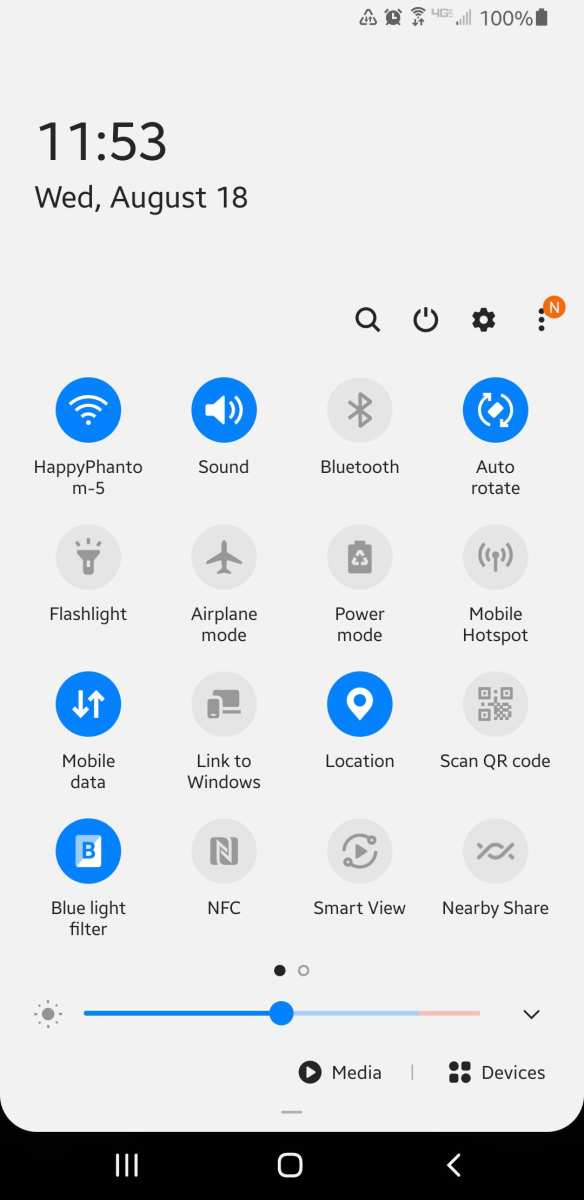
To make your Android screen rotate, you simply need to enable auto-rotate in settings. **You can quickly do this by flipping down the notification shade and tapping the auto-rotate icon.** If you prefer a more permanent fix, go to Settings > Display > Auto-rotate screen and turn it on. Knowing how to make your Android screen rotate helps you enjoy videos or use your device in different orientations effortlessly. Adjusting this feature takes just a few taps, making your experience more flexible and comfortable.

How to Make Your Android Screen Rotate
When you’re using your Android device, sometimes the screen can stay in one position no matter how much you turn your phone or tablet. If you want your screen to adjust automatically or control when it changes, it’s helpful to understand how screen rotation works and how to customize it to fit your needs. In this guide, we will explore different ways to make your Android screen rotate smoothly and easily. Whether you want to enable automatic rotation, lock your screen in one position, or troubleshoot common problems, this article will give you all the information you need.
Understanding Screen Rotation on Android Devices
Before diving into the steps, it’s good to know what screen rotation is and why it matters. When you rotate your Android device, the screen orientation can change from portrait (vertical) to landscape (horizontal). This feature is especially useful when watching videos, playing games, or navigating maps. android devices have built-in sensors called accelerometers that detect how you hold your device and adjust the display accordingly.
However, some users prefer to keep their screens fixed in one orientation for convenience or to avoid accidental rotations. Knowing how to control this setting allows you to enhance your device’s usability and enjoy a better experience.
How to Enable or Disable Auto-Rotate on Your Android Device
The most common way to control screen rotation is through your device’s quick settings menu. Here is a simple step-by-step process:
Using Quick Settings
- Unlock your Android device and pull down from the top of the screen to reveal the quick settings menu.
- Look for the icon labeled “Auto-rotate” or “Rotation.” It often looks like a phone with rotating arrows around it.
- If the icon is highlighted or colored, auto-rotate is enabled. Tap on it to disable auto-rotate if you want your screen to stay in one position.
- If the icon is grayed out or shows “Rotation off,” tap it once to turn on auto-rotate so your screen will rotate automatically when you turn your device.
This method works on most Android devices, but the exact icon or placement might vary slightly depending on your manufacturer or Android version.
Using Settings Menu
If you prefer to access detailed options or want to set auto-rotation permanently, follow these steps:
- Open the Settings app on your Android device. You can find it in your app drawer or on the home screen.
- Scroll down and tap on “Display” or “Screen,” depending on your device’s menu structure.
- Look for an option called “Auto-rotate screen” or “Rotation.” The wording may differ, but it generally describes auto-rotation settings.
- Toggle the switch to “On” or “Off” based on your preference. Turning it on will allow the screen to rotate automatically, while turning it off will lock the current orientation.
Remember, on some Android versions, this setting might be located within a different submenu or under advanced display options.
Locking Your Screen in Portrait or Landscape Mode
If you don’t want your screen to rotate automatically, you can lock it in portrait or landscape mode. Locking the screen prevents accidental rotations when you tilt the device or change how you’re holding it.
Using Quick Settings for Locking
- Pull down the quick settings menu from the top of your device.
- Find the “Auto-rotate” icon and ensure it is turned off (gray or unchecked).
- Look for a “Portrait” or “Landscape” lock icon, often labeled as “Screen rotation lock” or simply a padlock with rotation arrows.
- Tap this icon to lock your current screen orientation. Your screen will stay in this mode until you unlock it again.
Locking Screen Orientation in Settings
If you want to keep your screen fixed in one orientation all the time:
- Open the Settings app.
- Navigate to “Display” or “Screen” settings.
- Find “Auto-rotate screen” and turn it off.
- If your device has an option called “Rotation lock” or “Lock in portrait/landscape,” enable it.
With this setting enabled, even if you turn your device, the screen remains in the same orientation.
Using Third-Party Apps to Control Screen Rotation
Sometimes, the built-in options aren’t enough, and you want more control over how your device rotates. Several third-party apps can help you customize rotation behavior even further.
Popular Rotation Control Apps
- Rotation Control
- Ultimate Rotation Control
- Rotation Manager
How to Use a Rotation Control App
- Download and install a rotation control app from the Google Play Store.
- Open the app and grant any necessary permissions.
- Configure your preferred rotation modes. Many apps allow you to set specific orientations for different apps or switch between automatic and locked modes easily.
- Activate the rotation control as per the app instructions. Many apps provide a quick toggle in the notification panel or a floating button for easy access.
Apps can provide additional features like rotating only in certain apps, setting custom rotation shortcuts, or creating profiles for different situations.
Troubleshooting Common Screen Rotation Issues
Even when you set everything properly, you might experience problems with screen rotation. Here are some common issues and how to fix them:
Screen Not Rotating When Toggled
- Ensure auto-rotate is enabled in both the quick settings and the device settings.
- Check if your device is in “Do not disturb” mode or battery saver mode, which might restrict rotation.
- Restart your device to refresh the system settings.
Orientation Changes Too Slowly or Not Smoothly
- Update your device to the latest Android version.
- Clear cache of the display or sensor-related apps.
- Check if your device’s sensors are working properly using diagnostic apps or settings.
Rotation Locks or Settings Not Saving
- Reset your device’s settings if needed or perform a factory reset after backing up important data.
- Ensure no third-party app is overriding your settings.
Enhancing User Experience with Proper Rotation Settings
Setting your device to rotate correctly can make a big difference in how you use your Android device. Watching videos, browsing photos, gaming, or navigating maps becomes more comfortable when the screen adjusts naturally. Customizing your rotation preferences also helps conserve battery life and prevents accidental changes.
Avoiding frustration of a frozen or unresponsive screen rotation can be as simple as knowing where to find the toggle switches and understanding your device’s options. Always keep your device updated, and consider using trusted third-party apps if you want more advanced control.
By following these detailed steps, you can easily control when and how your Android screen rotates, making your device more suited to your personal preferences and daily activities.
Frequently Asked Questions
How can I enable automatic screen rotation on my Android device?
To enable automatic screen rotation, swipe down from the top of your screen to access the quick settings panel. Look for the icon labeled “Auto-rotate” or “Rotation” and tap it to turn it on. When enabled, your screen will automatically rotate based on how you hold your device.
What should I do if the screen does not rotate even after enabling auto-rotate?
If the screen doesn’t rotate, check whether the auto-rotate option is active in the quick settings panel. Also, go to your device’s Settings > Display and ensure that the “Auto-rotate screen” option is turned on. Restart your device if necessary, as this can resolve minor software glitches.
How can I manually lock the screen orientation on my Android device?
To manually lock the screen orientation, open the quick settings panel by swiping down from the top of your screen. Tap the “Auto-rotate” icon to disable it. When auto-rotate is off, your screen stays in the current orientation until you change it again manually.
Is there a way to customize orientation settings for specific apps?
Yes, some Android devices allow you to set individual orientation preferences for certain apps. Navigate to Settings > Apps & notifications > Advanced > Special app access or App permissions. Select the app you want to customize, then adjust its orientation settings if the option is available. Alternatively, use third-party apps that provide more detailed orientation controls for specific applications.
Final Thoughts
To make your android screen rotate, start by accessing the settings menu. Locate the display section and toggle the auto-rotate option on. This allows your screen to switch orientation based on how you hold your device.
Additionally, you can enable rotation from the quick settings panel for quick access. Ensure your device’s rotation feature isn’t disabled in the device’s orientation lock.
How to make your android screen rotate is simple with these steps; just enable the auto-rotate feature, and your device will automatically adjust.
