

To stop your Android phone from vibrating when typing, simply turn off the vibrate option in your settings. If you want to know how to make your Android phone stop vibrating when typing, the process is quick. You just need to access your device’s sound settings and disable the haptic feedback.
Once you find the setting, toggle off the vibration for keyboard feedback. It’s a simple adjustment that improves your typing comfort. No need for complicated steps—just a few taps and you’re done.

How to Make Your Android Phone Stop Vibrating When Typing
When you’re busy typing away on your Android phone, the constant vibrations can become annoying or distracting. Whether you’re working on a message, note, or filling out a form, those haptic feedback signals might be more of a nuisance than a help. Thankfully, turning off or adjusting these vibrations is simple and quick. This guide will walk you through various ways to make your Android phone stop vibrating when typing, ensuring a smoother and more comfortable user experience.
Understanding Why Your Android Phone Vibrates During Typing
Before diving into the solutions, it helps to understand why your Android device vibrates as you type. Generally, this feature is designed to give you tactile feedback, confirming that you’ve pressed a key. It can help to improve typing accuracy for some users, but for others, it feels unnecessary or even annoying.
Most Android phones use the following settings related to typing vibrations:
- Haptic feedback for the keyboard
- System-wide vibration settings for touch interactions
- Notification vibrations that might interfere during typing
Knowing which setting controls this feature helps you target the right area for adjustments.
How to Disable Vibrations for Keyboard Feedback
The most common reason your phone vibrates when typing is because of the keyboard’s haptic feedback setting. Here’s how to turn it off:
For Gboard (Google Keyboard)
Gboard is among the most popular keyboards on Android, and it offers straightforward ways to disable vibration:
- Open the Gboard app or navigate to Settings on your phone and select “Languages & Input” or “System.”
- Tap on “Keyboard” or “On-screen keyboard.” Then, choose “Gboard.”
- Scroll down and select “Preferences.”
- Look for the “Vibrate on keypress” option and toggle it off.
- Some versions also include “Sound on keypress.” Feel free to disable that if you prefer complete silence.
For Samsung Keyboard
If you use Samsung’s default keyboard:
- Open Settings on your Samsung device.
- Scroll down and select “General management.”
- Tap on “Keyboard list and default.”
- Select “Samsung Keyboard.”
- Go to “Style and Layout” or “Key-tap feedback.”
- Disable “Vibration” or “Vibrate on keypress.”
For Other Keyboards
If you use a different keyboard app, the process will be similar:
- Open the keyboard app directly from your app drawer or settings.
- Look for “Preferences” or “Settings.”
- Find options related to “Vibration” or “Haptic Feedback.”
- Toggle off the vibration feature.
**Tip:** Remember, some keyboards may combine sound and vibration feedback under the same setting, so turning off one may be necessary to completely disable feedback.
Adjusting System-Wide Vibration Settings
If your device still vibrates during typing after disabling keyboard feedback, the next step is to check overall vibration settings.
Using Settings Menu
Follow these steps:
- Open your device’s Settings app.
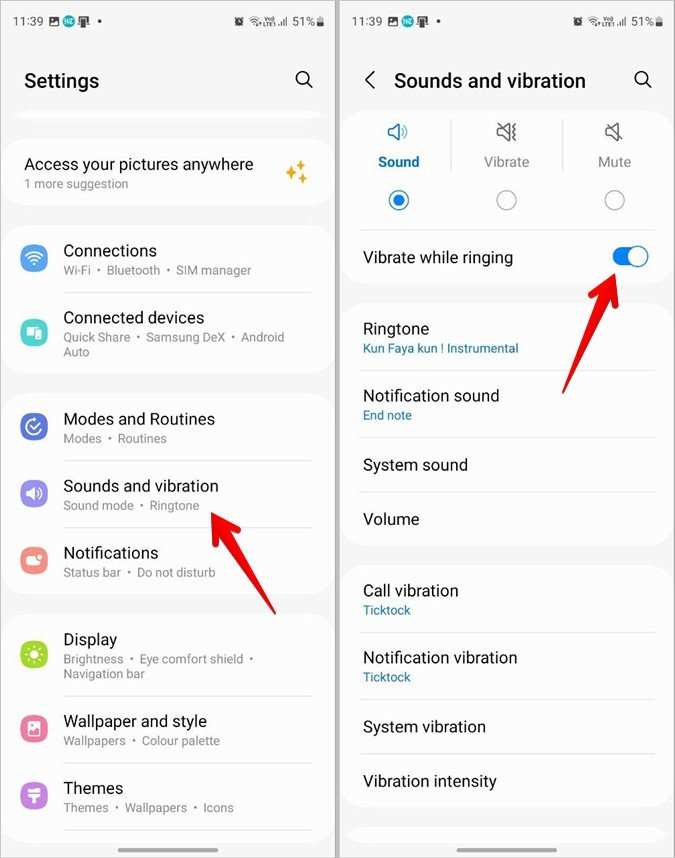
- Navigate to “Sound & Vibration” or “Sound.”
- Tap on “Vibration” or “Vibration intensity.”
- Find “Vibration feedback” or “Vibration during interactions,” and turn it off.
- If available, adjust the vibration intensity slider to zero for a complete stop.
Disable Haptic Feedback for Touch
Some Android versions have a dedicated setting for haptic feedback that covers all touch interactions:
- Access Settings > Sound & Vibration.
- Tap on “Vibration & Haptics” or “Haptic feedback.”
- Toggle off “Haptic feedback” for touch interactions.
**Note:** Disabling these settings will stop vibrations not just during typing but also during other touch interactions like tapping icons or buttons.
Turning Off Notification Vibrations
Sometimes, vibrations during typing can be confused with notification vibrations. To ensure this isn’t the case, check notification settings:
Disable Vibration for Notifications
- Navigate to Settings > Sound & Vibration > Notification sounds.
- Look for “Vibration” or “Vibration on notification.”
- Turn off this feature to prevent vibrations from notifications interfering during typing.
**Tip:** Adjust your notification settings based on individual apps if you wish to keep some vibrate alerts active while disabling others.
Using Do Not Disturb Mode to Stop All Vibrations
If you want a quick way to stop all vibrations temporarily:
- Swipe down from the top of your screen to access quick settings.
- Tap on “Do Not Disturb” or “DND.”
- Enable “Vibration” if it’s turned on, or disable vibrations entirely.
- When you want to resume vibrations, turn off Do Not Disturb mode.
**Note:** This method is useful if you want silence and no vibrations during meetings, sleeping, or other quiet times.
Third-Party Apps to Manage Vibrations
If you find your device’s built-in options limited or want more control:
- Search for vibration control apps on the Google Play Store. These apps can give you detailed settings and schedules, so vibrations only occur when desired.
- Be cautious when downloading third-party apps—check reviews and permissions to ensure security.
- Examples include “Vibration Notifier” or “Vibration Control.”
Additional Tips for a Quieter Typing Experience
Besides disabling vibrations, consider these tips:
- Switch to a keyboard with silent or softer keypress feedback.
- Use a physical keyboard case or external Bluetooth keyboard if you frequently need silent typing.
- Adjust screen brightness and disable sounds for a more comfortable overall experience.
- Explore custom settings within your device’s manufacturer interface for advanced vibration controls.
Vibrations when typing on your Android device can be a helpful feature, but they are often more of a distraction. By following the steps detailed above, you can easily turn off vibrations for your keyboard, system interactions, notifications, or altogether using modes like Do Not Disturb. Whether you prefer a completely silent experience or just want to reduce annoyances, customizing your settings ensures your device works the way you want it to. Take a moment to explore your device’s settings, and you’ll enjoy a quieter, more focused typing experience.
Frequently Asked Questions
How can I disable haptic feedback for keyboard typing on my Android phone?
You can turn off haptic feedback by navigating to Settings > Sound & Vibration > Advanced > Accessibility > Haptic Feedback and then disable the toggle. This stops the phone from vibrating every time you press a key on your keyboard.
Is there a way to stop your Android device from vibrating during text input without affecting other notifications?
Yes, you can disable only the keyboard vibrations. Go to Settings > Sound & Vibration > Keyboard Settings and turn off the vibration option for your current keyboard app. This will prevent vibrations during typing while keeping other vibrations active.
How do I change keyboard settings to eliminate vibration feedback on my Android phone?
Open your keyboard app’s settings—often accessible via long-pressing the comma or gear icon on the keyboard—and look for vibration or feedback options. Disable the vibration feature to prevent the phone from vibrating when you type.
Can I disable vibrations for specific apps on my Android device?
Some Android phones allow you to control app-specific notifications, but vibration settings for typing are usually managed system-wide. To prevent vibrations while typing in specific apps, adjust the keyboard or input method settings within that app or disable vibrations globally as described earlier.
What steps should I follow to reduce overall vibration activity on my Android device besides keyboard feedback?
Go to Settings > Sound & Vibration and adjust the vibration intensity sliders or disable vibrations entirely for calls, notifications, or system alerts. These adjustments can help minimize unwanted vibrations across your device while maintaining necessary notifications active.
Final Thoughts
To make your android phone stop vibrating when typing, start by heading to your device settings. Navigate to sound and vibration options, then find the vibration feedback or haptic feedback settings. Turn off the toggle for keyboard vibrations to prevent your phone from vibrating during typing sessions.
Alternatively, open your keyboard app’s settings directly and disable haptic feedback there. This quick change ensures a quieter typing experience.
In conclusion, knowing how to make your android phone stop vibrating when typing helps create a more comfortable environment, especially in quiet settings.
