

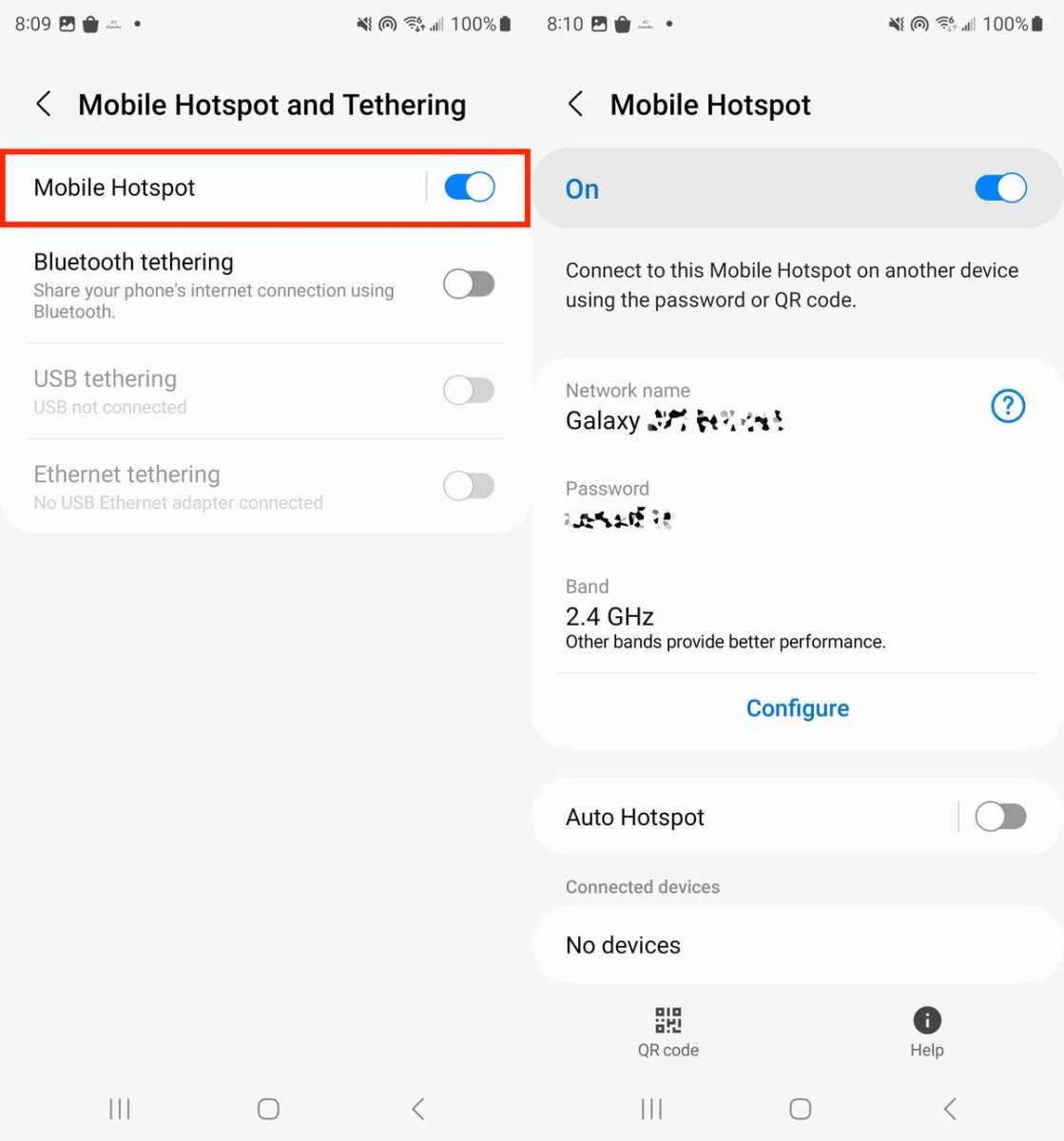
To turn your Android phone into a hotspot, you simply enable the built-in feature through your device settings. **Just go to your Settings, select Network & Internet, then Hotspot & Tethering, and toggle on Wi-Fi Hotspot.** It’s a quick process that provides internet access for other devices.
Once activated, you can customize your hotspot name and password to keep your connection secure. No extra apps are necessary, making it an easy solution whenever you need a mobile internet connection.

How to Make Your Android Phone into a Hotspot
Making your Android phone function as a hotspot can be a real lifesaver when you need to connect other devices to the internet. Whether you’re traveling, facing Wi-Fi issues, or just want to share your connection, turning your Android into a hotspot is straightforward. Let’s explore the step-by-step process, essential tips, and things to keep in mind to use your device’s hotspot feature effectively.
Understanding the Basics of Android Hotspot
Before diving into how to set up a hotspot, it’s good to understand what it actually does. When you activate your Android phone’s hotspot feature, your device acts like a mini Wi-Fi router. It creates a wireless network that other devices – such as laptops, tablets, or even other phones – can connect to for internet access.
Some key points to remember:
- Your Android phone uses its data plan to provide internet to other devices.
- The hotspot consumes data from your mobile plan, so keep an eye on your usage to avoid extra charges.
- The connection speed depends on your mobile network signal strength and data plan specifications.
Preparing Your Android Phone for Hotspot Use
Before turning your phone into a hotspot, ensure it’s ready:
- Check your data plan: Make sure your plan allows hotspot usage and that you have enough data left.
- Charge your device: Hotspot sharing can drain your battery quickly, so connect your phone to a charger if possible.
- Update your software: Use the latest Android version to access all hotspot features without issues.
- Secure your connection: Set a strong password to prevent unauthorized access to your hotspot.
Step-by-Step Guide to Enable Hotspot on Android
Enabling the hotspot feature on your Android device is simple. Follow these steps:
Accessing the Hotspot Settings
- Open the Settings app on your Android device.
- Look for options labeled Network & Internet or Connections. Tap on it.
- Find and select Hotspot & Tethering or Mobile Hotspot & Tethering.
Activating the Mobile Hotspot
- Tap on Mobile Hotspot or Wi-Fi Hotspot option.
- Toggle the switch to turn it on. Your device will now broadcast a Wi-Fi network.
Configuring Your Hotspot Settings
- Once activated, tap on Hotspot & Tethering to access more options.
- Set or change your network name (SSID). Choose something recognizable so you can easily identify your network.
- Create a strong password. Use a mix of letters, numbers, and symbols for security.
- If available, select the Security Type (preferably WPA2 or WPA3).
- Adjust the maximum number of devices that can connect simultaneously if this option is available.
Connecting Devices to Your Android Hotspot
Now that your hotspot is active, connecting other devices is straightforward:
- On the device you want to connect, go to its Wi-Fi settings.
- Look for the network name (SSID) you set earlier.
- Select the network and enter the password you created.
- Once connected, the device will have internet access via your Android phone.
Managing Your Hotspot Connection Effectively
To keep things smooth and safe, follow these tips:
- Monitor data usage: Keep track of how much data your hotspot consumes, especially if on a limited plan.
- Limit connected devices: Too many devices can slow down your network. Set the maximum connection limit if possible.
- Turn off hotspot when not in use: To save battery and data, disable the hotspot when you don’t need it.
- Secure your network: Never leave your hotspot open without a password, as it invites unauthorized users.
Advanced Hotspot Options and Troubleshooting
In some cases, you might want to explore additional options or troubleshoot issues:
Changing Band Settings (2.4 GHz vs. 5 GHz)
Some Android devices allow you to select the Wi-Fi frequency band. Using the 5 GHz band can provide faster speeds but may have less range.
Setting Data Limits
Configure data limits within your device’s settings to avoid exceeding your data plan. Look for options in Network & Internet > Data Usage.
Common Problems and Solutions
- Other devices cannot connect: Double-check your password and network name. Restart your hotspot or device if needed.
- Slow internet speed: Move closer to your device or check your cellular signal strength.
- Battery draining too fast: Connect your phone to a charger during hotspot use.
- Hotspot not turning on: Restart your device or update your Android version for bug fixes.
Hotspot Security Tips to Protect Your Network
It’s crucial to keep your hotspot safe from unauthorized access:
- Use a complex password: Avoid common passwords like ‘1234’ or ‘password’.
- Change your password regularly: Especially if you notice unknown devices connected.
- Disable hotspot when not in use: Prevent accidental sharing or security breaches.
- Enable network encryption: Always use WPA2 or WPA3 security protocols.
Using Data Wisely When Sharing Internet
Since your hotspot consumes your data plan, be mindful to avoid overage charges:
- Limit the number of connected devices: Fewer devices using your hotspot help conserve data.
- Monitor data usage regularly: Use your phone’s built-in data tracker or third-party apps.
- Prioritize essential activities: Avoid streaming high-definition videos or downloading large files unless necessary.
- Set data alerts: Some Android devices allow you to set notifications when you reach certain data thresholds.
Tips for Better Hotspot Performance
To get the most out of your Android hotspot, follow these simple tips:
- Place your phone somewhere open: Keep it in an open space to improve signal strength.
- Use the 5 GHz band: For faster speeds, if your device supports it.
- Limit background activities: Close unnecessary apps that use data on your phone to free up bandwidth.
- Update your device’s software: Keep your Android OS current for the latest features and fixes.
Turning your Android phone into a hotspot is a practical way to stay connected when you need internet on multiple devices. With the right setup and management, you can share your data securely and efficiently, making your mobile device a portable Wi-Fi router wherever you go.
Frequently Asked Questions
What steps should I follow to enable my Android device as a Wi-Fi hotspot?
To set up your Android phone as a Wi-Fi hotspot, go to the Settings app, then select Network & Internet or Connections. Tap on Hotspot & Tethering, then choose Wi-Fi Hotspot. Toggle the switch to turn it on. You can customize the network name (SSID) and password for your hotspot in the hotspot settings. Once activated, other devices will be able to connect using the specified credentials.
How can I adjust the security settings for my Android hotspot to ensure safe connections?
Navigate to the Hotspot & Tethering section in your Settings app and select Wi-Fi Hotspot. Here, you will find options to change the security mode, typically set to WPA2 PSK by default. Make sure to set a strong password to prevent unauthorized access. Avoid using easily guessable passwords and consider enabling device or data limits if available, to better control usage and enhance security.
What should I do if my Android phone’s hotspot isn’t working properly?
If your hotspot isn’t functioning correctly, first turn off and then turn it back on to reset the connection. Check that your mobile data is active and has sufficient signal. Make sure your device isn’t connected to a VPN or has any data restrictions enabled. Restart your phone if necessary. You can also update your device’s software or reset network settings if problems persist.
Can I limit the number of devices that connect to my Android hotspot?
Yes, many Android phones allow you to specify the maximum number of devices that can connect simultaneously. Access the Hotspot settings, then look for an option labeled Max Connections or similar. Set this limit according to your preference to prevent too many devices from overloading your connection.
Are there any data usage considerations when using my Android phone as a hotspot?
Using your phone as a hotspot can consume a significant amount of data, especially with activities like streaming or downloading files. Keep an eye on your data plan to avoid overage charges. You may want to enable data usage alerts or set up data limits in your device’s settings to monitor consumption and stay within your plan’s limits.
Final Thoughts
Making your android phone into a hotspot is simple. First, go to Settings and select Network & Internet. Tap on Hotspot & Tethering, then enable Wi-Fi Hotspot. Customize your hotspot name and password for security.
Ensure your mobile data is active for the hotspot to work. Connect your other devices to the new Wi-Fi network using the credentials you set.
In conclusion, how to make your android phone into a hotspot involves a straightforward process of enabling and configuring the feature. This setup allows you to share your internet connection easily and efficiently.
