

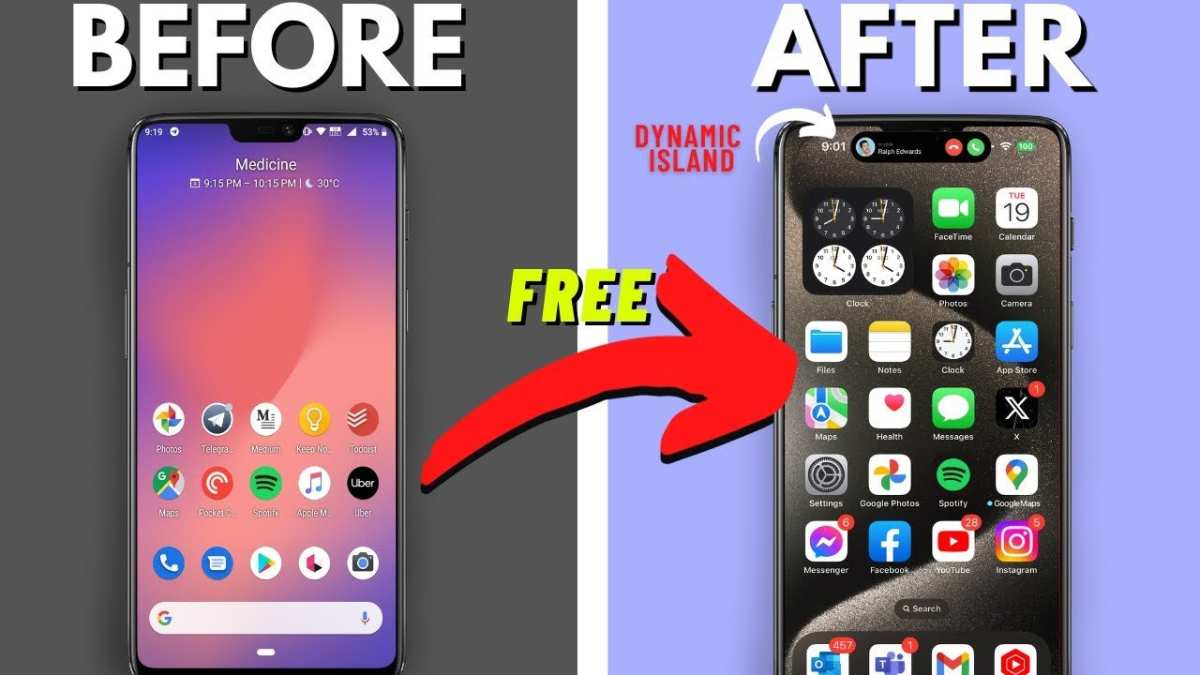
To make your iPhone resemble an Android device, you can customize its interface and install third-party apps to mimic Android features. **Getting your iPhone to act like an Android is possible through specific tweaks and tweaks.** You can change the home screen layout, install custom launchers, and even adjust settings to make the experience feel more Android-like. Knowing how to make your iPhone an Android involves a combination of these adjustments, making your device more personalized and familiar without switching platforms.

How to Make Your iPhone an Android
If you’ve ever wondered whether it’s possible to make your iPhone look and feel like an Android device, you’re not alone. Many users want the flexibility, customization options, and unique features that Android offers but still own an iPhone. While you can’t switch the operating system completely without jailbreaking—which can void warranties and pose security risks—you can imitate many Android features on your iPhone. This guide will walk you through different ways to make your iPhone resemble an Android device, from changes in appearance to modifying functionalities.
Understanding the Differences Between iPhone and Android
Before diving into customization, it’s essential to know what sets iPhones and Android devices apart. iPhones run on iOS, a closed system with a consistent user interface, limited customization options, and tight security. Android phones, on the other hand, operate on an open-source platform that allows extensive customization, including home screens, widgets, and app configurations.
Some key differences include:
- Home Screen Customization: Android users can freely change icons, add widgets, and organize apps however they want. iPhones, especially before iOS 14, had limited options; now, they support widgets but still lack the full flexibility of Android.
- File Management: Android offers easier access to files and folders via file explorers, while iPhones restrict direct file access.
- Default Apps: Android users can set third-party apps as defaults, such as browsers and messaging apps. iPhones restrict this flexibility, but recent updates allow some default app changes.
- Customization Apps: Android has a wealth of customization apps and launchers that change the entire look. On iPhone, you need to work within Apple’s ecosystem, but some tweaks can emulate similar effects.
Recognizing these differences helps you understand what’s achievable through customization and what limitations you’ll face.
Changing Your iPhone’s Appearance to Resemble an Android
One of the first things users want is to make their iPhone’s look resemble that of an Android device. To do this, you’ll focus on customizing icons, wallpapers, widgets, and the overall interface.
Using Custom Icons and Launchers
Although iOS doesn’t support third-party launchers like Android, you can customize app icons using Shortcuts. Here’s how to do it:
- Create Custom Icons: Use apps like “Shortcuts” or “Icon Themer” to make custom icon packs for your favorite apps.
- Replace Default Icons: For each app, create a shortcut that opens the app, then add the custom icon to your Home Screen.
- Organize Your Home Screen: Arrange the icons to mimic Android’s grid layout for a cleaner look.
*Tip:* Download icon packs designed to look like Android icons to give your home screen a more authentic Android feel.
Adding Android-Style Wallpapers and Widgets
The background and widget placement also contribute to the Android look:
- Download Android Wallpapers: Search for high-resolution Android-style wallpapers online and set them as your background.
- Use Widget Apps: Apps like “Widgetsmith” or “Color Widgets” allow you to add customizable widgets that resemble Android widgets in style and function.
- Arrange Widgets: Place widgets on your home screen where Android users typically find them, often at the top or alongside app icons.
Emulating Android Functionalities on iPhone
Appearance is important, but making your iPhone function like an Android device takes additional steps.
Customizing the Control Center and Notification Panel
Android devices are known for their flexible notifications and quick settings:
- Control Center Tweaks: Use “Control Center” customization features in iOS 14 and later to add or remove controls, making it easier to access frequently used settings.
- Notification Management: Adjust notification settings to group alerts similar to Android, and consider third-party apps that improve notification management.
Downloading Third-Party Apps for Advanced Customization
Certain apps can give your iPhone functionalities more akin to Android:
- File Managers: Apps like “Documents by Readdle” or “FileExplorer” provide better file access, mimicking Android’s file system.
- Launcher Apps: While full launchers aren’t available on iOS, some apps allow you to create custom app grids and layouts.
- Home Screen Managers: Use apps like “Snappy” to add quick access to apps and settings, creating a more Android-like experience.
Installing and Customizing Apps to Mimic Android Features
The app environment plays a big role in mimicking Android:
- Choose Alternative Browsers: Install browsers like “Google Chrome,” “Firefox,” or “Brave” to replace Safari.
- Messaging Apps: Use “WhatsApp” or “Telegram” instead of iMessage for more flexible messaging options.
- Launcher and Theme Apps: Find apps that offer themes, icon packs, and customizable widgets to make your interface resemble Android’s more colorful and diverse interface.
Protecting Your Privacy and Security While Customizing
While customizing your iPhone, remember to prioritize security:
- Use Trustworthy Apps: Download apps from the App Store and avoid third-party stores that could expose your device to malware.
- Backup Settings: Regularly back up your device in case something goes wrong during the customization process.
- Stay Updated: Keep your iOS updated for security patches and new customization features.
Things to Keep in Mind
Making your iPhone look and function like an Android involves a lot of tweaks and patience. Keep in mind:
- Some features may not be fully emulated due to OS restrictions.
- Over-customization can slow down your device or cause bugs.
- Stay within safe app sources to avoid security issues.
In summary, transforming your iPhone into a device that looks and functions more like an Android involves a combination of visual changes, app choices, and settings tweaks. While you can’t change the core operating system without jailbreaking, this guide provides several ways to mimic many Android features, giving you a customized experience tailored to your preferences.
Frequently Asked Questions
Can I customize the interface of my iPhone to resemble Android features?
Yes, you can personalize your iPhone’s interface to mimic some Android features by installing third-party apps that provide Android-like launchers, icon packs, and widgets. These apps allow you to change the home screen layout, add customizable widgets, and modify app icons to resemble Android styles, giving your iPhone a more Android-inspired look and feel.
Are there specific apps that can help mimic Android functionalities on an iPhone?
Several apps are available in the App Store that simulate Android functionalities, such as launching apps in a different layout or adding features like a pull-down notification menu similar to Android. While these apps can’t fully convert iOS to Android, they enable you to add specific Android-like behaviors to your device to improve usability or aesthetics.
How can I change the navigation style on my iPhone to resemble Android?
You can adjust navigation by customizing gestures and using third-party apps that emulate Android-style navigation bars. Some launcher apps offer this feature, allowing you to replace the default iOS navigation with a more Android-like experience. Keep in mind, though, that iOS restrictions limit how much you can alter the core navigation system.
Is it possible to install Android apps directly on my iPhone?
No, you cannot directly install Android applications on an iPhone due to the different operating systems and app architectures. However, you can look for similar apps available on iOS that provide comparable functions or explore web-based versions of Android apps accessible through your Safari browser.
Can I replace iOS with Android OS on my iPhone?
Replacing iOS with Android OS on an iPhone is not feasible. Apple tightly controls hardware and software integration, making it impossible to install other operating systems like Android legally or practically. The best way to experience Android features remains to use an actual Android device.
Final Thoughts
Making your iPhone resemble an Android involves customizing its interface with third-party apps and launcher replacements. You can change icons, add widgets, and modify the home screen layout to mimic Android features.
Installing Android-inspired launchers gives your iPhone a more open, customizable feel, but limitations exist due to iOS restrictions.
In conclusion, how to make your iPhone an Android? While you can’t fully convert an iPhone to Android, you can achieve a similar experience by customizing your device.
