

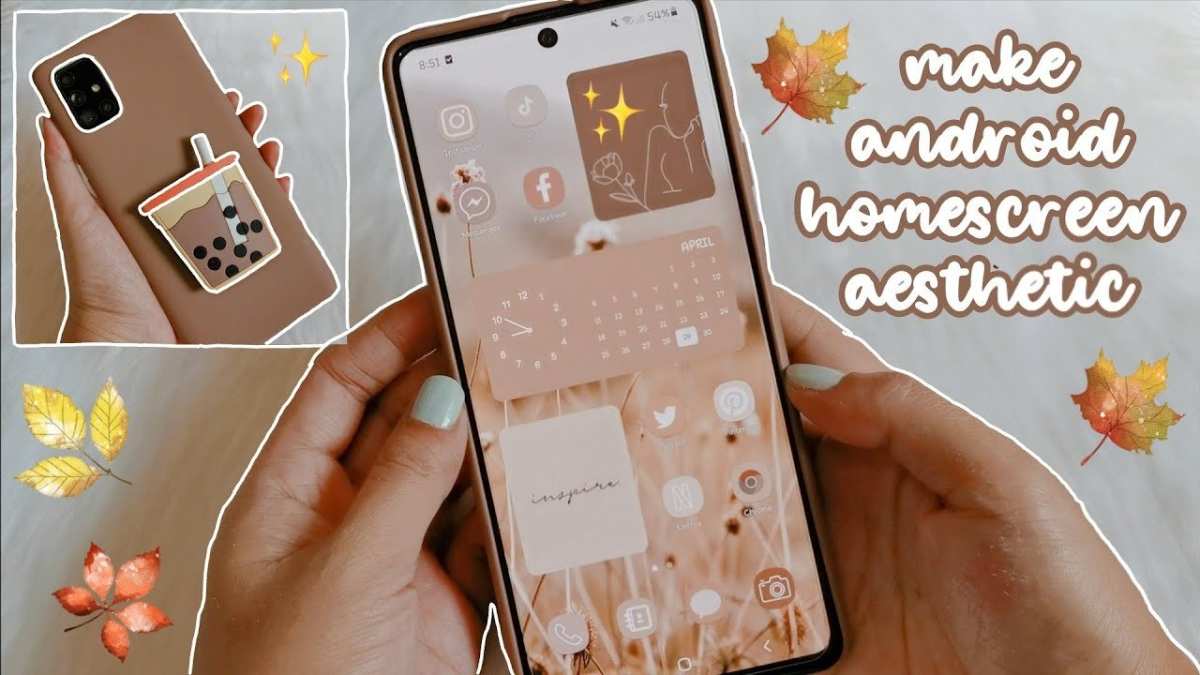
To make your android look aesthetic, start by customizing your wallpaper, icons, and widgets to match your personal style. **The key is selecting cohesive colors and sleek designs that reflect your personality.** When you know how to make your android look aesthetic, every glance at your device feels fresh and inspiring.
Choose a minimalist launcher to keep your home screen clean and organized. Switch to subtle, matching themes to create harmony across your apps. A few simple adjustments can make your device stand out effortlessly.

How to Make Your Android Look Aesthetic
Creating an aesthetic Android device isn’t just about making it look pretty. It’s about designing a customized experience that reflects your personality and makes everyday usage more enjoyable. Whether you want a sleek, minimalist vibe or a colorful, lively look, there are plenty of ways to make your Android device uniquely yours. This guide will walk you through all the important steps to craft an aesthetic look on your Android mobile, from customizing your wallpaper to tweaking app icons and organize your home screen efficiently.
Choosing the Perfect Wallpaper to Set the Mood
Your wallpaper acts as the foundation of your phone’s visual appeal. It’s the first thing people see and can influence the overall vibe of your device. To pick an aesthetic wallpaper:
- Opt for high-quality images. Avoid blurry or pixelated images. Seek out wallpapers with sharp details to make your screen look professional.
- Match your style. Whether it’s minimalist, nature-inspired, abstract, or vibrant colors, choose a wallpaper that resonates with your personality.
- Use dynamic or live wallpapers. These can add some movement to your home screen, making it more lively. But, remember: they can drain your battery faster.
- Set different wallpapers for home and lock screens. This adds variety and keeps things fresh every time you unlock your phone.
To find the perfect wallpaper:
– Use apps like Unsplash, Pexels, or Walli for high-quality images.
– Explore dedicated wallpaper categories in your device’s gallery.
– Consider creating your own wallpaper using photo editing apps like Canva or Adobe Spark.
Customizing App Icons for a Cohesive Look
App icons play a significant role in defining your device’s aesthetic. Custom icons can transform a cluttered interface into a harmonious one.
Using Icon Packs
Download icon packs from the Google Play Store. These packs come with a themed set of icons designed to match a particular style — sleek, pastel, vintage, or modern.
Perform these steps:
- Choose an icon pack that suits your aesthetic preference.
- Install a launcher that supports custom icon packs such as Nova Launcher, Lawnchair, or Action Launcher.
- Open the launcher settings and navigate to the icon customization section.
- Select your downloaded icon pack and apply it.
- Tap individual app icons to replace them with your preferred icons, if needed.
Creating Custom Icons
If you can’t find the perfect icon pack or want something unique:
- Use apps like Canva or Adobe Express to design your own icons.
- Save your icons in PNG format to ensure transparency and quality.
- Apply custom icons via your launcher’s settings.
This personal touch gives your device a distinctive aesthetic that stands out.
Organizing Your Home Screen for a Clean Look
An organized home screen reduces clutter and emphasizes your chosen aesthetic. Keep these tips in mind:
- Limit the number of app icons on your main screen. Focus on your most-used apps and place the rest in folders or in app drawers.
- Group similar apps together. Create folders for social media, productivity, entertainment, etc., for easy access.
- Arrange icons symmetrically. Grid patterns with evenly spaced icons promote a neat appearance.
- Use an app drawer. This keeps your home screen tidy, revealing only essential apps and maintaining minimalism.
Experiment with different layouts in your launcher settings to find what looks best.
Themed Widgets and Clocks
Widgets add functionality and aesthetic flair. Choose or design widgets that match your theme.
- Use widget apps like KWGT or Zooper Widget to create custom widgets that fit your style.
- Select minimalist clock designs or those with vibrant colors for aesthetic appeal.
- Integrate weather, calendar, or motivational quotes widgets that complement your theme.
Size and position your widgets carefully to balance the layout on your home screen.
Choosing a Cohesive Color Scheme
Colors influence mood and aesthetic consistency. To select a color palette:
- Pick 2-3 main colors that reflect your style.
- Use these colors across wallpapers, icons, widgets, and app folders.
- Tools like Adobe Color or Coolors can help generate harmonious color schemes.
Applying a cohesive color scheme makes your device look well-thought-out and harmonious.
Applying Stylish Fonts for an Elegant Touch
Fonts have a subtle yet powerful impact on your device’s overall look. Most Android launchers support custom fonts.
- Download font apps like iFont, FontFix, or Fonts Free.
- Select fonts that match your aesthetic — sleek, handwritten, or vintage styles.
- In launcher settings, replace default fonts with your chosen ones.
Remember to keep font sizes readable for a better user experience.
Adding Personal Touches with Wallpapers, Ringtones, and Icons
To make your phone unique:
- Create personalized wallpapers with your photos or artwork.
- Set custom ringtones and notification sounds that align with your theme.
- Design or find unique icons for special apps or contacts.
- Use creative lock screens or animations to enhance aesthetic appeal.
These small details add up and make your device feel personalized and stylish.
Maintaining Your Aesthetic Look
Once you’ve organized everything:
- Regularly update wallpapers and icons to keep your device fresh.
- Remove unnecessary or unused apps to avoid clutter.
- Keep your home screen clean and simple, avoiding over-crowding.
- Adjust themes or colors if your style changes over time.
Consistent maintenance ensures your device continues to look aesthetically pleasing.
Recommended Apps and Tools for Making Your Android Aesthetic
Here are some top resources:
| App or Tool | Description |
|---|---|
| Nova Launcher | A highly customizable launcher that supports icon packs, gestures, and extensive layout options. |
| KWGT/Kustom Widget Maker | Create custom widgets with flexible designs, perfect for adding personal touches to your home screen. |
| Walli / Unsplash | Find high-quality, aesthetic wallpapers suitable for your theme. |
| Icon Pack Studio | Create personalized icons easily for a unique look. |
| Canva / Adobe Express | Design custom wallpapers, icons, and social media content to match your aesthetic style. |
Using these tools simplifies the process and helps you craft a cohesive aesthetic.
—
With the right combination of wallpapers, icons, widgets, and organization, your Android device becomes more than just a phone — it becomes a reflection of your personality and style. Be patient as you experiment with different elements, and enjoy the process of making your device look as aesthetically pleasing as possible. Remember, the key is consistency and personal touches to keep your device both functional and beautiful.
Frequently Asked Questions
How can I customize my Android home screen to enhance its aesthetic appeal?
To improve your Android home screen’s look, start by choosing a clean and minimalistic wallpaper that complements your style. Use icon packs that match your theme and organize your apps into folders for a tidy appearance. Adjust grid size to create a balanced layout and consider adding custom widgets that blend seamlessly with your overall design. Regularly update your layout to keep your home screen fresh and visually appealing.
What steps should I follow to select the right color scheme for my Android interface?
Select a color palette that reflects your personality and maintains consistency across your device. Use theme apps or system settings that allow you to customize accent and background colors. Stick to a limited set of colors to create harmony and avoid clutter. Incorporate matching app icons and widget styles to reinforce your chosen color scheme and achieve a cohesive aesthetic.
How do I choose and apply aesthetic icon packs on Android?
Browse through popular icon packs available on the Google Play Store that suit your preferred style, whether minimalist, colorful, or monochrome. Install a compatible launcher that allows icon customization and apply the icon pack through its settings. Reorganize your app icons for a balanced look, and consider customizing some icons manually for added uniqueness. Updating your icon pack periodically refreshes your device’s appearance.
What are some tips for selecting widgets that complement an aesthetic Android layout?
Pick clean and simple widgets that match your overall theme, such as weather, clock, or calendar widgets with minimalist designs. Use transparent or semi-transparent backgrounds and choose widget sizes that don’t clutter your screen. Maintain uniform styles and color schemes across all widgets to create visual harmony. Arrange widgets thoughtfully to balance functionality and aesthetics.
How can I maintain a consistent aesthetic across different parts of my Android device?
Establish a unified color scheme and stick to a cohesive icon style throughout your home screen, app drawer, and notifications. Use matching wallpapers and consistent widget designs to reinforce your theme. Regularly review and adjust your layout to keep everything aligned with your aesthetic goals. Staying organized with folders and a streamlined app arrangement also enhances the visual coherence of your device.
Final Thoughts
To make your android look aesthetic, start by choosing a sleek wallpaper that reflects your style. Customize your app icons with stylish icon packs to add a unique touch. Use a minimalistic widget layout to keep your home screen clean and organized.
Adjust your widget sizes and placement for a balanced appearance. Select a consistent color scheme across icons, wallpapers, and widgets to create harmony. These simple steps will help you achieve an aesthetic android that is both functional and visually appealing.
