

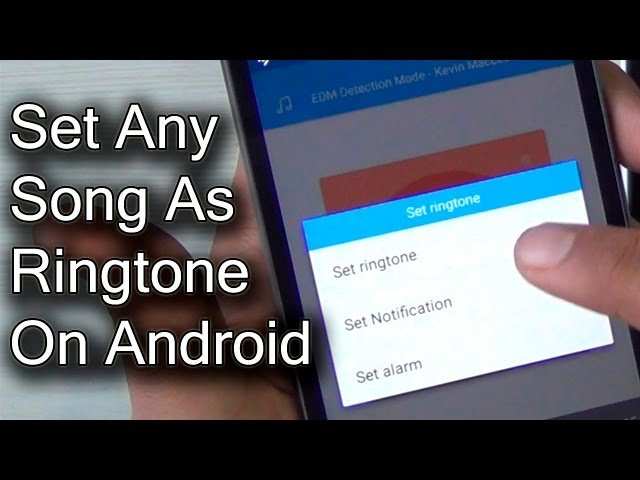
To make a song ringtone on Android, you just need to select your favorite track, trim the part you want, and set it as your ringtone. **The process involves using a music editing app or built-in tools.** Once you have the clip ready, setting it as your ringtone is quick and easy.
Knowing how to make song ringtone on Android ensures your phone reflects your personality and vibe. It’s simple, fun, and allows you to personalize your device effortlessly. Just follow these straightforward steps, and your new ringtone will be ready in minutes.

How to Make Song Ringtone on Android
Creating custom ringtones on your Android device is easier than you might think. Instead of sticking with default ringtones, you can personalize your phone by making your favorite songs into a unique ringtone. This process involves selecting a song, trimming it to the desired part, and setting it as your ringtone. In this guide, we will walk you through each step carefully, so you can make engaging, high-quality ringtones that reflect your style.
Selecting the Right Song for Your Ringtone
The first step is choosing the song you’d like to use as a ringtone. Consider songs that are upbeat, fun, or meaningful to you. When selecting, keep in mind the following:
- Length of the clip: Ringtones ideally last around 20-30 seconds to be catchy without being too long.
- Volume and clarity: Pick songs that sound clear and loud enough to alert you when your phone rings.
- Legal considerations: Make sure you have the right to use the song, especially if you plan to share or distribute the ringtone.
Once you’ve selected the perfect song, it’s time to prepare it for editing.
Preparing Your Song for Editing
Before editing, transfer the song to your Android device if it isn’t already there. You can do this via USB cable, Bluetooth, or cloud services like Google Drive or Dropbox. Ensure the song is saved in a folder that’s easy to access, such as the Music folder.
Check the format of the song. Most Android devices support common audio formats like MP3, WAV, and OGG. If your song is in an unsupported format, you’ll need to convert it using audio conversion apps or online tools.
Using Built-in Ringtone Makers on Android
Many Android devices come with built-in tools to create ringtones directly. Here’s how you can use them:
Using the Default Sound Editor
Different Android brands might have their own sound editing apps:
- Samsung: Use the ‘My Files’ app or ‘Samsung Members’ app for editing.
- Google Pixel: Use the ‘Files’ app and a basic audio editor if available.
- General Android: Access the ‘Settings’ > ‘Sound’ > ‘Ringtone’ and select the ‘Add’ or ‘Create New’ option.
If your device supports this, follow these steps:
- Open the sound or ringtone settings.
- Tap to add a new ringtone or choose to create a custom one.
- Select your song from the list of files.
- Use the on-screen trimming tool to select the part of the song you want.
- Save your new ringtone and set it as your default or assign it to specific contacts.
Limitations
Note that not all Android devices offer built-in tools with advanced editing features. Sometimes, you need third-party apps to get more control over your ringtone-making process.
Using Third-Party Apps to Make Ringtones on Android
If your device lacks a built-in editor, or you want more editing options, consider installing third-party ringtone maker apps. These apps are available on Google Play Store and offer powerful features like precise trimming, fade-in/out effects, and even adding custom sounds.
Popular Ringtone Maker Apps
- Ringdroid: One of the most popular free ringtone editors. It allows you to record, trim, and save ringtones easily.
- MP3 Cutter and Ringtone Maker: Offers simple tools for quick edits and supports multiple audio formats.
- Zedge: Besides offering ringtones, it also helps you create custom ones directly from your music library.
- Ringtone Maker: Known for its user-friendly interface and precise editing capabilities.
How to Use a Ringtone Maker App
Here’s a step-by-step method using a typical ringtone app:
- Download and install the app from Google Play Store.
- Open the app and grant necessary permissions to access your music files.
- Select the song you wish to edit from your library.
- Use the trimming tool to select the part of the song you want as a ringtone. Usually, this involves dragging sliders to set start and end points.
- Preview the clip to ensure it sounds good.
- Save the ringtone with a memorable name.
- Follow the app’s instructions to set it as your default ringtone or assign it to specific contacts.
Editing Tips for Perfect Ringtones
Creating a ringtone that sounds natural and appealing takes a little finesse. Keep these tips in mind:
- Choose iconic parts of the song: The chorus or a recognizable hook often makes the best ringtone.
- Avoid abrupt cuts: Smooth transitions make your ringtone sound professional.
- Adjust volume levels: Ensure the selected clip is loud enough without distortion.
- Test it out: Play the ringtone multiple times and in different environments to see how it sounds.
Setting Your Custom Ringtone on Android
Once your ringtone is ready, setting it as your default or assigning it to contacts is straightforward:
Setting as Default Ringtone
- Open the Settings app on your Android device.
- Tap on ‘Sound & Vibration’ or just ‘Sound’ depending on your device.
- Select ‘Ringtone’ or ‘Phone Ringtone’.
- Browse through the list and find your custom ringtone.
- Select it and confirm. Now, your phone will ring with your chosen song.
Assigning Ringtone to Specific Contacts
- Open the Contacts app or Phone app and select the contact.
- Edit the contact details.
- Look for the ringtone option and tap on it.
- Select your custom ringtone from the list.
- Save the changes. When that contact calls, your custom ringtone will play.
Making your own ringtone from a song on Android gives your phone a personal touch. Whether you use the built-in tools or third-party apps, the process is quite simple once you understand the steps involved. Always remember to select a song that suits your style and to keep the clip short and impactful. By following the steps outlined here, you can craft unlimited unique ringtones that make your phone truly yours. Instead of generic sounds, enjoy calling notifications that reflect your personality and musical taste.
Frequently Asked Questions
What is the easiest way to set a custom song as my ringtone on Android?
To set a custom song as your ringtone on Android, first transfer the desired song to your device if it’s not already there. Use a file manager app or connect your phone to a computer to copy the song into the “Ringtones” folder. Then, go to Settings > Sound & Vibration > Ringtone, and select your song from the list of available options. Tap on it to set it as your default ringtone.
How can I edit a song to fit as a ringtone on my Android device?
Use a ringtone maker app from the Google Play Store, such as Ringtone Maker or Zedge, to trim the song. Open the app, load the song from your storage, and select the segment you want as your ringtone. Save the trimmed version, which will automatically appear in your ringtone options. This allows you to customize the part of the song that plays when receiving a call.
Is there a way to create a ringtone directly from a music app on Android?
Some music apps, like Samsung Music or Google Play Music, integrate with your device’s ringtone settings. Within these apps, you can often select a song and choose an option like “Set as Ringtone” directly. If this feature isn’t available, you may need to save the song to your device and use a ringtone maker app to customize it before setting it as your ringtone.
Can I use a cloud service to set a song as my ringtone on Android?
Yes, you can access songs stored on cloud services like Google Drive or Dropbox. Download the song onto your device through the app or a file manager, then follow the usual steps to set it as a ringtone. Make sure the song file is in a compatible format, such as MP3, to ensure it shows up in your ringtone selection options.
What should I do if my custom ringtone doesn’t appear in the list on Android?
If your ringtone isn’t showing, ensure the song file is stored in the correct folder, like “Ringtones” or “Notifications.” Restart your device to refresh the media scanner, which detects new audio files. Alternatively, use a file manager app to move the song to the proper folder and check again. If needed, select the ringtone manually through the settings menu.
Final Thoughts
To make a song ringtone on Android, start by selecting the song you want to use. Use a free editing app like Ringtone Maker or MP3 Cutter to trim the part of the song you prefer. Save the clip as a new file and move it to your device’s ringtone folder.
Next, go to your phone’s Settings, navigate to Sound & Vibration, then Ringtone. Choose your newly created ringtone from the list.
In summary, making a song ringtone on Android involves editing your chosen song and setting it as your ringtone through device settings. This simple process allows you to personalize your phone easily.
