

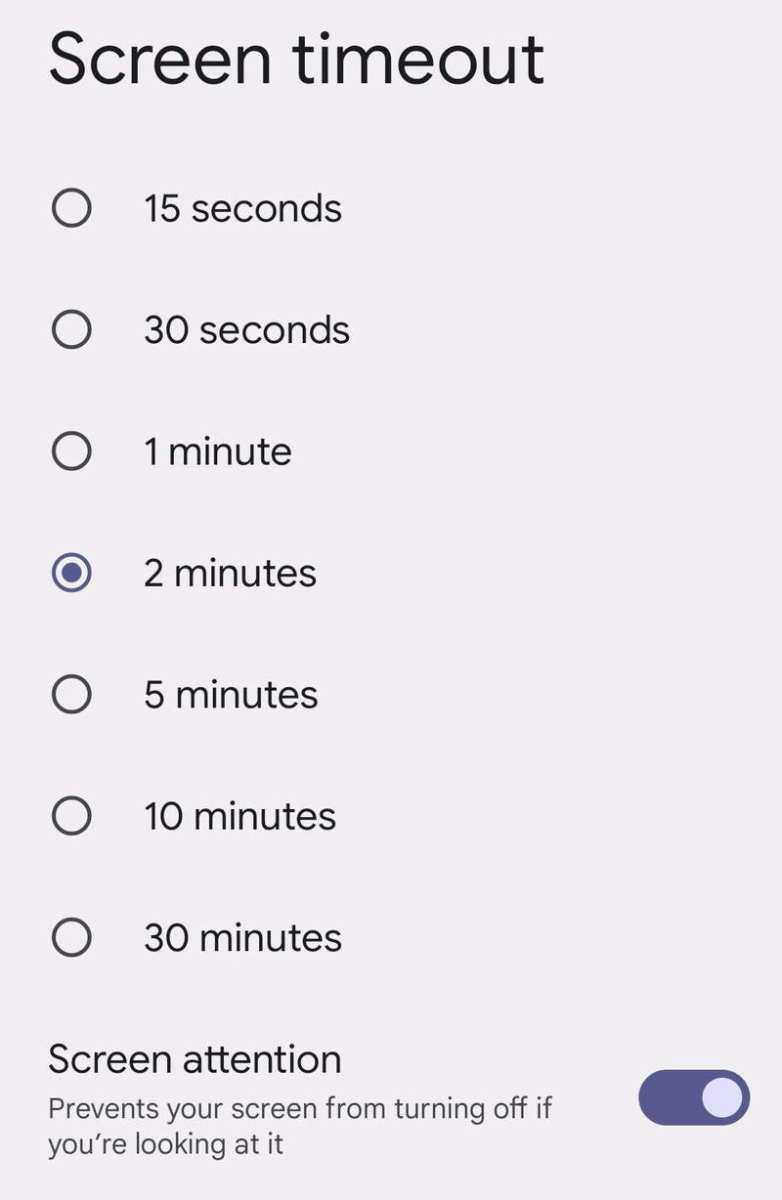
To make screen time longer on Android, increase the daily limit in your device settings or disable strict app timers. **Adjust the settings directly to extend your usage.** Knowing how to make screen time longer on Android involves accessing the Digital Wellbeing tools and customizing your preferences.
Start by opening your Settings app, then navigate to Digital Wellbeing. From there, modify the dashboard to allow more screen time or temporarily turn off timers. These quick adjustments help you manage your device usage more flexibly.

How to Make Screen Time Longer on Android
When children or even adults spend too much time staring at screens, it can lead to eye strain, poor sleep, and less physical activity. But what if you want to extend the amount of screen time on an Android device? Maybe for educational purposes, entertainment, or simply because you find it helpful for your daily tasks. No matter the reason, understanding how to make screen time longer on Android can be very useful. Let’s dive into detailed ways you can safely and effectively increase your screen time without causing harm or interference with your routine.
Understanding Android Screen Time Settings
Before changing any settings, it’s important to understand how Android manages screen time. Most Android devices feature built-in tools such as Digital Wellbeing or parental controls that allow users to set limits. These features are designed to help regulate usage, but they also offer options to extend or lift those limits when needed.
- Digital Wellbeing & Parental Controls: These tools track how long you spend on different apps, set daily limits, and manage device usage.
- App timers & Bedtime modes: These features restrict usage during specific times but also can be disabled to lengthen screen time.
- Third-party apps: Several apps on Google Play can manage and sometimes extend screen time beyond the default limits.
By understanding these tools, you can decide the best way to modify your screen time.
How to Increase Screen Time Using Built-In Android Features
Most Android devices offer options directly through their settings to manage and extend screen time. Here’s a detailed guide:
Modifying Digital Wellbeing Settings
To increase screen time using Digital Wellbeing:
- Open the Settings app on your device.
- Scroll down and select Digital Wellbeing & Parental Controls.
- Tap on the Dashboard. Here, you will see a list of apps and the amount of time you’ve spent on them.
- Look for the App Timers section. If you see an app with a timer set, tap on it.
- Choose the option to Remove Limit. This action will make the app available for extended use.
Remember, Digital Wellbeing intentionally limits usage to promote healthy habits; removing limits should be done cautiously and responsibly.
Disabling Bedtime Mode and Wind Down Settings
Bedtime modes restrict screen activity before sleep to promote rest. To extend screen time:
- Go to Settings.
- Tap on Digital Wellbeing & Parental Controls.
- Find Wind Down or Bedtime Mode.
- Toggle the switch to Off. This action prevents automatic restrictions during night hours.
By turning off these features, your device won’t limit your screen time during specific hours.
Using Developer Options to Extend Screen Time
For those comfortable with technical settings, Developer Options provide additional control over device behavior. To enable Developer Options:
- Go to Settings.
- Scroll down and select About Phone.
- Tap on Build Number seven times until you see a message confirming Developer Mode is active.
Once enabled:
- Return to Settings and find Developer Options.
- Within Developer Options, look for settings related to background process limits or screen management.
- Adjust these settings to allow for longer or more intensive app usage.
Note: Be cautious when changing Developer Options as incorrect settings can affect device performance.
Installing Third-Party Apps to Manage and Extend Screen Time
If your device’s built-in features aren’t enough, the Google Play Store offers various apps that can help:
- StayFocusd – Blocks limits but can also be configured to allow longer screen times.
- Freedom – Offers customizable schedules to extend or restrict access to apps and websites.
- AppBlock – Manages app usage and allows you to set individual limits or disable restrictions temporarily.
When choosing third-party apps:
– Read reviews to ensure reliability.
– Check the permissions to protect your privacy.
– Use them responsibly and avoid creating harmful habits.
Adjusting Time Limits for Specific Apps
To extend usage for particular apps:
- Open Settings and navigate to Digital Wellbeing & Parental Controls.
- Select Dashboard.
- Find the app you want to extend time for.
- If a timer is active, tap the app and choose Remove limit.
This method allows you to keep overall device limits but extend the time on apps you need longer access to.
Managing Notifications to Improve Screen Time Experience
Sometimes, notifications can tempt you or your child to open apps more often, increasing usage unintentionally. To manage or reduce notifications:
- Go to Settings.
- Select Apps & Notifications.
- Choose the app you want to modify.
- Tap Notifications.
- Disable or customize notifications to prevent unnecessary distractions and encourage usage during preferred times.
Adjusting notifications helps manage overall screen time and keeps usage intentional.
Tips for Maximizing Safe and Healthy Extended Screen Time
While extending screen time, always keep a few tips in mind:
- Take regular breaks: Follow the 20-20-20 rule—every 20 minutes, look away for at least 20 seconds.
- Adjust brightness and font size: Ensures comfortable viewing for longer periods.
- Use blue light filters: Reduces eye strain during extended use.
- Maintain a balance: Combine screen time with physical activity, outdoor play, and sleep routines.
Striking a healthy balance is key when increasing usage limits.
Monitoring and Adjusting Screen Time
Finally, keep an eye on your device usage:
- Regularly check the Digital Wellbeing dashboard to see how much time you’ve spent.
- Adjust limits based on your needs and behavior patterns.
- Set specific goals, like increasing usage on educational apps or for creative activities.
Monitoring helps you stay aware and in control of your screen time.
—
By understanding these settings and strategies, you can extend your Android device’s screen time responsibly while ensuring that it fits into a healthy digital routine. Remember, moderation is always important, so use extended screen time wisely to support your goals and daily activities.
Frequently Asked Questions
Can adjusting the screen timeout settings help extend screen time on Android?
Yes, changing the screen timeout settings can help increase your device’s screen time. You can set a longer duration before the screen turns off automatically. To do this, go to Settings > Display > Screen timeout, and select a longer time option. Keep in mind that extending this setting may impact battery life, so choose a balance that works for your usage.
Is it possible to modify app restrictions to allow more screen time on Android?
Absolutely. If you use parental controls or digital wellbeing tools, you can adjust app timers or restrictions to permit longer usage. Open the Digital Wellbeing app or parental control settings, navigate to app timers, and set the limits higher or disable restrictions for specific apps. This approach provides more flexibility in managing your screen time.
How do I disable or modify daily usage limits on my Android device?
You can disable or change daily usage limits through the Digital Wellbeing settings. Access Settings > Digital Wellbeing & Parental Controls, then tap on the dashboard. Select the app with restrictions, and either increase the daily limit or remove it altogether. This change allows you to enjoy extended screen time without restrictions.
Can installing third-party apps help in increasing screen time on Android devices?
Some third-party apps offer features to customize or extend your screen time limits. These apps might provide options to bypass restrictions or manage usage more effectively. However, exercise caution when choosing such apps, and ensure they are trustworthy to protect your device’s security and privacy.
Are there any system settings or updates that can enhance screen timeout duration on Android?
Occasionally, software updates bring improvements to display settings or battery management, which may indirectly affect screen timeout behavior. Keep your device updated to the latest Android version, and explore advanced display settings to see if there are additional options for customizing screen timeout durations. These updates can optimize your device’s performance and usability.
Final Thoughts
To make screen time longer on Android, start by adjusting the device’s display settings to extend usage. Check the battery and screen timeout options to ensure they support longer periods before turning off. Utilize third-party apps if necessary, but always prioritize safety and device health.
By customizing these settings, you can effectively increase screen time without compromising device performance. Remember, understanding your device’s capabilities helps optimize your experience. Making screen time longer on Android becomes simple with these practical steps.
