

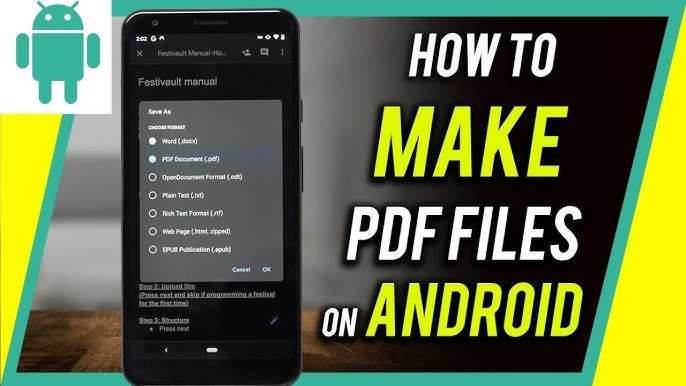
To make a PDF file on Android, you can easily do it using built-in apps or third-party tools. **Open your document or image, select the share option, then choose ‘Print’ and save as PDF.** If you’re wondering how to make PDF file on Android, this quick process helps you convert files instantly. Whether you need a professional report or a simple note, creating PDFs on your device takes just a few taps. Keep reading for easy steps to create a PDF on your Android device effortlessly.

How to Make a PDF File on Android
Creating a PDF file on your Android device is easier than you might think. Whether you want to save a document, an image, or convert a webpage into a PDF, several methods can help you complete the task quickly and efficiently. In this guide, we will explore various ways to generate PDF files on Android, including built-in options, apps, and online tools. Stay with us as we walk through each method step-by-step, providing tips and tricks along the way to make your experience smooth and successful.
Understanding the Importance of PDFs on Android
Before diving into the methods, it’s helpful to understand why PDFs are so popular. PDF, which stands for Portable Document Format, offers a universal way to share documents while preserving the layout, fonts, images, and overall design. People use PDFs for:
- Sharing professional documents like reports and resumes
- Saving important notes and memos
- Converting web pages into easy-to-read formats
- Creating forms that can be filled out electronically
- Archiving files for future reference
Knowing these benefits can motivate you to learn how to make PDFs on your Android device effectively.
Using Google Drive to Create PDFs
One of the simplest ways to make a PDF on Android involves Google Drive, which many Android users already have installed. Here’s how you can do it:
Creating PDFs from Google Docs
If you have a document ready in Google Docs, follow these steps:
- Open the Google Docs app on your Android device.
- Open an existing document or create a new one by tapping the “+” button.
- Once your document is ready, tap the three-dot menu icon in the top right corner.
- Choose the Share & export option.
- Tap Save as and select PDF Document (.pdf).
- The PDF will be saved to your device or Google Drive, depending on your settings.
This method makes it easy to turn your word processing files into PDFs without needing extra apps.
Converting Files to PDFs via Google Drive
You can also convert images or other files into PDFs:
- Open Google Drive on your Android device.
- Tap the “+” icon to upload a file (such as an image or document).
- Once uploaded, tap the file to open it with the associated app.
- Use the “Print” option, which is usually available in the menu.
- Select “Save as PDF” in the print preview screen.
- Save the PDF to your preferred location.
This approach works well for quick conversions without installing additional apps.
Using Built-in Android Features to Make PDFs
Many recent Android devices come with built-in features that allow you to create PDFs directly from your device. Here’s how:
Using the Print Function
Most Android phones have a print-to-PDF feature built into their printing options:
- Open the file, image, or webpage you want to convert.
- Tap the Share icon or access the menu in the app.
- Look for the Print option and select it.
- In the print preview screen, tap the dropdown arrow or select Save as PDF.
- Choose your save location and tap Save.
This method works for almost any app that supports printing, making it a versatile option.
Using Android’s Screenshot to PDF Method
For quick notes or images, you can also create a PDF by taking screenshots:
- Capture screenshots of the content you want to turn into a PDF.
- Open a PDF converter app (many free options are available in the Play Store).
- Select the screenshots and follow the app’s instructions to merge them into a single PDF.
- Save or share your new PDF document.
This method provides a simple way to turn visual content into shareable PDF files.
Using Third-Party Apps to Make PDFs on Android
While Android provides many built-in methods, third-party apps often give additional features and flexibility. Here are some popular apps and how to use them:
Adobe Acrobat Reader
Adobe’s app isn’t just for viewing PDFs; it also allows you to create them:
- Download and install Adobe Acrobat Reader from the Play Store.
- Open the app and select the “Create PDF” option.
- Choose files, images, or documents from your device.
- Tap Create, and your PDF will be ready.
- You can then save, share, or edit your PDF as needed.
Adobe also offers options to convert web pages and email attachments into PDFs.
Smallpdf
Smallpdf is an easy-to-use online tool with a mobile app:
- Download the Smallpdf app from the Play Store.
- Open the app and select the type of PDF creation you want (from images, documents, etc.).
- Select your files or images.
- The app will process the files and produce a PDF.
- You can then download or share the completed PDF.
This service is excellent for quick conversions and offers cloud storage integration.
CamScanner
CamScanner is perfect if you want to scan physical documents and turn them into PDFs:
- Install CamScanner from the Play Store.
- Open the app and tap the camera icon to scan documents or images.
- Adjust the scan borders for clarity.
- Tap the save or share button to generate a PDF file.
- You can enhance, organize, and even add annotations to your scanned PDFs.
This app is especially handy for digitizing paper documents.
Tips for Making Better PDFs on Android
Creating good-quality PDFs requires some attention:
- Use high-resolution images for clarity.
- Crop or edit images and documents before converting to remove unnecessary parts.
- Keep the file size manageable by compressing images within the app if needed.
- Organize pages logically for easy reading.
- Preview your PDF before sharing to ensure everything looks correct.
Applying these tips can significantly improve the quality of your PDFs.
Additional Tools and Considerations
– Always keep your apps updated for the latest features and security.
– Be mindful of permissions when installing third-party apps; choose reputable developers.
– If you frequently create PDFs, consider installing a dedicated app for convenience.
As you learn different ways to make PDFs on Android, you’ll see how versatile your device really is. Whether using built-in features or third-party apps, generating professional-quality PDFs becomes an effortless task that helps you stay organized and productive.
Keep experimenting with different methods to find the one that best suits your needs, and enjoy the convenience of creating high-quality PDF files right from your Android device.
Frequently Asked Questions
What steps should I take to create a PDF from a document on an Android device?
To make a PDF from a document, open the document in an app that supports sharing or printing. Tap the menu icon and select the ‘Print’ option. In the print preview screen, choose ‘Save as PDF’ or a similar option. Then, select the location to save your file and tap ‘Save’.
Are there any built-in Android features that help create PDF files?
Yes, many Android devices include built-in options to generate PDFs. When you select the print option from compatible apps, you often see a ‘Save as PDF’ option in the printer list. Using this feature allows you to convert documents and images directly into PDF format without needing third-party apps.
Which third-party applications can assist in converting files to PDF on Android?
Several apps are available for creating PDFs on Android, such as Adobe Scan, CamScanner, and Microsoft Office. These apps enable you to scan physical documents or convert existing files into PDFs easily. Downloading a reputable app from the Play Store ensures a smooth experience and additional editing features.
Final Thoughts
Creating a PDF file on Android is simple and quick. Use apps like Google Drive or Adobe Acrobat to easily convert documents into PDFs. You can also take advantage of built-in features in many apps to save files directly as PDFs.
Once you understand the steps, making a PDF on Android becomes a hassle-free process. Whether for work or personal use, these tools help you generate high-quality documents efficiently.
Making a pdf file on android is straightforward and allows you to manage your documents seamlessly.
