

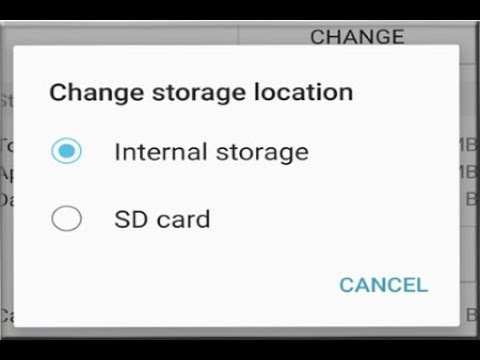
To make your SD card the default storage on Android, simply go to Settings, then Storage, and select the SD card as your preferred storage option. **This quick step ensures your data automatically saves there.** If you’re wondering how to make SD card default storage Android, just change the default write disk in your device settings. Sometimes, your device might not allow this change directly, so using a file manager or specific app settings can help. Follow these tips, and you won’t need to manually move files anymore.

How to Make SD Card Default Storage Android
When you use your Android device, you might notice that it automatically saves files, photos, videos, and even app data to the internal storage. Sometimes, you’d prefer to have your SD card be the main place where everything gets stored. Making your SD card the default storage can be super helpful if you’re running out of internal space or want to keep your device organized. In this guide, you’ll learn how to set your SD card as the default storage on your Android device easily and effectively.
Understanding Storage Options on Android Devices
Before jumping into how to change storage settings, it’s good to understand how Android handles different storage types.
Internal Storage
– This is built into your device and is faster.
– Stores apps, system data, and user information.
– Limited in size depending on your device model.
SD Card Storage
– Usually removable and expandable.
– Used for storing photos, videos, music, and sometimes app data.
– Slower than internal storage but offers more space.
Knowing these differences helps you decide why you might want your SD card to be the default storage.
Why Make Your SD Card the Default Storage?
– **Expand Storage Capacity:** If your device’s internal storage is full, moving to SD card frees up space.
– **Better Organization:** Keep media and files separate from system files.
– **Improve Device Speed:** Offloading data from internal storage can help your device perform better.
– **Save Internal Storage for Apps:** Some apps only store data on internal storage, so changing default storage helps manage space effectively.
Preparing Your SD Card for Use as Default Storage
Before setting your SD card as default storage, follow these steps:
Check Compatibility
– Make sure your device supports SD card storage.
– Confirm the SD card has enough storage capacity and works properly.
Backup Important Data
– Moving data or formatting your SD card can erase information.
– Save photos, videos, and important files elsewhere before proceeding.
Format the SD Card for Compatibility
– Use your device or a computer to format the SD card to FAT32 or exFAT.
– Formatting helps ensure the SD card works smoothly with your device.
Insert the SD Card Correctly
– Power off your device.
– Insert the SD card into the slot carefully.
– Turn your device back on, and wait for it to recognize the card.
Changing Default Storage Settings on Your Android
Most Android devices allow you to specify where new data is saved. While exact steps may vary depending on your device and Android version, the overall process remains quite similar.
Moving App Data or Apps to SD Card
– Open your device’s Settings app.
– Tap on “Apps” or “Applications.”
– Select the app you want to move.
– Tap “Storage,” then choose “Change” or “Move to SD card.”
– If the option isn’t available, the app may not support moving to SD card.
Setting SD Card as Default Storage in Camera and Media Apps
– Open your camera app.
– Go to settings (gear icon).
– Look for “Storage location” or similar.
– Select “SD Card” as the default save location.
For your gallery or music apps:
– Open the app.
– Access settings.
– Find options related to storage or saving media.
– Choose “SD Card” as the default storage location.
Changing Default Storage for Downloads and Files
– Use the file manager app on your device.
– Navigate to Settings or Preferences.
– Look for “Default save location” or similar.
– Select your SD card as the default location for downloads.
Using File Managers and Third-Party Apps to Manage Storage
Sometimes, the default system options aren’t sufficient, especially if you want to move existing data or customize storage more extensively.
File Manager Apps
– Download a reputable file manager app (like Files by Google or ES File Explorer).
– Use it to move files from internal storage to SD card manually.
– Create folders and organize your media easily.
Apps for Moving Data or Managing Storage
– Apps like “Link2SD” or “FolderMount” can help you redirect app data to your SD card.
– Be aware that some of these apps require root access, which can void your warranty or damage your device if not done properly.
Formatting and Moving Existing Data to the SD Card
After setting your SD card as default storage, you might want to move existing files or apps to free up space.
Manual Transfer of Files
– Open your file manager app.
– Locate files under internal storage.
– Select and move or copy them to your SD card.
Moving Apps to SD Card
– Go to Settings > Apps.
– Select the app to move.
– Tap “Storage” and choose “Change” or “Move to SD card.”
– Not all apps support moving; this depends on the developer.
Using Device Settings to Transfer Data
– Some Android devices have a “Storage” section in Settings.
– Look for options like “Change default storage” or “Set SD card as internal storage.”
– Follow the prompts to switch storage options.
Tips and Troubleshooting
– **Ensure SD Card is Properly Inserted:** Make sure your card is inserted correctly if your device doesn’t recognize it.
– **Check for Compatibility:** Not all apps support moving data or storing data on SD cards.
– **Avoid Removing the SD Card While Using It:** Removing the card during data transfer can cause data loss or corruption.
– **Update Your Device Software:** The latest OS updates improve storage management options.
Common Issues and Fixes
– **SD Card Not Recognized:** Format the card again or try a different card.
– **Slow Performance:** Use high-quality SD cards with faster read/write speeds.
– **Apps Not Moving:** Some internal apps are locked to internal storage for security or performance reasons.
Additional Tips for Managing Storage Effectively
– Regularly clean up unnecessary files.
– Use cloud storage options for photos and videos.
– Uninstall apps you no longer need.
– Backup important data to a computer or cloud service periodically.
Implementing these storage management practices ensures your Android device runs smoothly and that your SD card is used as effectively as possible.
—
Making your SD card the default storage on Android isn’t complicated once you understand the steps and options available. Whether you’re moving media, photos, or app data, the process involves preparing your SD card, adjusting settings, or moving files manually. By following these detailed steps, you can maximize your storage space, keep your device organized, and enjoy a better overall user experience.
Frequently Asked Questions
What steps should I follow to set my SD card as the default storage on my Android device?
To set your SD card as the default storage, first insert the SD card into your device. Then, go to the Settings menu and select Storage or Storage & USB. Look for the option to format the SD card and choose to move data or set as default storage when prompted. If your device supports it, you might need to select the SD card as the preferred storage location for photos, videos, and downloads within specific app settings. Follow the on-screen instructions to complete the process.
How can I ensure new files are saved directly to my SD card on Android?
Navigate to your device’s Settings and open the Storage or Storage & USB section. Look for an option called Default Storage Location or Save Location. If available, select your SD card as the default destination for new files, photos, and videos. Some apps also allow setting the storage location within their own settings, enabling you to save data directly to the SD card and prevent internal storage from filling up quickly.
Is it possible to change app storage to the SD card, and how can I do this?
Yes, some Android devices allow you to move certain apps to the SD card. Open Settings and go to Apps or Applications. Select the app you want to move and check if the ‘Move to SD card’ option appears. Tap it to transfer the app to your SD card. Keep in mind that not all apps support this feature, and some may require reinstallation or specific settings adjustments to store data on the SD card.
What should I consider before setting my SD card as the default storage on Android?
Before changing your storage defaults, ensure your SD card is formatted correctly and has sufficient space for your needs. Back up important data to avoid potential loss during formatting. Be aware that some apps may not work properly if stored on an SD card, especially those requiring high-speed data access. Additionally, avoid removing the SD card frequently, as this can cause data corruption or app crashes.
How can I troubleshoot issues when my Android device does not recognize the SD card as default storage?
First, restart your device to see if it detects the SD card properly. Check if the SD card is correctly inserted and formatted with a compatible file system. Access Storage settings to verify if the SD card appears and is set as the default storage. If issues persist, try formatting the SD card again or use a different card. Ensure your device’s software is up to date, as updates can fix bugs related to storage management.
Final Thoughts
Making your SD card the default storage on Android is straightforward. First, insert the SD card and format it if necessary. Then, navigate to Settings > Storage, and select your SD card as the preferred storage location. Some devices may require enabling “Adoptable Storage” in Developer Options.
To ensure your SD card is used for new apps and data, move existing files manually or set app preferences accordingly. Remember, the process can vary slightly depending on your device model and Android version.
In summary, how to make sd card default storage android involves formatting the card, selecting it as default in storage settings, and configuring app storage preferences. Following these steps helps optimize your device’s storage efficiency.
