

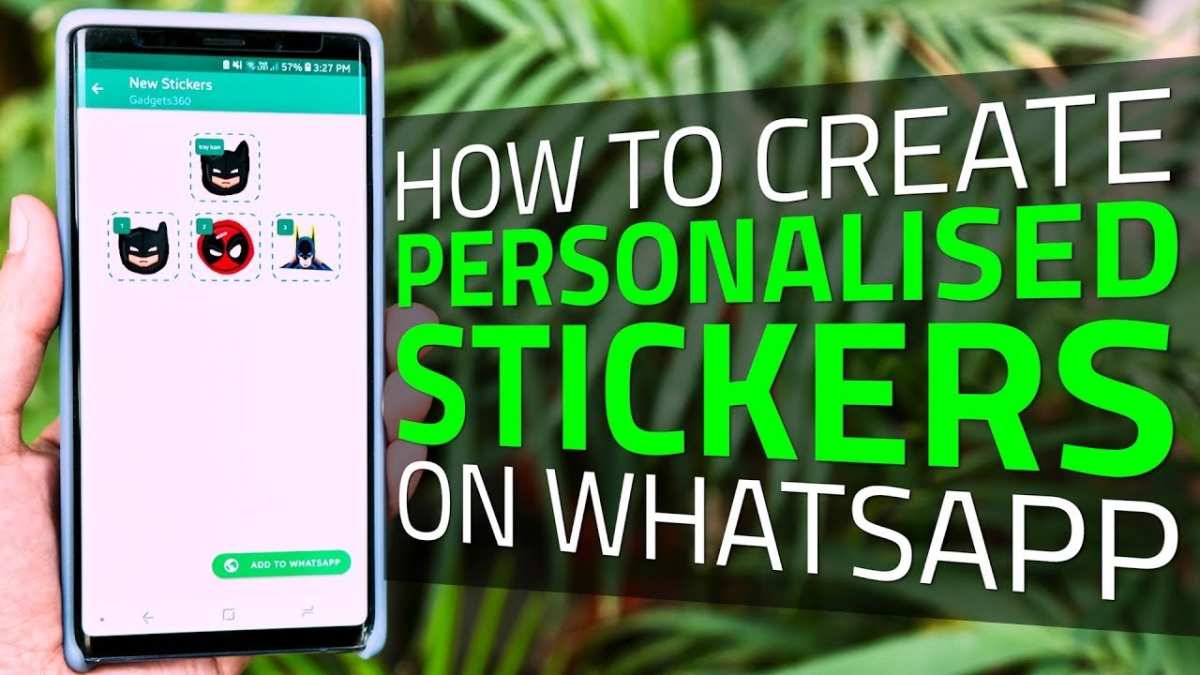
Creating custom stickers for WhatsApp on Android is simple and quick. **You can easily make stickers using dedicated apps or even through photo editing tools.** Just select or cut out your favorite images, add fun elements, and save them as stickers.
Knowing how to make stickers WhatsApp Android helps personalize your conversations and express yourself more creatively. It’s a straightforward process that anyone can follow to bring more fun to chats.

How to Make Stickers WhatsApp Android
Creating your own stickers for WhatsApp on an Android device can be both fun and easy. Custom stickers allow you to express yourself better in chats, share personalized emotions, and add a unique touch to your conversations. If you’re curious about how to make stickers WhatsApp Android, you’ve come to the right place. This guide will walk you through each step in detail, providing tips and tricks along the way to help you craft stunning, personalized stickers right from your phone.
Understanding WhatsApp Stickers and Their Popularity
Before diving into the creation process, let’s understand why stickers are so popular on WhatsApp. Stickers allow users to communicate more visually and expressively than plain text or emojis. They can convey emotions, reactions, or humor quickly and vividly. WhatsApp has integrated stickers seamlessly, and users can download sticker packs or create their own, making chatting more lively and personalized.
The demand for custom stickers has grown, especially for special occasions like birthdays, holidays, or even inside jokes. Creating your own stickers gives your chats a personal touch that cannot be found in standard sticker packs.
Choosing the Right Tools to Make Stickers on Android
To make stickers WhatsApp Android, you need a few tools. Luckily, there are many free and paid apps available that make sticker creation simple:
- Sticker Maker for WhatsApp – This app is popular for creating custom stickers easily. It allows you to cut out images and add backgrounds or text.
- Personal Sticker Photo for WhatsApp – Offers advanced editing options for photo-based stickers.
- Sticker Studio – Lets you create stickers from images and provides tools for background removal.
Apart from these apps, you can also use photo editing apps such as Adobe Photoshop Express or GIMP if you prefer editing images on a computer before transferring them to your phone.
Preparing Your Images for Custom Stickers
Creating the perfect sticker starts with choosing the right images. Follow these tips to prepare images suitable for WhatsApp stickers:
- Use high-resolution images to ensure clarity when resizing or cropping.
- Remove backgrounds for cleaner and more professional-looking stickers. You can do this with apps like Background Eraser or Sticker Maker.
- Keep the image dimensions small, ideally around 512×512 pixels, which is the recommended size for WhatsApp stickers.
- Save images in PNG format with transparent backgrounds to make your stickers look crisp and clear.
Once your images are ready, you can import them into your chosen sticker-making app.
Step-by-Step Guide to Creating Stickers WhatsApp Android
Let’s go through the process step-by-step for creating your own stickers:
1. Download and Install a Sticker Maker App
Choose an app like Sticker Maker for WhatsApp from the Google Play Store. Install it on your Android device and open the app.
2. Create a New Sticker Pack
Most apps require you to create a sticker pack before adding stickers:
- Tap on the “Create New Sticker Pack” option.
- Give your sticker pack a name and author name.
3. Add Stickers to the Pack
Now, add images to your pack:
- Tap on the “Add Sticker” button.
- Select an image from your gallery or take a new photo.
- Use the app’s tools to crop, erase backgrounds, or add effects to your image.
- Save the sticker once you’re satisfied with the edits.
Repeat this process for each sticker you want in your pack. Most apps allow you to add a minimum of three stickers and a maximum of 30 per pack.
4. Finalize and Export Your Sticker Pack
Once you’ve added all your stickers:
- Tap on the “Add to WhatsApp” button or similar option.
- Confirm the action to import your custom stickers into WhatsApp.
Your custom stickers are now available in your WhatsApp sticker section under your created pack.
Tips for Creating Eye-Catching Stickers
For your stickers to stand out, consider these design tips:
- Express emotions clearly: Make sure your stickers convey feelings like happiness, sadness, or humor straightforwardly.
- Use bold outlines: This helps your stickers pop against different chat backgrounds.
- Keep it simple: Avoid overly complicated details which may not display well on small screens.
- Add playful text: Use short, fun phrases when appropriate to add personality.
Experiment with different styles, backgrounds, and text placements. Remember, the more expressive and personalized your stickers, the more engaging your conversations become.
Creating Stickers from Photos or Artwork
If you’re artistic or want to create stickers from your favorite images, here’s how:
- Take a photo or select an image with a clear subject.
- Edit the image using photo editing apps to remove the background or add filters.
- Crop the image into a square shape, making sure the main subject is centered.
- Save the image as a PNG with transparency if possible.
- Import the image into your sticker app and follow the steps to add it to your pack.
Using personal artwork or drawings can add a unique flavor to your sticker collection.
Sharing Your Custom Stickers with Friends
Once you’ve created and added your stickers to WhatsApp, sharing them with friends is simple:
- Open WhatsApp and select a chat.
- Click on the sticker icon in the input box.
- Find your custom sticker pack among the available options.
- Select a sticker to send it in the chat.
You can also export and send sticker packs via other means like sharing the sticker pack file or screenshotting the stickers.
Maintaining and Updating Your Sticker Packs
Creating a few initial sticker packs is a great start, but keep updating your collection:
- Add new stickers for different moods or occasions.
- Update existing stickers if you want to improve their look.
- Create themed packs, e.g., funny cats, holiday greetings, or motivational quotes.
Regular updates keep your sticker collection fresh and engaging for your friends.
Common Problems and How to Fix Them
Sometimes, things don’t go as planned. Here are common issues and solutions:
| Problem | Solution |
|---|---|
| Stickers not showing up in WhatsApp | Make sure you’ve exported the pack correctly and reloaded WhatsApp. Restart your phone if needed. |
| Stickers appear blurry or pixelated | Check your images are high resolution and properly cropped to 512×512 pixels. |
| Background removal is uneven | Use better background removal tools or refine the edges manually with editing apps. |
With patience and practice, making perfect stickers becomes easier over time.
Making stickers WhatsApp Android is a fantastic way to personalize your messaging experience. With the right tools and a little creativity, you can craft stickers that truly represent your personality and style. Explore different themes, experiment with designs, and enjoy adding a fun, visual touch to your chats. Whether for daily jokes, heartfelt messages, or special occasions, your custom stickers will make your conversations more lively and memorable.
Remember, the key is to keep practicing and trying new ideas. Have fun creating and sharing your own unique collection of WhatsApp stickers!
Frequently Asked Questions
What are the steps to add custom stickers to WhatsApp on an Android device?
To add custom stickers, first create or download your desired images and save them in your device. Then, use a sticker maker app from the Google Play Store to import these images and convert them into stickers. After creating the stickers, export them to WhatsApp by following the app’s instructions. Once imported, you can access your custom stickers directly within WhatsApp chats.
How can I convert my photos into stickers suitable for WhatsApp on Android?
Start by selecting the photo you want to turn into a sticker. Use a photo editing app or a dedicated sticker maker to remove the background and crop the image appropriately. Save the edited image as a PNG file with a transparent background. Then, import this image into a sticker creation app, where you can add it to your collection and export it to WhatsApp. This process ensures your photo fits seamlessly as a sticker.
Are there any recommended apps for creating WhatsApp stickers on Android devices?
Yes, several apps work well for creating WhatsApp stickers on Android. Popular choices include ‘Sticker Maker for WhatsApp,’ ‘Personal Stickers for WhatsApp,’ and ‘Sticker Studio.’ These apps allow you to easily import images, edit and crop them, add multiple stickers to a pack, and export the pack directly to WhatsApp. Choose an app that offers intuitive editing tools and supports multiple sticker creation.
Can I make animated stickers for WhatsApp on Android, and if so, how?
Creating animated stickers typically involves designing GIFs or short animations using specialized apps or software. Once you have your animated clip, you can use an app like ‘Animated Sticker Maker’ or similar to convert the GIFs into stickers compatible with WhatsApp. Follow the app’s instructions to import your animation, add it to a sticker pack, and export it to WhatsApp. Keep in mind that WhatsApp supports animated stickers in the WebP format.
Is it possible to update or modify existing stickers in WhatsApp on Android?
While you can’t directly edit stickers inside WhatsApp, you can modify the original images used to create your stickers. Use a sticker maker app to delete or replace specific stickers within a pack or to update them. After editing, re-export the updated stickers to WhatsApp, replacing the previous versions. This method helps keep your sticker collection fresh and personalized.
Final Thoughts
To make stickers on WhatsApp Android, start by finding or creating images suitable for stickers. Use apps like Sticker Maker to easily turn your images into stickers. Customize them with text or drawings to add a personal touch.
Once you design your stickers, upload them to WhatsApp via the app. This straightforward process allows you to quickly add your creations to your chat collection.
In summary, learning how to make stickers WhatsApp Android enables you to personalize your messaging experience effortlessly.
