

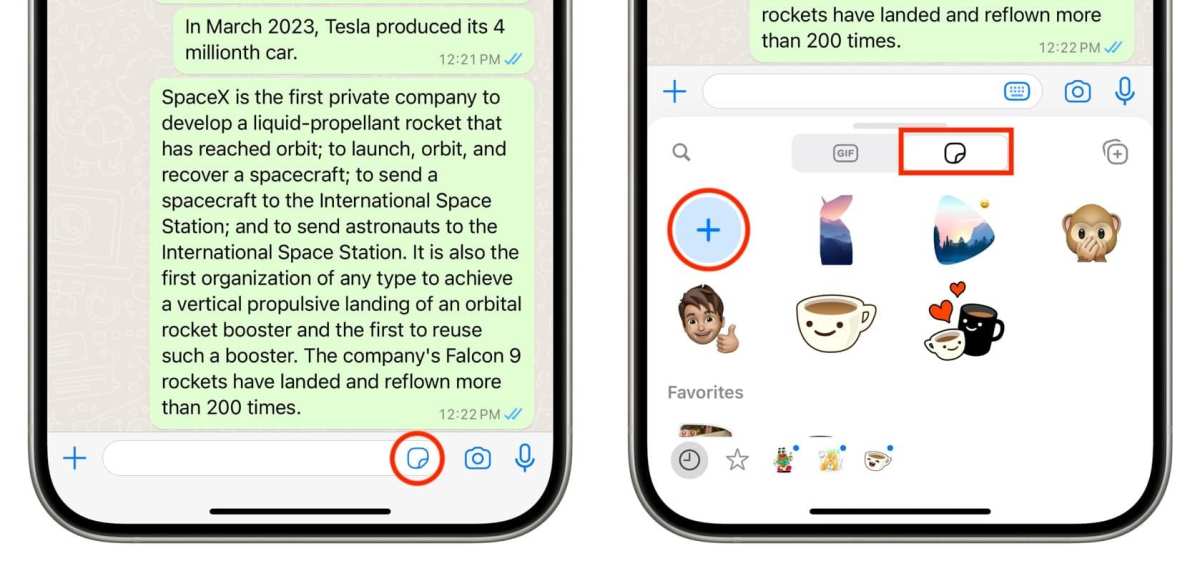
To make stickers in WhatsApp Android, start by using a sticker-making app or creating images on your phone. **The process involves editing images, saving them with transparent backgrounds, and importing them into WhatsApp.** Knowing how to make stickers in WhatsApp Android allows you to personalize your chats and express yourself more creatively. Simply choose your images, customize them, and add them to your WhatsApp sticker pack. This straightforward method makes sharing fun and unique stickers easier than ever.

How to Make Stickers in WhatsApp Android
Making custom stickers for WhatsApp on your Android device is easier than ever. If you want to add a personal touch to your chats or surprise your friends with fun, unique stickers, this guide will walk you through every step. We’ll cover the basics, from understanding sticker formats to creating your own stickers, and even how to organize them in packs. So, let’s get started!
Understanding WhatsApp Stickers and Why They Matter
Before diving into the process, it’s helpful to understand why stickers are so popular. Unlike plain text or emojis, stickers add emotion and personality to your messages. They can express happiness, sadness, excitement, or humor with just a quick glance. Custom stickers make your conversations more lively and personalized, making chats more engaging for everyone involved.
WhatsApp has a built-in stickers feature, but it doesn’t directly allow users to create their own stickers without using external apps. That’s why third-party sticker maker apps and some creative tools are essential to creating custom stickers on Android.
Getting the Right Tools to Make Stickers in WhatsApp Android
To create stickers, you’ll need specific apps designed for sticker creation. Some popular options include:
- Sticker Maker for WhatsApp
- Personal Stickers for WhatsApp
- Sticker Studio
- Canva (for designing images)
In addition to these apps, you’ll need an image editing app if you want to create stickers from scratch or modify existing images. Many creators prefer using Canva or Photoshop Express, but simple editors like Photos or built-in Android editing tools also work well.
Steps to Create Your Own Stickers for WhatsApp
Creating custom stickers involves several steps. Here’s a detailed walkthrough:
Preparing Your Images
Before importing images into a sticker app, ensure your images are high-quality and suitable for stickers:
- Use clear, high-resolution photos or illustrations.
- Make sure your images have a transparent background for better appearance. If not, use background removal tools.
- Crop images to focus on the main subject, typically keeping a clear outline.
- Save images in PNG format for transparency support.
Removing Backgrounds from Images
Most sticker apps require images without backgrounds. You can remove backgrounds using apps like:
- Background Eraser
- PicsArt
- Canva (background removal feature)
Follow these steps:
- Open your chosen background removal app.
- Select the image you want to convert into a sticker.
- Use the eraser tool to carefully remove the background around your subject.
- Save the image in PNG format with transparency.
Creating Stickers Using Sticker Maker Apps
Now that you have your prepared images, it’s time to turn them into stickers:
- Download and install a sticker maker app like “Sticker Maker for WhatsApp”.
- Open the app and create a new sticker pack. You can usually name your pack and provide an author name.
- Add stickers to your pack by selecting images from your gallery or directly capturing new ones.
- Use the app’s tools to crop, resize, or adjust your images as needed.
- Follow the app’s instructions to finish creating your sticker pack.
Adding Stickers to WhatsApp
Once your sticker pack is ready, the app will usually give you an option to add it directly to WhatsApp:
- Tap the “Add to WhatsApp” button within the app.
- Confirm the addition when prompted.
- Open WhatsApp, and go to a chat window.
- Tap the emoji icon, then the sticker icon to view your new stickers.
Your custom stickers are now ready to be sent!
Organizing and Managing Your Stickers
Managing multiple sticker packs is simple. You can create different packs based on themes, mood, or friends. Here’s how to keep everything organized:
- Name each pack clearly for easy identification.
- Update your packs regularly by adding new stickers.
- Delete or hide packs you no longer want to use.
Most sticker maker apps allow you to edit existing packs or create new ones without hassle, so you can keep your collection fresh and fun.
Tips for Creating Awesome Stickers
To make your stickers stand out, keep these tips in mind:
- Use bright, eye-catching colors.
- Keep the design simple and recognizable even at small sizes.
- Express emotions clearly—smiles, frowns, surprise, etc.
- Combine text with images if you want to add humor or context.
- Experiment with different styles, from cute characters to funny memes.
Consistency is key, so try to develop a style or theme for your stickers.
Customizing Existing Stickers and Making Variations
Besides creating stickers from scratch, you can also customize existing images:
- Select a sticker or image you want to modify.
- Edit it with image editing apps—add text, change colors, or combine images.
- Save your variations and add them to your sticker packs.
This flexibility means you can make funny edits or personalized versions of popular stickers.
Sharing Your Stickers with Friends
After creating your sticker packs, sharing them is just a tap away:
- Send packs directly via WhatsApp, or
- Export images or sticker files to friends for them to import into their apps.
Encourage your friends to make their own packs too—sharing your creativity makes conversations more fun!
Remembering Important Guidelines and Best Practices
While customizing stickers, keep these points in mind:
- Respect copyright—use images you have rights to or create your own.
- Avoid sensitive or offensive content to keep chats friendly.
- Ensure your images meet the size requirements—usually around 512×512 pixels for best results.
Following these guidelines helps you enjoy a smooth experience and creates quality stickers that everyone will love.
Making stickers for WhatsApp on Android is a straightforward and fun process. With the right apps and a little creativity, you can craft personalized stickers that truly represent your style and mood. Whether you’re designing cute characters, funny memes, or heartfelt messages, custom stickers add a special touch to every conversation. Keep experimenting with different ideas, organize your packs well, and most importantly, enjoy expressing yourself through your unique sticker collection. Now, go ahead and start creating your own WhatsApp stickers today!
Frequently Asked Questions
What steps should I follow to add custom stickers to WhatsApp on my Android device?
First, open the sticker maker app of your choice and create a new sticker pack. Add images from your gallery, crop or edit them as needed, and save the stickers. Once your pack is ready, tap on the export button to add it directly to WhatsApp. The stickers will then appear in your WhatsApp sticker collection for use in chats.
How can I create stickers with transparent backgrounds for WhatsApp?
Use an app that supports editing images with transparent backgrounds, such as a background remover or photo editing tool. Remove the background of your selected images and save them in PNG format with transparency. Import these images into your sticker maker app to create stickers with transparent backgrounds, ensuring they look polished when used in chats.
Are there any specific image requirements for making WhatsApp stickers on Android?
Yes, WhatsApp recommends that stickers be in PNG or WebP format with transparent backgrounds. Each sticker should be a square image of at least 512×512 pixels, and the file size should not exceed 100 KB. Adhering to these specifications helps your stickers display correctly within the app.
Can I add animated stickers to WhatsApp on Android?
Yes, some third-party apps allow you to create or import animated stickers in APNG or WebP formats. After creating or downloading animated stickers, import them into your sticker pack through a compatible app, then add the pack to WhatsApp. Keep in mind that WhatsApp supports basic animated stickers, but compatibility may vary depending on the app used.
Is it possible to share my custom stickers with friends on WhatsApp?
Yes, once you create your sticker pack and add it to WhatsApp, you can share it with friends. To do so, export the sticker pack from the app and send the file via share options. Your friends can then import the sticker pack into their WhatsApp using the same or compatible sticker maker apps, allowing you to enjoy your personalized stickers together.
Final Thoughts
To make stickers in WhatsApp Android, start by creating or choosing images you want to turn into stickers. Trim and edit them to fit the sticker size and save them on your device.
Next, use a sticker maker app to import your images and customize your packs. Once finished, export and add them directly to WhatsApp.
In conclusion, making stickers in WhatsApp Android involves editing images, using a sticker maker app, and importing your packs. This simple process makes your chats more fun and personal.
