

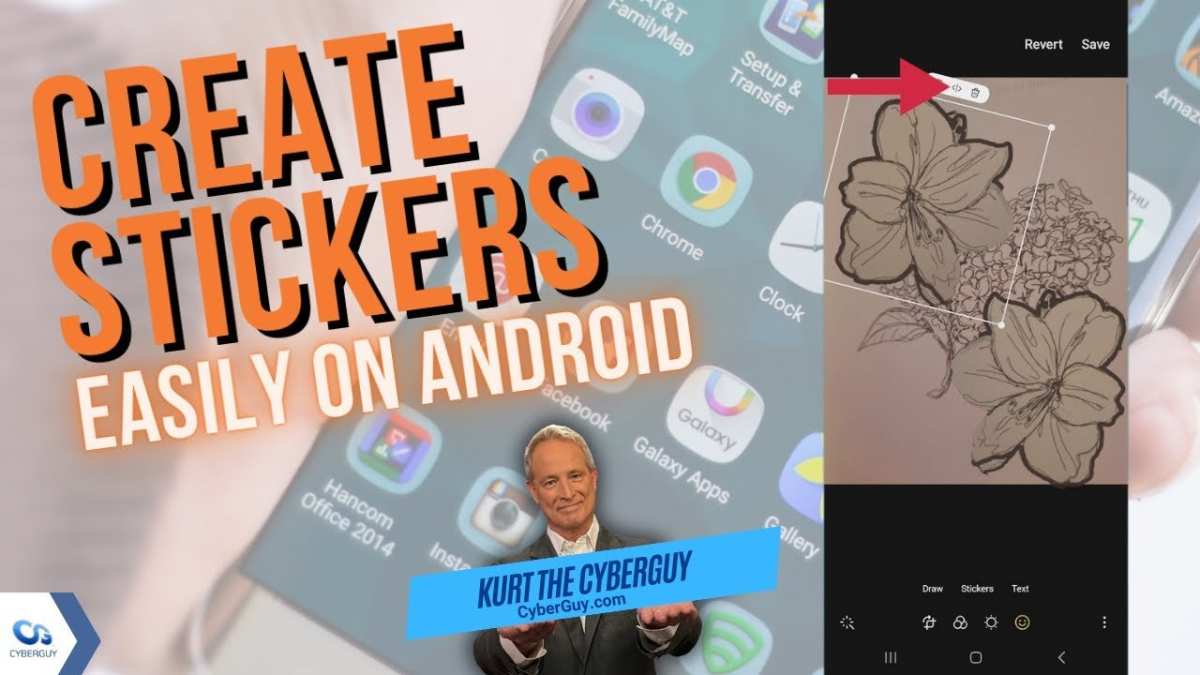
To make stickers in Android, you simply need a good app and a bit of creativity. **Download a sticker maker app like Sticker Maker or PicsArt.** Open the app, select your images, and customize your stickers with text or drawings.
Learning how to make stickers in Android allows you to personalize your chats easily. With just a few steps, you can create fun stickers that express your mood or personality. Get started now and bring your conversations to life!

How to Make Stickers in Android
Making your own stickers on an Android device can be an exciting way to personalize your chats and stand out. Whether you want funny, cute, or artistic stickers, Android offers many tools to help you craft custom images that fit your style. In this guide, we’ll walk through the step-by-step process of creating stickers in Android, from selecting the right apps to exporting your creations for use in messaging apps. Let’s dive into everything you need to know in detail.
Choosing the Right App for Creating Stickers
The first step to making stickers on your Android device is selecting the best app suited for your needs. Not all apps are created equal, so consider what features matter most to you, such as ease of use, editing tools, or sticker packs.
Popular Sticker-Making Apps
Here are some top-rated apps that can help you create personalized stickers:
- Sticker Maker for WhatsApp: Simple and user-friendly app that allows creating personalized sticker packs for WhatsApp.
- Personal Sticker Maker: Offers easy tools to cut out images and make sticker packs for various messaging apps.
- PicsArt: A versatile photo editing app with sticker creation features, perfect for detailed designs.
- Adobe Photoshop Express: Advanced editing tools for creating high-quality stickers, if you’re familiar with photo editing.
Choose the app that matches your skill level and the complexity of your desired sticker designs. Many apps are free, while some offer premium features for a small fee.
Preparing Your Images for Stickers
Before you start creating stickers, you’ll need to prepare your images. This involves selecting the right pictures, editing them, and removing backgrounds if necessary.
Selecting the Perfect Images
Choose images that are clear and have a good resolution. You can use your photos, drawings, or even screenshots. Keep in mind that:
- Images with minimal background work are easier to turn into stickers.
- High-contrast images work better for cutouts.
- Make sure the images are large enough to avoid pixelation when resized.
Removing Backgrounds from Images
Most sticker-making apps include tools to cut out backgrounds, but you can also use dedicated background remover apps like:
- Background Eraser
- PhotoLayers
- Remove.bg (automatic background removal)
Once backgrounds are removed, save the images as PNG files, which support transparency—perfect for sticker use.
Creating Stickers Step-by-Step
Now that your images are ready, let’s walk through the process to create your stickers.
Using Sticker Maker Apps
Most sticker maker apps follow a similar process:
- Open the app and create a new sticker pack or project.
- Import your prepared images from your gallery.
- Edit the images if needed, using tools like crop, resize, add text, or stickers.
- Cut out the background or define the sticker shape if the app allows.
- Save the sticker within the app. Repeat for multiple images to build a sticker pack.
- When finished, export or add the sticker pack directly to your messaging app (e.g., WhatsApp).
Some apps also let you add borders, shadows, or other effects to enhance your stickers.
Designing Custom Stickers from Scratch
If you want to create entirely new stickers, start with a blank canvas:
- Open a photo editing app like PicsArt or Adobe Photoshop Express.
- Create a new project with transparent background.
- Draw or design your sticker using brushes, shapes, and text tools.
- Save your design as a PNG file.
- Import your creation into a sticker maker app to add to your pack.
This method offers total creative control and is perfect for artistic or comic-style stickers.
Exporting and Using Your Stickers in Messaging Apps
Once your stickers are ready, it’s time to add them to your messaging apps like WhatsApp, Telegram, or others.
Adding Stickers to WhatsApp
Most sticker maker apps have a built-in feature to export directly to WhatsApp:
- Finish creating your sticker pack within the app.
- Tap on the export or add button.
- Confirm the addition to WhatsApp or your preferred messaging app.
For manual addition:
- Open WhatsApp and go to a chat window.
- Tap the emoji icon, then select the sticker icon.
- Tap the ‘+’ sign to access your sticker packs.
- Download or add your custom sticker pack if it’s not already there.
Your custom stickers will now be available for use in chats. Repeat this process whenever you create new sticker packs.
Organizing Your Stickers
Keeping your stickers organized helps you find and use them easily:
- Create multiple sticker packs based on themes like animals, memes, or personal drawings.
- Name your packs clearly for quick identification.
- Update packs with new stickers regularly to keep your collection fresh.
Tips for Creating High-Quality Stickers
To make your stickers stand out, keep these tips in mind:
- Use high-resolution images for clarity.
- Ensure backgrounds are transparent for a professional look.
- Keep stickers simple and recognizable at small sizes.
- Experiment with different styles, colors, and effects.
- Test your stickers in chats to see how they look when resized.
Legal and Ethical Considerations
While creating stickers, remember to respect copyright laws. Use images that you own or have permission to use. Creating original artwork or using royalty-free images keeps your stickers ethical and legal.
Troubleshooting Common Problems
Sometimes, creating or importing stickers can lead to issues. Here’s how to resolve common problems:
- Stickers not appearing in messaging apps: Make sure you exported and added your sticker pack correctly. Restart the app if needed.
- Low-quality images: Use higher-resolution images and avoid excessive resizing.
- Background not removing properly: Use dedicated background removal tools and check for remnants.
Enhancing Your Sticker Collection with Advanced Features
For those interested in taking their stickers further, try exploring features like animated stickers, GIF integration, or adding sound effects in some advanced apps. These features allow for more dynamic and engaging stickers.
Making stickers on your Android device is a fun and creative activity that can add a personal touch to your conversations. By choosing the right apps, preparing your images carefully, and following simple steps to design and export your stickers, you can build a unique sticker collection. Remember to keep your designs clean, clear, and meaningful, and don’t hesitate to experiment with different styles. With a little practice, you’ll have a fantastic set of stickers ready to share with friends on any messaging platform.
Frequently Asked Questions
What are the best apps available for creating stickers on an Android device?
You can use popular apps such as Sticker Maker, PicsArt, or Canva to design stickers on Android. These apps offer user-friendly interfaces with tools like cutouts, text, and drawing features that help you create personalized stickers easily. Download any of these from the Google Play Store and explore their sticker creation options.
How can I customize existing images to turn them into stickers?
Open a photo editing app like PicsArt or Sticker Maker and import the image you want to convert. Use the app’s tools to cut out the part of the image you want to turn into a sticker. Remove the background if needed, add any desired effects or text, and save the image in a compatible format like PNG to maintain transparency. You can then import this into messaging apps to use as stickers.
What steps should I follow to add a new sticker pack to WhatsApp on Android?
First, create your stickers using a dedicated app or photo editor. Once finished, save them in PNG format with transparent backgrounds. Then, open a sticker pack app compatible with WhatsApp and import your stickers. After assembling your pack, export it to WhatsApp through the app’s option, which will add the new stickers directly to your WhatsApp sticker collection.
Can I create animated stickers on Android devices?
Yes, you can make animated stickers using apps like Sticker Maker or GIF Maker. These apps allow you to create short animations or convert existing GIFs into sticker formats compatible with messaging apps. Keep in mind that not all platforms support animated stickers, so verify the compatibility before sharing your creations.
Are there any tips to ensure my stickers look professional and clear?
Use high-resolution images and remove backgrounds cleanly to create sharp sticker visuals. Avoid cluttered or complex backgrounds that can distract from the main subject. Focus on simple, clear designs with vibrant colors, and save your stickers in PNG format to preserve transparency and quality. Preview your stickers on your device before sharing to ensure they look crisp and well-defined.
Final Thoughts
Making stickers in Android is simple and fun. First, choose your favorite images or drawings and edit them using photo editing apps. Crop and remove backgrounds to make your stickers stand out.
Next, use apps like Sticker Maker or Personal Stickers for WhatsApp to import your images. Customize your stickers with text or effects if desired.
Finally, save and add your stickers to your messaging apps to share with friends. Knowing how to make stickers in Android helps you personalize your chats easily.
