

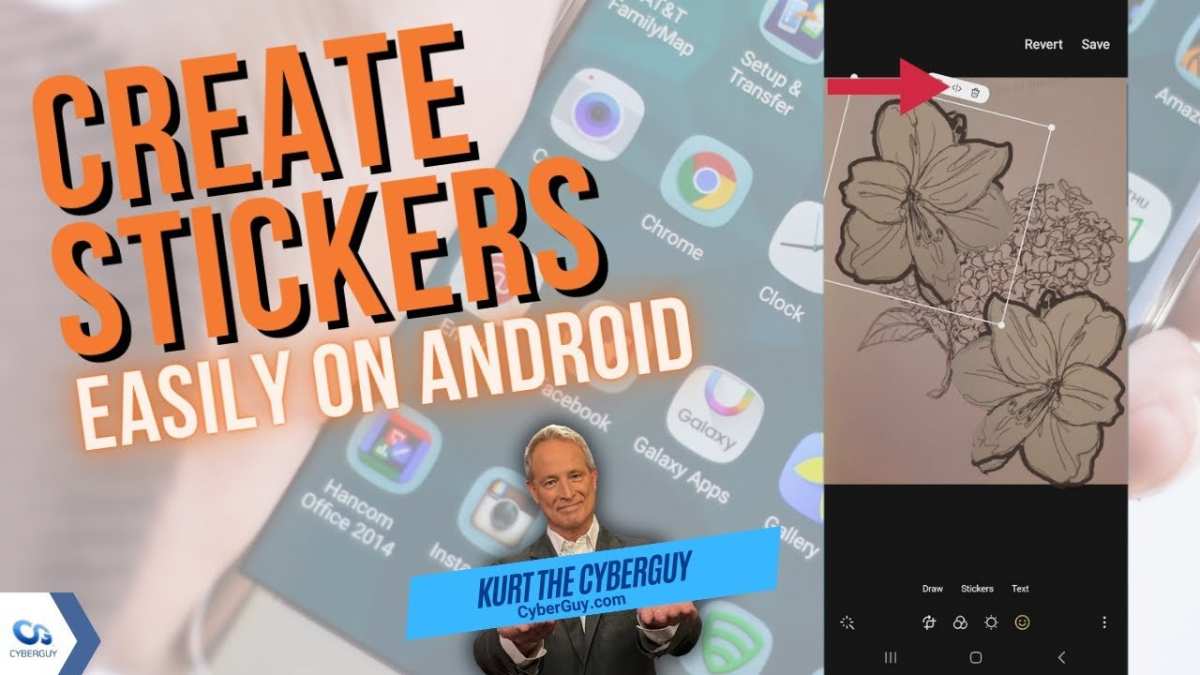
To make stickers for Android, you need a simple design app and a messaging platform that supports custom stickers. **Creating your own stickers is straightforward with the right tools.** Just design your images, remove the background if needed, and add them to your messaging app.
Knowing how to make stickers for Android allows you to personalize your chats and brighten conversations. It’s easy and quick to start making your own unique stickers today.

How to Make Stickers for Android: A Complete Guide
Creating stickers for Android is an exciting way to personalize your messaging apps, share your creativity, and make your chats more fun. If you’ve ever wondered how to craft your own stickers and add them to your favorite Android messaging platform, you’re in the right place. This comprehensive guide will walk you through every step, from designing your stickers to publishing them for use. Let’s get started!
Understanding the Basics of Android Stickers
Before diving into the process, it’s important to understand what Android stickers are and how they work. Stickers are images or graphics you can send via messaging apps like WhatsApp, Messenger, or Telegram. Unlike traditional emojis, stickers can be detailed and personalized, offering a new level of expression.
Some key points to keep in mind:
- Stickers are usually created as images with transparent backgrounds, often in PNG format.
- Most messaging apps have specific requirements for sticker size, resolution, and format.
- You can design stickers manually or use online tools and apps to create them easily.
Understanding these basics helps you plan your sticker creation process effectively.
Choosing the Right Tools for Designing Stickers
Creating eye-catching stickers starts with selecting the proper tools. You can choose from various options depending on your comfort level and the complexity of your designs.
Graphic Design Apps
For those familiar with graphic design, professional apps offer extensive features:
- Adobe Photoshop: Provides advanced editing capabilities to create detailed stickers.
- GIMP: A free alternative that supports layered editing and transparency.
- Pixlr: An online editor suitable for quick edits and designs.
Mobile Apps for Sticker Creation
If you prefer designing directly on your phone, many apps are available:
- Sticker Maker for WhatsApp: Allows you to create custom stickers and offers an easy-to-use interface.
- Sticker Studio: Lets you turn your photos into stickers with transparent backgrounds.
- Canva: Provides templates and design tools to craft stickers easily, then export as images.
Online Tools and Resources
Web-based tools can help you design stickers without installing software:
- Remove.bg: Quickly removes backgrounds from images, ideal for creating transparent stickers.
- Canva Online: Offers pre-made templates and an intuitive drag-and-drop interface.
- Sticker.ly: An app and website dedicated to creating and sharing stickers.
Designing Your Stickers: Tips and Ideas
Now that you have tools, it’s time to design! Here are some tips to make your stickers appealing and expressive.
Start with Clear Concepts
Think about what kind of sticker you want to create:
- Funny characters or memes
- Expressions showing emotions like happiness, sadness, or surprise
- Custom illustrations or doodles
- Favorite animals or pets
Focus on Simplicity and Clarity
Remember, stickers are small images, so avoid overly complex designs. Use bold lines and bright colors for visibility.
Use Transparent Backgrounds
Most messaging apps require stickers with transparent backgrounds so they blend well with chat backgrounds. Use tools like Remove.bg or the eraser tool in design apps.
Maintain Consistent Style
Create a cohesive set of stickers with similar themes, colors, or characters for a more professional look.
Ensure Proper Dimensions and Resolution
Check the specifications for your target platform. Generally, the recommended size is 512×512 pixels with a resolution of 72 DPI.
Preparing Your Stickers for Android Messaging Apps
Once your designs are complete, it’s time to prepare your stickers for upload and use.
Converting and Exporting Files
Export your stickers as PNG files:
- Ensure that the background remains transparent.
- Save each sticker with a clear, descriptive filename.
- Keep the files under the size limit, usually around 100 KB to 300 KB per image.
Creating a Sticker Pack
Most messaging apps require you to package your stickers into a “sticker pack” before using it:
- Use dedicated apps like Sticker Maker for WhatsApp or Sticker Studio to compile your images into packs.
- Follow the app’s instructions to add your stickers, arrange their order, and customize the pack name and icon.
Testing Your Stickers
Before sharing widely, test your sticker pack:
- Send stickers to yourself or friends to see how they appear.
- Check for clarity, transparency, and proper size.
- Make adjustments if needed and re-export your files.
Uploading and Sharing Your Stickers on Android
Now that everything is ready, it’s time to add your stickers to Android messaging apps.
Using WhatsApp
The most popular app for stickers on Android is WhatsApp:
- Open a sticker creation app like Sticker Maker or Sticker Studio.
- Create your sticker pack or select existing images.
- Follow the app’s steps to add stickers and publish the pack.
- The stickers automatically appear in your WhatsApp sticker section.
Other Messaging Platforms
Different apps have specific methods:
- Telegram: Allows users to upload custom stickers via Telegram’s Sticker Bot.
- Facebook Messenger: Supports stickers, but creating custom ones involves using the Facebook sticker maker or third-party apps.
Tips for Maintaining and Updating Your Stickers
Creating stickers is an ongoing process. To keep your collection fresh:
- Update your packs with new designs periodically.
- Ask friends or followers for feedback and ideas.
- Optimize images based on user experience, ensuring clarity and transparency.
- Organize your stickers into themes or categories for easy access.
Legal and Ethical Considerations
Always respect copyrights and avoid using images or characters that you don’t own or have permission to use. Creating original designs or using royalty-free resources helps you avoid legal issues.
Making stickers for Android might seem complicated at first, but once you understand the process, it becomes a fun and rewarding activity. Whether you prefer using professional graphic apps or simple online tools, you can create stickers that reflect your personality and style. Remember to keep your designs simple, clear, and within the required specifications, and your stickers will be ready to brighten chats and bring smiles. Have fun designing and sharing your custom stickers!
Frequently Asked Questions
What tools can I use to create custom stickers for Android devices?
You can use graphic design software like Adobe Photoshop or free alternatives such as GIMP and Canva to create your sticker designs. Additionally, apps like Sticker Maker for WhatsApp or Sticker Studio allow you to design and compile stickers directly on your device, providing user-friendly interfaces tailored for sticker creation.
How should I prepare images for making Android stickers?
Start by selecting high-resolution images with clear backgrounds. Use editing tools to remove the background, ensuring the sticker images have transparent backgrounds in PNG format. Keep the dimensions appropriate for mobile screens, usually around 512×512 pixels, to ensure they display well across different devices.
What is the process to convert my images into sticker packs on Android?
First, open a sticker maker app compatible with Android, like Sticker Maker or Sticker Studio. Import your prepared images into the app, organize them into a pack, and add any desired labels or decorations. Once satisfied, export the pack to your device and add it to your messaging app, such as WhatsApp, following the app’s instructions for importing custom stickers.
Can I add text or effects to my stickers before finalizing them?
Yes, most sticker creation apps and editing software let you add text, borders, and various effects to your images. Incorporate these elements to personalize your stickers and make them more expressive. Just ensure that the added elements complement the overall design and do not obscure the main image.
Are there any specific guidelines for creating compliant stickers for messaging platforms?
Yes, ensure your stickers do not contain offensive, copyrighted, or inappropriate content. Keep the file size within platform limits—usually under a few megabytes—and use transparent backgrounds for seamless integration. Follow the platform-specific instructions for importing and sharing stickers to avoid any issues with acceptance or functionality.
Final Thoughts
To make stickers for android, start by designing your images using graphic editing software like Photoshop or free alternatives such as GIMP. Keep the backgrounds transparent and optimize the image resolution for clarity. Next, save your stickers in PNG format to ensure quality.
Then, use an app like Sticker Maker to import your designs and create sticker packs. Test your stickers on your device to confirm they display correctly. This process allows you to personalize your messaging effectively.
In conclusion, how to make stickers for android involves designing high-quality images, importing them into the right app, and assembling your sticker pack. With these steps, you can easily craft personalized stickers for your Android devices.
