

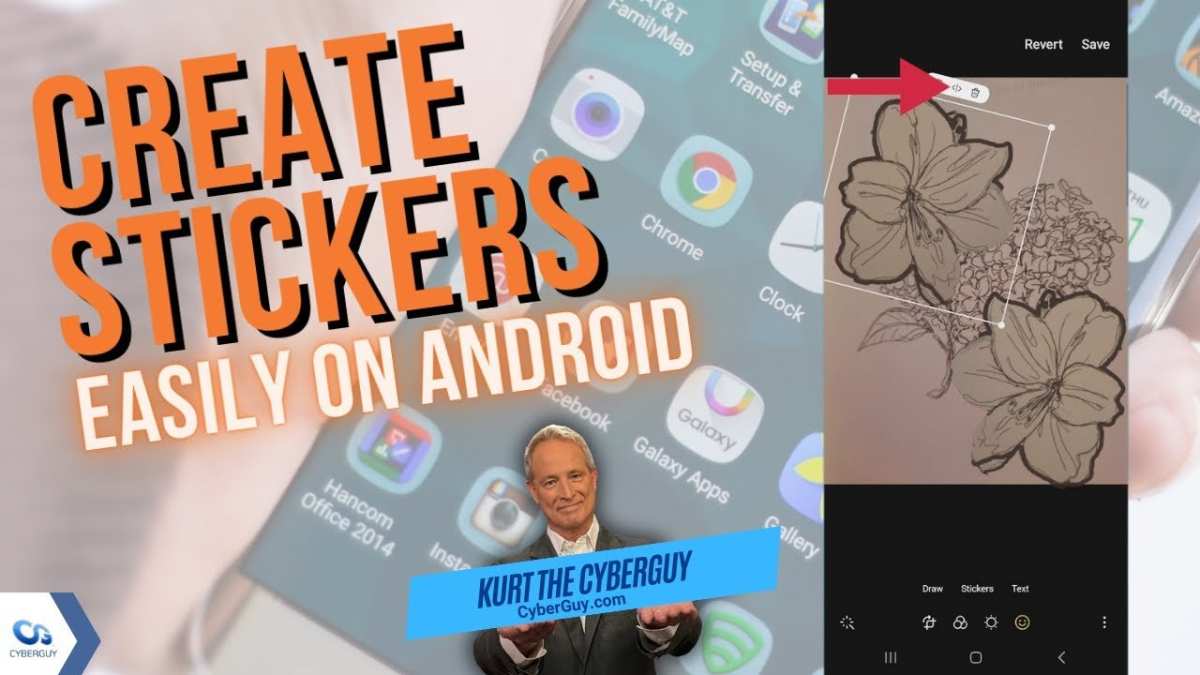
To make stickers on Android, you simply need a good app and some creativity. **The process involves designing your stickers, importing them into a messaging app, and customizing your collection.** If you’re wondering how to make stickers Android, start by downloading a sticker maker app like Sticker Maker or Sticker Studio. These apps guide you through creating, editing, and saving your stickers easily. With a little practice, you’ll have personalized stickers ready to use in your chats.

How to Make Stickers on Android Devices
Creating custom stickers on your Android phone can be a fun and rewarding way to personalize your messaging experience. Whether you’re looking to design cute characters, funny memes, or personalized emojis, the process is easier than you might think. In this guide, we will walk you through the entire process of making stickers on Android, from choosing the right app to saving and using your creations in messaging apps. By the end, you’ll have a collection of unique stickers that reflect your personality and style.
Choosing the Right Android App for Making Stickers
The first step in making stickers on Android is selecting an app that offers the tools and features you need. There are many options available, some free and others paid, but it’s important to pick one that suits your skill level and creative goals.
Popular Sticker-Making Apps
- Sticker Maker for WhatsApp: A user-friendly app dedicated to creating stickers specifically for WhatsApp. It allows you to cut out images, add borders, and organize your sticker packs easily.
- PicsArt: A versatile photo editing app that provides tools for cutting out images, adding text, and applying filters. Perfect for making customized stickers with a professional touch.
- Bazaart: Known for its advanced background removal features and layer-based editing, making it ideal for creating detailed stickers.
- Canva: An easy-to-use graphic design app that helps you create stickers from scratch or templates, plus offers a wide range of design elements.
- Sticker.ly: Another popular app that supports importing images, editing, and exporting stickers seamlessly.
When choosing an app, consider what features you need—such as background removal, drawing tools, or templates—and whether the app supports the messaging platform you want to use your stickers with.
Considerations When Selecting an App
- User interface: Is it easy to navigate and use, especially for beginners?
- Editing tools: Does the app offer features like cutout, paint tools, or background removal?
- Compatibility: Can you export stickers directly to WhatsApp, Telegram, or other messaging apps?
- Cost: Is it free or paid? Are there in-app purchases?
- Size limits: What are the maximum dimensions or file sizes supported?
Once you’ve chosen your app, download and install it from the Google Play Store. Most apps are straightforward to set up and use.
Creating Your Stickers: Step-by-Step Process
Now that you’ve selected an app, it’s time to start creating your stickers. The process generally involves importing images, editing them, and saving them in the right format.
Gather Your Images
Start by collecting pictures from your gallery, the internet, or by taking new photos. Keep in mind that clear, high-resolution images work best. If you plan to create stickers of yourself or friends, take photos with a plain background to make editing easier.
Removing Backgrounds
To make your stickers stand out, removing the background from your images is essential. Most sticker-making apps offer tools for this purpose:
- Use automatic background removal features for quick edits.
- Manually trace around the object or person for more precise cutouts.
- Refine the edges to ensure your sticker looks smooth and clean.
Designing Your Sticker
Once the background is removed, you can:
- Add text with fun fonts and colors.
- Insert decorative elements like emojis, stickers, or drawings.
- Adjust the size and position of your image within the frame.
- Apply filters or effects to enhance the appearance.
Enhancing Your Stickers with Creative Touches
To make your stickers more appealing, experiment with:
- Adding shadows or outlines to make images pop.
- Using transparency to blend images smoothly.
- Combining multiple images into a single sticker with collage techniques.
Saving and Exporting Stickers for Use
After designing your sticker, you need to save it properly to use in messaging apps.
Formatting Requirements
Most platforms prefer stickers to be:
- In PNG format with transparent backgrounds.
- Small in file size, typically under 100 KB.
- Sized around 512×512 pixels for optimal clarity.
How to Save Your Stickers
Follow the app’s instructions to export your sticker as a PNG file. Organize your stickers in folders or packs for easy access later.
Adding Stickers to Messaging Apps
Once your stickers are ready, import them into your preferred messaging app.
For WhatsApp
- Use specific sticker maker apps that support WhatsApp, like Sticker Maker for WhatsApp.
- Open the app and create a new sticker pack.
- Add your exported PNG images to the pack.
- Publish the pack, and it will appear in your WhatsApp stickers menu.
For Telegram and Other Apps
Many messaging apps allow you to add custom stickers manually:
- Go to the settings or sticker section of the app.
- Select ‘Add Sticker’ or similar option.
- Choose your pre-saved PNG files from your device storage.
- Follow prompts to finalize the sticker addition.
Tips for Creating High-Quality Stickers
To make the most impressive stickers, keep these tips in mind:
- Use high-resolution images to ensure clarity.
- Maintain consistency in style and theme across your sticker pack.
- Avoid overly complicated designs that become blurry when resized.
- Test your stickers with friends or family for feedback.
- Save multiple versions or backups of your work in case you want to make changes later.
Expanding Your Sticker Collection
Once you get comfortable creating stickers, you can:
- Experiment with different themes—funny, cute, artistic, or expressive.
- Combine images and elements to develop unique characters or scenes.
- Share your sticker packs with friends or online communities for collaboration.
- Use online resources or tutorials to learn new design techniques.
Creating stickers on Android offers endless creative possibilities. With just a few apps and some practice, you can build a personalized collection that makes your chats more lively and fun. Remember to keep experimenting, have fun with your designs, and enjoy sharing your unique stickers with friends and family!
Frequently Asked Questions
What are the best apps to create custom stickers on Android?
Several user-friendly apps allow you to design and create personalized stickers directly on your Android device. Popular options include Sticker Maker, PicsArt, and Canva. These apps offer tools to cut out images, add text, stickers, and backgrounds, making it easy to craft unique stickers for messaging apps.
How can I remove the background from an image to make stickers on Android?
Many Android apps like Background Eraser or PicsArt provide features to eliminate backgrounds easily. You can upload your image into these apps, use the background removal tool to erase unwanted parts, and then save the transparent image. This process simplifies creating stickers with clean edges and transparent backgrounds.
What steps should I follow to add my custom stickers to WhatsApp on Android?
First, create your stickers using a suitable app and save them in the correct format. Next, use a sticker pack app like Personal Stickers for WhatsApp or Sticker Maker. Import your images into these apps, organize them into packs, and then add them to WhatsApp with a single tap. Once added, you can access your custom stickers directly within WhatsApp’s chat interface.
Can I edit existing images to turn them into stickers on Android?
Yes, you can edit existing images to convert them into stickers. Use editing apps like PicsArt or Photopea to crop, resize, and enhance your images. Once the image looks perfect, save it in PNG format with a transparent background. Then, import the edited image into a sticker maker app to create your custom sticker pack.
Are there any tips for designing high-quality stickers on Android?
Ensure your images have a clear subject and minimal background clutter. Use high-resolution images for sharp details. Utilize editing tools to remove backgrounds cleanly and add borders if needed to make your stickers stand out. Lastly, keep the designs simple and expressive to ensure they look good even when scaled down for messaging apps.
Final Thoughts
To make stickers android, start by choosing a photo editing app like Sticker Maker or WAStickerApps. Upload your images and remove backgrounds if needed. Customize your stickers with texts or other decorations.
Save your creations and add them to WhatsApp or other messaging apps. This process is simple and allows for endless personalization options.
In conclusion, making stickers android involves selecting images, editing them, and importing into your messaging app. Following these steps ensures you can create unique stickers easily.
