

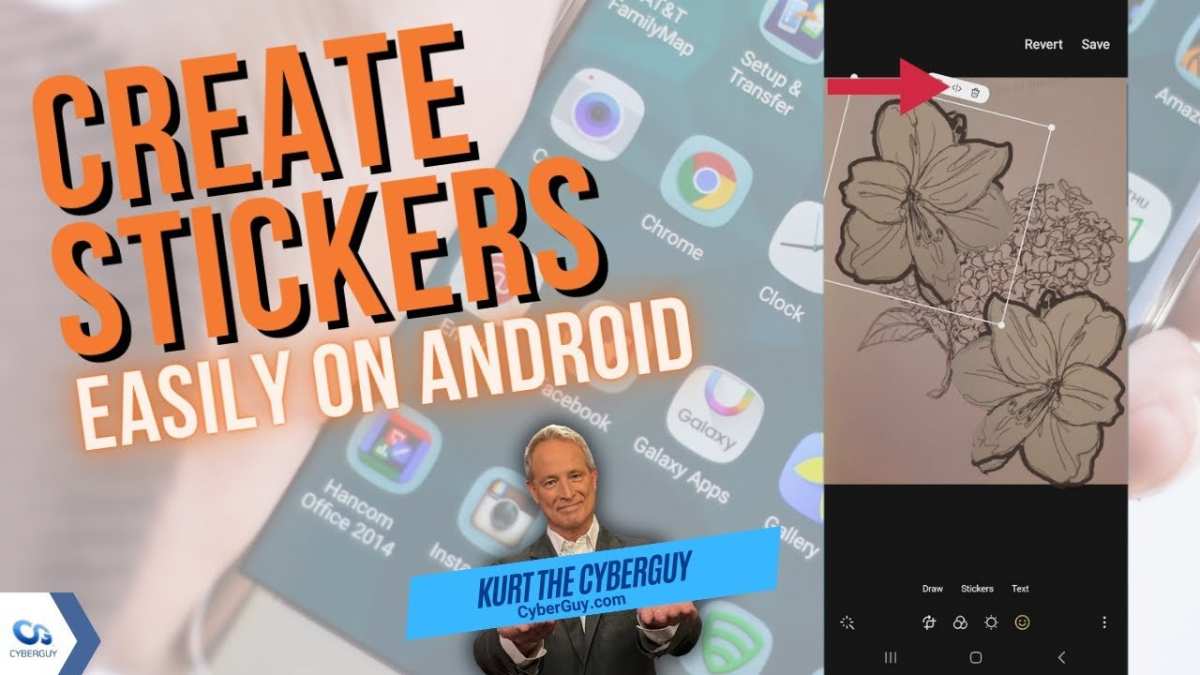
To make a sticker on Android, you need a photo editing app that offers sticker creation features. **Download a popular app like PicsArt or Sticker Maker to get started.** Once you open the app, you can easily cut out images, add text, and customize your sticker to match your style.
Creating stickers on Android is quick and straightforward. Just follow your chosen app’s steps, and you’ll have personalized stickers in no time. Whether for messaging or social media, your unique designs will stand out.

How to Make Sticker on Android: A Complete Guide
Creating your own stickers on an Android device might sound fancy, but it’s actually pretty simple once you know how. Stickers are fun and can add a personal touch to your messages on WhatsApp, Instagram, and other apps. Whether you want to make funny stickers, cute designs, or personalized images, this guide walks you through each step in detail so you can start making your own stickers today.
Understanding Why Making Stickers on Android Is a Great Idea
Before diving into the how-to, let’s talk about why making stickers on Android is so useful and fun.
- Express Yourself Fully: Stickers show your mood, humor, and personality better than words sometimes.
- Personalized Creativity: You can create unique stickers that match your style or inside jokes with friends.
- Save Money: Making your own stickers is free or costs very little compared to buying sticker packs.
- Share with Friends: Your custom-made stickers can be shared with everyone, making chats more lively.
Now that you see the benefits, let’s explore how you can create these stickers easily on your Android phone.
Choosing the Right App for Making Stickers
The first step is picking the best app that allows you to create stickers easily. Not all apps are created equal, so pick one that suits your needs.
Popular Sticker-Making Apps for Android
Here are some top options:
- Sticker Maker for WhatsApp: Easy to use, perfect for creating custom stickers for WhatsApp.
- Canva: A design app with sticker templates and editing tools.
- PicsArt: Offers powerful editing features ideal for making detailed stickers.
- Sticker Studio: Specially designed for creating stickers with custom cutouts.
Each of these apps has a free version, and some offer premium features for advanced designs. Think about what kind of stickers you want and choose accordingly.
What to Look for in a Sticker App
When choosing your app, consider:
- User-Friendliness: Easy to navigate and understand.
- Editing Features: Ability to crop, add text, or decorate your images.
- Sticker Pack Management: How easy it is to organize and save your stickers.
- Compatibility: Ensure the app supports sharing stickers on your favorite messaging apps.
Once you’ve selected an app, you’re ready to move on to creating your first sticker.
Step-by-Step Guide to Making Stickers on Android
Let’s break down the process into clear, easy steps.
Step 1: Install and Open the App
First, download the sticker-making app from the Google Play Store. After installing, open the app, and familiarize yourself with the interface. Most apps have tutorials or quick guides to help new users.
Step 2: Prepare Your Image or Photo
Choose the image or photo you want to turn into a sticker. Keep in mind:
- Use high-quality images for best results.
- Clear backgrounds are easier to cut out.
- Choose images that have good contrast to make editing simpler.
You can use photos from your gallery or take new ones directly through the app if it offers that feature.
Step 3: Remove Backgrounds or Cut Out the Image
A key part of sticker creation involves cutting out the part of the image you want to keep. Here are some common methods:
- Automatic Background Removal: Many apps have tools that automatically detect and remove backgrounds.
- Manual Cutting: Use tools like lasso, magic wand, or brush to carefully select the parts you want to keep.
Take your time to make the cutout as clean as possible to ensure your sticker looks professional.
Step 4: Add Decorations, Text, or Effects
Get creative! Make your sticker stand out by adding:
- Text: Add funny or meaningful words with different fonts and colors.
- Decorations: Stickers, emojis, or doodles to enhance your design.
- Filters and Effects: Brighten, soften, or add flair to images for a vibrant look.
Most apps allow you to layer these elements on top of your main image, making your sticker unique.
Step 5: Save Your Sticker
When you’re happy with your design, save your sticker. Many apps let you save individual stickers or create sticker packs automatically.
– Make sure to add a name or label so you can easily find it later.
– Check if the app allows exporting the sticker pack directly to messaging apps like WhatsApp or Telegram.
Creating Sticker Packs for Sharing
Once you make a few stickers, it’s time to assemble them into a pack, which makes sharing easy and fun.
Organizing Your Stickers
Most apps will let you:
- Create new sticker packs.
- Add multiple stickers at once.
- Name your sticker pack for easy identification.
This is especially useful if you plan to share your stickers with friends or use them frequently.
Adding Stickers to WhatsApp or Other Messaging Apps
Here’s a quick overview of the process:
- Finish creating your sticker pack within the app.
- Tap on the option to export or add to WhatsApp.
- Follow the on-screen instructions—usually, a simple button press will do.
- Open WhatsApp and start using your new stickers in chats.
Keep in mind that some apps may require you to restart WhatsApp or refresh the sticker pack before it appears.
Tips for Making Awesome Stickers on Android
To help you get the best results, here are some handy tips:
- Use High-Resolution Images: Clear images make better stickers.
- Keep Backgrounds Simple: Solid or plain backgrounds are easier to cut out.
- Be Patient with Cutting: Precise cuts look more professional.
- Experiment with Text and Decorations: Don’t be afraid to try different styles and colors.
- Save Multiple Versions: Keep backup copies in case you want to try different designs later.
Making stickers is a fun process that improves the more you practice. Don’t worry if your first few attempts aren’t perfect—every sticker you create gets better with time.
Dealing with Common Challenges in Sticker Making
While making stickers is straightforward, you might encounter some hiccups. Here’s how to troubleshoot:
Problem: Difficult Background Removal
Solution:
- Try using apps with automatic background removal features.
- If that doesn’t work, use the manual tools to carefully trace and cut your image.
- Choose images with high contrast between foreground and background for easier editing.
Problem: Stickers Not Showing Up in Messaging Apps
Solution:
- Ensure you’ve exported or added the sticker pack correctly.
- Restart your messaging app after adding new stickers.
- Update the app if needed; sometimes compatibility issues occur with older versions.
Problem: Low-Quality Images or Blurry Stickers
Solution:
- Use images with higher resolution.
- When cropping, avoid zooming in too much to prevent pixelation.
- Save your stickers in the highest quality available within the app.
By paying attention to these tips and solutions, you can avoid common mishaps and produce stickers that look great.
Enhancing Your Sticker-Making Skills Over Time
As you become more familiar with the process, you might want to try:
- Creating animated stickers using apps that support simple animations.
- Designing themed sticker packs—like holiday, funny, or animal themes.
- Collaborating with friends to exchange sticker ideas and create packs together.
- Sharing your stickers on social media to showcase your creativity.
These activities will boost your skills and make sticker creation even more enjoyable.
Final Thoughts on Making Stickers on Android
Making stickers on Android is a creative and satisfying activity. It lets you express your personality and add a touch of fun to your conversations. With the right app, a little practice, and some imagination, you can craft stickers that will make your chats brighter and more personalized. Dive into your preferred app today, experiment with different designs, and start sharing your custom stickers with friends and family. Happy sticker making!
Frequently Asked Questions
What steps should I follow to create a custom sticker on my Android device?
To create a custom sticker, start by selecting or capturing an image you want to turn into a sticker. Use a photo editing app to remove the background and refine the edges. Save the edited image in PNG format with a transparent background. Then, open a sticker maker app, import your image, and follow the app’s instructions to add it to your sticker pack. Once you finish, you can add your new sticker to messaging platforms like WhatsApp.
Which apps are best for designing personalized stickers on Android?
Some popular apps for designing stickers include Sticker Maker for WhatsApp, Sticker Studio, and PicsArt. These apps allow you to cut out parts of images, add text or decorations, and organize your sticker packs. Choose an app that offers easy-to-use editing tools and supports exporting stickers in formats suitable for messaging apps.
How can I ensure my stickers have a professional look on Android?
Start with high-quality images and focus on clean backgrounds and clear edges. Use editing tools to remove any imperfections, add shadows or outlines if needed, and keep the design simple and recognizable. Saving your stickers as PNG files maintains transparency and quality. Preview your stickers before exporting to see how they appear in chat, making adjustments as necessary for a polished result.
Final Thoughts
Making stickers on Android is simple and fun. Use popular apps like PicsArt or Sticker Maker to create personalized stickers quickly. These apps offer user-friendly tools to cut, add text, and customize your designs.
Once your sticker is ready, save it and add it to your messaging apps. This process enhances your conversations and shows off your creativity.
In conclusion, learning how to make sticker on android makes messaging more engaging. It is straightforward and lets you express yourself uniquely.
