

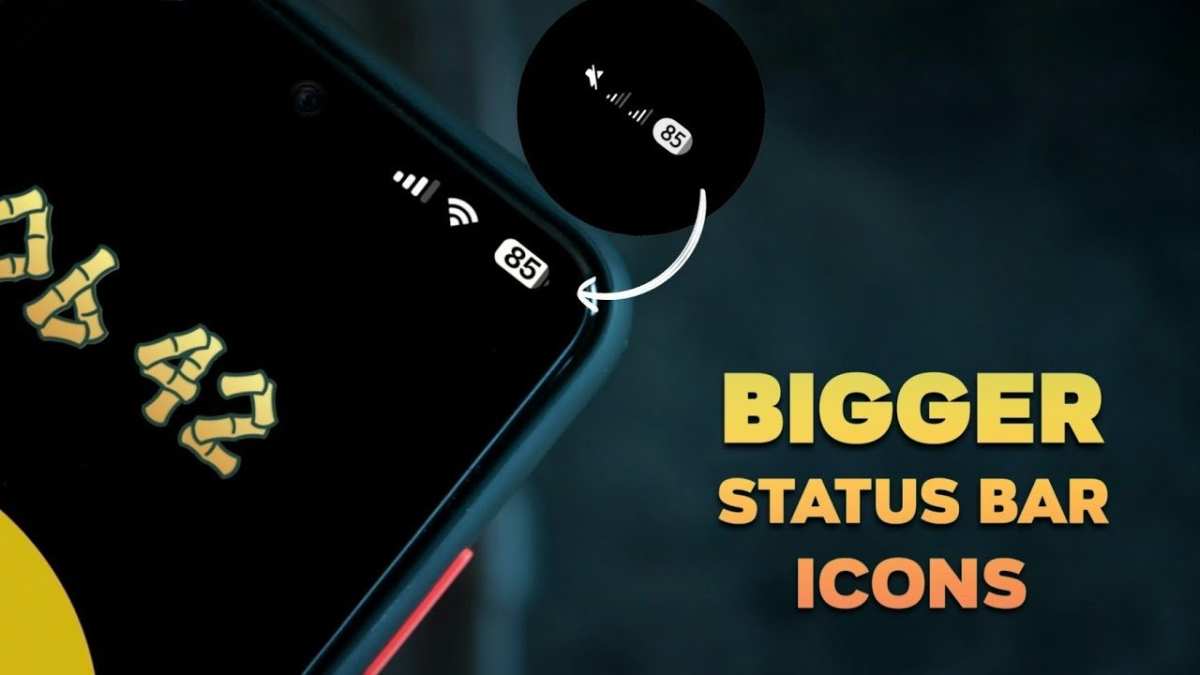
To make your status bar bigger on Android, you can easily adjust the display settings or use third-party apps. **Changing the font size or tweaking display metrics often does the trick.** If you want a quick solution, explore customizing your device’s developer options or installing a launcher that offers more control over UI elements.
Knowing how to make status bar bigger android helps you see notifications clearly without straining. It’s a straightforward process that improves your overall experience, especially on larger screens. Start by exploring your device’s settings or app options to find the best fit for you.

How to Make Status Bar Bigger on Android
The status bar on your Android device is the strip at the top of your screen that displays vital information like time, battery level, Wi-Fi signal, and notifications. Sometimes, you might find this bar too small or cramped, making it hard to see important details quickly. Whether you want it bigger for better visibility or just prefer a more prominent look, this guide will walk you through different ways to enlarge your Android status bar easily.
Understanding Why You Might Want a Larger Status Bar
Before diving into methods to make your status bar bigger, let’s understand why it can be beneficial:
- Improved Visibility: Larger status bar icons are easier to see, especially for users with visual impairments or in bright sunlight.
- Enhanced Aesthetic: Some users prefer a bold look, and increasing the size adds to a modern, customized appearance.
- Quick Access: Bigger icons can help you identify notifications or status indicators faster without confusion.
Basic Methods to Make the Status Bar Bigger on Android
Most recent Android devices do not allow you to change the size of the status bar directly through system settings. However, a few simple tweaks or apps can help you achieve the desired look.
Adjust Display Settings for Larger Elements
Many Android devices have display scaling options that indirectly affect the size of status bar icons. Here’s how to access this feature:
- Open the Settings app on your device.
- Navigate to Display.
- Look for options like Font size or Display size.
- Increase the size to make icons, text, and interface elements bigger.
This method doesn’t specifically enlarge only the status bar but can make all interface elements more visible.
Using Built-In Accessibility Features
Android offers accessibility options that boost visibility. For example:
- Magnification gestures: Lets you zoom in on parts of the screen, including the status bar.
- Display size adjustment: Enlarges all UI components, including status bar icons.
To enable these:
- Go to Settings.
- Select Accessibility.
- Choose Magnification or Display size.
- Adjust according to your preference.
Using Third-Party Apps to Change Status Bar Size
If system settings don’t satisfy your needs, third-party apps can help you customize your Android’s status bar further. These apps often allow for advanced modifications, including increasing icon size, changing colors, or adding custom styles.
Popular Apps for Customizing the Status Bar
- Gome Flyme Status Bar: Provides themes and options to resize status bar icons.
- Material Status Bar: Lets you modify the look and feel of your status bar, including size adjustments.
- Notification Bar Changer: Customizes notification and status bar appearance with options to enlarge icons.
Steps to Use a Customization App
- Download and install the app from Google Play Store.
- Open the app and grant the necessary permissions.
- Navigate to the customization options or themes section.
- Look for size adjustment sliders or options specific to icons or the status bar.
- Apply the changes and restart your device if needed.
Modifying System Files for Advanced Users
For those comfortable with more technical tweaks, modifying system files can result in a bigger status bar. This method involves editing system UI files using root access. It’s important to emphasize that rooting your device or editing system files can void warranties or cause stability issues if not done correctly.
Requirements for System File Modification
- Root access to your Android device.
- A file manager app capable of editing system files, like ES File Explorer or Solid Explorer.
- A backup of your system to avoid data loss.
How to Adjust System UI Files
- Root your device (if not already rooted). Be sure to follow reputable guides specific to your device model.
- Open your file manager with root permissions enabled.
- Navigate to the /system/priv-app/SystemUI/ folder.
- Locate files like status_bar.xml.
- Use an editor to open these XML files and look for icon size parameters.
- Adjust size values carefully, making sure to save your changes.
- Reboot your device to see the effects.
Note: Editing system files is risky. Proceed only if you have experience with Android system modifications.
Using Custom Launchers for Visual Tweaks
While launchers mainly replace your home screen, some also offer options for customizing the status bar appearance, including icon size and layout. Launchers like Nova Launcher or Action Launcher provide extensive customization features.
How to Change Status Bar Appearance with Launchers
- Install a compatible launcher from Google Play.
- Set it as your default home app.
- Access the launcher’s settings menu.
- Look for themes or appearance options.
- Adjust icon size and status bar styles as available.
Common Troubleshooting Tips
If you encounter issues when trying to enlarge the status bar, consider these tips:
- Ensure your device is updated to the latest software version.
- Restart your device after applying changes.
- Clear cache of any apps used for customization.
- Revert any modifications that caused problems, especially if system files were edited.
- Consult device-specific forums or support channels for help.
Final Thoughts on Making Your Android Status Bar Bigger
Customizing your Android device to have a larger, more visible status bar can significantly improve your user experience. Whether you choose to adjust display settings, enable accessibility options, or use third-party apps and modifications, there are multiple pathways to achieve the look you desire. Always proceed carefully, especially when making system-level changes, and make sure to back up your data beforehand. With a little effort, you can enjoy a clearer, more prominent status bar that suits your needs perfectly.
Frequently Asked Questions
Can I adjust the size of the status bar directly through device settings?
Most Android devices do not allow users to directly change the size of the status bar through built-in settings. However, some custom ROMs or manufacturer-specific settings may offer options to customize the appearance. If your device doesn’t support this feature, you might consider using third-party apps or custom launchers that enable further UI modifications.
Are there third-party apps that can make the status bar bigger on Android?
Yes, several third-party apps are designed to customize the appearance of the status bar, including its size. Apps like Material Status Bar or System UI Tuner (available through certain Android versions) can help you modify the layout, icons, and sometimes the size of the status bar. Always ensure you download apps from reputable sources and review permissions before installation.
How can I modify the status bar size by changing system files or using ADB commands?
If your device is rooted, you can modify system files or use ADB commands to tweak the status bar’s size. This process involves editing system UI layout files or applying specific commands to adjust dimensions. Be cautious, as improper modifications can cause system instability. Backup your data before attempting these changes, and follow detailed guides for your specific device model.
Is it possible to increase the status bar size on Android without rooting the device?
Without rooting, options are limited but still feasible. Some custom launchers or UI customization apps allow you to alter the appearance of the status bar, including icon size and spacing, which can give an impression of a larger status bar. Keep in mind that these modifications usually do not change the core size of the status bar itself but can improve its visibility.
What are the risks of trying to manually resize the Android status bar?
Attempting to manually resize the status bar by editing system files or using unsupported apps can lead to stability issues, boot loops, or even bricking your device. Rooting your device also voids warranty and can expose it to security vulnerabilities. Always proceed with caution, ensure you have proper backups, and follow trusted tutorials specific to your device model.
Final Thoughts
To make a status bar bigger android, start by accessing developer options on your device. Enable the “Show layout bounds” feature to see the current status bar size. Use custom themes or system modifications to adjust its height.
Installing third-party apps or using ADB commands can also help resize the status bar. Be cautious and back up your data before making system modifications.
In conclusion, to make a status bar bigger android, follow these steps to customize its size. These methods allow you to adjust the status bar to your preference effectively.
