

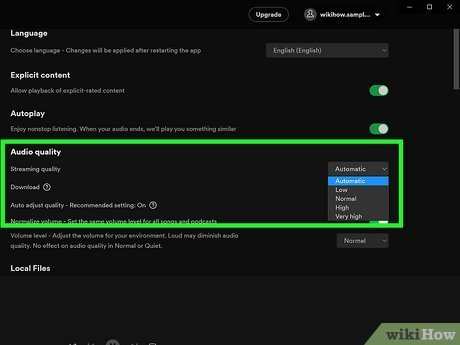
**To make Spotify louder on Android, simply increase the app’s volume and disable any sound restrictions.** Sometimes, the volume limit settings or Android’s sound enhancements block the maximum output.
If you’re wondering how to make Spotify louder on Android, start by checking your device’s volume settings and disable any equalizer or sound limiters. You can also explore third-party apps that boost volume beyond standard limits.
Adjusting these settings allows you to enjoy louder music without extra hassle. Keep these quick tips in mind for an instant audio boost.

How to Make Spotify Louder on Android
When you’re relaxing at home or out and about, music helps set the perfect mood. If you love listening to Spotify on your Android device but find that the volume isn’t loud enough, you’re not alone. Many Android users want to boost their Spotify volume without sacrificing sound quality. Luckily, there are several ways to increase the loudness of Spotify on your Android device, and this guide will walk you through each method in detail, ensuring you get the best sound possible.
Let’s explore how to make Spotify louder on Android step by step, covering everything from built-in settings to external apps and hardware adjustments.
Adjusting Spotify’s Volume Settings for Maximum Output
The first thing to check is whether Spotify’s own volume settings are set to the highest level. Sometimes, the app’s volume slider isn’t at full blast, which can limit how loud your music gets.
- Open the Spotify app on your Android device.
- Start playing any song or playlist.
- Tap on the now playing bar at the bottom to see the full playback view.
- Locate the volume slider, typically at the bottom or side of the screen.
- Drag the slider all the way to the right to maximize Spotify’s volume.
**Tip:** Make sure your device’s volume buttons are also turned all the way up. Sometimes, the physical buttons control the system volume, which can override app-specific volume settings.
Increasing System Volume on Android
Android devices control volume through multiple sliders: media, alarm, notifications, and call volume. For playing music, you want to focus on the media volume.
How to adjust media volume
- Press the volume up button on your Android device.
- If the volume slider appears, ensure it’s set to maximum.
- Alternatively, access the volume settings through your device’s Settings menu:
- Open Settings on your Android device.
- Tap on Sound or Sound & Vibration.
- Locate the Media volume slider and slide it to the maximum.
**Note:** If your device has a hardware volume rocker that controls different sound types, make sure you’re adjusting media volume specifically, not just ringtone or notification volume.
Utilizing Equalizer Settings to Boost Loudness
Many Android devices come with built-in equalizers or sound enhancement features that can be adjusted to improve overall loudness and sound quality.
Accessing built-in equalizers
Depending on your device brand (Samsung, Google Pixel, OnePlus, etc.), you can usually find sound settings in the Settings app:
- Open Settings and navigate to Sound & Vibration or Sound.
- Look for an option called Equalizer, Sound Effects, or Audio Enhancements.
Adjusting equalizer settings for louder sound
- Open the equalizer menu.
- Set the sliders for the bass, mid, and treble to higher values. Be cautious not to set all bands to maximum, which can distort audio.
- Some devices offer a preset called “Loudness” or “Max Volume”—select this if available.
- Save your settings and try playing music on Spotify again.
**Note:** For more advanced control, you can download third-party equalizer apps like Wavelet or Equalizer FX from the Google Play Store. These apps can give you more detailed settings to amplify sound output further.
Using External Apps to Enhance Volume
If your device’s internal settings aren’t enough, external apps can help boost your music volume beyond the default limits.
Volume booster apps for Android
Some popular volume boosting apps include:
- Volume Booster GOODEV
- Super Volume Booster
- Equalizer & Bass Booster
**Steps to use these apps**
- Download your preferred app from the Google Play Store.
- Open the app and grant all necessary permissions.
- Increase the volume slider within the app to boost loudness.
- Adjust the equalizer and bass settings as needed.
- Test your Spotify playback to verify the volume increase.
**Caution:** Use volume booster apps carefully. Pushing the volume too high can damage your speakers or hearing. Always prioritize safe listening levels.
Connecting to External Speakers and Headphones
Upgrading your hardware is one of the most effective ways to get louder, clearer sound from Spotify.
Using Bluetooth speakers
- Pair your Bluetooth speaker with your Android device.
- Ensure the speaker’s volume is turned up to maximum.
- Play Spotify and adjust the speaker’s volume for the loudest output.
Wired headphones and external amplifiers
- Connect your headphones or external amplifier to your device’s audio jack or USB-C port.
- Turn the volume all the way up on both your device and the headphone amplifier.
- Use high-quality headphones designed for loud, clear sound.
**Tip:** External amplifiers or portable speaker docks can significantly increase volume, especially for outdoor use or large rooms.
Ensuring No Software Limitations Impact Volume
Many Android devices come with volume caps to protect speakers and hearing. Sometimes, these caps limit maximum loudness unintentionally.
Checking for volume restrictions
- Navigate to Settings > Sound or Accessibility.
- Look for any options labeled “Media Volume Limit” or “Volume Restriction.”
- If found, disable or adjust the limit to allow higher volume levels.
Enabling Developer Options for Custom Volume Controls
- Go to Settings > About phone.
- Tap on “Build number” seven times to activate Developer Options.
- Return to Settings > Developer options.
- Scroll to find “Absolute volume” and disable it if necessary.
- This can sometimes help you control volume more freely across different apps.
**Note:** Be cautious when changing developer settings, as improper adjustments can affect device performance.
Troubleshooting Common Issues When Making Spotify Louder
Even after applying all these methods, you might still face issues with low volume. Here are some solutions:
- Restart your device after adjusting settings.
- Update the Spotify app to the latest version for compatibility and bug fixes.
- Ensure your Android device’s firmware is up to date.
- Check for any app-specific volume restrictions or permissions that might prevent loud playback.
- Test with different headphones or speakers to rule out hardware limitations.
**Conclusion**
There are many ways to boost the volume of Spotify on your Android device, from adjusting internal settings to using external hardware and apps. Start by maximizing Spotify and system volume, then explore equalizer settings for extra loudness. If necessary, external apps and better hardware can make a significant difference. Always remember to listen at safe levels to protect your hearing and device speakers. With a little effort and the right tools, you can enjoy your favorite tunes at the volume you want, anytime, anywhere.
Frequently Asked Questions
How can I increase the volume of Spotify on my Android device without using external apps?
You can manually increase the volume by pressing the volume up button on your device while playing Spotify. Ensure that your device’s media volume is turned up to the maximum level. You can also access the volume controls through the quick settings panel by swiping down from the top of your screen and adjusting the media volume slider accordingly.
What settings should I check within Spotify to improve playback loudness?
Within Spotify, go to Settings > Playback and ensure that the Equalizer is enabled. Adjust the equalizer settings to boost the treble and bass frequencies, which can make the audio sound louder. If your device has a built-in sound enhancement feature, enable it to further increase the overall loudness.
Are there hardware options that can help make Spotify louder on Android?
Yes, using external hardware such as a portable headphone amplifier or Bluetooth speaker with a higher power output can significantly increase volume levels. Make sure the connected device supports higher volume levels and is compatible with your Android device to achieve better sound output for Spotify.
Final Thoughts
To make Spotify louder on Android, adjust the volume settings on your device. Use the physical volume buttons and increase the media volume to the highest level. You can also enable the sound enhancer feature in your device’s settings for extra boost.
Another option is to use third-party apps that amplify audio output. Be cautious and choose trusted apps to avoid security risks. Finally, check Spotify’s in-app settings for any volume limitations and disable them if possible.
In conclusion, understanding how to make Spotify louder on Android involves adjusting device and app settings for optimal sound. Keep the volume at a high level and consider audio enhancement tools for better output.
