

To create a splash screen in Android, start by designing a simple layout and configuring it in your app’s theme. The key is to use a dedicated activity that displays your logo or branding briefly before loading the main content.
**How to make splash screen in android** involves setting up a splash activity and defining a delay with a handler. This approach ensures a smooth transition and improves user experience. Follow these steps to add this feature seamlessly into your app.

How to Make Splash Screen in Android
Creating a splash screen is an essential part of designing a smooth user experience in your Android app. A splash screen appears when your app launches, giving users a welcoming first impression while the app loads necessary resources in the background. In this guide, you will learn step-by-step how to make a splash screen in Android that looks professional, is easy to implement, and performs efficiently.
Understanding the Purpose of a Splash Screen
Before diving into the coding process, it’s important to understand why splash screens matter. They serve multiple purposes:
- Introduce your app identity with a logo or branding
- Provide a visual cue that the app is loading
- Improve perceived app performance by masking loading times
- Create a memorable first impression for users
While some developers skip splash screens to save time, an elegantly designed splash screen can boost your app’s professionalism and user engagement.
Designing Your Splash Screen
Good design is key to a splash screen that captures attention without being distracting. Consider these design tips:
- Use your brand colors and logo
- Keep animations simple and short
- Ensure the splash screen adapts well to different device sizes
- Avoid cluttering the screen with too much information
Creating a visually appealing splash screen can be as simple as designing a static image or as complex as adding animations. Decide what suits your app’s style and user expectations.
Implementing Splash Screen Layout in Android Studio
Now, you are ready to design the layout for your splash screen. Follow these steps:
Step 1: Create a New Layout File
Open Android Studio and navigate to the `res/layout` folder. Create a new XML layout file named `activity_splash.xml`. Here is a basic example:
<LinearLayout xmlns:android="http://schemas.android.com/apk/res/android"
    android:layout_width="match_parent"
    android:layout_height="match_parent"
    android:orientation="vertical"
    android:gravity="center"
    android:background="@color/white">

    <ImageView
        android:id="@+id/logoImage"
        android:layout_width="wrap_content"
        android:layout_height="wrap_content"
        android:src="@drawable/your_logo"
        android:contentDescription="App Logo" />
This layout centers your logo and sets a background color that matches your branding.
Step 2: Add the Logo Image
Place your logo image inside the `drawable` folder. Make sure to prepare images for different screen densities (hdpi, mdpi, xhdpi, xxhdpi). For example, name the image `your_logo.png`.
Step 3: Create a Splash Activity
In Android, activities represent screens. Create a new Java or Kotlin class called `SplashActivity`. This activity loads your splash layout when the app launches.
“`java
public class SplashActivity extends AppCompatActivity {
@Override
protected void onCreate(Bundle savedInstanceState) {
super.onCreate(savedInstanceState);
setContentView(R.layout.activity_splash);
// Starting main activity after delay
new Handler().postDelayed(new Runnable() {
@Override
public void run() {
Intent intent = new Intent(SplashActivity.this, MainActivity.class);
startActivity(intent);
finish();
}
}, 3000); // 3000 milliseconds delay
}
}
“`
This code displays the splash screen for 3 seconds before navigating to your main activity. You can adjust the delay duration as needed.
Handling Different Screen Sizes and Orientations
To ensure your splash screen looks good on all devices:
- Use vector images or multiple images for different densities
- Design adaptive layouts with relative positioning
- Test on various device screens and orientations
In your `AndroidManifest.xml`, specify the splash activity as the launcher activity:
<activity android:name=".SplashActivity">
    <intent-filter>
        <action android:name="android.intent.action.MAIN" />
        <category android:name="android.intent.category.LAUNCHER" />
    </intent-filter>
</activity>
This setup makes sure your splash screen appears when users open the app.
Adding Animation to Your Splash Screen
A static splash screen is good, but adding animations can make it more engaging. You have options like fade-ins, slide-ins, or animated logos.
Using Animation Drawable
Create an animation using `AnimationDrawable`. First, define the animation frames in an XML file located in `res/drawable`:
“`xml
“`
Then, in `SplashActivity`, start the animation:
“`java
ImageView logoImage = findViewById(R.id.logoImage);
logoImage.setBackgroundResource(R.drawable.logo_animation);
AnimationDrawable logoAnimation = (AnimationDrawable) logoImage.getBackground();
logoAnimation.start();
“`
Using Tween Animation
You can also apply predefined animations like fade or slide:
“`xml
“`
Apply animation in your activity:
“`java
Animation fadeIn = AnimationUtils.loadAnimation(this, R.anim.fade_in);
logoImage.startAnimation(fadeIn);
“`
Animations are optional but can significantly enhance the visual appeal of your splash screen.
Performance Best Practices for Splash Screens
To keep your splash screen smooth and quick:
- Avoid heavy operations during splash display; keep delays minimal
- Load essential resources asynchronously in the background
- Use lightweight images and efficient layouts
- Test on low-end devices to ensure performance remains good
The goal is to create a splash screen that appears instantly and transitions smoothly to your main app content.
Using Theme-based Splash Screen (Android 12+)
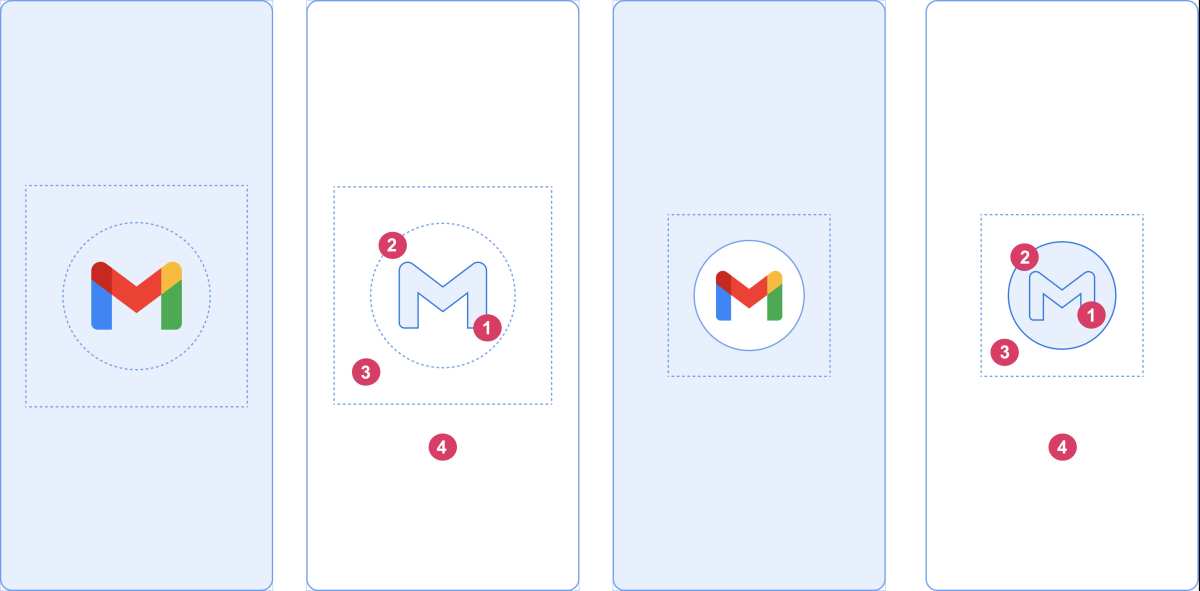
Starting with Android 12, Google recommends creating splash screens with themes instead of activities. It simplifies the process and offers better performance.
Defining a Splash Theme
In `styles.xml`, add:
“`xml
“`
Set this theme in `AndroidManifest.xml` for your launch activity:
“`xml
“`
This method reduces boilerplate code and provides a uniform splash experience.
Final Tips for a Successful Splash Screen
Consider these points:
- Keep the splash screen duration as short as possible, ideally under 3 seconds
- Design with device compatibility in mind
- Test across various device sizes and OS versions
- Use animations sparingly to avoid slowing down the app start-up
- Make sure the transition to the main activity feels natural and swift
Remember, the splash screen should enhance the user experience without adding unnecessary wait times.
—
By following these detailed steps, you can create an attractive and functional splash screen in your Android app. Whether you choose a static image, animated logo, or a theme-based approach, your splash screen will serve as a welcoming gateway that sets the tone for the rest of your application experience.
Frequently Asked Questions
What are the essential steps to initialize a splash screen in an Android application?
To set up a splash screen, start by creating a dedicated layout file that displays your branding or logo. Next, build a new activity that loads this layout and set it as the launcher activity in your AndroidManifest.xml file. In this activity, include a delay or a transition to the main activity after a few seconds or once the app is ready. This process ensures users see a splash screen during app startup, providing a smooth experience.
How can I customize the appearance of my splash screen in Android?
You can personalize your splash screen by designing a unique layout with custom graphics, colors, and animations. Use a drawable resource for your logo or background and adjust the layout to fit your branding. Additionally, consider adding transition animations to create a dynamic entrance. Using styles and themes can further help you match the splash screen’s appearance with your app’s overall design.
What methods allow me to display a splash screen only during app launch and not repeatedly?
Implement the splash screen in the main launcher activity or an initial splash activity that only runs once during app startup. After displaying the splash content, navigate swiftly to your main activity and finish the splash activity to prevent it from reappearing on every navigation. This approach ensures the splash appears solely during the app launch phase, not during user interactions within the app.
How can I add a smooth transition from the splash screen to the main activity?
Create transition animations between the splash and main activities using shared element transitions or custom animations. Define these animations in XML files within the ‘anim’ folder and apply them during activity start or finish actions. Incorporate fade-ins, slide-ins, or other effects to make the transition seamless and visually appealing for users.
What are the best practices to optimize splash screens for different device sizes?
Design your splash screen layout with flexible components that adapt to various screen sizes and densities. Use vector graphics and scalable assets to prevent pixelation. Test your splash screen on multiple devices and emulators to ensure consistent appearance. Consider using multiple layout resources or ConstraintLayout to maintain design integrity across different devices and orientations.
Final Thoughts
In summary, to create a splash screen in Android, start by designing your layout and setting it as the launcher activity. Use a dedicated activity to display your splash content. Then, add a delay before navigating to the main activity. Understanding how to make splash screen in android helps you create a seamless startup experience for your app.
