

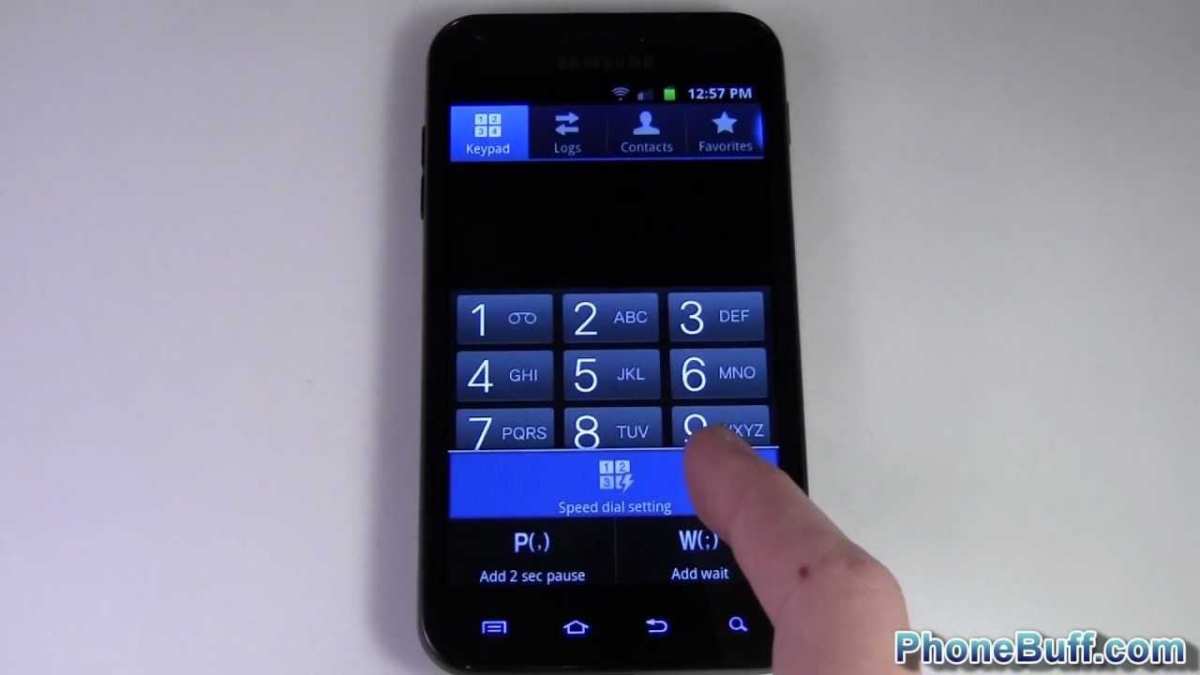
To make speed dial on Android, simply add your favorite contacts to the home screen for quick access. **Open your contacts app, select a contact, and choose the option to add to home screen.** This quick step saves time and makes calling easy.
Knowing how to make speed dial on Android involves customizing your home screen with shortcuts. It’s a simple process that puts your most-called contacts just a tap away. No need to search through menus—set it up once, and call with ease every time.

How to Make Speed Dial on Android: A Complete Guide
Making your Android phone more accessible can be a game-changer, especially when quick calls are essential. Creating speed dials allows you to call your favorite contacts with just a few taps, saving time and effort. Whether you’re new to Android or just want to learn some handy shortcuts, this guide will walk you through the process step by step. We will explore various methods to set up speed dial on Android devices, including built-in options, third-party apps, and customizing your home screen for rapid calling.
Understanding Speed Dial and Its Benefits
Before diving into the how-to, it’s helpful to understand what speed dial is and why it can significantly improve your daily communication.
- What is Speed Dial? It’s a quick way to call a specific contact without searching through your contacts list or dialing each number manually.
- Why Use Speed Dial? It saves time, reduces the risk of dialing wrong numbers, and makes calling your loved ones or important contacts more accessible, especially if you often call the same people.
- Who Benefits? Everyone! From busy parents to elderly users, setting up speed dial makes calling faster and more convenient.
Methods to Set Up Speed Dial on Android Devices
There are multiple ways to create speed dial on your Android phone. Depending on your device model and Android version, some options might work better for you than others. Let’s explore each method in detail.
Using Your Phone’s Dialer App
Most Android phones come with a native dialer app that allows quick access to favorites or contacts.
- Open the Phone/Dialer App: Locate and tap on the default Phone app on your home screen or app drawer.
- Access the Contacts or Favorites Section: Navigate to the ‘Contacts’ or ‘Favorites’ tab within the app.
- Add a Contact to Favorites: Find the contact you wish to speed dial, tap on their name, then select the ‘Add to Favorites’ option. This icon often looks like a star.
- Create a Shortcut (if supported): Depending on your device, some dialer apps allow you to add a direct call shortcut to your home screen. Tap and hold the contact or favorite, then select ‘Add to Home Screen’ or ‘Create Shortcut.’
This method provides quick access, but the process varies slightly depending on your device manufacturer and Android version.
Adding Speed Dial Buttons to Your Home Screen
Making shortcuts directly on your home screen ensures that you can call favorite contacts with a single tap.
- Find the Contact or Favorite: Go to your contacts app and locate the person you want to quick-dial.
- Create a Shortcut: Tap and hold the contact or favorite, then select ‘Create Shortcut’ or ‘Add to Home Screen,’ depending on your device.
- Customize the Shortcut: Some Android devices allow you to rename the shortcut or change its icon for easier recognition.
- Repeat for Multiple Contacts: You can add several shortcuts, placing them neatly on your home screen for quick access.
This method is especially handy for users who prefer tapping icons rather than navigating through apps.
Using Speed Dial Features in Phone Settings
Some Android phones, especially Samsung Galaxy, Google Pixels, or other brands, have dedicated speed dial settings.
- Open Your Phone’s Settings: Tap on the Settings icon in your app drawer or notification shade.
- Navigate to ‘Apps’ or ‘Phone App’ Settings: Find the section that manages your calling preferences.
- Locate Speed Dial or Quick Call Options: Some models have built-in speed dial options; enable or customize them as needed.
- Assign Contacts to Numbers: Typically, you can assign specific contacts to numerical keys (like 2 to 9). This makes dialing as easy as pressing and holding a number key during a call or within the phone app.
Check your device manual or support page if you cannot locate these options, as they vary by manufacturer.
Using Third-Party Apps for Enhanced Speed Dial Functionality
If your device does not support easy speed dial setup or you want more customization, third-party apps can help.
Best Speed Dial Apps for Android
- Speed Dial: A simple app that allows quick access to your favorite contacts with customizable buttons.
- Quick Shortcut Maker: Enables you to create shortcut icons for specific contacts or actions, including calls.
- Contact Widget: Offers customizable widgets for your home screen to place contact buttons for instant calling.
How to Use These Apps
- Download & Install: Search for your preferred app on Google Play Store and install it.
- Set Up Contacts: Open the app, grant necessary permissions, then select the contacts you want quick access to.
- Create Shortcuts: Follow the app’s instructions to add dedicated call buttons to your home screen or widget area.
- Arrange & Personalize: Customize icons, labels, and layout for easier recognition and access.
Using these apps offers flexibility and customization beyond the default options.
Tips for Organizing Speed Dial for Better Accessibility
Creating a neat and accessible speed dial setup makes calling quicker and less frustrating.
- Group Contacts by Frequency: Place your most called contacts on your home screen first or assign them to the easiest-to-press buttons.
- Use Clear Icons & Labels: Customize icons and labels so you can recognize contacts instantly.
- Limit the Number of Speed Dial Buttons: Keep your shortcuts manageable and organized to avoid clutter.
- Use Folders or Pages: For many contacts, organize speed dial buttons into folders or separate pages on your home screen.
Common Troubleshooting & Tips
Sometimes, setting up speed dial can have hiccups. Here are practical solutions:
- Shortcut Not Working? Recreate the shortcut or remove and add it again.
- Contact Not Appearing? Ensure they are saved in your contacts and not blocked or hidden.
- Speed Dial Not Saved? Double-check app permissions and settings.
- Performance Issues? Keep your apps updated, and consider clearing cache for the dialer or contact apps.
If you encounter persistent problems, consult your device manual or support forums for specific advice.
Enhancing Your Speed Dial Experience
Besides setting up shortcuts, consider these tips to make calling even faster:
- Use Voice Commands: Android’s Google Assistant can be your voice-activated speed dial. Say “Hey Google, call Mom,” and it will dial automatically.
- Enable Double Tap to Call: Some devices support double-tap gestures for quick actions on contact pictures or icons.
- Keep Your Contacts Updated: Regularly review and update your favorite contacts for accuracy and ease of access.
By combining these methods, you make calling your loved ones as simple as possible.
Summary of Key Points
Creating speed dial on Android involves several options, from native features to third-party apps. Deciding which method fits your needs depends on your device model, Android version, and personal preference. Adding shortcuts to your home screen provides the fastest access, while customizing contact organization helps keep your setup tidy. Remember to periodically update your contacts and shortcuts for the best experience.
In conclusion, making speed dial on Android is straightforward once you understand the different methods and tools available. Whether through your phone’s built-in options or helpful third-party apps, you can set up a personalized system that makes calling your favorite people quick and effortless. Taking a little time to organize your speed dial setup ensures you spend less time searching and more time connecting with the important people in your life.
Frequently Asked Questions
How can I assign a contact to a speed dial number on Android?
To assign a contact to a speed dial number, open the Phone app and access the dial pad. Tap the menu icon or the three-dot menu, then select ‘Settings’ or ‘Speed Dial.’ Choose an available speed dial slot, then select a contact from your list. Confirm your selection, and the contact will now be assigned to that speed dial number for quick access.
Is it possible to customize the appearance of speed dial shortcuts on Android?
Yes, many Android devices allow you to customize speed dial shortcuts. You can usually do this by opening the Phone app, navigating to the speed dial settings, and selecting a shortcut to edit. Some devices let you change the icon or label to better identify the contact. Use your device’s customization options to personalize your speed dial icons for easier recognition.
What steps should I follow to delete or change an existing speed dial contact on Android?
To modify or remove a speed dial contact, open the Phone app and go to the speed dial settings. Locate the specific speed dial slot you want to update or delete. Tap on it to select a new contact or to clear the assignment entirely. Save your changes, and the updated or removed contact will be reflected in your speed dial list.
Final Thoughts
Making speed dial on Android simplifies calling your favorite contacts quickly. First, open the Contacts app or Phone app. Tap on the contact you want to assign a speed dial to. Then, select the option to add or assign a speed dial number.
Next, navigate to your phone’s settings and find the Speed Dial feature. Assign a number to each contact for quick access. Practice using these numbers to call your favorites efficiently.
In conclusion, knowing how to make speed dial on Android allows you to access important contacts instantly. Keep your favorite contacts just a tap away and save time during busy moments.
