

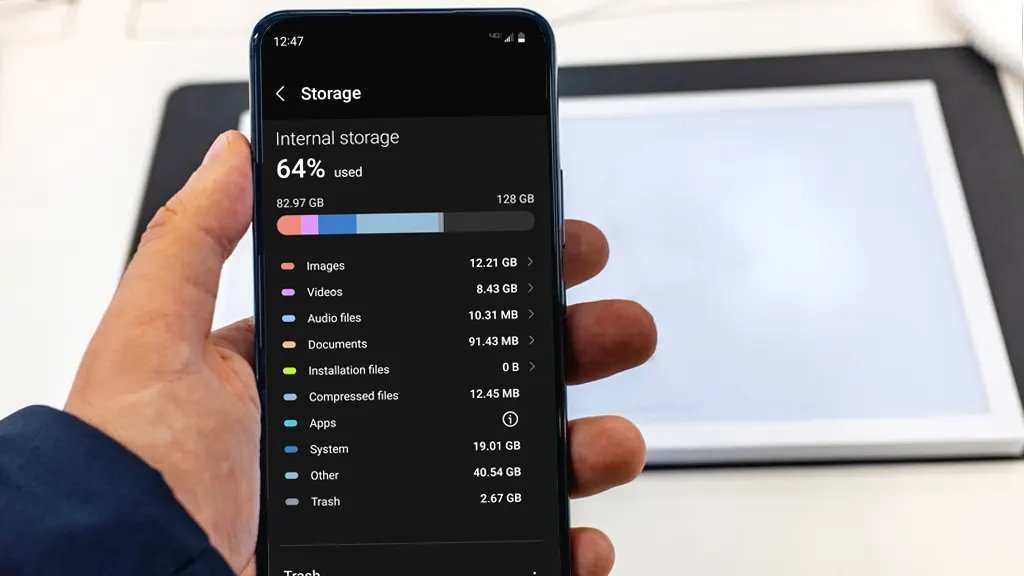
To make space on your Android phone, delete unnecessary apps and clear app cache. **You can also transfer photos and videos to cloud storage or an SD card.** If your storage fills up quickly, start by reviewing your downloads and old messages. Removing unused files and apps can quickly free up space and improve your phone’s performance. Knowing how to make space on Android phone becomes simple when you stay organized and regularly clear clutter. This way, your device stays fast and ready for new apps and media.

How to Make Space on Android Phone
If your Android phone is running out of storage, don’t worry—there are many simple ways to free up space and keep your device running smoothly. Whether your photos, videos, or apps are hogging storage or you just want a cleaner phone, this guide will walk you through effective methods to make more space on your Android device. Let’s explore how you can clear out unnecessary files, manage apps, and maximize your storage without frustration.
Understanding Storage on Android Devices
Before diving into the cleanup process, it’s useful to understand how storage works on Android phones. Different elements occupy space, such as apps, app data, media files, and system files.
- Apps and their data: These include games, social media apps, and utilities, along with their saved files and settings.
- Media files: Photos, videos, music, and downloads often take up the most space.
- Cached data: Apps store temporary files to improve performance, but over time, these can accumulate and waste space.
- System files: The Android operating system uses some storage, but you won’t want to delete core files.
Knowing what’s taking up storage helps you focus your cleanup efforts more effectively.
How to Check Your Storage Space
Start by checking how much space you currently have and what’s occupying it.
Steps to view storage details:
- Open the Settings app on your Android device.
- Scroll down and tap on Storage.
- Review the breakdown, which typically shows categories like Apps, Media, System, and Cached Data.
This overview helps you identify the biggest culprits for taking up space.
Deleting Unnecessary Apps and Data
One quick way to free up storage is removing apps you no longer use.
How to uninstall apps:
- Go to the Settings app and select Apps or Applications.
- Browse the list of installed apps and tap on the app you want to remove.
- Tap Uninstall.
You can also uninstall multiple apps at once using the Play Store:
- Open Google Play Store.
- Tap your profile icon and select Manage apps & devices.
- Go to Manage and check the apps you want to delete.
- Tap the trash bin or select Uninstall.
Additionally, clear app data for apps you still use but want to free some space:
Clearing app cache and data:
- In Settings, tap Apps.
- Select an app.
- Tap Storage & cache.
- Choose Clear cache or Clear storage/data.
Note: Clearing data resets the app and deletes saved info like login details or preferences.
Managing Media Files
Photos, videos, and downloads often swell your storage. Managing these media files can free up a significant amount of space.
Organize and delete media files:
- Use your device’s Gallery or File Manager to browse files.
- Identify duplicate or blurry photos and delete them.
- Remove videos or music that you no longer need.
Use cloud storage services:
Cloud services like Google Photos, Drive, or Dropbox allow you to store media online and remove local copies:
- Upload photos and videos to Google Photos, which offers a free storage option.
- Once uploaded, delete those files from your device to free space.
Delete downloads folder:
Many files accumulate silently in your Downloads folder. To clear it:
- Open your File Manager app.
- Navigate to the Downloads folder.
- Choose files you no longer need and delete them.
Cleaning Up Cached Data
Cached data can pile up over time, taking up valuable space. Clearing cache regularly helps maintain storage health.
How to clear cached data:
- Go to Settings > Storage.
- Tap on Cached data.
- Confirm to clear cached files for all apps.
Alternatively, clear cache for individual apps:
- Open Settings > Apps.
- Select an app.
- Tap Storage & cache.
- Press Clear cache.
Using Built-in Storage Management Tools
Android devices come with helpful tools to assist you in cleaning storage.
Google Files app
Google’s Files app offers a quick way to identify junk files, duplicate photos, and large files:
- Download and open Google Files from the Play Store.
- Tap on Clean.
- The app will suggest files to delete, such as old downloads, duplicate images, and large files.
- Select what to remove and confirm.
Device-specific storage cleanup options
Many Android brands include their own cleanup tools:
- Navigate to Settings > Device Maintenance or Device Care.
- Tap on Clean now or Optimize.
- The tool will scan for junk files, background apps, and unnecessary data.
Advanced Storage Management Tips
Beyond basic cleanup, consider these advanced methods to prevent storage issues in the future.
Transfer files to external storage
If your device supports a microSD card, move media files or app data to expand storage capacity.
- Insert a microSD card into your device.
- Use the File Manager to select files.
- Choose Move to SD card.
Disable or uninstall bloatware
Some devices come with pre-installed apps you don’t need. You can disable or uninstall them if your device allows.
- Go to Settings > Apps.
- Select the app you want to disable or remove.
- Tap Disable or Uninstall.
Regular maintenance routine
Set a weekly reminder to:
- Review installed apps and delete unused ones.
- Clear cache and temporary files.
- Organize media files and delete duplicates.
This habit ensures your device stays clutter-free and runs efficiently.
Additional Tips for Managing Storage
Other simple practices can help keep your Android device in good shape:
- Limit app downloads: Only install apps you truly need.
- Use streaming services instead of downloading large media files.
- Avoid storing large files directly on your device—use cloud or external storage.
- Periodically review and remove old or unnecessary files and apps.
By following these steps, you’ll find it much easier to manage your device’s storage and maintain peak performance. Regular maintenance not only frees up space but also extends your phone’s lifespan and keeps it running smoothly.
—
In summary, making space on your Android phone doesn’t have to be complicated. From uninstalling unused apps and deleting media files to clearing cache and leveraging storage management tools, you have many options at your fingertips. Keep an eye on your storage regularly, and your device will thank you for it with faster performance and fewer errors related to lack of space.
Frequently Asked Questions
How can I delete unnecessary apps to free up space on my Android device?
To free up storage, review your installed apps and remove those you no longer use. Go to Settings > Apps & notifications > See all apps. Select the app you want to delete and tap Uninstall. This action removes the app and its data, freeing up significant space on your device.
What steps should I take to clear cache files on my Android phone?
Clearing cached data can free up storage without deleting personal information. Navigate to Settings > Storage > Cached data. Tap on Cached data and confirm to clear cached files for all apps. Alternatively, go to individual app settings to clear cache for specific apps, which can help reduce storage usage.
How do I locate and delete large files on my Android device?
You can use a file management app or built-in storage tools to identify large files. Open the Files app or a third-party file explorer, then scan your device for files over a certain size. Review these files carefully and delete those you no longer need, such as videos or downloads, to free up space efficiently.
What is the best way to optimize storage by removing old messages and media?
Review messaging apps and delete conversations or media files you no longer need. Most messaging apps have storage management options that show the amount of data each conversation consumes. Delete old chats or media files that take up significant space to optimize your device’s storage.
How can I move files to an external SD card or cloud storage?
If your device supports an SD card, transfer photos, videos, and documents to it to free up internal storage. Use the Files app or your device’s manage storage feature to move files to the SD card. Alternatively, upload files to a cloud service like Google Drive or Dropbox to keep your data accessible without crowding your device’s internal memory.
Final Thoughts
To make space on your Android phone, start by deleting unused apps and clearing app caches. Transfer photos and videos to cloud storage or a computer to free up local storage. Regularly remove old messages and downloads to keep your device uncluttered. Keeping your device organized ensures smoother performance and more room for new files. Following these simple steps makes it easier to manage your storage and prevent space issues.
