

If you’re wondering how to make sound louder on Android, the solution is simple: adjust your volume settings or enable specific sound enhancements. **Increasing volume through your device’s settings or using third-party apps quickly boosts audio output.** Sometimes, software updates or app settings limit sound levels, but tweaks can fix this.
Trying these tips can dramatically improve your listening experience without needing any extra tools. Whether for music, calls, or videos, making your Android sound louder is straightforward with the right approach.

How to Make Sound Louder on Android Devices
When your Android phone’s sound isn’t loud enough, it can be frustrating, especially when you’re trying to catch an important call or enjoy your favorite music. Luckily, there are many ways to make the sound louder on your Android device. Whether you want to boost the volume for calls, notifications, or media playback, this guide will walk you through simple and effective methods. By understanding your phone’s settings and exploring some helpful apps, you can ensure your Android device delivers sound that’s loud enough for you.
Understanding Android Volume Settings
Before diving into advanced solutions, it’s essential to understand how Android manages sound. Most Android devices offer multiple volume controls, each serving different functions. Knowing how these work helps you increase sound effectively.
Different Volume Controls on Android
- Media Volume: Controls the sound for music, videos, games, and other media.
- Call Volume: Adjusts the loudness of your phone calls.
- Ring Volume: Sets the volume for incoming notifications and calls.
- Alarm Volume: Controls the sound for alarms.
- Notification Volume: Manages notification alerts and sounds.
Make sure all relevant volume controls are turned up to the maximum level to get the loudest output possible.
Adjusting Volume Settings
To do this, simply press the volume up button on your device. A volume slider will pop up, allowing you to increase or decrease the sound. For more precise control:
- Tap on the settings icon or “gear” icon next to the volume slider.
- From there, you can see options to adjust each volume category independently.
- Ensure all sliders are set to the maximum or your desired loudness level.
Sometimes, individual app volumes can be adjusted separately in your phone’s settings, so check those too if needed.
Using Built-In Features to Boost Sound
Many Android phones come with built-in features that help boost volume beyond the standard maximum. These features vary depending on your device model and manufacturer.
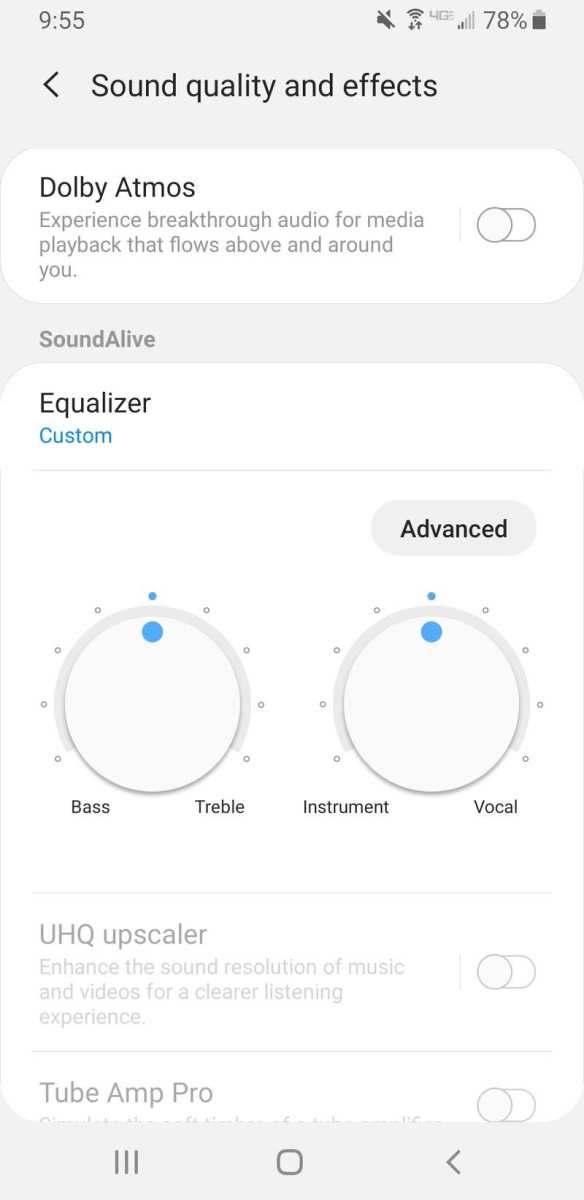
Enable Dolby Atmos or Equalizer Settings
Some Android phones, especially those from brands like Samsung, LG, or Sony, come with built-in sound enhancement features:
- Dolby Atmos: Enhances overall audio quality and loudness.
- Sound Equalizer: Allows customization of bass, treble, and volume levels to make sound clearer and louder.
To enable these features:
- Open your device’s Settings app.
- Navigate to Sound & Vibration or Sounds.
- Look for options like Sound Quality & Effects or Advanced Sound Settings.
- Turn on Dolby Atmos or similar features.
- Adjust equalizer sliders to boost loudness and clarity.
Experiment with different settings to find the loudness and sound quality that suits you best.
Activate Volume Booster in Settings
If your device supports it, activating a volume booster feature can significantly increase loudness. This is usually found within sound or accessibility settings:
- Open Settings and go to Accessibility options.
- Look for features like “Hearing” or “Sound & Vibration.”
- Toggle on options such as “Increase volume” or “Louder sound.”
Keep in mind that boosting volume through built-in features might sometimes cause distortion, so adjust gradually.
Using Volume Booster Apps for Android
If built-in options aren’t enough, third-party volume booster apps can provide additional loudness. These apps are easy to install and often offer customizable options to boost sound levels beyond the default maximum.
Popular Volume Booster Apps
- Volume Booster GOODEV: Simple app that increases volume for all media and calls.
- Super Volume Booster: Offers various preset modes to amplify sound.
- Precise Volume: Allows detailed control over individual app volumes.
How to Use Volume Booster Apps Safely
When using these apps:
- Download from trusted sources like Google Play Store.
- Open the app and grant necessary permissions.
- Adjust the volume sliders carefully; avoid setting volumes too high to prevent damage to your ears or device speakers.
- Use the boost feature gradually to find the optimum loudness without distortion.
Avoid apps that promise extreme volume increases or claim to “free” sound, as they might contain malware.
Additional Tips to Increase Android Sound Volume
Beyond built-in features and apps, consider these practical tips:
Clean Your Speakers
Dust and debris can muffle sound. Regularly clean your speakers gently with a soft brush or cloth to ensure clear audio output.
Use External Speakers or Headphones
If your device’s speakers aren’t loud enough, connect external speakers via Bluetooth or a headphone jack. External speakers often produce much louder sound with better quality.
Adjust Screen Orientation and Volume Settings for Media
Playing media in landscape mode can sometimes enhance the sound experience. Also, check if your media app has its own volume controls and increase them accordingly.
Close Background Apps
Running many applications consumes resources and can impact sound performance. Closing unnecessary apps frees up processing power, which can indirectly improve audio quality.
Safe Listening and Maintaining Your Device’s Speakers
While boosting sound is helpful, listening at very high volumes over a long period can damage your ears and your device’s speakers. Always:
- Keep volume levels at a comfortable loudness.
- Limit exposure to loud sounds.
- Use protective measures like hearing protection if listening at high volumes frequently.
Proper maintenance and cautious use not only improve sound quality but also prolong your device’s lifespan.
Summary
Boosting sound on your Android device involves a combination of checking and adjusting internal settings, using built-in enhancements, and employing third-party apps responsibly. Always start with increasing the volume controls, explore any sound enhancement features your device offers, and avoid setting volumes too high to prevent damage. External solutions like Bluetooth speakers or headphones can also significantly improve loudness. With these strategies, you can enjoy louder, clearer sound tailored perfectly to your needs.
Frequently Asked Questions
How can I increase the volume of notifications on my Android device?
You can boost notification sounds by adjusting the notification volume in your device’s settings. Navigate to Settings > Sound & Vibration > Volume, then move the notification volume slider to your preferred level. Additionally, ensure that Do Not Disturb mode is not blocking notifications or silencing sounds.
What steps can I take to improve sound quality when listening to music on Android?
Start by accessing your device’s built-in equalizer settings, which may be found in the Music or Sound settings. Increase the bass and treble levels for clearer sound. Using headphones with higher quality can also significantly enhance audio output. Some Android devices include sound enhancement features, so explore those options to customize your listening experience.
How do I troubleshoot if my Android device’s sound isn’t loud enough even after adjusting volume?
If increasing the volume doesn’t improve sound levels, first check for any external factors like debris or dirt in the speaker grille. Restart your device to resolve temporary glitches. Confirm that the volume is fully turned up and that no apps or settings are limiting audio output. If the problem persists, consider performing a software update or resetting app preferences within your device settings.
Are there any applications available that can help amplify sound on Android?
Yes, you can find third-party apps like volume booster or sound enhancer applications on the Google Play Store. These apps often provide features to boost overall volume and improve sound quality. However, use them carefully and avoid overly boosting volume levels, which can potentially damage your device’s speakers or impact hearing safety.
How can I improve the loudness of my Android device during calls?
Adjust the in-call volume by pressing the volume buttons during a call and ensuring the volume slider is at maximum. Check your device’s call settings to see if there’s a setting for increasing call volume beyond the default maximum. Using a headset or speakerphone can also help improve sound output during calls.
Final Thoughts
To make sound louder android, start by adjusting the volume settings on your device. Use the volume buttons or access the sound menu for precise control. Installing third-party apps can also boost sound beyond the default limits. Additionally, check for software updates that might improve audio performance.
Ultimately, understanding how to make sound louder android involves combining these methods for maximum volume. Applying these tips ensures you get clearer, louder sound whenever you need it.
