

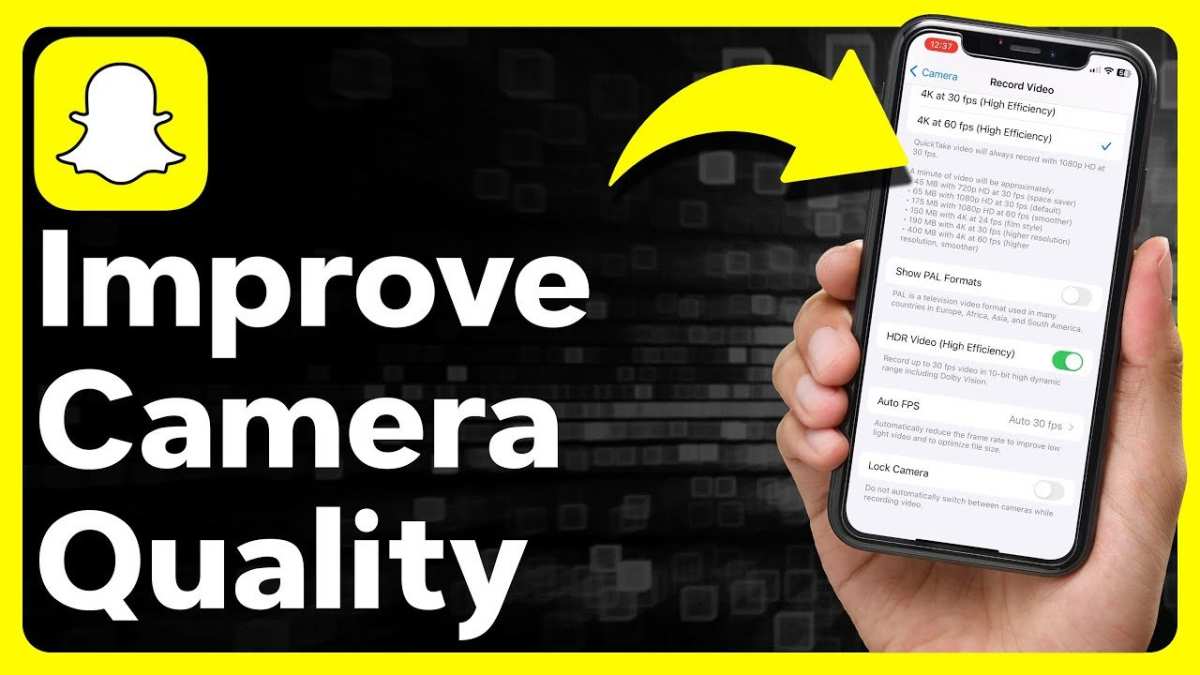
To improve the Snapchat camera on Android, update the app, clear cache, and adjust camera settings for better quality. **These simple steps make a noticeable difference and are easy to follow.** If you’re wondering how to make Snapchat camera better on Android, start by checking for updates and optimizing your phone’s camera permissions. Using these quick fixes can enhance your photo and video experience without hassle. Whether capturing moments or sharing stories, a few tweaks can make your snaps sharper and more vibrant.

How to Make Snapchat Camera Better on Android
Snapchat is one of the most popular social media apps, especially for sharing fun pictures and short videos with friends. The camera feature on Snapchat is a big part of why so many people love the app. But sometimes, users notice that the camera doesn’t work as smoothly or as clearly as they want on Android devices. If you want to improve the quality of your Snapchat camera or make it work better on your Android phone, you’re in the right place. In this guide, we’ll explore simple and effective ways to enhance your Snapchat camera experience on Android.
Understanding Why Your Snapchat Camera Might Not Be Performing Well
Before diving into solutions, it’s helpful to understand why the Snapchat camera might not be working as expected. Common reasons include:
- Outdated Snapchat app or Android system
- Low camera storage or memory issues
- Camera permissions not granted properly
- Conflicting apps that interfere with camera functions
- Hardware limitations or camera malfunctions
Knowing these causes helps you select the best steps to fix or improve your camera’s performance on Snapchat.
Update Your Snapchat App and Android System
The first step to ensure your camera works better is to keep your apps and system software updated. Developers release updates that fix bugs, improve performance, and add new features.
- Go to the Google Play Store
- Search for Snapchat
- If an update is available, tap on ‘Update’
Similarly, check for system updates on your Android device:
- Open your Settings app
- Scroll to ‘System’ or ‘About Phone’
- Tap on ‘Software Update’ or ‘System Update’
- If an update is available, install it immediately
Keeping your device and app up to date ensures compatibility and optimal camera performance.
Check Camera Permissions and Settings
Sometimes, Snapchat can’t access your camera because permissions are not set correctly. Make sure Snapchat has the necessary permissions:
- Open your device Settings
- Go to ‘Apps’ or ‘Applications’
- Find and select ‘Snapchat’
- Tap on ‘Permissions’
- Ensure that ‘Camera’ permission is turned on
Additionally, inside the Snapchat app, check if there are settings that affect camera usage:
- Open Snapchat
- Tap on your profile icon
- Go to ‘Settings’ (gear icon)
- Look for camera-related options and enable them if needed
Free Up Storage and Clear Cache
Low storage space can slow down your camera and app performance. To improve your camera experience, free up some space:
- Delete unnecessary apps, photos, or videos
- Use your device’s storage manager to clear cache data:
- Go to Settings
- Select ‘Storage’ or ‘Device Care’ depending on your phone
- Tap on ‘Clean Now’ or similar options to free space
Clearing cache data for Snapchat specifically can also help:
- Go to Settings > Apps > Snapchat
- Tap on ‘Storage’
- Select ‘Clear Cache’
Optimize Camera Settings for Better Performance
Adjusting certain camera settings can enhance the quality of images and videos on Snapchat:
- Enable HDR Mode: High Dynamic Range improves photo quality in different lighting conditions.
- Adjust Resolution: Set your camera to the highest possible resolution in your device’s camera settings.
- Turn off Auto-Flash: Sometimes, auto-flash can cause overexposed images. Use manual flash options for better control.
- Use Grid Lines: Enable grid lines to help compose better shots.
- Set Focus Manually: Tap on the screen to focus on specific objects before capturing.
Use Camera Apps That Improve Snapchat Photos and Videos
If your device’s native camera app isn’t producing the quality you want, you might try third-party camera apps. Many apps offer advanced features like better stabilization, filters, and manual controls that can be used before sharing on Snapchat.
- Open Camera: Free app with manual controls and filters
- ProCam X: Offers professional settings for focus, ISO, and white balance
- Camera FV-5: Allows detailed adjustments for better photos
Capture your best shot with these apps, then upload or send through Snapchat for higher-quality images.
Improve Lighting Conditions for Better Camera Output
Good lighting makes a significant difference in photo and video quality. Here are some quick tips:
- Use natural light when possible — face a window or go outdoors
- Avoid direct bright lights that cause glare or overexposure
- If indoors, turn on multiple light sources for even lighting
- Use reflectors or white surfaces to bounce light onto your face or subject
Explore Snapchat Camera Features and Filters
Snapchat offers many tools to make your photos and videos more appealing. Experiment with these features to enhance your content:
- Filters and Lenses: Use creative filters to add effects, filters, or animations
- Adjust Brightness and Contrast: Use Snapchat’s editing tools to fine-tune your images
- Use Stickers and Text: Add fun elements directly on your photo or video
- Try AR Objects: Use augmented reality objects to make your snaps more lively
Close Background Apps and Restart Device
Closing other apps that run in the background can free up memory and processing power, which helps Snapchat run more smoothly. To do this:
- Open your recent apps menu
- Swipe away or close apps you’re not using
- Restart your device if it has been running for a long time
This can lead to better camera responsiveness and improved snap quality.
Utilize External Accessories for Better Camera Results
If you want to take your Snapchat photos to the next level, consider using external camera accessories:
- Clip-on Lenses: Enhance wide-angle, macro, or fisheye effects
- Tripods: Keep your phone steady during shooting
- Ring Lights: Provide even, flattering lighting for selfies
These tools can make a noticeable difference in your camera output, making your Snapchat content look more polished and professional.
Regular Maintenance and Troubleshooting
Finally, keep your device and app in good shape with regular maintenance:
- Update your device’s firmware regularly
- Check for app conflicts with other installed apps and remove unnecessary ones
- If your camera still malfunctions, try clearing app data or reinstalling Snapchat
- Consider performing a factory reset if persistent hardware issues occur (after backing up data)
By following these detailed steps, you can significantly enhance your Snapchat camera experience on Android devices. Whether it’s through software updates, accessory use, or better lighting, small changes can lead to big improvements in photo and video quality.
Remember, patience and experimentation are key. Try different settings, tools, and techniques to see what works best for your device and your style. A little effort goes a long way in making your Snapchat content stand out and look great every time you snap a shot.
Frequently Asked Questions
How can I improve the camera quality on Snapchat for Android?
To enhance the camera quality, ensure your device’s camera lens is clean, and close other apps that may be consuming resources. Keep Snapchat updated to the latest version, as updates often include camera improvements. Additionally, enable your device’s HDR or high dynamic range settings if available to capture clearer, more vibrant images.
What settings can I adjust within Snapchat to get better photo results?
Within Snapchat, explore the camera settings to enable features like grid lines for better composition, adjust the flash settings, and enable or disable location-based filters that can enhance your photos. Using the rear camera instead of the selfie camera often results in higher-quality images, so switch cameras accordingly.
How do I optimize my Android device to improve Snapchat camera performance?
Optimize your device by freeing up storage space, closing background apps that could slow down your camera operation, and updating your device’s software. Turning off unnecessary features like Bluetooth or Wi-Fi when not needed can also reduce interference and improve camera responsiveness. Restarting your device regularly can help maintain optimal performance.
Are there specific accessories that can help improve Snapchat photos on Android?
Using external lenses or clip-on camera accessories can significantly boost your photo quality. A tripod or stabilizer helps keep the camera steady, resulting in sharper images. Ensure any accessories you buy are compatible with your device to avoid issues with fitting or functionality.
What tips can I follow to reduce lag and improve camera speed on Android?
To reduce lag, keep your device’s software updated and clear the cache of the Snapchat app regularly. Avoid using the camera in high-resolution mode if your device struggles with processing power. Closing background apps and freeing up RAM also helps improve camera responsiveness and speed during use.
Final Thoughts
To make Snapchat camera better on Android, start by updating the app regularly to access new features and improvements. Clear cache and restart your device to enhance performance and prevent bugs. Adjust camera settings within Snapchat for better image quality and stability.
Using these tips, you can improve your Snapchat experience efficiently. Remember, optimizing your phone’s resources and keeping the app current are key. Making snapchat camera better on android becomes easier with these simple steps, ensuring clearer snaps and smoother operation.
