

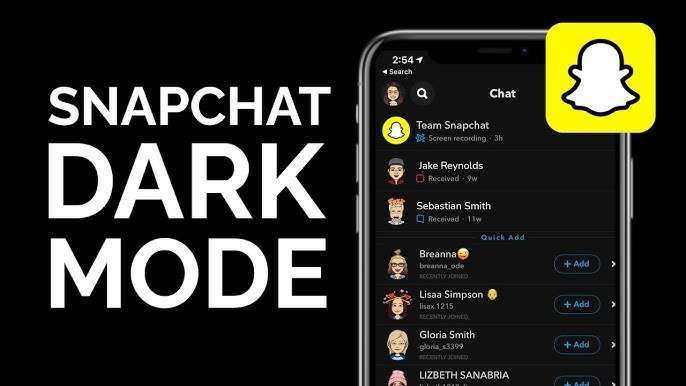
To make Snapchat black on Android, enable dark mode directly within the app settings or system-wide on your device. **This quick change enhances your viewing experience and reduces eye strain.** If you’re wondering how to make Snapchat black on Android, starting here is the easiest step.
Most Android devices support dark mode in settings or via app updates. Switching to dark mode can be straightforward, making your Snapchat interface sleek and less demanding on your eyes.

How to Make Snapchat Black on Android
Many Snapchat users love the app for its fun filters, quick messaging, and stories. But sometimes, the bright white background can be harsh on the eyes, especially at night. If you prefer a darker theme that’s easier on your eyes and helps save your phone’s battery, you’re in the right place. This guide will walk you through simple and effective ways to make Snapchat black on your Android device.
We’ll look at built-in options, third-party apps, and some tricks to get that sleek dark mode on Snapchat. Plus, you’ll find tips for customizing your experience and troubleshooting common issues. Whether you want a complete dark theme or just darker backgrounds, this article covers everything you need.
Understanding Snapchat Dark Mode and Why It Matters
Before diving into how to get a black Snapchat, let’s clarify what dark mode is and why it benefits users.
Dark mode switches the app’s background from light to dark, making it more comfortable for your eyes—especially in low-light environments. It also helps save your phone’s battery because dark pixels consume less power on OLED screens.
Snapchat is slowly rolling out official dark mode features for Android users, but they might not be available on all devices yet. If your app doesn’t support this feature naturally, don’t worry. There are still ways to achieve a darker look.
Using Snapchat’s Built-In Dark Mode Feature
Some recent versions of Snapchat have started integrating a native dark mode option, but its availability varies depending on your device and app version.
How to Enable Dark Mode in Snapchat
– **Update Your App:** First, ensure you have the latest Snapchat update from Google Play Store. Developers often release new features, including dark mode, in updates.
– **System-wide Dark Mode:** Some Android devices allow apps to follow the system-wide theme. To enable this:
- Go to your phone’s Settings.
- Select Display.
- Tap on Dark Theme or Dark Mode to activate it.
– **Enable in Snapchat Settings (if available):**
- Open Snapchat.
- Tap your profile icon in the top left corner.
- Go to Settings (gear icon).
- Scroll to Settings Appearance or Display options.
- Choose Dark or Dark Mode.
> **Note:** If these options are not visible, your Snapchat version might not support native dark mode yet, or it could be device-specific.
Using Third-Party Apps to Force Dark Mode on Snapchat
When Snapchat doesn’t offer a built-in dark mode, you have other options. Apps that force dark mode on all apps can help you achieve a black Snapchat interface.
Popular Third-Party Apps for Dark Mode
– **Dark Mode Enabler or Theme Apps:** These apps modify your system settings to force dark mode across apps.
– **Overlay and Accessibility Tools:** Apps like “Dark Mode” or “Night Mode” can apply overlays that darken your screen on the fly.
How to Use Third-Party Apps Safely
– Download apps only from trusted sources like Google Play Store.
– Read reviews and check permissions before installing.
– Activate the app, follow its instructions to enable dark mode globally or for specific apps like Snapchat.
– Test Snapchat to see if the interface turns darker. Adjust settings as needed.
> **Important:** Some third-party apps require root access to your device, which can be risky. If you’re unsure, stick to non-root solutions.
Using Developer Options to Force Dark Mode
Android offers developer options that can sometimes help force dark mode for unsupported apps.
How to Enable Developer Options
– Go to Settings > About Phone.
– Tap on Build Number seven times to unlock Developer Options.
– Return to Settings > System > Developer Options.
– Find the “Override force-dark” or “Dark mode” toggle.
– Turn it on.
This setting compels compatible apps to display in dark mode. However, results can vary depending on your Android version and device.
Adjusting Snapchat’s Theme Through Customization
If you want more control over Snapchat’s appearance, some customization apps allow you to modify app themes. These apps often require a rooted device.
Using Custom Themes and Modded APKs
– Look for reputable modded versions of Snapchat that include dark mode features.
– Be cautious—using modified apps can violate Snapchat’s terms and could risk your account.
– Always back up your data before trying these options.
Tips for a Better Dark Snapchat Experience
– **Combine methods:** Use system-wide dark mode with Snapchat’s in-app settings for better results.
– **Adjust brightness:** Keep your screen brightness low when in dark mode for easier viewing.
– **Use dark wallpapers:** Pair Snapchat with dark-themed wallpapers for a consistent aesthetic.
– **Update your device software:** Regular updates improve app compatibility and feature availability.
Troubleshooting Common Issues
– **Dark mode not applying:** Make sure your app and device are updated. Restart your phone and try again.
– **Colors look weird or glitchy:** This may happen with third-party solutions. Try switching to different apps or methods.
– **Battery drain in dark mode:** If you notice increased battery use, check your display settings or try different dark mode tools.
Summary of Key Steps to Make Snapchat Black on Android
- Update Snapchat to the latest version.
- Enable system-wide dark mode on your device.
- Check if Snapchat has a built-in dark mode setting.
- Use third-party apps to force dark mode if needed.
- Activate developer options to override dark mode settings.
- Customize your overall device theme for a consistent look.
Having a dark Snapchat interface can make your usage more comfortable, especially in low-light conditions. While the process may vary depending on your device and app version, these options give you multiple ways to enjoy Snapchat in a sleek, black theme. Remember to stay cautious when using third-party tools and always back up your data to maintain a safe and seamless experience.
Frequently Asked Questions
Can I change Snapchat’s background to black on an Android device using the app’s settings?
No, Snapchat does not offer a built-in option to switch to a black or dark background within its settings. To achieve a dark appearance, you need to enable system-wide dark mode or use other methods such as third-party apps or developer options.
How can I enable dark mode on Android to make Snapchat appear with a darker background?
Enabling dark mode on your Android device can change compatible apps, including Snapchat, to a darker theme. Go to your device’s Settings, select Display, and toggle on Dark Mode or Dark Theme. Once activated, open Snapchat to see if the app adapts to this theme. Keep in mind, Snapchat’s support for dark mode depends on your device’s Android version and app updates.
Are there third-party apps or modifications I can use to make Snapchat’s background black on Android?
Some third-party apps claim to modify app appearances, but they often require rooting your device and may compromise your security. Using such apps can also violate Snapchat’s terms of service, risking account suspension. It’s safer to stick with official features like system-wide dark mode or app updates that support themes.
Can I use a custom launcher or theme to change Snapchat’s background to black?
Yes, certain custom launchers and themes allow you to modify the appearance of apps, including changing backgrounds to black. Install a launcher that supports themes, apply a dark theme, and this may influence the appearance of Snapchat if it supports system-wide themes. However, the app’s specific interface may not fully change unless Snapchat updates its own theme options.
Is there a way to force Snapchat into dark mode on Android without waiting for an official update?
You can try enabling dark mode through your device’s developer options by forcing apps into night mode. To do this, go to Settings, tap About phone, then tap Build number multiple times to enable Developer options. Next, navigate to Developer options, locate “Override force-dark,” and enable it. This may force compatible apps, including Snapchat, into dark mode, but results can vary depending on app updates and Android version.
Final Thoughts
To make Snapchat black on Android, you can enable Dark Mode through the app settings or system-wide on your device. Check if your Snapchat version supports in-app themes; if yes, activate Dark Mode directly there. Alternatively, switch your device to Dark Theme in the display settings to influence app appearance.
Enabling Dark Mode not only reduces eye strain but also conserves battery life. Remember, ‘how to make snapchat black on android’ involves adjusting either app-specific settings or your device appearance options. These simple steps help you enjoy Snapchat in a darker, more comfortable mode effortlessly.
