

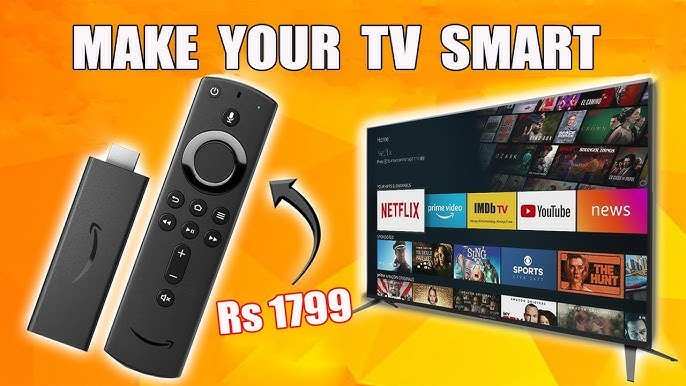
To make a smart TV Android, you simply need to install the Android TV firmware on your existing TV or use a device like a Chromecast with Google TV. **This approach allows you to turn your regular TV into an Android-powered smart TV quickly.** Knowing how to make smart TV android involves selecting compatible hardware and following a few simple steps to set it up. With the right tools, you can enjoy all Android features right on your TV screen without buying a new device.

How to Make a Smart TV Android
Building a smart TV that runs on Android can seem like a big project, but with the right information, anyone can do it. Whether you want to upgrade an old TV or make a new one smarter, this guide will take you through each step clearly and thoroughly. By understanding what tools and parts you’ll need, how to set everything up, and how to troubleshoot common issues, you’ll have your Android-powered smart TV up and running in no time.
Understanding the Basics of Android TV
Before diving into the actual process, it’s helpful to get familiar with what Android TV is and why it’s a great choice for making your TV smarter.
What Is Android TV?
Android TV is a version of Google’s Android operating system designed specifically for TV screens. It offers access to apps, games, streaming services, and other features directly on your TV, making entertainment more flexible and enjoyable.
Why Choose Android for Your Smart TV?
– **Wide Range of Apps:** You can install popular streaming apps like Netflix, YouTube, and Hulu.
– **Easy User Interface:** Designed for big screens with simple navigation.
– **Voice Control:** Compatible with Google Assistant.
– **Regular Updates:** Receive improvements and security patches.
– **Customizability:** Add or remove apps and features as you like.
Tools and Hardware Needed
To convert or build a smart TV with Android, you’ll need certain materials.
Essential Components
- Raspberry Pi 4 or another single-board computer (like Odroid or ASUS Tinker Board)
- microSD card with at least 32GB storage for the OS and apps
- Power supply compatible with your device
- HDMI cable to connect to your TV
- Remote control — either compatible with Android TV or a standard IR remote
- Keyboard and mouse (optional, but helpful during setup)
Additional Accessories
- Cooling fan or heatsink to prevent overheating
- Case or enclosure to protect your device
- Wi-Fi or Ethernet connection for internet access
Choosing the Right Operating System for Your Android TV
For making your TV smart using a single-board computer, you need to install an operating system designed for that platform.
Popular Android TV OS options
– **LineageOS for Android TV:** A popular custom ROM based on Android with TV features.
– **Android x86:** An Android version tailored for PC hardware, adaptable for some devices.
– **Official Android TV OS (via specific builds):** Limited to certain hardware, but the most stable.
Factors to consider when choosing an OS
– Compatibility with your hardware
– Ease of installation
– Community support and updates
– Availability of pre-configured apps and features
Preparing Your Hardware and Software
Once you understand what you’ll need, you can prepare all your components.
Creating a Bootable Storage Device
– Download the OS image compatible with your hardware.
– Use tools like Balena Etcher or Rufus to create a bootable microSD card.
– Ensure the image is correctly flashed to prevent boot issues.
Setting Up Your Hardware
– Insert the microSD card into the Raspberry Pi or your chosen device.
– Connect the device to your TV via HDMI.
– Attach the keyboard, mouse, and remote control.
– Power on the device, and follow prompts to install the OS.
Installing and Configuring Android TV OS
This step involves setting up your OS and customizing your smart TV.
Initial Setup
– Select language and region.
– Connect to Wi-Fi or Ethernet.
– Sign in with your Google account.
– Update the OS if prompted.
Installing Essential Apps
– Open the Google Play Store.
– Search for your favorite streaming apps.
– Download and install them.
– Arrange apps for easy access from the home screen.
Adjusting Settings for Better Performance
– Enable developer options if needed.
– Adjust display resolution and screen settings.
– Manage app permissions.
– Customize notifications for a better experience.
Enhancing Your Smart TV Experience
Once your system setup is complete, you can add features to improve how you watch and interact with your TV.
Adding Voice Control
– Use Google Assistant for voice commands.
– Set up voice input in settings.
– Use voice to search for content, control playback, or even smart home devices.
Connecting External Devices
– Connect speakers for better sound quality.
– Attach a game controller for gaming.
– Use external storage for additional apps and media.
Security and Privacy Settings
– Regularly update your OS.
– Manage app permissions carefully.
– Use strong passwords for your Google account.
– Install security patches if available.
Common Troubleshooting Tips
If you encounter problems, these tips can help.
Device Won’t Boot
– Check the microSD card for errors.
– Re-flash the OS image.
– Ensure your power supply is stable.
Wi-Fi Connection Issues
– Restart your router.
– Move the device closer to the Wi-Fi source.
– Reset network settings on the device.
Apps Not Working Properly
– Clear app cache and data.
– Reinstall the app.
– Check for OS updates.
Performance Slowdowns
– Close unnecessary apps running in the background.
– Use a microSD card with faster read/write speeds.
– Consider overclocking your device if supported (advanced users).
Making a smart TV with Android involves selecting the right hardware, choosing the best OS, and properly setting everything up. By following the steps outlined here, you can turn an ordinary TV into a versatile entertainment hub. Remember to keep your system updated, handle troubleshooting with patience, and refine your setup over time. Whether you’re streaming movies, playing games, or browsing the web, a custom-built Android smart TV offers endless possibilities for fun and convenience.
Frequently Asked Questions
How can I install Android OS on an existing TV?
Installing Android OS on a non-smart TV typically requires a smart TV or external device. If you have a compatible TV, you can update the firmware through the manufacturer’s website or settings menu. For non-smart TVs, you should connect an Android TV box or a compatible single-board computer like a Raspberry Pi with Android installed. Follow the device’s instructions to set it up, connect it to your TV via HDMI, and complete any necessary configurations.
What hardware do I need to convert a regular TV into an Android TV?
To convert a standard TV into an Android TV, you need an Android TV box or a dongle, such as a Google Chromecast with Google TV, NVIDIA Shield TV, or similar device. Additionally, ensure your TV has an available HDMI port and reliable Wi-Fi connectivity for streaming. You might also consider a Bluetooth remote or a wireless keyboard for easier navigation.
Can I use a smartphone or tablet to turn my TV into an Android-based smart device?
Yes, you can use certain smartphones or tablets to cast content to your TV if they support screen mirroring or casting. However, to fully turn your TV into an Android-based smart device, connecting an Android TV box or compatible hardware provides a better experience. These devices run a full Android TV interface, allowing app installations, browsing, and other smart features directly on your TV.
Is it possible to root my TV and install Android OS?
Rooting a TV and installing Android OS is technically possible but involves risks. It typically requires specialized knowledge, and improper procedures can brick your device. Manufacturers usually do not support such modifications, which may void warranties. For most users, using an Android TV box offers a safer and more straightforward way to access Android features on a regular TV.
What are the advantages of upgrading my TV with an Android-enabled device?
Upgrading your TV with an Android-enabled device allows you to access a wide range of apps, streaming services, and games directly on your TV. It also enables better integration with other smart devices, voice control options, and regular software updates. This upgrade enhances your viewing experience and provides more flexibility compared to standard TVs.
Final Thoughts
Making a smart TV Android involves installing an Android-based OS on your existing television or purchasing a compatible device. Choose a reliable Android TV box or stick to ensure smooth performance and access to apps. Connect the device to your TV via HDMI and configure your settings for an optimal experience.
Having the right apps and updates is crucial for seamless usage. Regularly check for software updates to improve functionality and security.
In conclusion, to make a smart TV Android, follow these straightforward steps to convert your TV into a versatile entertainment hub. How to make smart tv android becomes achievable with the right setup and configuration.
