

To make the font bigger on Android, simply adjust the display settings. **Go to Settings, tap Display, then Font Size, and slide to increase it.** This quick step makes reading easier without extra apps. If you want more control, you can also change font size directly in accessibility options. Understanding these simple tweaks helps you customize your device for comfortable viewing at any time.

How to Make the Font Bigger on Android
Making the text on your Android device larger can make it easier to read, especially if you find the default font size too small. Whether you want to adjust the font size for better visibility or customize your device’s look, there are several simple methods to do this. In this guide, we will explore all the options so you can choose the one that works best for you.
Understanding Why You Might Want to Change Font Size
Before diving into the steps, it helps to understand why increasing the font size is a good idea for many users:
- You struggle to read small text without squinting.
- You want a more comfortable viewing experience for long periods.
- You have visual impairments that make small fonts difficult to see.
- You prefer a more minimalist or bold style on your device.
No matter your reason, adjusting the font size is simple and can significantly improve your overall user experience.
Methods to Increase Font Size on Android
There are multiple ways to make your font bigger, and you can choose the one that suits your needs best. Let’s look at each method carefully.
Adjust Font Size Through Device Settings
This is the most straightforward method and applies to most Android devices, regardless of brand.
Steps to Change Font Size
- Open the “Settings” app on your Android device. You can usually find this app on your home screen or in the app drawer.
- Scroll down and tap on “Display” or “Display & Brightness,” depending on your device.
- Look for an option called “Font size” or “Font size and style.” Tap on it.
- You will see a slider. Drag this slider to the right to increase the font size or to the left to decrease it.
- Once you find a size that feels comfortable, tap “OK” or simply exit the menu. Your font size should now update immediately.
Tips for Adjusting Font Size
- Some devices offer a preview of the font size. Use it to see how large the text will be before confirming.
- On certain Android versions, you might find a separate setting called “Display size” that affects the overall size of on-screen elements, including fonts.
- Remember that changing font size affects all apps and menus, providing a consistent reading experience.
Using Accessibility Settings for Larger Fonts
If you need even larger text or additional accessibility features, Android offers built-in options:
Enabling Larger Text via Accessibility
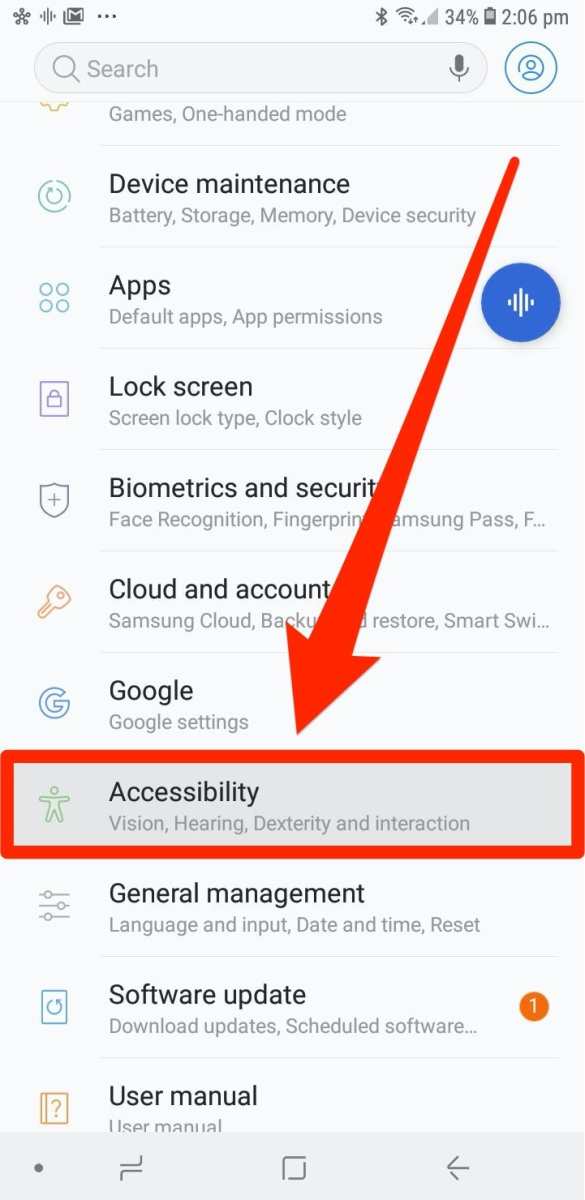
- Go to “Settings” > “Accessibility.”
- Scroll to find “Font size” or “Display” options within Accessibility settings.
- Adjust the slider to make the text larger. Some devices also have an option called “Magnification” or “Large Text” that you can turn on for extra visibility.
- Activate the “Large Text” toggle if available. This feature slightly increases the size of text across many apps and menus.
Changing Font Style and Size for Specific Apps
Some apps, such as e-readers or browsers, allow you to set custom font sizes within their menus.
Adjusting Font Size in Apps
- Open the app where you want larger fonts, like a reading app or browser.
- Look for a settings menu, usually represented by three dots or a gear icon.
- Find options like “Text size,” “Font size,” or “Display.”
- Use the sliders or preset options to select the larger font size you prefer.
Using Third-Party Apps to Increase Font Size
If built-in options aren’t enough, various apps can help increase font size and improve readability:
Recommended Third-Party Apps
- Big Font: This app makes all text larger across your device with just one tap.
- Font Size & Style: Offers customizable font sizes and styles for your device.
- iFont: Allows you to change system fonts and their sizes, giving a personalized look.
How to Use Third-Party Apps Safely
- Download the app from the Google Play Store.
- Follow the app’s instructions to grant necessary permissions.
- Adjust the font size settings within the app.
- Apply the changes and enjoy larger text on your device.
Tips for Maintaining Readability and Comfort
When increasing font size, keep these tips in mind to ensure your reading experience remains comfortable:
- Avoid making the font so large that it causes your screen to become cluttered or difficult to navigate.
- Adjust the font size gradually to find the perfect balance between readability and usability.
- Combine font size adjustments with increased display brightness if your screen appears dull.
- Use screen filters or blue light filters to reduce eye strain during extended reading sessions.
Common Issues and How to Fix Them
While adjusting font size is usually straightforward, some users encounter problems:
Text Not Getting Larger
- Ensure you have saved your settings after adjustment.
- Restart your device to apply changes properly.
- Check if app-specific settings override global font size adjustments.
Fonts Displaying Incorrectly
- Try resetting the font style to default in your device settings.
- Update your device software to the latest version.
- Clear cache or data of affected apps if fonts appear broken or pixelated.
Summary of Key Points
- Adjust font size through “Settings” > “Display.”
- Use accessibility features for larger, clearer text.
- Set custom font sizes within individual apps.
- Utilize third-party apps if needed for more significant adjustments.
- Combine font size changes with other display settings for optimal reading comfort.
Making the font bigger on your Android device is simple once you understand the available options. Whether you want a slight increase or a large boost for better visibility, these methods help improve your device’s readability. Remember to experiment with different settings to find what works best for your eyes and your daily usage. Happy reading!
Frequently Asked Questions
How can I increase the font size for system text on my Android device?
To enlarge the system font, go to your device’s Settings app. Tap on “Display” or “Screen,” then select “Font size” or “Font size and style.” Use the slider to adjust the size to your preference. Once you’ve set the desired size, exit the menu, and the system text will appear larger across your device.
Is there a way to modify font size specifically within app interfaces on Android?
Many apps adapt to your device’s font settings automatically. If an app doesn’t support this, check within the app settings itself for font or display options. Some apps provide their own font size controls. Adjust these settings to customize the font size within that particular app.
How can I make text more readable in apps that don’t respond to system font changes?
If certain apps ignore system font settings, consider enabling accessibility features. Navigate to Settings > Accessibility > Font size or Display size. Some devices offer options like “High contrast text” or “Display size” adjustments that make text easier to read. Turning on these features can improve readability even in apps with fixed fonts.
What options do I have for enlarging text in web browsers on Android?
In your browser’s settings, you can usually find an option to zoom in or adjust font size. For example, in Chrome, tap the three-dot menu, select “Settings,” then “Accessibility” or “Appearance,” and customize the font size or enable zooming. Pinch-to-zoom gestures also allow quick adjustments when browsing web pages.
Can I use third-party apps to make fonts larger on my Android device?
Yes, several third-party apps are available that can help increase font size or improve readability. These apps often offer more customization options than default settings. Look for reputable applications in the Google Play Store, and follow their instructions to adjust font size or display settings for enhanced readability.
Final Thoughts
Making the font bigger on Android devices is simple and user-friendly. You can adjust the font size through your device settings or within specific apps. This change improves readability and offers a more comfortable viewing experience.
Navigate to Settings > Accessibility > Font Size to increase the size universally. Alternatively, in some apps, tap on text options to customize the font. These straightforward steps ensure quick adjustments to suit your preferences.
In conclusion, enhancing your Android experience is easy when you know how to make the font bigger on android. Implement these simple steps to make text legible and browsing more comfortable.
