

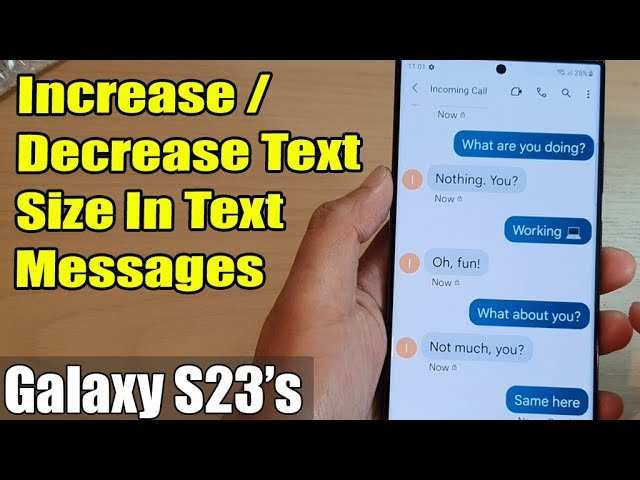
To make text smaller on your Android device, simply go to Settings, tap Display, then Font Size, and adjust the slider. This quick change helps customize your screen to fit your preferences. If you’re wondering how to make text smaller Android, this simple adjustment can make a big difference.
No need for complicated steps—just a few taps, and your display is tailored to your liking. This process keeps your browsing comfortable and effortless, even during long screen time.

How to Make Text Smaller on Android
When using an Android device, sometimes the text feels too large or overwhelming, especially if you prefer a more compact display. Whether you’re trying to fit more information on your screen or find the text size uncomfortable, adjusting the text size can make your experience more pleasant. Luckily, Android offers several ways to make text smaller, whether it’s for system-wide settings, specific apps, or accessibility features. This guide walks you through all those options step-by-step, ensuring you can customize your device to suit your needs.
Understanding Why Text Size Matters on Android Devices
Before diving into how to change the text size, let’s briefly explore why adjusting text size is important. For many users, the default settings do not match their comfort level. Larger text can be helpful for those with visual impairments, but others may find it cluttered or distracting. Properly adjusting text size:
- Improves readability and reduces eye strain
- Increases screen space for more content
- Allows personalized device use according to individual needs
- Enhances overall user experience
Having control over text size ensures everyone can enjoy their device comfortably, whether for work, entertainment, or communication.
Adjusting Text Size Through Display Settings
The most straightforward way to make text smaller on your Android device involves modifying the display settings. This change affects system-wide text, menus, notifications, and most apps that follow standard scaling.
Step-by-step guide to changing display size
- Open the “Settings” app on your Android device. You can find it in the app drawer or by swiping down from the top and tapping the gear icon.
- Scroll down and tap on “Display” or “Screen,” depending on your device model.
- Look for options like “Font size” or “Display size.” On some devices, it may be labeled as “Screen zoom” or “Text size.”
- Adjust the slider to make the text smaller. Moving the slider toward the left will decrease text size.
- Preview the changes on the screen if available, then tap “Apply” or simply exit the menu to confirm.
Additional tips for display adjustments
- Some devices allow you to tweak font style or style size independently—explore those options if you want more customization.
- After changing display size, restart your device if you notice inconsistent display behavior.
- Remember that lowering the display size can make icons and buttons smaller, so find a balance that suits your needs.
Changing Font Size for Better Readability
While display size adjusts overall UI elements, specific font size modifications can target only the text, making it smaller without altering other visual elements.
How to adjust font size in Android
- Navigate to “Settings” and select “Display.”
- Find and tap on “Font size” or “Font.” On many devices, it’s within the “Advanced” settings section.
- Drag the slider toward “Small” or “Very small” to decrease text size. For some devices, options like “Small,” “Normal,” or “Large” are provided.
- Review the preview text as you adjust and confirm your preferred size.
Effects of changing font size
- Smaller fonts can help fit more information on your screen but might reduce readability.
- Adjusting font size specifically impacts menus, messaging apps, and other text-based interfaces.
Using Accessibility Features to Make Text Smaller
If you want more precise control over text size, especially for users with specific visual preferences, Android’s accessibility settings are highly useful.
Adjusting font size via accessibility
- Open “Settings” and go to “Accessibility.”
- Tap on “Font size” or “Text and Display.”
- Use the slider to decrease font size further than standard options, if available.
- Some devices include a “Reduce motion” or “Contrast” setting that helps make text clearer.
Enabling smaller text for specific apps
In some cases, you may want certain apps to display smaller text independently. While Android doesn’t provide a universal setting for app-specific font sizes, third-party apps or custom launchers can help.
- Explore apps like “Big Font” or “Font Size & Style” in Google Play Store for more options.
- Some custom launchers allow you to adjust icon and font sizes on an app-by-app basis.
- Ensure the app you select is compatible with your device and Android version.
Additional Tips for Making Text Smaller on Android Devices
Adjusting text size is simple, but optimize your settings for the best experience by considering these additional tips:
- Test different sizes: Spend some time experimenting to find the perfect balance between readability and screen space.
- Check app-specific settings: Some apps, especially reading or note-taking apps, have their own font size options.
- Use display scaling features wisely: Combining display size and font size adjustments can give you a customized look.
- Adjust brightness and contrast: Sometimes, lowering brightness makes smaller text easier to read without straining your eyes.
- Keep your device updated: New system updates often add improved customization options for display and text settings.
Common Troubleshooting When Making Text Smaller
Despite the simplicity of adjusting text size, you might encounter some issues.
Text appears blurry or pixelated
- Try resetting the display size to default and then reducing it gradually.
- Ensure your device’s screen resolution settings are optimized.
- Update your device’s software to fix bugs affecting display quality.
Some apps don’t respect text size changes
- Check if the specific app has its own font size or display settings.
- Update the app to the latest version.
- If the app supports it, adjust its internal font size settings directly.
Adjusting text size on your Android device to make it smaller is a straightforward process that can significantly enhance your experience. Whether you prefer changing system-wide display settings, tweaking font sizes for specific apps, or utilizing accessibility features, Android provides multiple options to customize your device. By following the step-by-step guides provided here, you can find the perfect text size that offers a comfortable viewing experience. Remember, taking the time to fine-tune these settings ensures your device is tailored perfectly to your visual preferences, making everyday use more enjoyable and less tiring for your eyes.
Frequently Asked Questions
How can I adjust the text size for better readability on my Android device?
To make text smaller on your Android device, go to Settings, then select Accessibility or Display options. Tap on Font Size or Font Size and Style, and then move the slider to reduce the size of the text. This change affects system-wide text, making everything appear more compact and easier to read.
What steps should I follow to change text size in specific apps on Android?
Most Android apps follow the system default for text size, but some allow customization within the app settings. Open the app, navigate to its Settings or Preferences menu, and look for Display or Text options. If available, adjust the font size slider or select a smaller font to customize text size within that app specifically.
Is it possible to make text smaller for certain elements like notifications or menus on Android?
Yes, you can adjust the size of interface elements such as notifications and menus. Access Settings, then go to Display or Accessibility. From there, look for options like Display Size or Display Scaling. Reduce the display size to make notifications, menus, and icons appear smaller, which helps optimize your screen space without affecting overall text size settings.
How do I reduce text size for better fit on my small screen Android device?
To improve fit and readability, open Settings, select Display, and then tap on Font Size or Display Size. Move the slider toward the smaller end to decrease text size and interface elements. This adjustment helps you see more content on the screen without sacrificing clarity, making your device more comfortable for daily use.
Can I customize text size separately for accessibility features on Android?
Yes, Android offers accessibility options to adjust text size independently. Go to Settings, then Accessibility, and tap on Font Size or Text Scaling. You can increase or decrease the font size without changing other display settings, ensuring content remains accessible while fitting your preferences for text size.
Final Thoughts
To make text smaller on Android devices, users can adjust the font size directly in the Settings menu. Simply navigate to Accessibility or Display options and find the Font Size slider. Drag the slider to the left to reduce the text size as desired.
Alternatively, some apps allow font adjustments within their own settings. Check app-specific options for more control over text appearance.
In conclusion, knowing how to make text smaller Android is straightforward by using device settings or app options. Adjusting font size enhances readability and user comfort effectively.
