

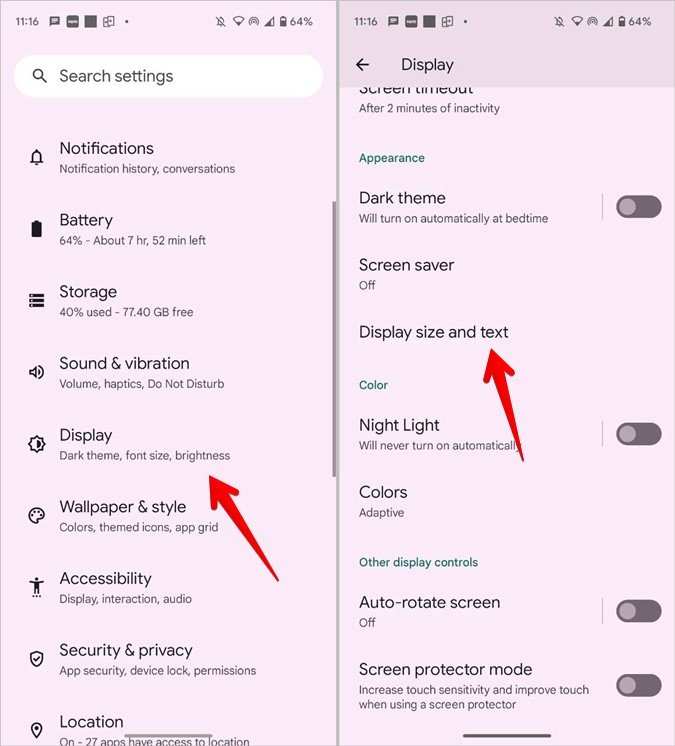
To make text message font bigger on Android, you can easily adjust the display settings or change the font size directly within messaging apps. **Simply go to your device settings, select Display, then Font Size, and move the slider to your preferred size.** This quick step makes reading messages much more comfortable.
If you’d rather modify font size within your messaging app, check the app’s settings for customization options. This straightforward approach ensures you see texts clearly without hassle.

How to Make Text Message Font Bigger on Android
When your eyes start to tire while reading messages on your Android device, or if you prefer larger text for easier visibility, knowing how to increase the font size for your messages can make a big difference. Luckily, Android offers several ways to adjust text size both within messaging apps and at the device level. Let’s explore all the options available to help you make your text messages easier to read.
Adjusting Font Size via Phone Settings
One of the simplest ways to make all texts, including messages, larger on your Android device is by changing the font settings directly through the phone’s main settings menu. This method affects not only messaging but also other apps like emails, browsers, and social media.
Steps to Increase Font Size in System Settings
- Open the “Settings” app on your Android device.
- Scroll down and tap on “Display” or “Display & Brightness,” depending on your device model.
- Look for the option labeled “Font Size” or “Font Size & Style.” Tap on it.
- Use the slider to increase the font size. Moving it to the right will make text bigger, while moving it to the left will restore the default size.
- Some devices also offer a “Bold Text” toggle—enabling this can make text more legible.
- Once you’ve selected your preferred size, exit the settings. Your messaging app should now display larger text.
Note
Adjusting the font size this way impacts the entire device experience, so all text in apps, menus, and notifications will become larger. If you want to increase font size specifically for messaging apps without affecting other apps, proceed to check app-specific settings.
Changing Font Size in Messaging Apps
Many messaging apps allow you to customize font sizes within their own settings, giving you control over how your messages appear without altering your device’s overall display settings.
Popular Messaging Apps and How to Adjust Font Size
Android Messages (Default Messaging App)
This app provides a straightforward way to change text size directly within the app.
- Open the “Messages” app.
- Tap the three-dot menu icon in the top right corner and select “Settings.”
- Choose “General” or “Text size.”
- Adjust the slider to increase or decrease message font size.
While WhatsApp doesn’t have a dedicated font size setting within the app, it uses the device’s system font size. Increasing the system font size will automatically make WhatsApp messages larger.
- Follow the steps in the previous section to increase the system font size.
Facebook Messenger
Similar to WhatsApp, Messenger relies on your device’s font settings. Adjust the system font size to influence how messages look.
- Adjust system font size as previously described.
Using Accessibility Features for Larger Text
Android devices come with built-in accessibility features designed specifically for users who require larger text or other enhancements.
Enabling Accessibility Large Text
- Open “Settings” and tap on “Accessibility.”
- Look for “Font size” or “Text and Display” options.
- Activate “Large text” or “Use large font.”
- If available, you can also use “Magnification” features to zoom into parts of the screen for easier reading.
Benefits of Accessibility Features
- Provides larger, more readable text in all apps.
- Can be combined with display settings for optimal viewing experience.
- Useful for users with visual impairments or those who prefer bigger text for comfort.
Customizing Font Style and Size Through Developer Options
For those who want more granular control, enabling developer options allows additional font customization, though this is more advanced.
Steps to Enable and Use Developer Options
- Go to “Settings,” then “About phone.”
- Tap your “Build number” 7 times until a message appears confirming developer options are enabled.
- Return to “Settings” and open “Developer options.”
- Look for “Smallest width” or similar options that influence display density.
- Adjusting the “Smallest width” can make text appear larger or smaller by changing screen scaling.
Note
Be cautious when modifying developer options. Incorrect settings can affect device performance or display behavior.
Tips for Comfortable Reading and Messaging
Apart from changing font size, consider these tips to optimize reading experience:
- Use a dark or high-contrast theme if your device supports it for easier readability.
- Adjust screen brightness and contrast to reduce eye strain.
- Keep your device’s software updated to access the latest accessibility and display features.
- Regularly clean your display for clear viewing and avoid reflections that can strain your eyes.
Summary of Methods to Increase Text Message Font Size on Android
| Method | Effect | Steps / Notes |
|---|---|---|
| Phone Settings | Enlarges all text system-wide | Adjust font size slider in Display settings |
| Messaging App Settings | Adjust font size within specific apps | Use app’s own message settings if available |
| Accessibility Features | Provides larger, more readable text for all apps | Enable large text in Accessibility menu |
| Developer Options | More advanced display scaling | Adjust smallest width setting after enabling developer options |
Making your text messages larger on Android is straightforward once you understand the available options. Whether you prefer a quick fix through system settings, app-specific adjustments, or accessibility features, you can select the method that best fits your needs and make messaging easier to read. Remember, adjusting font size not only improves readability but also enhances your overall user experience, especially during long messaging sessions or when sharing messages with others who have similar needs.
Frequently Asked Questions
How can I change the font size for incoming text messages on my Android device?
To adjust the font size of incoming messages, go to your device’s Settings, select Accessibility or Display, then tap on Font Size or Font Size and Style. Use the slider to increase or decrease the font size according to your preference. Changes will automatically reflect on incoming texts, making them easier to read.
What steps should I follow to increase the font size for reply messages in Android messaging apps?
Open your messaging app and go to its Settings menu. Look for options like Font Size, Text Size, or Appearance. Adjust the slider to enlarge the font for your responses. Some apps also allow you to set a default font size for all messages, which you can select within the app’s customization options.
Is there a way to make only the font size larger in the conversation threads without affecting other interface elements?
Yes, many messaging apps let you customize font size solely within conversation threads. Check the app’s chat settings or appearance options for a Font Size setting. Adjust it to make message text bigger without changing the overall system font size, giving your chats clearer visibility.
Can I modify the font size for notifications of incoming messages on my Android phone?
To enlarge notification text, navigate to Settings > Notifications > App notifications, then select your messaging app. Look for options like Notification Style or Messaging Style, and see if you can increase the font size there. Some devices also allow you to customize the notification font size through Accessibility settings.
Are there any third-party apps that can help increase text message font size on Android?
Yes, several third-party apps available on the Google Play Store can help you customize font sizes in messaging. These apps often require accessibility permissions and allow you to adjust text size within various messaging platforms or system-wide. Always choose reputable apps and review their permissions before installation.
Final Thoughts
Pour faire en sorte que la police de texte dans vos messages soit plus grande sur Android, ajustez les paramètres d’accessibilité ou la taille de la police dans les réglages de l’appareil. La plupart des smartphones Android offrent une option facile pour augmenter la taille du texte, rendant vos messages plus lisibles.
Vous pouvez aussi modifier la taille de police spécifique dans votre application de messagerie, selon votre appareil. Ces méthodes permettent une lecture plus confortable sans effort supplémentaire.
En résumé, faire en sorte que le texte message font size bigger on android est simple. Suivez ces étapes pour ajuster la taille du texte directement dans les paramètres et profitez d’une lecture plus aisée.
