

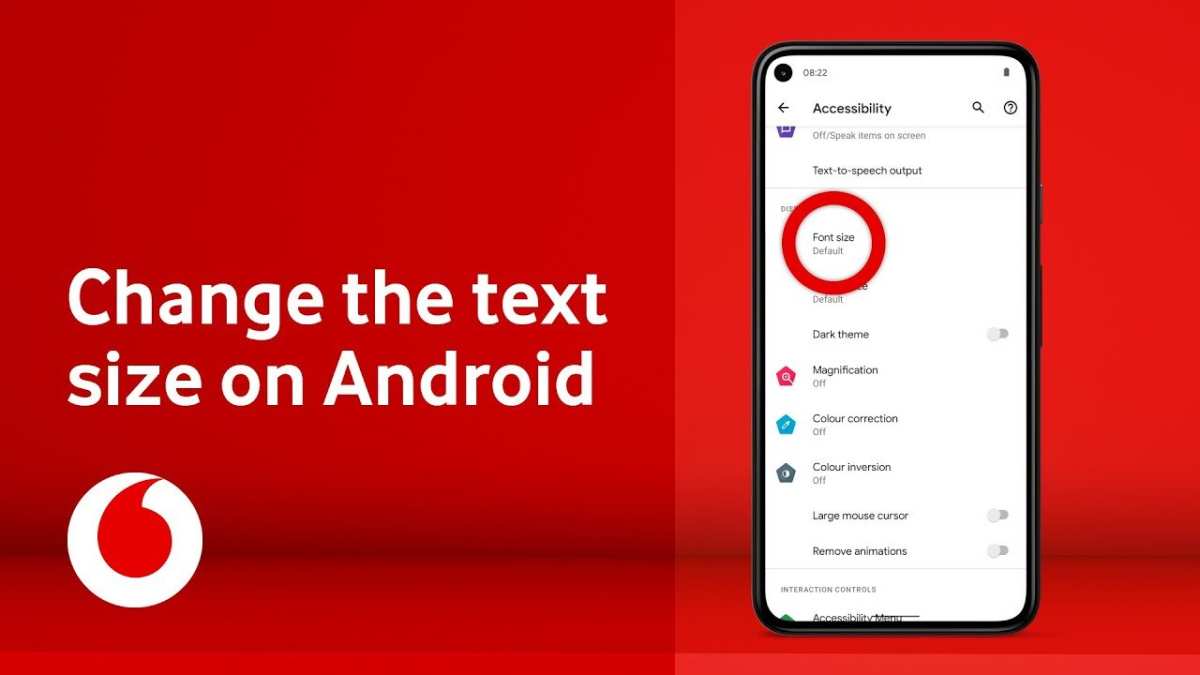
If you want to make text font smaller on Android, simply go to your device’s Settings, then Display, and adjust the Font Size slider. **This quick change can make reading more comfortable and fit more information on your screen.** When you ask how to make text font smaller on Android, it’s an easy tweak that improves your viewing experience instantly. Just follow these straightforward steps, and you’ll have the perfect font size in no time.

How to Make Text Font Smaller on Android
Making text smaller on your Android device can significantly improve your reading experience, especially if you find the default font size too large or if you want to fit more content on your screen. Whether you’re trying to customize your device for better visibility or adjust the font size for specific apps, understanding the different ways to change font size is essential. In this guide, we will explore various methods to make text font smaller on Android devices, covering system-wide settings, app-specific adjustments, and advanced options.
Understanding Why Font Size Matters on Android
Before diving into how to make text smaller, it’s helpful to understand why font size adjustments matter:
- Improved readability: Smaller fonts can help when you want to see more information at once.
- Customization: Adjusting font size allows you to tailor your device to your visual preferences.
- Accessibility: Some users need smaller fonts for better comfort, especially if they have good vision but prefer less clutter.
- Space management: Reducing font size can help organize your home screens, app lists, or browsing experiences more efficiently.
Now, let’s explore the easiest and most effective ways to make your font smaller on Android.
Adjusting Font Size through System Settings
The simplest method to make text smaller on Android involves modifying system-wide font settings. This change affects most apps and menus, providing a consistent experience.
Accessing Display Settings
To begin, follow these steps:
- Open the Settings app on your Android device. Usually, this icon looks like a gear.
- Scroll down or search for Display. Tap on it to open display options.
- Look for Font size or Screen zoom, depending on your device model and Android version.
Adjusting the Font Size Slider
In most Android devices, you’ll find a slider labeled “Font size”:
- Slide to the left to decrease font size, making text smaller.
- Slide to the right to increase font size if needed.
As you move the slider, notice the preview text updating in real time. When satisfied, you can exit the settings, and the new font size will take effect immediately.
Using Display Size Settings
Some devices also offer a “Display size” setting:
- Lowering display size also reduces the overall size of text, icons, and interface elements.
- This setting helps if you want a more compact interface besides just smaller text.
Modifying Font Size for Specific Apps
While system-wide adjustments work well, some apps like web browsers or e-readers allow for individual font size changes.
In Web Browsers
Most Android browsers, such as Chrome or Firefox, support zoom options:
- Open your browser and go to a webpage.
- Use pinch-to-zoom gesture: Place two fingers on the screen and pinch inward to make the text smaller.
- Alternatively, access the menu (three dots or lines), then find the “Zoom” or “Text size” options to adjust the font size.
In E-Reader Apps
Apps like Kindle or Google Books let you customize font size directly:
- Open the ebook or document.
- Tap on the screen to bring up reading options.
- Look for the “Font Size” controls, then slide or select smaller font options.
Advanced Methods to Make Font Smaller on Android
If default settings don’t provide enough control, consider these advanced options.
Using Accessibility Settings
Android’s accessibility features include options to tweak font size and display settings:
- Navigate to Settings > Accessibility.
- Select Font size or Display size.
- Adjust the sliders to make fonts smaller or larger as desired.
This method can sometimes override system defaults and is useful for users seeking precise control.
Applying Developer Options for Fine Control
For tech-savvy users, Developer Options may allow further customization:
- Enable Developer Options: Go to Settings > About phone and tap Build number seven times.
- Return to Settings, open Developer options.
- Look for display-related settings or font rendering options.
Note: Care should be taken when adjusting developer settings to avoid unintended changes.
Using Third-Party Apps to Change Font Size
If built-in options don’t give enough flexibility, many third-party apps can help:
- Font size changer apps: Some apps available on the Google Play Store allow you to set custom font sizes for specific content or launchers.
- Launcher apps: Custom launchers like Nova Launcher or Action Launcher offer additional control over fonts and display settings.
- Customization tools: Apps like “Big Font” or “FontFix” may also help manage font sizes more precisely, especially for non-rooted devices.
Always ensure that you download apps from reputable sources and review permissions carefully.
Tips for Managing Font Size and Readability
Making text smaller is useful, but it’s important to maintain readability:
- Test different font sizes to find a comfortable balance.
- Combine font size changes with screen brightness adjustments for better viewing experience.
- Use high-contrast themes if smaller text becomes harder to read.
Remembering Limitations and Compatibility
While adjusting font size works well on most Android devices, some apps or websites may not support font resizing fully:
- Check app settings for any independent font size options.
- Some apps may ignore system settings, requiring changes within the app itself.
- Device manufacturer customizations may alter how font settings are applied.
In such cases, exploring app-specific features remains the best approach.
—
Making fonts smaller on your Android device involves understanding the numerous options your device provides. Whether through simple system settings, app-specific adjustments, or third-party tools, you can customize your device for a more tailored and comfortable experience. Keep experimenting with different settings until you find the perfect size that suits your vision and usage habits.
Frequently Asked Questions
How can I adjust the font size for better readability on my Android device?
To make the text smaller for better readability, go to your device’s Settings, then tap on Display. Look for the Font Size or Font Size and Style option. Use the slider to decrease the font size until it fits your preference. This change will apply system-wide, affecting most apps and interfaces.
What methods exist to change font size specifically within apps on Android?
Many Android apps have their own font size settings. Open the app you wish to modify, navigate to its Settings or Preferences menu, and look for Text or Font options. Adjust the font size slider or select a smaller size if available. This approach ensures the app’s text appears smaller without changing system-wide settings.
Can I make text smaller on my Android home screen or launcher?
Yes. To reduce the size of icons and labels on your home screen, access your launcher settings. Depending on the launcher you use, look for options labeled Home Screen or Display. You can often find options to resize grid size, icon size, or label font. Adjust these settings to make text and icons smaller, creating a more compact home screen.
Final Thoughts
To make text font smaller on Android, start by opening the Settings app. Navigate to the Display section and select Font Size or Font. Adjust the slider to reduce the size according to your preference. Some Android devices also allow you to change font size directly through accessibility options for quicker access.
In summary, knowing how to make text font smaller on Android helps personalize your experience. By adjusting the display settings or accessibility options, you can easily modify font size for comfortable reading.
