

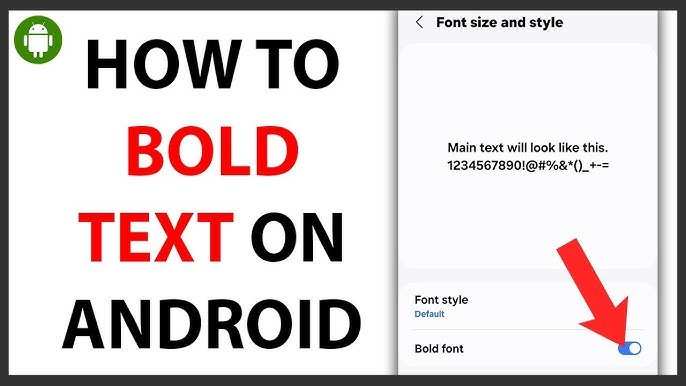
To make text bold on Android, simply select the text and tap the bold option if available. If you’re editing in a messaging app or document, most offer a bold button or shortcut. Knowing how to make text bold on Android helps your messages stand out quickly. It’s easy to emphasize important points without hassle. With just a few taps, your text becomes more impactful and clear.

How to Make Text Bold on Android
Making text bold on your Android device might seem straightforward, but many users find themselves confused about the best methods to achieve this. Whether you’re editing a message, creating a document, or customizing your notes, bold text helps you emphasize important points and organize your content better. In this comprehensive guide, you’ll learn all the ways to make your text bold on Android, from built-in features to third-party apps. We will also explore tips for formatting text in different apps and how to use shortcuts to save your time.
Understanding Why You Might Want Bold Text
Before diving into the technical details, let’s understand why bold text matters. Using bold helps your message stand out and makes key information easy to spot. For example, in a chat, bold text can highlight deadlines or important reminders. When writing notes, bold headings help separate sections. Knowing why you want bold text can help you choose the best method for your needs.
Using Built-in Features in Messaging and Notes Apps
Many apps come with simple options to make your text bold. Here are some popular apps and how to bold text within them:
– To make text bold in WhatsApp, enclose the words or phrases with asterisks (*).
– For example: *Hello* will appear as **Hello**.
– Tip: This method works across all platforms, including Android and iOS.
Google Messages
– Google Messages does not support rich text formatting directly.
– To emphasize text, consider using capital letters or emojis.
Google Keep and Notes Apps
– Standard note-taking apps like Google Keep do not have a built-in bold feature.
– You can, however, simulate bold by selecting text and adjusting the font style or using the app’s formatting options if available.
Using Formatting Options in Word Processors and Email Apps
Apps like Google Docs, Microsoft Word, or Gmail let you bold text easily.
Google Docs
– Select the text you want to bold.
– Tap the bold icon (B) in the toolbar, or press Ctrl + B (on hardware keyboards) or use the format menu to select ‘Bold’.
– Your text turns bold instantly.
Gmail on Android
– Tap to compose a new email.
– Highlight the text you want to make bold.
– Tap the formatting icon (usually represented by an underlined ‘A’).
– Select ‘Bold’ from the style options.
– The selected text will now be bold.
Using Keyboard Shortcuts for Quick Formatting
Many Android keyboards support shortcuts for bold text.
Google Keyboard (Gboard)
– Gboard does not have a dedicated bold shortcut, but you can use the formatting options when typing in compatible apps.
– Alternatively, use the app’s formatting menu for bold.
External Keyboard
– If you connect a physical keyboard to your Android device, pressing Ctrl + B will typically bold selected text in supported apps such as Google Docs or email clients.
Editing Text in Social Media and Messaging Apps
Social media platforms like Facebook and Twitter often don’t support rich text formatting directly within posts. However, some apps or browser-based versions provide options:
Using Markdown or Text Formatting Syntax
– Some apps support Markdown syntax, where enclosing text with double asterisks (**) makes it bold.
– Example: **Bold** will appear as **Bold** in supported platforms.
Third-Party Apps for Enhanced Formatting
– For more advanced formatting, you can use third-party text editors that support Markdown or rich text and then copy-paste into your message or post.
Third-Party Apps Specializing in Text Formatting
If you need more control over your text, consider installing dedicated apps:
- Text Formatter: Apps designed specifically to add bold, italics, and other styles to your text before sharing.
- Note-taking Apps: Some note apps like Evernote or Notion support rich text editing, including bold formatting.
- Clipboard Managers: Use clipboard managers with templates that include formatted text for quick pasting.
Formatting Text in Different Apps: Tips and Tricks
Every app has its approach to text styling. Here are some tips to make bold text creation easier:
Check App Support for Rich Text
– Before starting, verify if your app supports bold formatting.
– Use the app’s formatting options menu or toolbar.
Use Consistent Symbols and Syntax
– When using Markdown or similar syntaxes, be consistent with symbols.
– Double-check how your platform renders these styles.
Preview Your Text
– Always preview your text before sharing to ensure the bold formatting appears as you intend.
– Some apps show live previews, which help you see styling instantly.
Summing Up: Best Practices for Making Text Bold on Android
– Use app-specific formatting options whenever possible for the most reliable results.
– Remember the shortcuts available in certain apps or with external keyboards.
– Explore third-party tools if you need more advanced styling options.
– Be mindful of where your text will appear, as not all apps support rich text, including bold formatting.
Making text bold on Android is simple once you know the right methods. Whether you want quick emphasis in your messages using symbols like asterisks or need to format documents with built-in tools, multiple options are available. Taking a few moments to learn these different methods ensures your texts stand out exactly how you want. Experiment with various apps and shortcuts to find what works best for your daily communication and note-taking needs, and you’ll be able to highlight important information effortlessly.
Frequently Asked Questions
Can I make specific parts of text bold in Android messaging apps?
Yes, most messaging apps on Android support formatting options. To make certain words or phrases bold, select the text and choose the bold option from the formatting menu, if available. Alternatively, some apps allow you to use markdown syntax, like wrapping text with asterisks (*), to apply bold styling automatically.
Are there any third-party apps that help in making text bold on Android?
Several third-party keyboard apps and text editors offer enhanced formatting features, including bold text. Apps like Gboard or Microsoft Word for Android let you format your text easily. You can install these apps, type your message or document, and then apply bold styling before sharing or saving your content.
How can I quickly format text as bold while writing emails on Android?
When composing emails through email apps like Gmail on Android, look for the formatting toolbar above the keyboard. Tap the “B” icon to enable bold formatting, then type your text. This feature helps you emphasize important parts of your message without extra effort.
Is it possible to make text bold in Android social media posts?
Most social media apps do not have built-in options for bold text, but you can use Unicode bold characters or third-party text generator tools. Copy the bold Unicode text from these tools and paste it into your social media post to highlight specific words or phrases effectively.
Final Thoughts
To make text bold on Android, you can use the built-in formatting options or third-party apps. Most messaging apps and note-taking apps have a straightforward way to bold text. Simply select the text you want to emphasize and tap the bold option or use a specific syntax like surrounding the text with asterisks.
By following these simple steps, you can easily make text bold on Android devices. Remember, how to make text bold on android is a basic skill that enhances your communication and clarity in various apps.
