

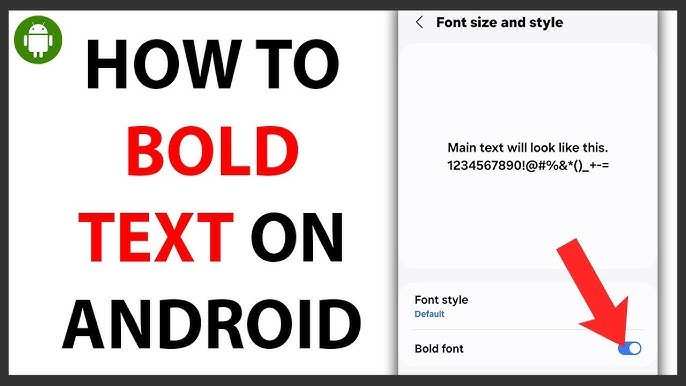
To make text bold in Android, you can simply use the `` tag in your TextView or apply `android:textStyle=”bold”` in your XML layout. Wondering how to make text bold in Android? It’s straightforward and involves just a few lines of code.
Knowing these quick techniques helps you emphasize important content effortlessly. Whether you’re customizing an app or adjusting UI elements, making text bold makes your design stand out.

How to Make Text Bold in Android
When you’re using an Android device, you might want to emphasize certain words or phrases to make your messages, notes, or app content stand out. Making text bold is a simple way to do that. Whether you’re a beginner learning how to enhance your app’s UI or someone wanting to add a quick emphasis when typing, understanding the different methods to make text bold on Android can help you communicate better. In this guide, we’ll explore various ways to bold text in Android, covering both in-built options and custom solutions for developers. Let’s dive into the details so you can confidently make your text bold in any situation.
Understanding the Importance of Bolding Text
Before we get into the methods, it’s helpful to understand why bold text matters. Bold text grabs attention, highlights important information, and improves readability. In apps like messaging platforms, bold text can signify importance or urgency. In documents and notes, it helps organize information visually. Knowing when and why to use bold text sets the foundation for applying the right method effectively.
Basic Ways to Make Text Bold in Android Apps
Using XML Attributes in Android Layouts
If you are developing an Android app, the most straightforward way to make text bold is by setting properties in your layout XML files. Android provides built-in attributes for styling text, which can be easily applied to TextView components.
- android:textStyle: This attribute controls the style of the text. To bold text, set it to “bold”.
Example:
<TextView
    android:id="@+id/sampleText"
    android:layout_width="wrap_content"
    android:layout_height="wrap_content"
    android:text="Hello, World!"
    android:textStyle="bold" />
Here, the text “Hello, World!” appears in bold because of the android:textStyle="bold" attribute. You can also combine styles, like “bold|italic” for bold and italicized text.
Applying Styles Programmatically in Java or Kotlin
If you wish to change the style dynamically at runtime, you can modify the TextView programmatically. Here’s how you do it in Java and Kotlin:
Java Example:
TextView textView = findViewById(R.id.sampleText);
textView.setTypeface(null, Typeface.BOLD);
Kotlin Example:
val textView = findViewById<TextView>(R.id.sampleText)
textView.setTypeface(null, Typeface.BOLD)
This method directly changes the font style of your TextView object, making your text bold during runtime. This approach is useful when the bold effect depends on user actions or other dynamic conditions.
Using Spannable Strings for Inline Text Formatting
Sometimes, you only want to bold specific parts of your text rather than the entire string. Android offers the Spannable class for this purpose. It allows you to style parts of a TextView’s text with different styles simultaneously.
Implementing Spannable for Partial Text Boldening
Here is a basic example in Java and Kotlin:
Java Example:
String text = "This is a bold word.";
SpannableString spannable = new SpannableString(text);

// Make "bold" word bold
spannable.setSpan(new StyleSpan(Typeface.BOLD), 10, 14, Spanned.SPAN_EXCLUSIVE_EXCLUSIVE);

TextView textView = findViewById(R.id.sampleText);
textView.setText(spannable);
Kotlin Example:
val text = "This is a bold word."
val spannable = SpannableString(text)

// Make "bold" word bold
spannable.setSpan(StyleSpan(Typeface.BOLD), 10, 14, Spanned.SPAN_EXCLUSIVE_EXCLUSIVE)

val textView = findViewById<TextView>(R.id.sampleText)
textView.text = spannable
This approach is very flexible, especially when highlighting specific words or phrases within a longer message or paragraph.
Using Custom Fonts for Unique Bold Text Styles
Android apps often use custom fonts to match branding or design themes. To create a distinctive bold effect, you can replace the default font with a custom bold font.
How to Integrate Custom Bold Fonts
- Download a bold font file (e.g., .ttf or .otf) and add it to your project’s assets or res/font directory.
- In your code, load the font using Typeface class and apply it to your TextView.
Example:
Typeface customBoldTypeface = Typeface.createFromAsset(getAssets(), "fonts/your_bold_font.ttf");
TextView textView = findViewById(R.id.sampleText);
textView.setTypeface(customBoldTypeface);
This method is especially useful for branding purposes or when you want a style that isn’t available through default system fonts.
Using Rich Text Editors for User-Generated Content
Some apps include rich text editors where users can input formatted text. Bolding text through these editors usually involves selecting text and tapping a bold button. The app then wraps the selected text with special styling tags.
Implementing Bold Text in Rich Text Editors
- Use built-in libraries or third-party editors that support text styling.
- Handle text selection and apply StyleSpan or similar styles to the selected range.
These options are more advanced but are necessary if you build chat applications or note-taking apps that require user formatting.
Tips for Making Text Bold on Different Android Devices
- Check Compatibility: Different Android versions support styling features to varying degrees. Always test your app on multiple devices.
- Use Fallbacks: If a custom font fails to load, fall back to default bold styles to ensure your app remains consistent.
- Optimize Performance: Applying styles dynamically can affect performance. Cache styled text when possible.
Common Mistakes to Avoid When Making Text Bold
- Forgetting to set the correct text range in Spannable strings, which can lead to unexpected styling.
- Applying bold styles to non-TextView elements that do not support it, causing errors.
- Not testing on different screen sizes and Android versions, which may cause styling issues.
Remember, it’s important to keep your styling clear and consistent across your app to enhance user experience. Too much bold text can be distracting, so use it selectively for emphasis.
Summary of Methods to Make Text Bold in Android
| Method | Use Case | How to Implement |
|---|---|---|
| XML Attribute | Static text in layouts | Set android:textStyle=”bold” |
| Programmatic Typeface | Dynamic changes during runtime | Use setTypeface() with Typeface.BOLD |
| Spannable String | Partial bolding within text | Apply StyleSpan to text range |
| Custom Fonts | Unique styles matching brand | Load font and set via setTypeface() |
| Rich Text Editors | User input formatting | Apply styles to selected text via editor tools |
As you can see, there are multiple ways to achieve bold text in Android, each suited for different needs. Whether you’re designing an app interface or working on a personal project, knowing these methods helps you make your content clearer and more impactful.
Frequently Asked Questions
What is the easiest way to emphasize text in Android apps?
You can make text bold in Android by setting the text style to ‘bold’ programmatically using the TextView’s setTypeface() method or by specifying the style in your layout XML with the attribute android:textStyle=”bold”. This approach directly influences the appearance of the text, making it stand out.
Can I apply bold styling to only part of the text in an Android TextView?
Yes, you can apply bold styling to a portion of the text using SpannableString. By creating a SpannableString object, you can set a StyleSpan with Typeface.BOLD on a specific range of characters. Assigning this to your TextView displays only the selected part in bold, allowing for customized emphasis within a larger text.
What libraries or tools can help style text in Android more easily?
Android provides built-in classes like SpannableString and features in the Support Library to style text conveniently. For more advanced styling, you might consider third-party libraries like Android-TextView-Style or RichTextView, which simplify applying multiple styles, including bold, italics, and colors, to your text components.
Final Thoughts
Pour faire du texte en gras dans Android, utilisez le style `Typeface.BOLD` dans votre code ou la propriété `android:textStyle=”bold”` dans votre XML.
Dans Java, appliquez `textView.setTypeface(Typeface.defaultFromStyle(Typeface.BOLD))`. Avec XML, ajoutez `android:textStyle=”bold”` à votre TextView.
En résumé, savoir comment faire du texte en gras dans Android est simple. Utiliser la propriété `android:textStyle=”bold”` ou `Typeface.BOLD` permet d’obtenir l’effet souhaité rapidement.
