

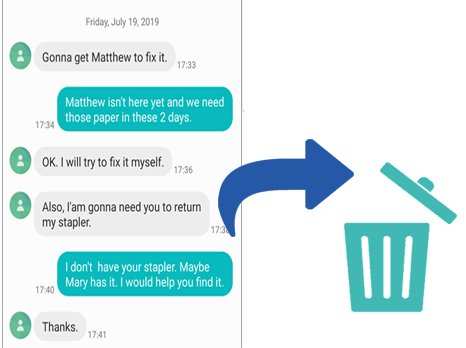
To ensure texts are permanently deleted on Android, you need to delete messages from the app and also clear the device’s cache and storage. **This guarantees that the texts cannot be recovered later.** When you delete messages through your messaging app, they often move to a deleted folder, but common file recovery methods can restore them.
To fully erase texts, consider using specialized apps that overwrite deleted data or perform a factory reset. Knowing how to make sure texts are permanently deleted on Android gives you peace of mind that your private conversations stay private.

How to Make Sure Texts Are Permanently Deleted on Android
When you share messages through your Android device, whether in text messages, social media, or messaging apps, you naturally want to keep your information private. Sometimes, you may think deleting a message is enough. However, there’s a chance that these messages might still be stored somewhere in your phone or on cloud servers. To truly protect your data, you need to understand how to make sure texts are permanently deleted on Android. In this guide, we will explore the steps to permanently delete texts, the common pitfalls, and techniques to ensure your messages vanish completely.
Understanding How Android Stores Your Messages
Before diving into deletion methods, it helps to know where your texts are stored.
Local Storage in Your Phone
Most messages you send or receive via SMS or some messaging apps are stored locally within your device’s internal storage or SD card. When you delete a message, it might seem gone, but in many cases, the data still exists in the phone’s memory until it gets overwritten.
Cloud Backups and Syncing
Many Android devices sync your messages with cloud services like Google Drive, Samsung Cloud, or the messaging apps’ own cloud systems. Deleting a message from your device does not automatically delete it from these cloud backups. To truly erase your messages, you need to consider these backups.
Why Deleting Alone May Not Be Enough
Simply deleting messages from your Android device doesn’t guarantee the messages are gone for good. Here are some reasons why:
- Data Recovery Possibilities: Deleted messages may still be recoverable using data recovery tools, especially if the data hasn’t been overwritten.
- Cloud Synchronization: Messages stored in the cloud won’t be removed unless you delete them from the cloud as well.
- Device Backups: Backups stored on cloud or computers may still contain copies of your messages.
Understanding these reasons emphasizes the importance of taking proper steps to ensure your messages are permanently erased.
Steps to Permanently Delete Texts on Android
To make sure your texts are gone forever, follow these detailed steps:
1. Delete Messages from Your Messaging Apps
Start by deleting your messages directly from your device and app.
- Open the messaging application you use, like Messages, WhatsApp, or Facebook Messenger.
- Navigate to the conversation containing the message you want to erase.
- Long-press the message or tap the delete icon, depending on the app.
- Select “Delete” or “Remove” and confirm your choice.
*Note:* Some apps may ask if you want to delete the message for yourself only or for everyone. Choose the appropriate option.
2. Empty the Trash or Deleted Items Folder
Many messaging apps have a ‘deleted messages’ folder or trash feature that temporarily holds deleted messages.
- After deleting messages, visit the app’s trash or deleted items section.
- Empty this folder to ensure messages are fully erased from the app’s storage.
3. Clear App Cache and Data
Clearing your app storage can help remove residual data that might keep copies of deleted messages.
- Go to Settings on your Android device.
- Select “Apps” or “Applications.”
- Find and tap your messaging app.
- Tap “Storage.”
- Choose “Clear Cache” to remove temporary files.
- If needed, select “Clear Data” to remove all app data (note: this logs you out and deletes message history stored locally).
4. Use Specialized Data Shredding Apps
To ensure data cannot be recovered, consider apps designed to overwriting deleted data.
- Download data destruction apps from the Google Play Store, like Secure Eraser or Disk Wipe.
- Follow the app instructions to overwrite free space on your device.
- This process overwrites the areas of storage previously occupied by your messages, making recovery impossible.
5. Erase Data via Factory Reset (as a Last Resort)
A factory reset restores your device to its original settings and deletes all data, including hidden or residual message data.
- Backup important data beforehand!
- Navigate to Settings > System > Reset options.
- Select “Factory Data Reset.”
- Confirm your choice and wait for the reset to complete.
*Important:* Factory reset wipes everything on your device. Only use this method if you’re certain that all data is disposable or have securely backed up necessary information elsewhere.
Handling Cloud Backups and Syncing Services
Permanently deleting texts isn’t complete until you address backups and cloud services.
Deleting Messages from Cloud Backups
Different services behave differently, but generally, you can:
- Access your cloud backup account (Google Drive, Samsung Cloud, etc.).
- Locate the backup that contains your messages.
- Delete or replace the backup after deleting your messages on your device.
*Tip:* For Google Drive, go to drive.google.com, find the backup file, and delete it. Remember that deleting a backup will remove all data stored in it.
Disable Syncing Temporarily or Permanently
To reduce automatic restoring of deleted messages:
- Navigate to Settings > Accounts & Sync.
- Select your messaging app or cloud service account.
- Turn off syncing options temporarily or permanently.
This prevents previously stored messages from being restored after a device reset.
Practicing Safe Data Management
To avoid future concerns about message recovery, develop good habits:
- Regularly delete sensitive messages and empty trash folders.
- Use apps with end-to-end encryption for conversations.
- Securely erase data when disposing of or selling your device.
Using Professional Data Destruction Services
If privacy is critical, you may want to consult professionals:
- Data destruction services can physically destroy storage devices or securely wipe data.
- This is especially useful for disposing of old devices that might contain sensitive messages or data.
Important Tips to Remember
- Always verify that messages are deleted from all locations, including cloud backups.
- Be cautious when restoring backups, which could reintroduce deleted messages.
- Use encryption and secure apps to protect your messages from unauthorized access.
Summary of the Best Practices for Ensuring Permanent Text Delete
| Step | Action |
|---|---|
| Delete messages in apps | Remove conversations and individual messages |
| Clear app data and cache | Remove residual data that may contain message copies |
| Empty trash or deleted items | Ensure messages aren’t stored temporarily in folders |
| Use data wiping apps | Overwrite storage to prevent recovery |
| Erase or reset device | Factory reset if necessary for complete removal |
| Manage cloud backups | Delete or backup properly to remove message copies from the cloud |
| Disable sync and backup features | Stop automatic restoring of old messages |
By following these detailed steps and tips, you can enhance your privacy and be confident that your messages are gone for good. Remember, the key is not just deleting but also addressing backups, cloud services, and residual data that can keep your messages stored elsewhere. Protecting your data requires a combination of careful deletion, overwriting data, and managing settings on your device and cloud accounts.
Frequently Asked Questions
What steps can I take to ensure that deleted messages do not reappear on my device?
To prevent deleted messages from reappearing, you should clear the cache of your messaging app and disable any sync options. Additionally, check if your device has backup services enabled and delete relevant backups that may contain these messages. Regularly verify that no messaging backups are restoring old data after deletion.
How can I securely delete texts on my Android device so they cannot be recovered?
Use specialized data erasure tools designed for Android devices that overwrite the storage space with random data. These apps help ensure that deleted messages are not recoverable through data recovery software. Always follow the application’s instructions carefully to maximize security.
Is it possible to delete messages permanently from carrier servers, and how can I do that?
Once messages stay on your device, they can be removed locally, but they may still reside on your network provider’s servers. Contact your carrier directly or access your account online to delete messages stored on their servers. Some carriers offer options to delete stored texts, but verify their procedures for permanent removal.
What should I consider to ensure that deleted texts do not appear in device backups?
Before deleting messages, disable automatic backups or delete existing backups that contain those messages. If you back up your device regularly, ensure that new backups do not include deleted messages by managing backup settings or deleting specific backup files manually.
Are there specific settings I should adjust on my Android to prevent recoverability of deleted texts?
Adjust your device’s security settings to limit access to internal storage and disable cloud sync features if you want to prevent deleted messages from being stored remotely. Also, consider encrypting your device’s storage to add an extra layer of security for your data.
Final Thoughts
To ensure texts are permanently deleted on android, start by deleting messages from the messaging app. Empty the trash or deleted items folder to remove remnants. Use a data wiping tool to overwrite deleted data, making recovery impossible. Following these steps guarantees that your messages are truly unrecoverable, providing peace of mind.
