

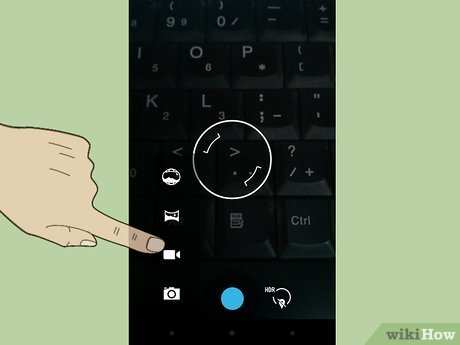
To make a video from photos on an Android phone, you simply need a photo editing or video creation app. **Open a video editing app, import your photos, and arrange them in the desired order.** This process lets you craft engaging slideshows without extra devices or complicated software.
Finding the right app is easy since many options are free or affordable. Just select your favorite photos, add music or effects if you like, and export your video in seconds. Knowing how to make video from photos in Android phone becomes quick and simple.

How to Make a Video from Photos in Android Phone
Creating a video from your photos on an Android phone is a fun and simple process. Whether you want to make a slideshow of your latest trip, compile memories from a special event, or just experiment with video editing, this guide will walk you through each step clearly. This way, you can produce engaging videos directly on your device without needing a computer. Let’s dive into how you can turn your array of photos into a captivating video.
Understanding the Benefits of Making Videos from Photos on Android
Before jumping into the steps, it helps to see why making videos from photos on an Android device is a useful skill. Here are some advantages:
- Easy Sharing: Videos are a popular way to share memories on social media platforms like Facebook, Instagram, or WhatsApp.
- Creative Expression: You can tell stories or create montages with your favorite photos.
- Time-Saving: No need for a computer; you can produce a professional-looking video right on your Android phone.
- Cost-Effective: Many apps used for this purpose are free or inexpensive.
By turning photos into videos, you also give your images a new dimension, making them more lively and engaging.
Best Apps to Create Videos from Photos on Android
There are numerous applications available in the Google Play Store that simplify the process. Some popular options include:
| App Name | Features | Price |
|---|---|---|
| Google Photos | Easy slideshow creation, add music, and simple editing tools | Free |
| InShot | Advanced editing, transitions, effects, music, text overlays | Free with ads or in-app purchases |
| Quik by GoPro | Auto-edit videos, quick transitions, music, and effects | Free |
| KineMaster | Professional features including multi-layer editing, effects, and audio | Free version available, premium subscription for full features |
Choosing the right app depends on your needs. If you want quick and easy results, Google Photos or Quik are ideal. For more control over editing, InShot or KineMaster offer more detailed features.
How to Make a Video from Photos Using Google Photos
Google Photos is a widely used app that most Android devices already have installed or can be easily downloaded. Here are the steps:
Step-by-step Guide
- Open Google Photos on your Android device.
- Tap the “Library” tab at the bottom and select “Utilities.”
- Choose “Create new” and then tap “Movie.”
- Select the photos you want to include in your video. You can add multiple images; Google Photos allows up to 50 photos per movie.
- Tap “Create” after selecting your images.
- You will see a pre-made movie with transitions. You can customize it further by adding music or changing the order of photos.
- Tap “Save” to finalize the video.
Google Photos automatically adds smooth transitions and background music, making it a quick way to produce good quality videos.
Creating Videos with InShot: A Detailed Approach
InShot is a popular app that offers more editing options, perfect if you want to customize your video extensively.
Steps to Use InShot for Video Creation
- Download and open InShot from the Google Play Store.
- Tap “Video” on the main interface, then select “New.”
- Choose the photos you wish to turn into a video and tap “Next.”
- Arrange the photos in the order you want by dragging them around.
- Adjust the duration each photo appears by tapping on the photo and setting the time (e.g., 2-4 seconds per photo).
- Add transitions between photos for a smoother flow by selecting the “Transition” option and choosing your preferred style.
- Insert music by tapping the “Music” icon, then selecting a track from your library or the app’s stock music.
- Enhance your video with text overlays, filters, or effects as desired.
- Preview your video, then once satisfied, tap “Save” to export it to your device.
InShot allows you to create more polished and personalized videos suitable for sharing on social media.
Tips for Making Your Photos Look Great in Video
To ensure your video is engaging and professional-looking, consider the following tips:
- Consistent Aspect Ratio: Keep all photos in the same ratio to avoid black borders or cropping issues. Most apps allow you to crop or resize images beforehand.
- Use High-Quality Photos: Better images result in more appealing videos.
- Choose Complementary Music: Select background music that fits the mood of your video.
- Limit the Number of Photos per Video: Too many photos can make your video long and less engaging. Aim for a concise slideshow, around 30-60 photos depending on the video length.
- Add Transitions and Effects: Smooth transitions and effects can make your video appear more professional.
Making these small adjustments can dramatically improve the overall look of your finished video.
How to Save and Share Your Video from Your Android Phone
Once your video is ready, exporting and sharing is straightforward:
Saving Your Video
- Most editing apps automatically save the video to your device’s gallery or a designated folder.
- If needed, look for an “Export” or “Save” button within the app and choose your preferred resolution and storage location.
Sharing Your Video
- Open your gallery or the app where your video is saved.
- Tap the share icon and select your preferred platform, such as WhatsApp, Instagram, Facebook, or email.
- Add any captions or descriptions, then send or post your video.
Remember, high-quality videos tend to produce better engagement online, so take a moment to review your video before sharing.
Common Challenges and How to Overcome Them
While making videos from photos on Android is usually straightforward, some users encounter issues. Here are common problems and solutions:
- App Crashes or Freezes: Ensure your app is updated to the latest version and that your device has enough storage and RAM.
- Poor Video Quality: Use high-resolution images and select the highest quality export setting available.
- Limited Editing Features: Choose apps with more advanced features like KineMaster or InShot for greater control.
- Slow Export Times: Reduce the number of photos or lower the resolution when exporting.
Patience and experimenting with different settings can help you learn what works best for your device and project.
Turning your photos into videos on an Android device is a creative and rewarding process. With the right app and some simple steps, you can produce beautiful videos that showcase your memories and tell meaningful stories. Remember to keep your images high quality, plan your sequence, and choose suitable music and effects to enhance the overall experience. Whether you’re making a quick slideshow or a polished montage, the process is accessible and fun on your Android phone. Start experimenting today, and see what captivating videos you can create!
Frequently Asked Questions
What are the best apps available on Android to create videos from photos?
Several user-friendly apps help you craft videos from your photos on Android devices. Popular options include Google Photos, which offers a simple interface with slideshow features; InShot, known for its editing tools and music integration; and Adobe Premiere Rush, providing advanced editing capabilities. Download these apps from the Google Play Store and choose the one that best fits your project needs.
How can I add music or sound effects to my photo video on Android?
Most video-making apps allow you to include music or sound effects. In your chosen app, import your photos and look for an option to add audio. You can select from built-in music libraries or upload your own files. Adjust the timing and volume to synchronize the audio with your photo transitions, ensuring a cohesive viewing experience.
What tips help improve the quality of a video created from photos on an Android device?
To enhance your video quality, use high-resolution photos, and keep the slideshow duration balanced. Apply smooth transitions between images and avoid overcrowding the video with too many effects. Also, preview your video before exporting to make necessary adjustments and ensure the final output looks professional.
Final Thoughts
Making videos from photos on an Android phone is simple and quick. Use user-friendly apps like Google Photos or InShot to add images and customize transitions. Adjust timing, add music, and apply filters easily within these apps.
Choose your preferred app, import your photos, and arrange them in the desired order. Export the final video and share it effortlessly.
In summary, knowing how to make video from photos in android phone helps you create memorable videos effortlessly and efficiently.
