

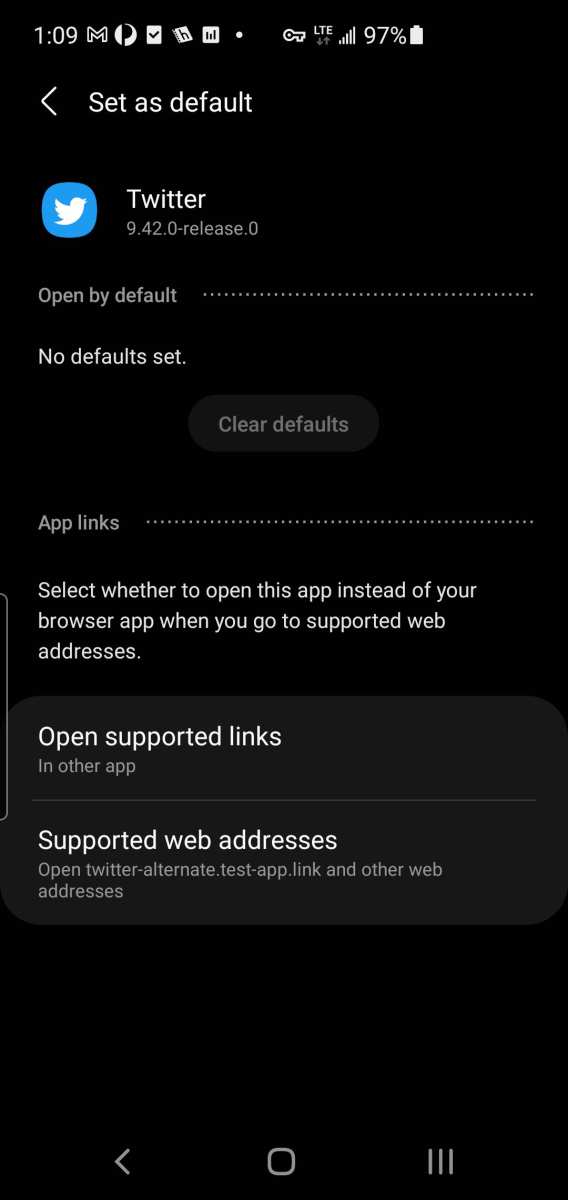
To make Twitter links open directly in the app on Android, you need to adjust your app settings or use specific browser features. **Setting Twitter links to open in the app is straightforward** if you enable the proper preferences. Many browsers and devices automatically ask how to handle links, so selecting “Open in app” or installing a link manager can help. Knowing how to make twitter links open in app android ensures a seamless experience whenever you tap a Tweet link. Just a few tweaks, and you’ll enjoy quicker access to Twitter’s mobile interface every time.

How to Make Twitter Links Open in App on Android Devices
If you spend a lot of time on Twitter using your Android device, you might notice a common frustration: clicking on a Twitter link often opens a web browser instead of the Twitter app. Many users prefer to access content directly within the app because it offers a faster, smoother experience, and sometimes more features. Luckily, there are several ways to make Twitter links open automatically in the Twitter app on your Android device. In this guide, we will explore different methods, troubleshoot common issues, and give you helpful tips to customize your experience.
Understanding How Twitter Links Work on Android
Before jumping into solutions, it’s important to understand what happens when you tap a Twitter link on your Android device. When you click on a Twitter URL, your device tries to decide which app to open it with. By default, Android uses a set of rules, called “intent filters,” to determine whether to open a link in a web browser or an app.
Sometimes, the system defaults to opening links in your web browser, even if the Twitter app is installed. This usually happens because:
- The app isn’t set as the default for Twitter links
- The app hasn’t registered a proper association with Twitter URLs
- There are conflicting settings or outdated app versions
Understanding these reasons helps us figure out how to ensure links open directly in the Twitter app.
Check if the Twitter App Is Installed and Updated
First, verify whether you have the Twitter app installed on your device and if it’s up to date.
- Install or Update: Head to the Google Play Store, search for Twitter, and ensure you have the latest version installed. An outdated app can cause linking issues.
- Open Twitter App: Launch the app manually to ensure it works properly. Sometimes, problems originate from app glitches, which can often be fixed by updating or reinstalling.
Set Twitter as the Default App for Twitter Links
One of the quickest ways to make links open in the Twitter app is to set it as your default handler for Twitter URLs.
Steps to Set Default Apps on Android
- Open your device’s Settings.
- Scroll down to find and tap Apps & notifications (or just Apps, depending on your device).
- Tap Default apps.
- Choose Browser app if you want to change how links open.
- Look for an option called Set as default or Open supported links.
- Find and select the Twitter app as the default for Twitter links if available. On newer Android versions, you can tap Open supported links and ensure that Twitter is set to open links directly rather than in the browser.
Clear Defaults if Necessary
If your links still don’t open in Twitter, try resetting the defaults:
- Go to Settings.
- Navigate to Apps & notifications.
- Find and tap on Twitter.
- Select Open by default.
- Tap Clear defaults if the option is available.
After clearing defaults, try clicking a Twitter link again, and Android should prompt you to choose which app to use.
Use a Link Handler App or URL Manager
Sometimes, system settings aren’t enough, especially if links still open in the browser. You can consider using a third-party app that manages link opening behavior.
- Link Manager Apps: Apps like URL Handler or Better Open With enable you to customize how links open on your device.
- How they work: These apps let you set specific rules – for instance, always open Twitter links in the Twitter app.
Remember to review privacy permissions before installing third-party link handlers.
Adopt Browser Settings to Open Links in App
Your browser plays a key role in how links open. Some browsers have settings that influence whether links open in the app or browser.
Google Chrome
Chrome is the most common Android browser, and it can be configured to open links directly in apps:
- Open Chrome and go to Settings > Site Settings > Handlers.
- Make sure the option to allow sites to ask to open links in apps is enabled.
- Visit Twitter in Chrome, and when prompted, select Allow to open links in the Twitter app.
Other Browsers
For browsers like Firefox or Samsung Internet, look into their settings for “Open links in apps” or similar options, and activate them.
Modify Link Behavior with URL Schemes
Twitter uses specific URL schemes that help Android recognize which app should handle a link.
Understanding Twitter URL Schemes
Some URLs follow patterns like:
https://twitter.com/twitter://
(deep link scheme)
When a link uses the twitter:// scheme, Android should automatically open the Twitter app, provided the app is installed and registered properly.
Creating Deep Links
If you develop your own links or share links that are not opening in the app, you can try constructing deep links manually with the twitter:// scheme, like:
twitter://user?screen_name=twitterHowever, note that not all links will support this method, and it is best used by developers.
Preventing Links From Opening in the Browser
If you want to ensure that taps on Twitter links always open in the app, consider these approaches:
- Using a dedicated Twitter app: Ensures that the system recognizes and prioritizes the app.
- Adjusting link handling settings: As described earlier, setting default apps can help.
- Using specific browser extensions or ad blockers: Some tools allow you to block links from opening in browsers and force app opening.
Additional Tips for a Seamless Experience
To make sure your Twitter links consistently open in the app, keep these tips in mind:
- Always keep your Twitter app updated.
- Clear app cache periodically to remove temporary glitches.
- Regularly check your device’s default app settings after system updates.
- Consider using the Twitter app for links instead of sharing with other apps that might redirect links to browsers.
- If you switch devices or Android versions, revisit your default app settings as they may reset or change.
Troubleshooting Common Issues
Sometimes, despite following all steps, links still won’t open in the app. Here are some quick solutions:
- Uninstall and reinstall the Twitter app.
- Restart your device to refresh system settings.
- Clear cache and data for the Twitter app via Settings > Apps.
- Check for Android system updates that may improve app handling.
- Disable and re-enable the Twitter app to reset app associations.
By following these detailed steps, you can greatly improve your experience when clicking on Twitter links on your Android device. Remember, customizing default app settings and keeping the app updated are key to ensuring links open seamlessly within the Twitter app, saving you time and providing a more consistent experience.
Frequently Asked Questions
How can I ensure Twitter links open in the Twitter app on my Android device?
To make Twitter links open directly in the app, check if you have the latest version of the Twitter app installed. Clear your browser’s cache and open a Twitter link; if it doesn’t open in the app, manually select “Open in Twitter” or similar options if prompted. Additionally, make sure Twitter is set as the default app for opening such links in your device’s settings.
What steps should I follow to change my Android settings so Twitter links open in the app by default?
Navigate to your device’s “Settings” and select “Apps” or “Applications.” Find and tap on the Twitter app, then choose “Open by default” or “Set as default.” Ensure that the option to open links in the Twitter app is enabled. This setting allows Twitter links to open in the app rather than in a browser.
Why do Twitter links sometimes open in a browser instead of the app on my Android phone?
This can happen if the app isn’t set as the default handler for Twitter links or if the app isn’t installed properly. Sometimes, browser settings override app preferences, or the link itself might be formatted incorrectly. Make sure the Twitter app is installed, updated, and set as the default for Twitter links in your device’s settings.
Is there an app or setting that can automatically redirect all Twitter links to open in the app?
You can configure your device’s settings to set Twitter as the default handler for its links, which ensures they open in the app automatically. Some third-party apps or link redirectors can also manage this behavior, but it’s best to handle the default app settings directly through your device’s system preferences for reliable results.
How can I fix issues if Twitter links refuse to open in the app on my Android device?
First, ensure your Twitter app is updated to the latest version. Clear cache and data for your browser and the Twitter app, then restart your device. Reinstall the Twitter app if necessary. Check your device’s default app settings to confirm Twitter is set to open Twitter links. If issues persist, consider resetting app preferences or seeking support from your device manufacturer.
Final Thoughts
To make twitter links open in app android, you need to adjust your device settings or use specific link wrappers. Ensure the Twitter app is installed and set as your default for opening links. Some browsers allow you to choose how links open, so select the option to open in the app. Remember, for a smoother experience, adjusting these preferences helps you stay within the app for quick access to tweets. In conclusion, understanding how to make twitter links open in app android simplifies your browsing and keeps you connected efficiently.
