

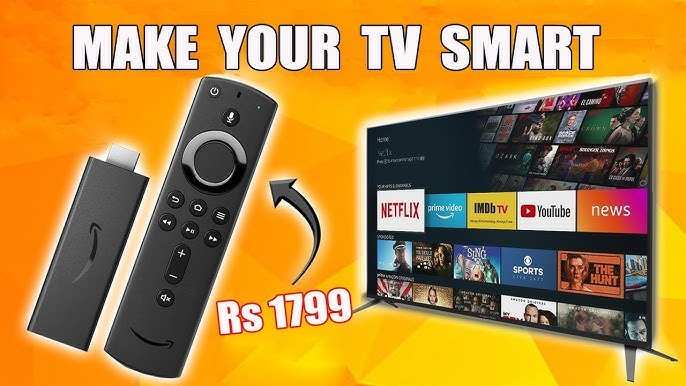
To make a TV Android, you simply need to install an Android TV OS on your device or convert your existing TV using compatible hardware. **The process involves flashing the Android image onto the device and configuring settings accordingly.** If you’re curious about how to make TV Android, it’s easier than you think. Basic technical knowledge and some preparation will help you set up your smart TV with Android functionalities smoothly. You’ll be browsing apps and enjoying streaming in no time.

How to Make TV Android: Step-by-Step Guide for Beginners
Creating an Android TV can be a fun project, especially if you’re passionate about technology and want a customized TV experience. Whether you’re interested in turning an old monitor into a smart TV or building a media center from scratch, this guide will walk you through the process. We’ll cover everything from choosing the right hardware to installing Android TV software, making sure you have all the details needed to get started.
Understanding What an Android TV Is
Before diving into how to make a TV Android, it’s helpful to understand what Android TV actually is. Think of it as a special version of Android designed just for TVs. It offers a user-friendly interface, access to streaming apps, Google Assistant, and voice control. Running Android TV on your own device means you get all these features tailored for a bigger screen, making entertainment more accessible and enjoyable.
Essential Hardware Components for Building an Android TV
To make your own Android TV, you’ll first need specific hardware parts. Here’s a list of the core components:
- Single-Board Computer (SBC): Raspberry Pi 4, NVIDIA Jetson Nano, or other similar devices work well because they are small, powerful, and affordable.
- MicroSD Card or Storage Drive: At least 16GB capacity, preferably 32GB or higher for smooth operation.
- Power Supply: Ensure it matches your device’s requirements for reliable power.
- HDMI Cable: Connects your SBC to your monitor or TV.
- Monitor or TV: A display device with HDMI input is necessary.
- Optional Accessories: Remote control (USB or Bluetooth), keyboard, mouse, speakers, or Bluetooth adapters.
Choosing the Right Hardware for Your Android TV Build
Picking the right hardware depends on what you want to achieve. For example:
- Performance: A Raspberry Pi 4 with at least 4GB RAM is capable of running Android TV smoothly.
- Budget: If cost is a concern, Raspberry Pi models are very affordable and widely supported.
- Connectivity: Make sure the device has Wi-Fi and Bluetooth options, especially if you want to connect wireless accessories.
Downloading the Android TV Operating System
Once you have your hardware ready, the next step is obtaining the right Android TV image. Here’s how:
Finding the Correct Image File
Search for custom Android TV images tailored for your device. Popular options include:
- KonstaKang: Offers Android TV builds for Raspberry Pi and other SBCs.
- LineageOS: Provides customized Android versions, some with Android TV support.
- Android-x86: An open-source project that offers Android OS for PCs which can sometimes be adapted for SBCs.
Downloading and Preparing the Image
– Download the image file compatible with your hardware from official sources.
– Use software like Balena Etcher or Win32 Disk Imager to flash the image onto your MicroSD card or storage drive.
– Follow the instructions provided with the image for flashing and configuration.
Setting Up Your Hardware and Installing Android TV
After preparing your storage device, it’s time to set everything up:
- Insert the flashed MicroSD card into your SBC.
- Connect the device to your monitor or TV via HDMI.
- Plug in the power supply and turn on your device.
- Follow on-screen instructions to complete the initial setup.
During setup, you’ll typically connect to Wi-Fi, sign in with your Google account, and customize your preferences.
Configuring and Optimizing Your Android TV
To ensure your custom Android TV runs smoothly and feels personalized, follow these tips:
Installing Essential Apps
Use the Google Play Store to download streaming apps like Netflix, YouTube, Hulu, or your favorites. Make sure your device supports app installation; some custom ROMs might require sideloading APK files.
Adjusting Settings for Better Performance
– Reduce animations to speed up transitions.
– Disable or uninstall unnecessary pre-installed apps.
– Update your system regularly for security and stability.
Adding Wireless Accessories
Enhance user experience by connecting Bluetooth-enabled remote controls, keyboards, or speakers. Most builds support Bluetooth connections, but check compatibility first.
Running and Troubleshooting Common Issues
Despite careful setup, issues can occur:
- Device Not Booting: Reflash the image or check hardware connections.
- Wi-Fi Connectivity Problems: Ensure your Wi-Fi module is enabled and your network is functioning correctly.
- Performance Lags: Free up space, disable unnecessary services, or upgrade your hardware.
- Apps Not Installing: Check compatibility or sideload APKs if needed.
Regularly updating your system and backing up settings can prevent many common problems.
Enhancing Your Android TV with Accessories and Customization
To make your new Android TV more user-friendly and fun, consider adding accessories:
- Wireless Remote Controls: For easy navigation.
- Voice Assistants: Google Assistant-enabled devices for voice commands.
- External Storage: Expand storage for apps and media files.
- Speakers and Soundbars: Improve audio quality for a better viewing experience.
Customization options include installing launcher apps, changing themes, and setting up easy-to-use menus.
Additional Tips for Building a Successful Android TV
– Always use trusted sources for downloads to avoid security risks.
– Backup your system regularly.
– Keep your system and apps updated to the latest versions.
– Join online communities and forums for support and ideas.
This project allows you to turn an ordinary monitor or TV into a smart media center, giving you access to your favorite streaming services, games, and apps in one place. If you follow each step carefully, you can enjoy a personalized Android TV experience tailored to your needs and preferences.
Remember, building your own Android TV takes patience and experimentation, but it can be a rewarding experience that helps you understand more about how media devices work. Happy building!
Frequently Asked Questions
What hardware components are needed to set up an Android TV at home?
To set up an Android TV, you need a compatible display device, such as a monitor or TV screen, a powerful enough processor, sufficient RAM, storage options, and a reliable power supply. You will also require a keyboard and remote control for navigation. If you are building a custom device, consider obtaining a single-board computer like Raspberry Pi or an Android TV box that meets your performance needs.
How do I install the Android operating system on my TV hardware?
Begin by downloading the correct Android firmware or custom ROM compatible with your hardware. Use a USB drive to transfer the installation files, then connect it to your device. Follow the specific flashing or installation instructions provided by the firmware developer, which may involve entering recovery mode or using dedicated flashing software. Make sure to back up your data before starting the installation process.
What configurations are essential after installing Android on a TV device?
After installing Android, set up your device by connecting it to the internet via Wi-Fi or Ethernet. Access the settings menu to adjust display preferences, configure apps, and enable security features such as screen locking. Sign in to your Google account to access the Google Play Store and download your preferred apps. Also, calibrate the display for optimal viewing and customize the home screen to suit your media consumption habits.
Final Thoughts
Making TV Android involves choosing the right hardware, installing a compatible Android OS, and customizing settings to suit your needs. Start by selecting a device with suitable specs for smooth performance. Then, flash an Android TV firmware or install an Android-based launcher on your existing TV. Finally, fine-tune your settings for optimal viewing experience.
In conclusion, how to make TV Android depends on your technical skills and equipment. With the right approach, you can easily convert your traditional TV into a smart Android TV, making it more functional and enjoyable.
