

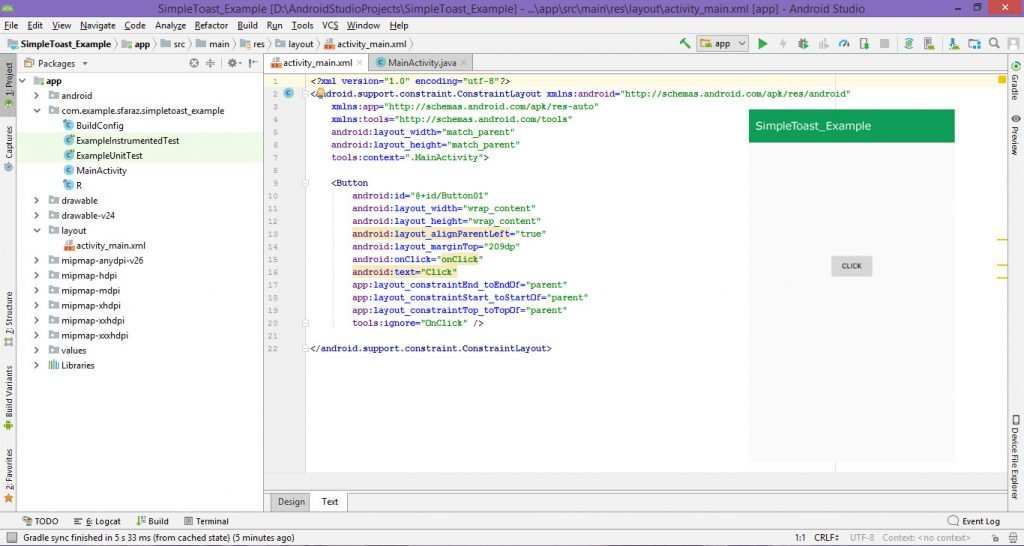
To quickly display a message in Android Studio, you can use a Toast. **To make a toast message in Android Studio, call Toast.makeText() with the context, message, and duration, then use show().**
Understanding how to make toast message in Android Studio is simple once you get the hang of it. It provides instant feedback to users without cluttering the interface.
Incorporating this feature into your app enhances user experience and makes interactions more engaging.

How to Make Toast Message in Android Studio
Creating a simple, yet effective way to communicate with your app users is essential for a good user experience. One popular method is using toast messages. Toasts are small popup notifications that briefly appear on the screen, providing quick feedback or information without interrupting the user’s activity. In this section, we will walk through everything you need to know about making toast messages in Android Studio, from basic implementation to customizing their appearance and behavior.
Understanding What Toast Messages Are
Before diving into coding, it’s important to understand what toast messages are and why they are useful.
- Brief Notifications: Toasts display short messages without requiring user interaction. They automatically disappear after a few seconds.
- Non-intrusive: They overlay on the current activity, so users can continue their tasks without interruption.
- Common Uses: Showing confirmation messages like “Saved successfully,” error alerts, or simple instructions.
These features make toast messages a handy tool for providing instant and unobtrusive feedback to users.
Setting Up Your Android Studio Environment
To get started, ensure you have Android Studio installed on your computer and a project created. Follow these steps:
- Open Android Studio and create a new project or open an existing one.
- Make sure your project targets a suitable SDK version, typically API 21 or above, as toasts are supported across these versions.
- Review your main activity layout file (activity_main.xml) where you will add buttons or other UI elements to trigger toast messages.
Once your environment is ready, you can proceed with coding your toast message.
Adding a Basic Toast Message in Android Studio
The simplest way to create a toast message involves calling the static method `Toast.makeText()`. Let’s look at how to add a toast in your activity code:
Step-by-step guide for basic toast
- In your activity class (e.g., MainActivity.java or MainActivity.kt), locate the function where you want to trigger the toast, such as a button click event.
- Use the following code snippet to create and show a toast message:
Java Example
Button button = findViewById(R.id.myButton);
button.setOnClickListener(new View.OnClickListener() {
    @Override
    public void onClick(View v) {
        Toast.makeText(getApplicationContext(), "Hello! This is a toast message.", Toast.LENGTH_SHORT).show();
    }
});
Kotlin Example
val button = findViewByIdUnderstanding the Parameters of Toast.makeText()
The method `makeText()` takes three main parameters:
- Context: Usually, `this`, `getApplicationContext()`, or `MainActivity.this`. It tells Android where the toast is being called from.
- Message: The text you want to display. You can hardcode it or retrieve it from resources.
- Duration: How long the toast should stay visible. Use either `Toast.LENGTH_SHORT` or `Toast.LENGTH_LONG`.
Choosing the right duration depends on how long you want your message to be visible. Use `LENGTH_SHORT` for quick notifications, and `LENGTH_LONG` for messages that need more time.
Customizing Toast Messages for Better User Experience
While basic toasts are useful, customizing them helps align the visual style and behavior to your app’s needs.
Changing the Position of Toasts
By default, a toast appears near the bottom of the screen. To move it, use `setGravity()`:
Toast toast = Toast.makeText(getApplicationContext(), "Custom Position Toast", Toast.LENGTH_SHORT);
toast.setGravity(Gravity.TOP | Gravity.CENTER_HORIZONTAL, 0, 100);
toast.show();
This example positions the toast at the top center, 100 pixels from the top edge.
Creating Custom Layouts for Toasts
To give your toast a unique appearance, you can inflate a custom layout:
- Create a new layout XML file (e.g., custom_toast.xml) in the `layout` folder.
- Design your layout with TextViews, ImageViews, or other widgets as desired.
- In your activity, inflate this layout and set it as the view for your toast:
Example of Custom Toast
LayoutInflater inflater = getLayoutInflater();
View customView = inflater.inflate(R.layout.custom_toast, null);

TextView text = customView.findViewById(R.id.toastText);
{text.setText("This is a custom toast!")}

Toast customToast = new Toast(getApplicationContext());
customToast.setDuration(Toast.LENGTH_LONG);
customToast.setView(customView);
customToast.show();
This approach allows full control over the look and feel of your notifications.
Implementing Toasts in Different User Actions
You might want to show toasts when users:
- Click a button
- Complete a form
- Perform an action successfully or encounter an error
For example, in a login app, show a toast confirming successful login or indicating wrong credentials.
Sample Code for Button Click
“`java
Button submitButton = findViewById(R.id.submitButton);
submitButton.setOnClickListener(new View.OnClickListener() {
@Override
public void onClick(View v) {
Toast.makeText(getApplicationContext(), “Form submitted!”, Toast.LENGTH_SHORT).show();
}
});
“`
Similarly, in Kotlin:
“`kotlin
val submitButton: Button = findViewById(R.id.submitButton)
submitButton.setOnClickListener {
Toast.makeText(this, “Form submitted!”, Toast.LENGTH_SHORT).show()
}
“`
Best Practices for Using Toasts Effectively
To ensure your toast messages improve user experience, keep these tips in mind:
- Keep messages brief: Use concise language that quickly conveys the message.
- Avoid overuse: Too many toasts can annoy users or clutter the interface.
- Use appropriate duration: Choose between `LENGTH_SHORT` and `LENGTH_LONG` based on message importance.
- Prefer custom layouts: When you want to match your app’s style, create custom toasts instead of default ones.
- Consider accessibility: Ensure toasts do not interfere with screen readers or other accessibility features.
Common Troubleshooting Tips
Sometimes, your toast message doesn’t display as expected. Here are some quick tips to troubleshoot:
- Ensure you call `show()` after creating the toast.
- Check that your context is correct, especially when using fragments or custom views.
- Verify your layout XML files are correctly designed and inflated.
- Test on different devices or emulator configurations to confirm consistency.
Summary
In this comprehensive guide, you learned how to make toast messages in Android Studio starting from basic implementation to advanced customization. Remember, simple and clear toast messages enhance the user experience by providing immediate feedback without disrupting the app flow. Whether you’re notifying users of an action success or alerting them to an issue, toasts are a quick and effective way to communicate within your app.
Make sure to try different customization options, such as positioning and custom layouts, to align toast notifications with your app’s design language. Keep your messages brief and relevant to ensure users stay engaged and informed. With these techniques, you can add meaningful interactions that enhance your app’s usability and appeal.
Frequently Asked Questions
How do I display a simple toast message in Android Studio?
To show a basic toast message, use the Toast.makeText() method. Provide the application context, the message text, and the duration (Toast.LENGTH_SHORT or Toast.LENGTH_LONG). Call the show() method to display the toast. For example: Toast.makeText(getApplicationContext(), "Hello, World!", Toast.LENGTH_SHORT).show();
Can I customize the position of a toast on the screen?
Yes, you can set a custom position for your toast by using the setGravity() method. Create your toast, then call setGravity() with the desired gravity, x-offset, and y-offset before showing it. For example: toast.setGravity(Gravity.TOP, 0, 100); to position it near the top with an offset.
How can I create a toast with a custom layout?
To design a toast with a custom appearance, inflate a layout from XML using LayoutInflater. Set the desired views in this layout, then assign it to your toast using setView(). For example: create a layout XML, inflate it, and call toast.setView(customView);. Finally, display the toast with show().
Is it possible to show a toast message from a background thread?
Since UI updates must run on the main thread, you should post the toast display code to the main thread’s handler. You can do this by using runOnUiThread() in an Activity or Handler.post(). This ensures the toast appears correctly even if the code runs in a background thread.
What duration options are available for toast messages?
You can choose between Toast.LENGTH_SHORT and Toast.LENGTH_LONG for the duration of the toast. SHORT displays the message briefly, typically around 2 seconds, while LONG keeps it visible for about 3.5 seconds. Select the appropriate duration based on the importance of the message.
Final Thoughts
To make a toast message in Android Studio, you need to use the Toast class. Call Toast.makeText() with the context, message, and duration, then invoke show() to display it. This simple method provides quick feedback to users.
Remember to place the code inside an event like a button click to trigger the toast. Keep your message clear and concise for better user experience.
In conclusion, learning how to make toast message in Android Studio helps enhance app interactions efficiently.
