

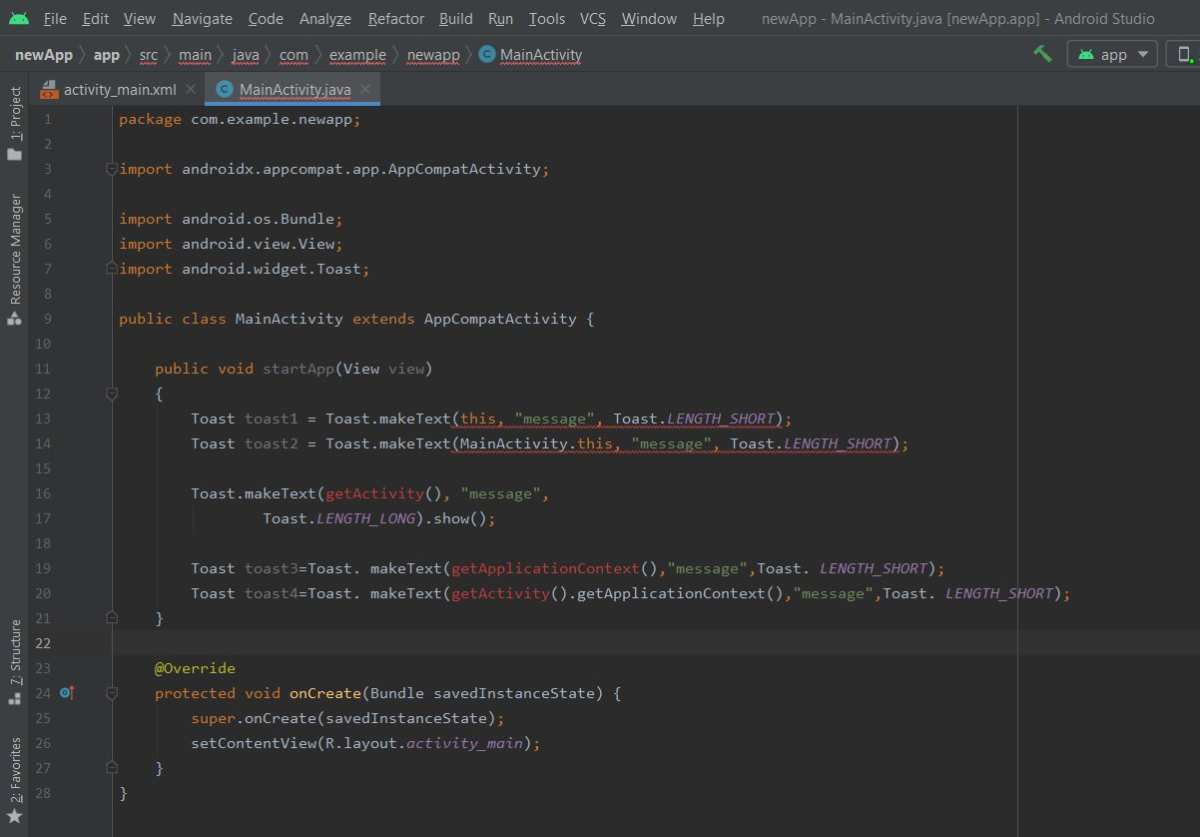
To make a toast in Android Studio, you simply use the Toast class with a context, message, and duration. **Calling Toast.makeText() and then show() displays a quick message to users.** If you’re wondering how to make toast in Android Studio, this method offers a fast way to provide feedback within your app.
Understanding how to implement this is straightforward. You just add a few lines of code in your activity, making your app more interactive and user-friendly.

How to Make Toast in Android Studio
Creating a simple toast message in an Android app is a great way for beginners to get familiar with Android Studio. Toasts are small pop-up messages that inform users about something without interrupting their activity. They appear briefly on the screen and then fade away. If you’re new to Android development, understanding how to make a toast can be a useful skill to add to your toolkit. In this guide, we’ll walk through the process step-by-step, explaining every detail to help you successfully implement toast messages in your Android apps.
What Is a Toast in Android Development?
Before diving into the coding process, let’s clarify what a toast is. Think of a toast as a quick note that appears on your screen to give feedback or notify the user about an action. For example, when a user clicks a button, a toast might briefly say, “Button clicked.” Toasts are lightweight and don’t require user interaction, making them ideal for short messages.
Some key features of toasts include:
- They are non-intrusive, meaning they don’t block user interaction.
- They automatically disappear after a short duration.
- They can display simple text messages.
Understanding these features helps you decide when and how to use toast messages effectively in your apps.
Understanding When to Use Toasts
Using toast messages appropriately can improve user experience. Here are some common scenarios:
- Confirming an action – like saving data or deleting an item.
- Showing an error message – such as “Invalid input” or “No internet connection.”
- Providing quick status updates – for example, “Loading complete.”
Remember, toasts should only deliver short, simple messages. For more detailed information, consider other UI components like dialogs or snackbars.
Setting Up Android Studio for Toast Implementation
Before writing code, ensure your development environment is ready:
- Download and install Android Studio from the official website.
- Create a new project with a blank activity template.
- Set up your project with minimal configurations to keep things simple for learning.
Once your project is ready, you can start implementing toast messages in your MainActivity or other activity classes.
Creating a Basic Toast Message
The simplest way to display a toast message involves calling the `Toast.makeText()` method. Here’s a step-by-step process:
Step-by-step guide for a basic toast
- Navigate to your activity’s Java or Kotlin file (commonly MainActivity.java or MainActivity.kt).
- Inside your class, locate or create a method where you want the toast to appear, typically in response to a user action like clicking a button.
- Use the following code snippet for Java:
// Display a simple toast message Toast.makeText(getApplicationContext(), "Hello! This is a toast message.", Toast.LENGTH_SHORT).show(); - For Kotlin, the code looks like this:
// Display a simple toast message
Toast.makeText(this, "Hello! This is a toast message.", Toast.LENGTH_SHORT).show();
Understanding the parameters
- Context: Usually `getApplicationContext()` for Java or `this` for Kotlin.
- Message: The string you want to display.
- Duration: How long the toast stays visible – either `Toast.LENGTH_SHORT` or `Toast.LENGTH_LONG`.
Adding a Button to Trigger a Toast
To make your app interactive, add a button that shows a toast when users tap it. Here’s how:
Designing the layout
- Open your activity’s layout XML file (activity_main.xml).
- Add a Button element inside the layout, for example:
<Button
    android:id="@+id/buttonShowToast"
    android:layout_width="wrap_content"
    android:layout_height="wrap_content"
    android:text="Show Toast" />
Writing code to handle button clicks
- In your activity class, find the button by its ID:
Button btnShowToast = findViewById(R.id.buttonShowToast); - Set an OnClickListener to respond when the button is clicked:
btnShowToast.setOnClickListener(new View.OnClickListener() {
    @Override
    public void onClick(View v) {
        Toast.makeText(getApplicationContext(), "Button clicked!", Toast.LENGTH_SHORT).show();
    }
});
Customizing Toasts for Better User Experience
While basic toasts are sufficient most of the time, customizing their appearance can make your app more engaging. Here are options to modify toasts:
Using Custom Layouts
- Create a custom XML layout for your toast with styles, fonts, or images.
- Use `Toast.setView()` to set your custom layout.
- This approach allows you to control the look and feel of the toast message, making it more aligned with your app’s theme.
Changing Toast Position
- By default, toasts appear near the bottom of the screen.
- You can change their position using `setGravity()`:
Toast toast = Toast.makeText(getApplicationContext(), "Custom Position", Toast.LENGTH_LONG);
toast.setGravity(Gravity.TOP | Gravity.CENTER_HORIZONTAL, 0, 100);
toast.show();
Using Duration Effectively
- Decide whether the toast should show briefly or stay longer.
- Use `Toast.LENGTH_SHORT` for quick messages, typically around 2 seconds.
- Use `Toast.LENGTH_LONG` for messages that require more attention, usually around 3.5 seconds.
Handling Different Android Versions
Ensure your toast implementation works across various Android versions:
- In most cases, the basic `Toast.makeText()` method is compatible with all recent Android versions.
- For advanced customization, check API levels to avoid compatibility issues:
if (Build.VERSION.SDK_INT >= Build.VERSION_CODES.LOLLIPOP) {
    // Implement custom toast for API 21 and above
} else {
    // Use default toast for earlier versions
}
Best Practices for Using Toasts
To make sure your toasts are helpful and unobtrusive, follow these best practices:
- Keep messages short and clear.
- Avoid showing multiple toasts at once, which can overwhelm users.
- Use toasts sparingly for quick feedback, not for lengthy instructions.
- Consider alternative UI elements like snackbars for actions that require user response.
Debugging Common Toast Issues
Sometimes, toast messages may not appear as expected. Here are tips for troubleshooting:
- Ensure you’re calling `.show()` after creating the toast.
- Check that the context used is valid, especially when creating toast in background threads.
- If your toast isn’t displaying, try increasing the duration or repositioning it.
- Look out for conflicts with other UI elements that might cover the toast.
Summary of Key Points
In this guide, we’ve covered:
- What toasts are and when to use them in Android development.
- How to set up Android Studio for toast implementation.
- Step-by-step instructions for creating basic and customized toasts.
- How to trigger toasts with buttons and handle user interactions.
- Best practices and tips for debugging issues.
Adding toast messages to your Android apps can enhance user interactions, providing quick feedback and making your app feel more responsive. With various customization options available, you can tailor toast notifications to fit your app’s style and user needs. Practice implementing toasts in different scenarios, and you’ll find they become a handy tool in your Android development journey.
Frequently Asked Questions
How can I customize the appearance of a toast message in Android Studio?
You can customize the appearance of a toast by creating a custom layout. First, design an XML layout with the desired styles, such as background color, text size, and font. Then, inflate this layout using LayoutInflater and set it as the view for your toast using the setView() method. This allows you to tailor the toast’s look to match your app’s design.
What is the best way to display a toast message in response to a user action?
To display a toast after a user action, call the Toast.makeText() method within the event handler, such as an onClick() method. Use the context of the current activity, specify the message, and set the duration. Finally, invoke the show() method to display the toast immediately after the user interacts with the app.
How do I display a toast message with a long duration?
Set the duration parameter to Toast.LENGTH_LONG when creating your toast. For example, call Toast.makeText(context, “Your message”, Toast.LENGTH_LONG).show(). This will keep the toast visible for a longer period, giving users more time to read the message before it disappears.
Can I display multiple toast messages at the same time?
No, Android queues toast messages, so if you trigger multiple toasts rapidly, they will display one after another in sequence. To manage this, you can cancel the current toast before showing a new one by keeping a reference to the toast object and calling cancel() when needed. This prevents overlapping or queued messages.
How do I avoid toast messages from showing repeatedly in quick succession?
To prevent multiple toasts from appearing in quick succession, track the last displayed toast and its timestamp. Before showing a new toast, check if enough time has passed since the previous one. If not, skip displaying the new toast. This approach reduces clutter and enhances user experience by avoiding message spam.
Final Thoughts
In summary, knowing how to make toast in android studio helps you add simple yet effective features to your app. Use the Toast class and call the makeText() method with your context, message, and duration. Call show() to display the toast on the screen. Practicing these steps ensures your app provides clear feedback to users.
By following these straightforward instructions, you can easily incorporate toast messages into your Android projects. Remember, mastering how to make toast in android studio makes your app more interactive and user-friendly.
