

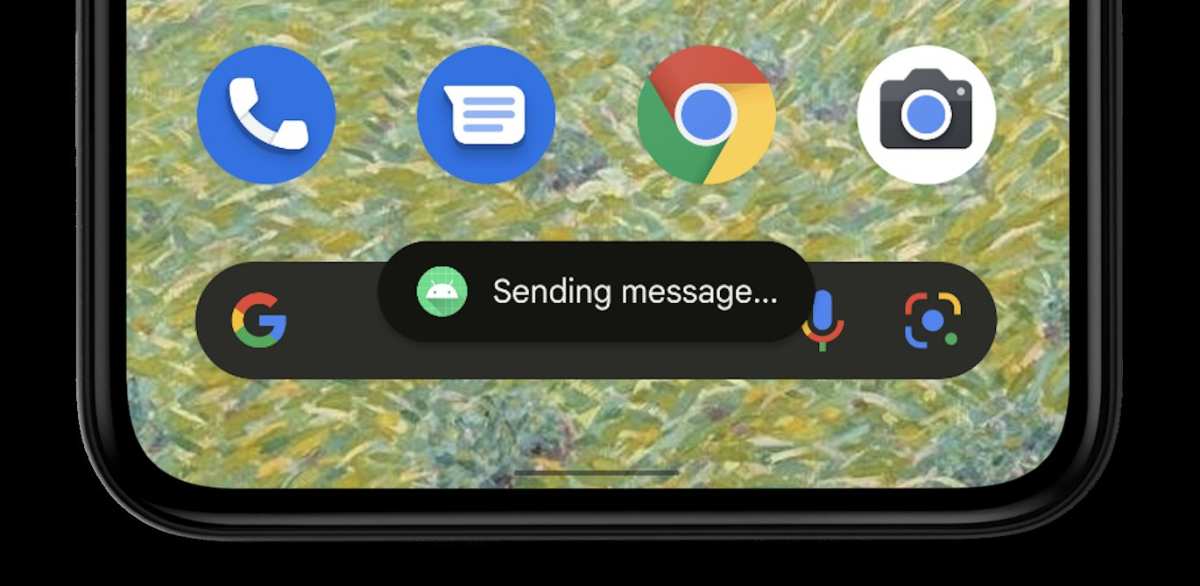
**To make toast on Android, you simply display a small message called a Toast.** If you’re curious about how to make toast android, it involves using the Toast class in Java or Kotlin. It’s quick to implement and perfect for giving users quick feedback.
Getting started is straightforward: you create a Toast object and call its show() method. This guide will walk you through the simple steps to add a toast notification in your Android app.

How to Make Toast Android
Making a toast message in Android might seem simple at first, but there’s more to it than just showing a message on the screen. Whether you’re a new Android developer or someone exploring how to add notifications for your app, understanding how to display toast messages effectively is essential. In this guide, we will explore everything you need to know about creating and customizing toast notifications in Android, covering fundamental concepts, best practices, and common challenges.
Understanding Toast in Android
Before diving into the how-to steps, let’s understand what a toast is and why developers use it. A toast is a small, unobtrusive message that appears temporarily on the screen to inform users of an action or update without interrupting their current activity. Toasts are commonly used for:
- Showing confirmation messages after an action, like saving data or sending a message.
- Providing feedback for user inputs or system events.
- Displaying quick tips or reminders.
In Android, toasts are lightweight and do not require user interaction, making them perfect for brief notifications.
How to Create a Basic Toast in Android
Creating a toast in Android is straightforward. Here’s the simplest way:
Toast.makeText(context, "Your message here", Toast.LENGTH_SHORT).show();Let’s break down each part:
– Context: Usually, this is your current activity or application context.
– Message: The text you want to display.
– Duration: How long the toast appears on the screen; use either Toast.LENGTH_SHORT or Toast.LENGTH_LONG.
– show(): Executes the toast display.
For example, in an activity, you might write:
Toast.makeText(this, "Welcome to the app!", Toast.LENGTH_SHORT).show();This code creates and displays a simple message saying “Welcome to the app!”.
Customizing Toast Messages
While the default toast is functional, you can customize it to better fit your app’s style or provide more information.
Changing Position of Toast
By default, a toast appears near the bottom of the screen. To change its position, use the setGravity() method:
Toast toast = Toast.makeText(this, "Custom Position!", Toast.LENGTH_SHORT);
toast.setGravity(Gravity.TOP | Gravity.CENTER_HORIZONTAL, 0, 100);
toast.show();
This code moves the toast to the top center of the screen with a vertical offset of 100 pixels.
Creating Custom Layouts for Toasts
For more advanced customization, you can design a custom layout. Follow these steps:
- Create a layout XML file, e.g., custom_toast.xml, with desired styles, images, and text.
- Inflate the layout using LayoutInflater.
- Set the layout to the toast using setView().
Here’s an example:
LayoutInflater inflater = getLayoutInflater();
View layout = inflater.inflate(R.layout.custom_toast, (ViewGroup) findViewById(R.id.custom_toast_container));
TextView text = layout.findViewById(R.id.toast_text);
text.setText("Custom Layout Toast");

Toast toast = new Toast(getApplicationContext());
toast.setDuration(Toast.LENGTH_LONG);
toast.setView(layout);
toast.show();
This approach allows you to design your toast exactly how you want it, including images, fonts, and background colors.
Using Toasts in Different Contexts
While toasts are commonly used in activities, you might wonder how to implement them in other parts of your app.
Using Toasts in Background Services
Typically, toast messages require an activity context, but in services, you can use the application context:
Toast.makeText(getApplicationContext(), "Service started", Toast.LENGTH_SHORT).show();Remember, toasts are meant for short messages; avoid using them for critical notifications or updates that require user action.
Handling Multiple Toasts
If your app triggers multiple toasts in rapid succession, they might overlap or queue up, creating a confusing user experience. To mitigate this, consider:
- Cancelling the previous toast before showing a new one.
- Implementing a custom singleton toast instance.
Here’s how to manage this:
private Toast mToast;

public void showToast(String message) {
    if (mToast != null) {
        mToast.cancel();
    }
    mToast = Toast.makeText(this, message, Toast.LENGTH_SHORT);
    mToast.show();
}
This method ensures only one toast appears at a time, preventing overlaps.
Best Practices for Using Toasts Effectively
To ensure a good user experience and avoid common pitfalls, follow these best practices:
Keep Messages Short and Clear
Toasts are meant for quick feedback. Use simple language and limit the message length.
Don’t Abuse Toasts
Excessive use of toasts can annoy users. Only show them for essential updates, and avoid spamming.
Use Appropriate Duration
Select Toast.LENGTH_SHORT for quick messages and Toast.LENGTH_LONG for longer notifications, but don’t overuse them.
Consider Accessibility
Ensure that toast messages are understandable and readable for all users, including those with visual impairments.
Troubleshooting Common Toast Issues
Despite their simplicity, developers sometimes face issues with toasts:
- Toast not showing: Check if the context is correct and the call is made on the UI thread.
- Toasts overlapping: Use the singleton pattern to manage multiple toasts.
- Custom layout not displaying properly: Verify inflating process and layout XML.
A good approach is to test toasts on different devices and screen sizes to ensure compatibility.
Summary of Key Points
– Toasts are quick, unobtrusive messages ideal for brief notifications.
– You can customize toasts by changing their position or applying custom layouts.
– Manage multiple toasts carefully to avoid cluttering the screen.
– Follow best practices to keep user experience positive.
– Troubleshoot common issues by verifying context and thread safety.
Understanding how to create and customize toast messages empowers you to communicate effectively with users without disrupting their app experience. Practice integrating toasts in your projects, experiment with styles, and keep your notifications simple yet informative.
Frequently Asked Questions
How can I display a toast message in my Android app?
To display a toast message, call the Toast.makeText() method with the application context, the message you want to show, and the duration (either Toast.LENGTH_SHORT or Toast.LENGTH_LONG). Then, invoke the show() method on the Toast object. For example:
Toast.makeText(getApplicationContext(), "Your message here", Toast.LENGTH_SHORT).show();
Can I customize the appearance of a toast in Android?
Yes, you can customize the toast by creating a custom layout. Inflate a layout file that defines your desired look, set the message in a TextView within that layout, and then set this layout to a new Toast object using setView(). Finally, call show() to display it. This approach allows you to change background colors, fonts, and other styles.
What is the best way to display a toast on a specific UI event, like a button click?
To show a toast when a user interacts with a button, set an OnClickListener on the button. Inside the listener, create and show the toast message. For example:
button.setOnClickListener(new View.OnClickListener() {
    @Override
    public void onClick(View v) {
        Toast.makeText(getApplicationContext(), "Button clicked!", Toast.LENGTH_SHORT).show();
    }
});
Are there any limitations to using toast messages in Android?
Yes, toast messages are meant for brief notifications and should not be used for critical information or user inputs. They display for a short time and do not require user interaction, so they might be missed if the user is engaged elsewhere. Also, excessive use of toasts can lead to a cluttered user experience.
How can I make sure the toast appears on the current screen regardless of app state?
Using getApplicationContext() when creating the toast helps ensure it appears on the current screen. Alternatively, if you are within an activity, calling this or the activity context works well. Remember to run toast creation on the main thread to avoid threading issues.
Final Thoughts
To make toast android, start by creating a simple layout that includes a button and a TextView. Next, add an OnClickListener to the button to trigger the toast. Use Toast.makeText() method to display a message when the button is pressed.
Testing your app ensures the toast appears correctly. Adjust the duration and message as needed for clarity.
In conclusion, understanding how to make toast android involves setting up a button and using Toast.makeText() effectively. Keeping it straightforward helps improve user interaction effortlessly.
