

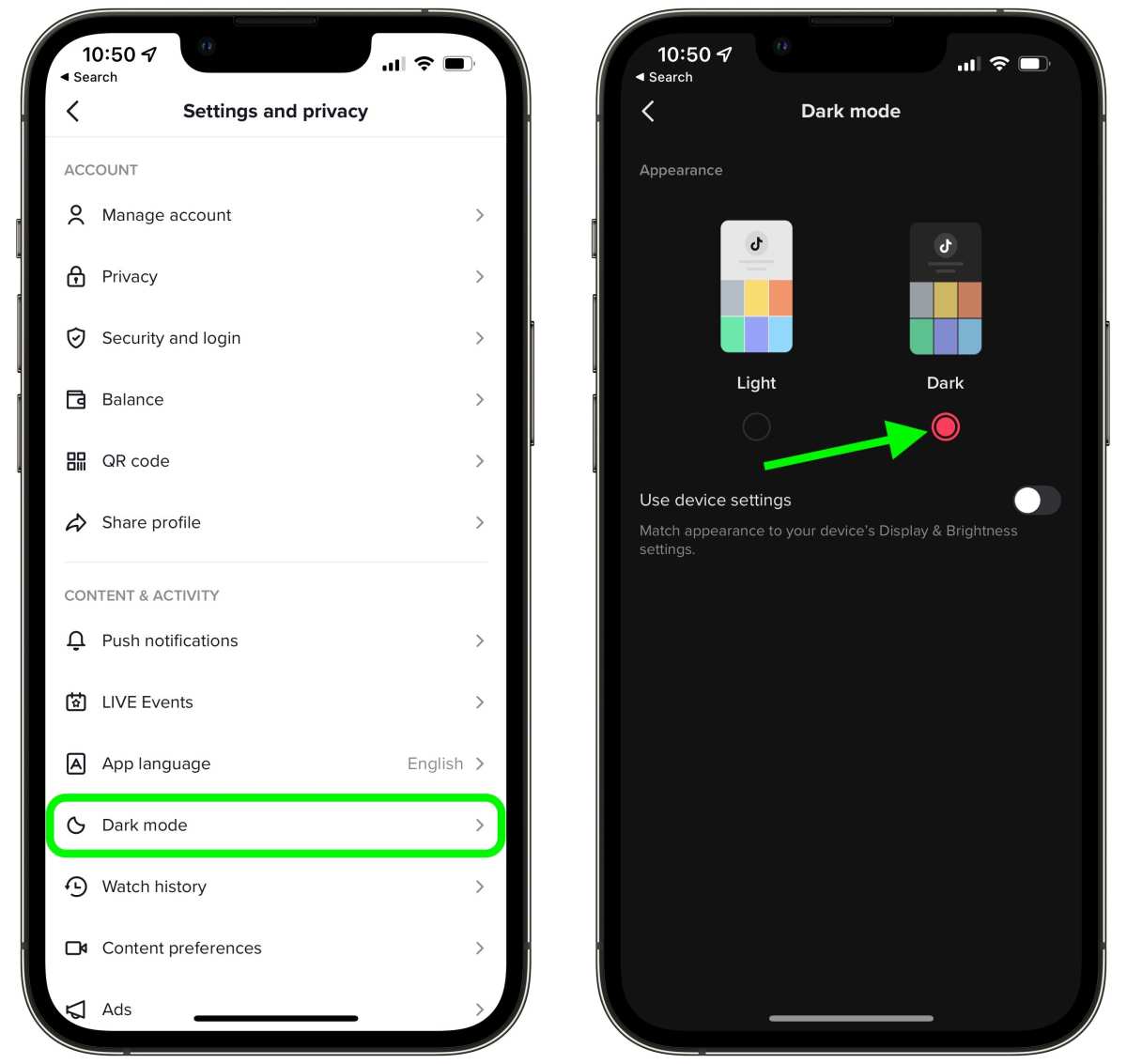
To enable dark mode on TikTok for Android, simply update the app and toggle the dark mode option in settings. **You can also switch your device to dark mode, which automatically applies to TikTok.** If you want to learn how to make TikTok dark mode on android, just follow these quick steps. No need to dive into complex menus—it’s straightforward and quick to enhance your viewing experience. Adjusting your settings can reduce eye strain and give TikTok a sleek new look effortlessly.

How to Make TikTok Dark Mode on Android
When using TikTok on your Android device, you might notice that the bright, white background can be harsh on your eyes, especially during nighttime or in dim environments. Luckily, TikTok now offers a dark mode option that makes browsing more comfortable and reduces eye strain. In this guide, we’ll walk you through the simple steps on how to enable TikTok dark mode on your Android phone, along with useful tips and troubleshooting advice to ensure you get the most out of this feature.
Understanding the Benefits of Dark Mode on TikTok
Before diving into the steps, it’s good to understand why enabling dark mode can enhance your TikTok experience:
- Reduces Eye Strain: Dark backgrounds are easier on your eyes, especially in low-light settings.
- Saves Battery Life: On devices with OLED screens, dark mode can help extend your battery life because black pixels use less power.
- Less Glare: Less screen glare helps you enjoy TikTok content comfortably for longer periods.
- Modern Aesthetic: Many users find dark mode looks sleeker and more modern, making the app more visually appealing.
Knowing these benefits can motivate you to switch to dark mode, but how exactly do you activate it on Android? Let’s explore the different methods.
Method 1: Enable Dark Mode via TikTok Settings
The most straightforward way to switch TikTok to dark mode is through the app’s built-in settings. Follow these simple steps:
Step-by-step Guide
- Open the TikTok app on your Android device.
- Tap on your profile icon located at the bottom right corner of the screen.
- Tap the three dots or the hamburger menu icon in the top right corner to access Settings and Privacy.
- Scroll down to find the Display or Appearance option. The exact wording can vary depending on app version.
- Look for the Dark Mode toggle. If you see it, simply switch it on.
- The app will shift to dark mode immediately, providing a darker background for your browsing experience.
Notes and Tips
- If you don’t see the dark mode option in TikTok settings, it may mean your app is not updated. Try updating TikTok from the Google Play Store.
- Sometimes, the dark mode toggle may only appear after you have set your device to dark mode or system-wide theme.
Method 2: Enable System-Wide Dark Mode on Android
Android devices increasingly support system-wide dark themes, which often influence apps like TikTok automatically. To activate this:
Step-by-step Guide
- Open your device’s Settings app.
- Scroll down to find Display or Appearance.
- Look for the Dark Theme or Dark Mode option and toggle it on.
- Once activated, open TikTok. The app should detect the system-wide dark mode setting and switch automatically.
Notes and Tips
- If TikTok does not change to dark mode automatically, check if there is a toggle within the app’s settings, as some versions support independent toggling.
- This method affects all compatible apps that support dark mode, making your entire device display darker themes, not just TikTok.
Method 3: Use Quick Settings to Switch to Dark Mode
Many Android devices have quick settings shortcuts that allow rapid toggling of themes. While not all devices support this for TikTok specifically, it’s worth trying if your system supports quick theme switches.
Steps to Access Quick Settings
- Swipe down from the top of your screen to open the notification panel.
- Look for the Dark Theme or Night Mode icon.
- Tap the icon to activate or deactivate dark mode system-wide.
- Open TikTok to see if it switches to dark mode automatically.
Additional Tips
- If you do not see a dark theme toggle, you might need to customize your quick settings panel by editing the icons available.
- This method is fastest for turning dark mode on or off across your device, but it depends on your device’s support for quick toggle features.
Troubleshooting Common Issues
Even with these methods, some users encounter issues with enabling dark mode on TikTok. Here are common problems and their solutions:
Dark Mode Not Activating
- Ensure your TikTok app is updated to the latest version. Outdated apps may lack the dark mode feature.
- Check if your device’s system dark mode is enabled; some apps depend on this setting.
- Restart your device after changing the settings, as this can refresh app themes.
- If dark mode still doesn’t activate, try clearing TikTok’s cache from your device’s app settings.
Dark Mode Flickering or Not Fully Applying
- Update your device’s software and the TikTok app.
- Disable and then re-enable system-wide dark mode.
- Reinstall TikTok if problems persist after an update.
Additional Tips for a Better Dark Mode Experience
– Customize your device’s display settings for optimal viewing, such as increasing contrast or adjusting screen brightness.
– Use a dark wallpaper or theme on your device to complement TikTok’s dark mode.
– Pay attention to your eyes and take regular breaks, especially when using dark mode in low-light conditions.
Summary of Key Points
| Method | Steps | Notes |
|---|---|---|
| In-App Settings | Open TikTok → Profile → Settings → Display → Toggle Dark Mode | Requires app update; system-wide theme may influence availability |
| System-Wide Dark Mode | Settings → Display → Dark Theme → Enable | Apps that support system themes switch automatically |
| Quick Settings Toggle | Swipe down → Tap Dark Theme/Night Mode icon | Fastest method if supported by your device |
By following these detailed steps, you can comfortably switch TikTok to dark mode on your Android device. Whether through app settings, system-wide options, or quick toggles, enabling dark mode enhances your TikTok experience, making it easier on your eyes and more enjoyable to browse your favorite videos at any time of the day.
Frequently Asked Questions
Can I enable dark mode for TikTok on my Android device without updating the app?
Yes, you can enable dark mode on TikTok without updating the app if your device’s system-wide dark mode is active. When your Android device is set to dark theme, TikTok may automatically switch to dark mode if the app supports this feature. To do this, enable dark theme in your device settings under Display options. Keep in mind that some versions of TikTok might require the latest app update to enable this feature directly within the app.
What steps can I follow to manually activate dark mode in TikTok’s settings?
To manually activate dark mode in TikTok, open the app and tap your profile icon. Then, go to the settings menu by clicking the three-dot icon. Scroll through the options and locate ‘Appearance’ or ‘Display.’ If available, select ‘Dark Mode’ or ‘Night Mode.’ Toggle this option on to switch TikTok to dark theme. If you don’t see this option, ensure your app is updated, or check your system settings for dark theme activation.
Will enabling system-wide dark mode on my Android device automatically switch TikTok to dark theme?
In many cases, enabling system-wide dark mode prompts TikTok to switch to dark mode automatically, especially if the app supports this feature. To do so, go to your device’s Settings menu, select Display, and turn on Dark Theme or Night Mode. Confirm that your TikTok app is updated to the latest version, as older versions might not support this automatic change. If TikTok doesn’t switch automatically, you can manually enable dark mode within the app settings.
Are there any troubleshooting tips if dark mode does not activate on TikTok after trying the steps?
If dark mode doesn’t activate on TikTok even after following the steps, first ensure you have the latest version of the app installed. Clear the app cache from your device settings to resolve potential glitches. Restart your device to refresh system settings. If that doesn’t work, check if your device’s system-wide dark mode is enabled correctly. Lastly, consider reinstalling TikTok to ensure the app functions properly with the latest features.
Does enabling dark mode affect the performance or battery life of my Android device?
Enabling dark mode can improve your device’s battery life, especially if it has an OLED or AMOLED display, because darker pixels consume less power. Additionally, it can reduce eye strain in low-light environments. However, the impact on overall system performance is minimal. Using dark mode creates a more comfortable viewing experience without significantly affecting your device’s speed or responsiveness.
Final Thoughts
Getting TikTok dark mode on Android is simple. First, open the TikTok app and go to your profile. Tap the three-dot menu in the top right corner and select “Settings and Privacy.”
Next, find the “Display” or “Dark Mode” option. Toggle it on to enable dark mode. This change makes browsing more comfortable, especially in low light.
In conclusion, to make TikTok dark mode on Android, follow these steps. It offers a more visually comfortable experience and can be easily adjusted anytime.
