

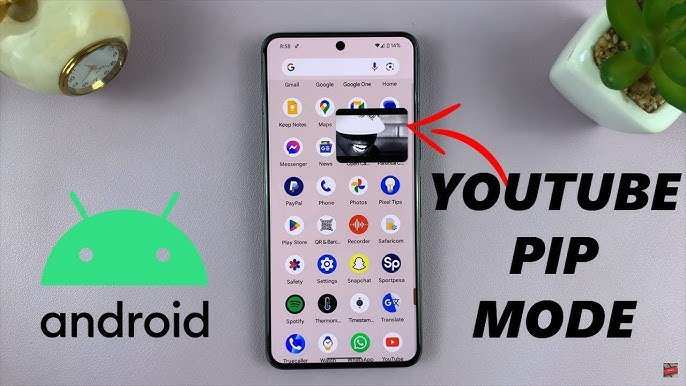
To make YouTube small screen on Android, simply tap the picture-in-picture icon or enable the feature in settings. **This allows you to keep watching videos while using other apps.** If you want to know how to make YouTube small screen Android, just activate picture-in-picture mode in your device settings or tap the small window icon during playback. It’s quick and easy, letting you multitask seamlessly. No need to switch back and forth constantly; this trick keeps your focus flexible and convenient.

How to Make YouTube Small Screen on Android Devices
Watching YouTube videos is a popular activity for many Android users. Whether you want to browse other apps while watching or just prefer a smaller screen for convenience, learning how to make YouTube appear as a small screen on your Android device can enhance your experience. This guide will explore various methods to create a picture-in-picture (PiP) mode, resize the YouTube app, and customize your viewing preferences — all designed to help you enjoy YouTube in a small window effortlessly.
Understanding the Picture-in-Picture Mode on Android
Before diving into the steps, it’s essential to understand what picture-in-picture (PiP) mode is. PiP allows you to watch videos in a floating window while using other apps. This feature is especially useful when you want to multitask, such as browsing social media, messaging, or checking emails, all while keeping your YouTube video in view.
- Supported Android Versions: Most Android devices running Android 8.0 Oreo and above support PiP mode.
- App Compatibility: Not all apps support PiP, but YouTube does primarily for its Premium users, and there are workarounds for others.
- System Settings: You need to enable PiP in your device settings to use this feature seamlessly.
Enabling PiP Mode on Your Android Device
To make YouTube videos become small screens, first check that your device supports PiP mode and that it is enabled:
Steps to turn on PiP mode
- Go to your device’s Settings.
- Scroll down to find Apps & Notifications or just Apps.
- Select Special app access.
- Tap on Picture-in-picture.
- Look for YouTube in the list and ensure the toggle is turned on.
Once enabled, your device will allow YouTube videos to float over other apps. Next, you’ll explore how to activate PiP mode during a video playback.
Using Picture-in-Picture with YouTube
There are two main methods to activate PiP mode with YouTube: one for users with YouTube Premium and another workaround for free users.
For YouTube Premium Users
Premium subscribers have a straightforward way to enjoy PiP:
- Open the YouTube app and start playing a video.
- Press the Home button or use the gesture navigation to go to the home screen.
- The video automatically switches to a small floating window.
You can resize the window by dragging its edges or move it around your screen. To get back to full-screen mode, tap the window and select the full-screen icon.
For Free Users — Using Workarounds
If you don’t subscribe to YouTube Premium, you might wonder if it’s possible to use PiP. Although YouTube restricts this feature to Premium users, there are tricks:
- Using Web Browser in Desktop Mode: Open YouTube in a browser like Chrome, then request the desktop site. Play a video, then switch to PiP mode via the browser menu.
- Third-party Apps: Some third-party apps or browser extensions may enable PiP for YouTube videos. Be cautious and ensure these apps are safe before installation.
Resizing and Moving the YouTube Floating Window
Once you’re in PiP mode, customizing the size and location of the video window improves usability.
Resizing the Small Screen Player
Most Android devices support resizing the floating window:
- Tap and hold the window’s edges or corners to drag and resize.
- Adjust to your desired size, making sure it doesn’t obscure important content on your screen.
Moving the Floating Window
You can position the small YouTube window anywhere on your screen:
- Press and hold the floating window.
- Drag it to a different part of your screen.
- Release to set its new position.
Some devices also support snapping the window to edges for better placement.
Optimizing Your Experience: Tips for Better Small Screen Watching
To enjoy YouTube in a small screen comfortably, consider these tips:
Use Gestures to Control Playback
Most floating YouTube players respond to gestures:
- Tapping the window toggles play and pause.
- Swiping down minimizes the window further or closes it.
- Pinch-to-zoom allows resizing on some apps.
Adjust Screen Brightness and Volume
Since the small window may be distracting, keep brightness and volume controls accessible:
- Use quick settings at the top of your screen.
- Adjust volume directly from the floating window if supported.
Managing Notifications and Interruptions
Notifications can pop up over the small YouTube window:
- Use the Do Not Disturb mode to prevent interruptions.
- Customize notification settings to only allow essential alerts.
Additional Methods to Make YouTube Small Screen on Android
Beyond PiP, there are other ways to watch YouTube in a smaller window or in a minimized mode.
Using Split Screen Mode
Split screen divides your screen into two parts, letting you run YouTube alongside another app:
- Open the YouTube app.
- Tap the recent apps button or use gestures.
- Tap the app icon at the top of the YouTube window and select Split screen.
- Choose another app to run simultaneously.
This method isn’t as flexible as PiP but works well for multitasking.
Resizing with Third-party Apps
Some apps available on Google Play allow you to overlay videos or create custom floating windows:
- Search for apps like Floating Apps or Video Popout.
- Follow the app’s instructions to overlay YouTube videos.
- Be cautious about app permissions and reviews before installation.
Common Issues and How to Troubleshoot
Despite many methods, you might face some challenges:
- PiP not working: Confirm that PiP is enabled in settings and that YouTube supports it.
- Video freezes or lagging: Close other apps consuming system resources or restart your device.
- Floating window disappears: Make sure you are using the correct gestures or buttons.
- Limited support for free users: Use browser workarounds or third-party apps cautiously.
Summary of Key Points
- Enable picture-in-picture mode in your device settings.
- Use the Home button or gestures to activate PiP during YouTube playback.
- Resize and position the floating window for comfortable viewing.
- Consider alternative methods like split screen or third-party overlay apps for more flexible options.
- Troubleshoot common issues by checking system settings and app permissions.
Making YouTube smaller on Android allows you to multitask effectively and enjoy videos without interrupting your workflow. Whether you’re a Premium user leveraging PiP or a free user exploring creative workarounds, these techniques give you freedom to control your viewing experience. Practice these methods, and soon, you’ll be managing your YouTube videos in a compact window with ease.
Frequently Asked Questions
How can I enable picture-in-picture mode for YouTube on my Android device?
To activate picture-in-picture mode for YouTube, ensure your device runs Android 8.0 or higher. Open the YouTube app, tap on your profile picture, and go to Settings. Select ‘General’ and toggle on ‘Picture-in-picture.’ When watching a video, press the home button or use the gesture navigation to minimize the video into a small screen that floats over other apps.
What steps should I follow to resize the YouTube video in small screen mode?
Once in picture-in-picture mode, you can adjust the size of the video by dragging the edges, if supported. Some devices also allow pinch-to-zoom gestures within the small video window to resize it. Alternatively, exiting and re-entering the small screen mode often resets the window to a default size, which you can then resize as needed.
Can I use third-party apps to make YouTube videos smaller on Android?
Yes, several third-party apps can help you create floating windows or mini players for YouTube videos. These apps often offer more customization options for the size and position of the video window. However, use caution and only download from trusted sources to maintain device security and comply with YouTube’s terms of service.
How do I quickly switch between full-screen and small screen mode while watching YouTube?
To switch modes, tap the full-screen icon during playback for a larger view. To revert to a smaller screen, press the home button or swipe up to minimize the app, which automatically activates picture-in-picture mode if enabled. Alternatively, double-tap the video in some apps to toggle between modes quickly.
Are there any settings I need to adjust to keep YouTube videos in small screen mode even when switching apps?
Ensure that picture-in-picture mode remains active in your device’s system settings. Go to Settings > Apps & notifications > Special app access > Picture-in-picture, and confirm that YouTube has permission to display in picture-in-picture mode. This setting allows videos to stay in a small floating window while you navigate other apps.
Final Thoughts
To make YouTube small screen android, start by opening the YouTube app. Tap on the video you want to watch, then press the home button. The video will minimize into a small floating window.
You can now move the small screen around your screen or resize it by dragging the edges. This feature allows you to browse other apps while keeping your video visible.
In conclusion, knowing how to make YouTube small screen android helps you multitask effectively. Use the picture-in-picture mode to enjoy videos seamlessly while performing other tasks.
