

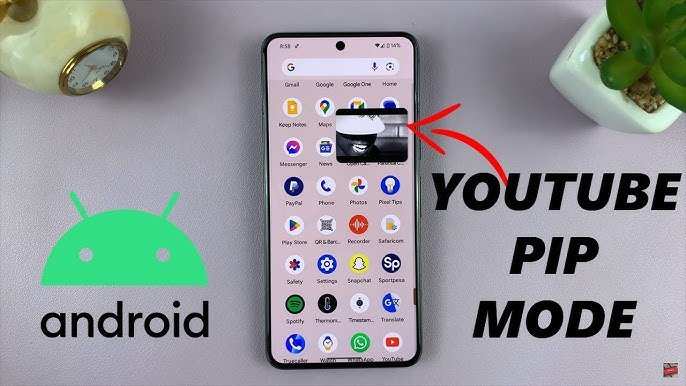
To make the YouTube screen small on Android, activate the picture-in-picture mode. This feature allows the video to play in a small window while you navigate other apps. Knowing how to make YouTube screen small on Android helps you multitask smoothly. Simply tap the home button or use the gesture navigation after starting a video, and the screen will shrink effortlessly. Whether you want to browse or chat, this quick trick enhances your viewing experience.

How to Make YouTube Screen Small on Android
Watching YouTube videos is a favorite activity for many Android users. Sometimes, however, you want to keep the video playing while you do other things on your phone. Maybe you want to check your messages, browse social media, or use a different app without stopping the video. This is where making the YouTube screen small or enabling picture-in-picture mode becomes very helpful. In this guide, you’ll find comprehensive, easy-to-follow steps on how to make YouTube screen small on Android, along with tips and tricks to enhance your viewing experience.
Understanding the Concept of Picture-in-Picture Mode
Before diving into the steps, it’s important to understand what picture-in-picture (PiP) mode is. PiP allows you to watch a video in a small window that floats over other apps. This small window stays on your screen so you can continue browsing or working without pausing your video. Many Android devices support this feature, but it depends on your phone model, the Android version, and the app settings.
Check if Your Device Supports Picture-in-Picture Mode
Not all Android devices automatically support PiP mode. Here’s how to check if yours does:
- Android Version: Make sure your device runs Android 8.0 Oreo or higher. PiP mode was introduced in Android Oreo, and devices with older Android versions won’t support it.
- Device Compatibility: Some manufacturers customize Android, so support can vary. Check your device’s settings or user manual.
- App Compatibility: YouTube needs to be updated to the latest version to support PiP mode. Also, ensure PiP is enabled in your system settings.
Enabling Picture-in-Picture Mode for YouTube on Android
To make the YouTube screen small, you need to activate PiP mode. Follow these steps:
Step-by-step guide:
- Update YouTube App: Visit the Google Play Store, search for YouTube, and update it if updates are available. The latest version improves stability and supports PiP.
- Enable PiP in System Settings:
- Open your device’s Settings.
- Select Apps & Notifications or similar.
- Tap on Special app access.
- Find and select Picture-in-picture.
- Locate YouTube in the list and toggle the switch to enable PiP for it.
- Use YouTube in PiP Mode:
- Open the YouTube app and start playing any video.
- Press the home button. If your device supports PiP, the video will shrink into a small floating window.
- If the video does not minimize automatically, tap the small PiP window to move or resize it.
How to Make YouTube Screen Small Manually on Android
If you prefer manual control or want to make the YouTube screen small without relying solely on PiP, there are other methods and tips:
Using the Home Screen or Multitasking View
Many Android phones support multi-window or split-screen features. Here’s how to use them:
- Open the YouTube app and start playing your video.
- Tap the recent apps button or use your device’s multitasking gesture.
- Find YouTube in the app list and tap the icon at the top of the app window.
- Select Split Screen or Open in Split View.
- Open another app in the second window, such as Messages or a browser.
- Resize the windows to make your YouTube video smaller and focus on other tasks.
Note: Split-screen mode works well on many Android devices, but some older models or custom Android skins might have limited support.
Using Third-Party Apps for Floating Windows
If your device doesn’t support PiP or split-screen, third-party apps can help:
- Floating Apps or similar apps let you create small resizable windows for videos and other content.
- Search for “floating video player” or “video in popup” in the Google Play Store.
- Download a reputable app and follow its instructions to enable YouTube or other video sources in a small floating window.
Remember, some third-party apps might not work perfectly with YouTube due to restrictions, so choose well-rated and trusted applications.
Tips for Enhancing Your Small YouTube Viewing Experience
Making the screen small is just part of the experience. Here are some tips to make your viewing more enjoyable:
Resizing and Moving the PiP Window
Most devices allow you to drag or resize the floating YouTube window:
- Use your finger to drag the window to any corner or position on your screen.
- Pinch or spread the edges to resize the window for better viewing comfort.
- Some apps allow you to lock the size or position for convenience.
Adjusting Volume and Playback Controls
While in small mode, you can typically control volume, play/pause, or skip videos:
- Tap the floating window to reveal control options.
- Use the on-screen controls or hardware buttons for volume adjustments.
- Swipe the PiP window to dismiss or minimize it further if needed.
Listening to Videos in the Background
If you only want the audio, some Android versions or YouTube Premium subscriptions support background playback:
- Subscribe to YouTube Premium for seamless background listening.
- Use the PiP mode or third-party apps to keep the video minimized while listening.
Common Problems and Troubleshooting
Sometimes, making YouTube screen small on Android can be tricky. Here are common issues and how to fix them:
PiP Mode Not Working
– Ensure your device supports PiP and it’s enabled in settings.
– Update YouTube to the latest version.
– Restart your device for changes to take effect.
– Make sure you start playing a video, then press the home button.
Split-Screen Not Working
– Check if your device supports multi-window mode.
– Use the latest Android version.
– Follow the correct steps to enable split-screen mode.
Third-party Apps Not Functioning Properly
– Make sure the app has permission to draw over other apps.
– Check for updates or try out different apps if one doesn’t work.
Final Tips for Best Results
– Keep your device updated with the latest software for maximum compatibility.
– Regularly update your YouTube app.
– Experiment with different methods (PiP, split-screen, third-party apps) to find what best suits your needs.
– Remember to keep your screen brightness comfortable and avoid stretching the small window too far for clear viewing.
Making YouTube videos smaller on an Android device is a handy feature that helps you multitask easily. Whether you want to keep watching while browsing or chatting, enabling picture-in-picture mode or using split-screen makes your experience smoother and more flexible. With these detailed steps and tips, you can enjoy your favorite content anytime, anywhere, without losing control over your phone’s other functions.
Frequently Asked Questions
How can I switch to picture-in-picture mode on YouTube for Android?
To enable picture-in-picture mode, ensure your device runs Android 8.0 or higher. Open the YouTube app, go to Settings > General, and toggle on “Picture-in-picture.” When watching a video, press the home button or use the gesture to return to the home screen, and the video will shrink into a small floating window that you can move around.
What steps should I follow to resize the YouTube video on Android?
While YouTube doesn’t offer a built-in option to resize videos freely, you can use the picture-in-picture feature or third-party apps that provide adjustable overlay windows. Activating picture-in-picture allows you to minimize the video to a small window, which you can reposition on your screen for better viewing convenience.
Can I customize the size of the minimized YouTube screen on Android?
Generally, the size of the minimized video is predefined in picture-in-picture mode and cannot be adjusted manually within the app. However, some third-party tools or launcher modifications may offer options to resize or customize overlay windows for better control over the video size.
Are there any gestures or shortcuts to quickly make the YouTube screen smaller?
Yes, enabling gesture navigation on your device allows you to quickly minimize the YouTube video by swiping up or using designated gestures. Additionally, tapping the home button during playback automatically reduces the video to picture-in-picture mode if the feature is enabled.
Is it possible to keep watching YouTube videos in a small window while using other apps?
Yes, by enabling picture-in-picture mode, you can continue watching a YouTube video while opening other apps. This feature helps you multitask effectively, allowing you to browse, chat, or perform other activities without stopping the video playback.
Final Thoughts
To make YouTube screen small on Android, tap the home button while watching a video. This minimizes the app into a floating window that you can move around your screen. You can also enable the picture-in-picture mode in your device settings for seamless multitasking.
Remember, the key is to activate the picture-in-picture feature or manually resize the video window.
In summary, understanding how to make YouTube screen small on Android allows you to multitask easily. Use the picture-in-picture mode or quick controls to resize videos.
