

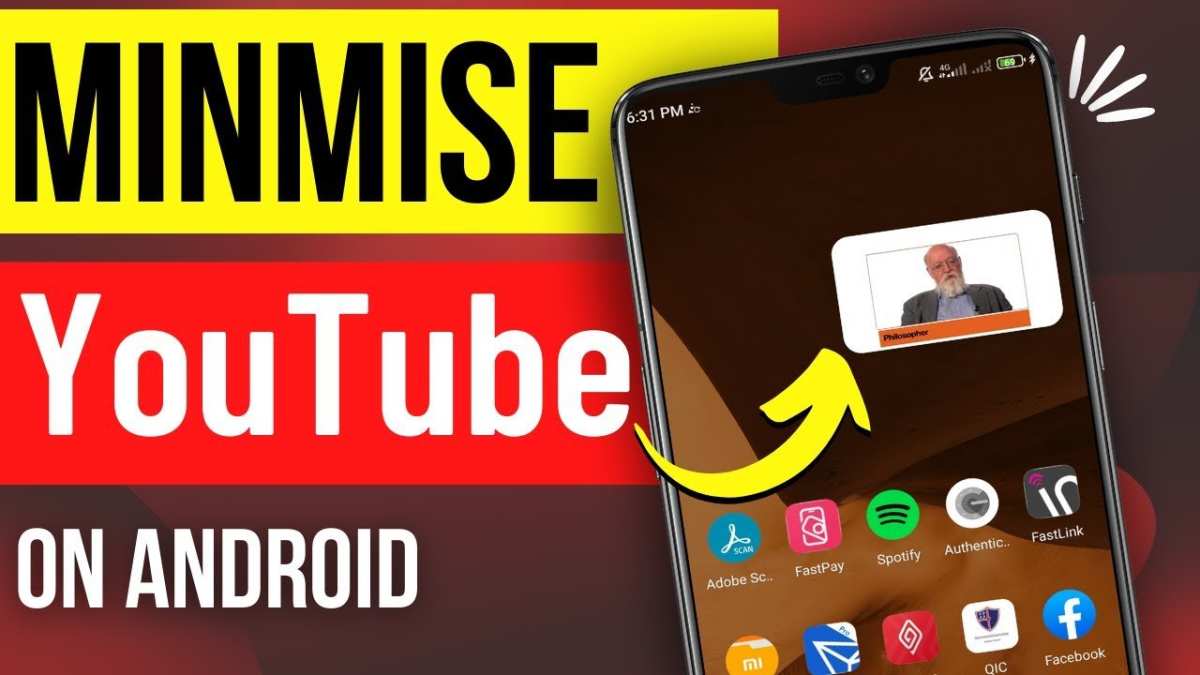
If you want to make YouTube pop out on your Android device, the solution is simple: use the picture-in-picture (PiP) mode. **Activating PiP allows you to watch videos in a small window while navigating other apps.** To learn how to make YouTube pop out Android, just enable this feature in your device settings and the YouTube app. Once set up, enjoy multitasking effortlessly without missing a beat on your favorite videos. It’s an easy way to enhance your Android experience and stay connected to YouTube on the go.

How to Make YouTube Pop Out on Android: A Complete Guide
If you love watching videos on YouTube but don’t want to stay confined to the app or browser, then the idea of making YouTube pop out on Android will excite you. This feature allows you to keep watching your favorite videos while browsing other apps or doing tasks on your device. It’s like having a mini TV floating on your screen that you can move and resize. In this guide, we’ll walk through everything you need to know about making YouTube pop out on Android, including simple methods, helpful tips, and common issues you might face.
Understanding Picture-in-Picture Mode (PiP) on Android
Before diving into how to make YouTube pop out, it’s essential to understand what picture-in-picture (PiP) mode is. PiP is a feature available on most modern Android devices that lets you watch videos in a small window while doing other things. Think of it as a mini video player that stays on top of other apps.
This functionality is especially useful for multitasking. For example, you can watch YouTube videos, browse social media, send messages, or work on documents without interruption. Not all apps support PiP, but YouTube does — provided you meet certain requirements.
Requirements for Using PiP with YouTube on Android
To enable YouTube pop out on Android, your device must:
- Run Android 8.0 Oreo or higher
- Have the latest version of the YouTube app installed
- Enable PiP in device settings
Most recent Android phones already meet these criteria, making it easier to activate PiP mode for YouTube.
Steps to Enable Picture-in-Picture Mode on Your Android Device
Follow these simple steps to turn on PiP mode, so YouTube videos can pop out:
Enable PiP in System Settings
- Go to your device’s Settings menu.
- Tap on “Apps & Notifications” or just “Apps” depending on your device.
- Select “Special app access” or “Advanced” options.
- Find and tap on “Picture-in-picture” or “PiP mode”.
- Locate YouTube in the list of apps.
- Toggle the switch to enable PiP for YouTube.
Once you’ve enabled this, your device will allow YouTube videos to pop out when you switch apps or press the home button.
Test if PiP Works for YouTube
Try opening YouTube and play a video:
- Start playing any YouTube video.
- Press the home button or tap the recent apps button.
- If PiP is enabled, the video will shrink into a small floating window.
- You can reposition, resize, or move this window around your screen.
If this doesn’t happen, go back to settings and double-check that PiP is activated for YouTube.
Using YouTube in PiP Mode: Step-by-Step
Now that you have PiP enabled, here’s how to make YouTube pop out and maximize your viewing experience:
Watching Videos in PiP Mode
- Open the YouTube app and select a video you want to watch.
- Start playing the video.
- Press the home button. The video shrinks into a floating window.
- Drag the window around your screen. You can move it to any corner or edge for convenience.
- Resize the window, if your device supports pinch-to-zoom gestures.
This lets you keep enjoying your video while you browse social media, chat, or check emails without stopping playback.
Pausing and Resuming Videos in PiP
Controlling playback is simple:
- Tap on the floating window to reveal controls.
- Press pause or play as needed.
- Tap on the window to expand or close it.
This ensures you won’t miss out on key moments when multitasking.
Additional Tips for a Better Experience with YouTube Pop Out
Making the most of YouTube’s pop-out feature involves some tips and tricks:
Using Custom Launchers and Apps
Some third-party launchers or app management tools enhance multitasking. For example:
- Floating apps or multitasking suites that allow multiple mini screens.
- Apps like “YouTube Popout” or “PiP Manager” designed explicitly for improving PiP functionality.
Ensure you check user reviews and ratings before installing new tools to keep your device secure.
Resizing and Moving the YouTube Window
Most Android devices allow you to:
- Drag the video window to your preferred location.
- Use pinch gestures to resize the window.
- Minimize or maximize the PiP window as you go.
Experiment with different sizes and positions to find what works best for you.
Handling Device Compatibility and Limitations
Depending on your device or Android version, PiP might not work smoothly. Some tips include:
- Update your Android OS and YouTube app regularly.
- Check app permissions for PiP functionality.
- Reboot your device after enabling new settings.
If something isn’t working, consult your device manufacturer’s support or visit online forums for solutions specific to your model.
Alternative Methods for Making YouTube Pop Out on Android
If the built-in PiP mode isn’t enough or isn’t functioning, there are alternative approaches:
Using Browser-Based YouTube in Picture-in-Picture
Some browsers, like Google Chrome or Samsung Internet, support PiP for YouTube videos:
- Open YouTube in the browser.
- Start playing a video.
- Tap on the Chrome menu (three dots). Some browsers have a PiP option in the menu.
- Select “Open in Picture-in-Picture” or a similar command.
- The video will pop out, allowing multitasking.
This method is especially handy if you prefer browsing or watching videos without switching apps.
Using Third-Party Apps for Enhanced PiP Functionality
There are several third-party apps designed to give you better control over PiP features. Examples include:
- “Floating Apps Free”
- “Video Popout”
- “Split Screen Creator”
Always ensure compatibility and review permissions before installation.
Common Troubleshooting Tips
Making YouTube pop out can sometimes run into issues. Here are tips to solve common problems:
- Ensure your device runs Android 8.0 or higher.
- Update both the YouTube app and your device’s system software.
- Check if PiP is enabled specifically for YouTube.
- Clear cache and data of the YouTube app if needed.
- Restart your device after changing settings.
If none of these tips work, consider resetting app permissions or reinstalling the app.
Getting YouTube to pop out on Android opens up new possibilities for enjoying videos while multitasking. By enabling the PiP mode and following the steps outlined above, you can keep your favorite videos in view while doing other tasks seamlessly. Remember to keep your device updated and explore third-party options if needed. With a little setup and patience, your Android device can become a versatile tool for both entertainment and productivity. Enjoy hands-free viewing and make your multitasking smoother and more fun!
Frequently Asked Questions
How can I use YouTube in a picture-in-picture mode on Android?
To watch YouTube videos in a picture-in-picture (PiP) mode on your Android device, ensure your device runs Android 8.0 Oreo or higher. Open the YouTube app and play a video. Tap the home button or press the home gesture; the video should minimize into a small overlay that stays on your screen. If it doesn’t, go to your device settings, navigate to Apps & Notifications, select YouTube, and enable Picture-in-Picture mode. Keep in mind that PiP mode is available for YouTube Premium users on mobile devices for supported videos.
What steps should I follow to enable pop-out YouTube videos on Android without using the app?
To pop out YouTube videos on Android outside the official app, you can use a compatible browser like Chrome. Open Chrome and go to the YouTube website. Play a video, then tap the three-dot menu in the top right corner and select “Desktop site” to load the full version. Once the video starts playing, switch to another app or go to the home screen, and then reopen Chrome from the app switcher. Some devices or browsers may support a built-in picture-in-picture option; if so, you can tap that button to detach the video into a floating window.
Is there a way to create a custom shortcut for popping out YouTube videos on Android?
Creating a dedicated shortcut for popping out YouTube videos depends on your device and launcher. You can try using third-party apps like Tasker to automate opening YouTube videos in a floating window. Set up a profile in Tasker that launches YouTube and activates PiP or overlay mode when triggered. Alternatively, some Android launchers allow adding custom widgets or shortcuts that enable quick access to specific functionalities. Always ensure the app or workaround complies with YouTube’s terms of service to avoid issues.
Can I use multi-window mode to make YouTube videos appear in a separate window on Android?
Yes, Android’s multi-window mode lets you run YouTube alongside other apps in separate windows. Open the recent apps menu, then tap the app icon of YouTube or tap and hold its window to select “Split screen” or “Multi-window.” Choose another app like a browser or notes app, and YouTube will stay open in its window. Keep in mind that multi-window mode’s availability varies across devices and Android versions, and some features may be limited depending on your device’s specifications.
Are there any third-party apps that can help me make YouTube videos pop out on Android?
Several third-party apps and tools claim to enable picture-in-picture or pop-out features for YouTube videos. Apps like Floating Apps or Video Popout allow users to watch videos in a floating window while using other apps. However, these apps may require additional permissions or configurations and might not fully comply with YouTube policies. Be cautious when downloading third-party tools, and read reviews to ensure they work effectively without compromising your device’s security or your account.
Final Thoughts
Pour faire en sorte que YouTube pop out android, utilisez la fonction d’image dans l’image (PiP). Ouvrez YouTube, démarrez la vidéo, puis appuyez sur le bouton home pour activer PiP si votre appareil le supporte. Vous pouvez également utiliser des applications tierces pour activer cette fonctionnalité si nécessaire.
Activez la fonctionnalité dans les paramètres de votre appareil ou de l’application YouTube. Une fois configurée, cette option vous permet de continuer à regarder YouTube tout en utilisant d’autres applications.
En suivant ces étapes, vous saurez comment faire youtube pop out android facilement. Cela vous permet de multitâcher sans interruption.
