

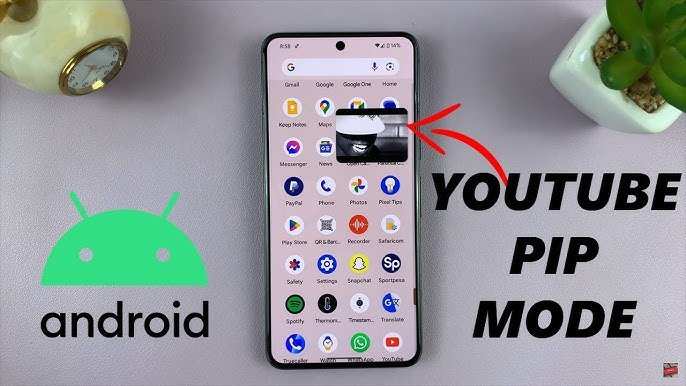
To make YouTube minimize on Android, simply use the picture-in-picture mode. **You can activate this feature in your device settings or directly from the YouTube app.** When you play a video, tap the home button or use gestures, and the video shrinks into a small window.
This allows you to continue watching while browsing other apps effortlessly. Knowing how to make YouTube minimize Android helps keep multitasking simple without interrupting your preferred content.

How to Make YouTube Minimize on Android Devices
Watching videos on YouTube can be fun and educational, but sometimes you need to do other things on your phone while keeping the video playing. If you’re wondering how to make YouTube minimize on Android, you’re in the right place! This article explains everything you need to know about minimizing YouTube videos on your Android device so you can multitask easily. Whether you want to check your messages, browse social media, or use other apps without stopping your YouTube video, we’ll go through all the methods step by step.
Understanding the Need to Minimize YouTube on Android
Many Android users want to keep watching YouTube videos while using other apps because it saves time and makes multitasking smoother. For example, you might be watching a tutorial and need to take notes or reply to a message. Without the ability to minimize, you’re stuck with one app at a time. Fortunately, Android offers features that help you continue watching videos in a small window while doing other tasks.
Some of the main benefits include:
- Multitasking with ease
- Saving time by avoiding closing videos
- Getting notifications or updates without interrupting your video
- Watching videos while chatting or browsing other websites
Methods to Make YouTube Minimize on Android
There are several simple ways to minimize YouTube videos on Android. You can choose the method that works best for your phone and your needs. Let’s explore each one carefully.
Using Picture-in-Picture Mode (PiP)
Picture-in-Picture (PiP) is an Android feature that allows you to play videos in a small floating window on your screen. This way, you can keep watching YouTube while using other apps. Most modern Android phones support PiP, but your device must have Android 8.0 Oreo or later.
- Check if PiP is enabled on your device:
- Go to Settings
- Select Apps & Notifications
- Tap Special app access
- Choose Picture-in-picture
- Make sure YouTube is allowed to use PiP
- Open the YouTube app and start playing a video.
- Press the home button or swipe up (depending on your navigation style). If PiP is active, the video will shrink into a small rectangle.
- You can move the small video window around the screen and resize it if needed.
- Open another app or return to your home screen. The video keeps playing in the small window.
**Tips for PiP success:**
– Some videos or content may restrict PiP mode. If it’s not working, verify that the feature is enabled and your app permissions are correct.
– Not all versions of YouTube support PiP unless you’re a YouTube Premium user.
Using YouTube Premium for Minimize Mode
YouTube Premium offers a feature called “Background Play,” which lets your videos continue playing even when the app is minimized or your screen is off. While this isn’t exactly minimizing the video into a small window, it allows you to listen or watch without keeping the app open.
To use this method:
- Subscribe to YouTube Premium if you haven’t yet.
- Open the YouTube app and play a video.
- Press the home button or swipe up to go to your home screen.
- The video will keep playing in the background, and you can open other apps or turn off the screen.
- To return to the video, open the YouTube app or select the floating notification.
**Note:**
– Background play is only available to Premium members.
– This method is ideal for listening to music or podcasts on YouTube.
Using Third-Party Apps for Floating YouTube Player
If your device doesn’t support PiP or you want more flexibility, third-party apps can help you watch YouTube videos in a floating window. Many apps in the Google Play Store offer this feature.
**Popular Apps include:**
- Floating Apps
- Tiny Video Player
- Video Popout Player
**How to use these apps:**
- Download and install your preferred floating video player app from Google Play.
- Open the app and follow the instructions to enable floating windows.
- Open YouTube and start the video you want to watch.
- Use the app’s feature to cast the YouTube video into a small floating window. Usually, this involves sharing the video link or using a shortcut in the app.
- You can now move the video around your screen and continue browsing other apps.
**Important considerations:**
– These apps might not work with all videos or might require additional permissions.
– Be cautious about security and only download apps from trusted sources.
Using Split Screen Mode
Another way to minimize YouTube is by using Android’s split-screen feature. This lets you run two apps side-by-side.
**Steps to activate split-screen:**
- Open YouTube and start playing a video.
- Tap the multitasking button (usually a square or the recent apps button).
- Find the YouTube app in the list of recent apps.
- Tap the app icon at the top of the YouTube window and select “Split screen” or “Open in split-screen view.”
- Select another app you want to use alongside YouTube.
- Now, YouTube will be minimized into one part of the screen while you use the other app.
**Advantages:**
– Easy to control both apps at once.
– Suitable for multitasking on larger screens or tablets.
**Limitations:**
– Not all devices support split-screen.
– The size of the video window is fixed, so it might not be as flexible as PiP.
Troubleshooting Common Issues
Sometimes, users face challenges when trying to minimize YouTube videos. Here are common problems and solutions:
- PiP isn’t working: Make sure your Android version supports PiP and that it’s enabled for YouTube in settings.
- Video won’t minimize or float: Check if the app or video content allows PiP or floating mode. Some videos or regions restrict this feature.
- Split-screen not working: Confirm your device supports split-screen mode. Restart your phone if necessary.
- Video stops playing when minimized: If using background play, ensure you have an active YouTube Premium subscription.
Additional Tips for Smooth Multitasking
To get the most out of minimizing YouTube videos on Android, consider these tips:
- Keep your device updated to the latest Android version for better compatibility with PiP and split-screen features.
- Close apps running in the background that may interfere with video playback.
- Adjust your device’s display settings for optimal multitasking if you’re using split-screen or floating apps.
- Use a larger screen or tablet for a more comfortable viewing and multitasking experience.
Learning how to make YouTube minimize on Android opens up a world of possibilities for easy multitasking. Whether you prefer Picture-in-Picture mode, background playback with YouTube Premium, or third-party apps for floating videos, each method has its benefits. By understanding and applying these techniques, you can enjoy videos seamlessly while staying productive with other tasks. Remember to check your device’s compatibility and permissions to ensure everything works smoothly. Now, go ahead and try these methods to make your YouTube experience more flexible and enjoyable on your Android device!
Frequently Asked Questions
Can I use Picture-in-Picture mode to keep YouTube minimized on Android?
Yes, Android supports Picture-in-Picture (PiP) mode for YouTube, but this feature is available only for YouTube Premium users. To enable PiP, ensure your device runs Android 8.0 or later, and enable PiP in your device settings. When playing a video, press the home button or use the gesture to minimize the app; if PiP is active, the video will float in a small window on your screen.
How do I enable split-screen mode for YouTube on Android?
To run YouTube in split-screen mode, open the YouTube app and start playing a video. Then, tap the recent apps button (or swipe up from the bottom if using gestures), find YouTube in the app switcher, and tap the split-screen icon or hold and drag the app to the top or side of the screen. This allows you to use YouTube alongside another app while both remain visible and active.
What steps can I take to minimize YouTube without stopping the video on Android?
To keep a YouTube video playing while you browse other apps, first check if you have access to Picture-in-Picture mode. Enable it in your device settings, then start playing a video in YouTube Premium. Tap the home button or use gestures to go back to your home screen; the video should continue playing in a small PiP window. If PiP isn’t available, you can try using third-party apps or browser versions that support background playback for certain videos.
Can I minimize YouTube using third-party apps on Android?
Final Thoughts
To make YouTube minimize on Android, tap the recent apps button and find YouTube. Swipe it up or sideways to close it, which allows multitasking or quick access later.
Another method involves using split-screen mode. Open YouTube, then tap the split-screen icon or hold the app icon and select “Split screen.” This enables YouTube to run in a minimized window.
In conclusion, how to make youtube minimize android is straightforward. Use recent apps or split-screen options to keep YouTube minimized while using other apps.
