

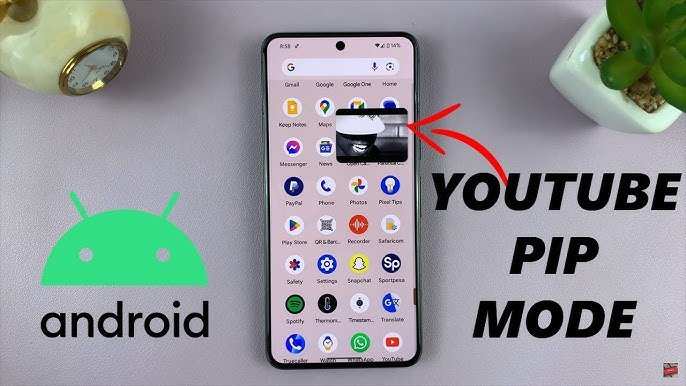
To make YouTube mini screen on Android, simply activate the picture-in-picture mode. **This feature allows you to continue watching videos in a small window while using other apps.** Knowing how to make YouTube mini screen android is straightforward with the right settings.
First, enable picture-in-picture mode in your device settings. Open the YouTube app, play a video, then press the Home button to see the mini screen appear. It’s a quick way to multitask without missing your favorite content.

How to Make YouTube Mini Screen on Android
When you use your Android device, watching YouTube videos is a common activity. Sometimes, you want to keep watching a video while doing other tasks on your phone. That’s where the mini screen or picture-in-picture (PiP) mode comes in. It allows your video to continue playing in a small window while you browse other apps or do different activities on your device. This guide will walk you through everything you need to know about how to make YouTube mini screen on Android, so you can enjoy videos seamlessly without interruptions.
Understanding the Concept of Mini Screen or Picture-in-Picture Mode
Before diving into steps and tips, it’s good to understand what mini screen or PiP mode actually is. Picture-in-picture mode lets you watch a video in a tiny, movable window on your screen. You can resize or move this window around, making it easy to multitask. For example, if you’re watching a cooking tutorial, you can switch to a messaging app without stopping the video.
However, not all Android devices or apps support PiP mode. You need to have compatible Android versions and settings enabled to use this feature fully with YouTube.
Checking Your Android Version and Compatibility
The first step ensures your device can run mini screen mode effectively:
- Android 8.0 Oreo or newer supports picture-in-picture mode.
- Most newer Android devices come with this feature already supported.
- Older devices may need updates, or some features might not work at all.
To check your Android version:
- Open Settings on your device.
- Scroll to About Phone or About Device.
- Look for the Android version number.
If your Android version is below 8.0, consider updating your device for the best experience. If updating isn’t possible, third-party apps or alternative methods might help you achieve similar functionality.
Enabling Picture-in-Picture Mode on Your Android Device
Once your device is compatible, setting up PiP mode is straightforward:
- Go to Settings.
- Find ‘Apps & Notifications’ or just ‘Apps.’
- Tap on ‘Special app access’ or ‘Advanced’ options.
- Select ‘Picture-in-picture.’
- Look for YouTube in the list of apps that support PiP mode.
- Toggle the switch to enable PiP for YouTube.
If you don’t see YouTube listed, ensure you’re using the latest version of the app.
Using YouTube’s Built-in PiP Feature
YouTube has introduced PiP support in its app for users with YouTube Premium or sometimes for free, depending on updates and device support. Here’s how to activate it:
Playing YouTube in PiP Mode
- Open the YouTube app on your device.
- Select the video you want to watch.
- Press the Home button or swipe up if your device uses gestures.
- The video should minimize automatically into a small window.
> If the video does not minimize:
– Make sure PiP mode is enabled for YouTube in your settings.
– Ensure the app is updated to the latest version.
Adjusting and Moving the Mini Screen
Once the video is in mini mode:
- Tap and hold the small video window to drag it around your screen.
- Pinch in or out on the window to resize it if supported.
- Tap on the window to access playback options like pause, play, or close.
This flexibility allows you to multitask smoothly, whether you’re chatting, browsing, or checking emails.
Using Third-Party Apps to Enable YouTube Mini Screen
If your device or app version doesn’t support PiP for YouTube directly, some third-party apps can help you get similar effects. These apps often create a floating video player outside the native app support.
Popular Floating Video Apps
- Floating Apps: Multitasking
- FOXY Player
- MiniMilitia – Infinite Video Player
Remember:
- Download these apps from trusted sources like Google Play Store.
- Follow app instructions to start a mini YouTube player.
- Be cautious with permissions and always prioritize security.
While these solutions may not offer the same seamless experience as native PiP, they provide a workaround to keep watching videos while doing other tasks.
Tips for a Better Mini Screen Experience
To make your mini screen experience as smooth as possible, consider the following tips:
- Keep your YouTube app updated to access the latest features.
- Enable PiP mode in device settings and within the app.
- Adjust your device’s screen size and resolution for clarity.
- Use a device with a larger screen if possible, for better viewing.
- Experiment with resizing and positioning the mini window for comfort.
- Close background apps that might interfere with video playback or cause lag.
Having a clear understanding of these tips helps you enjoy your videos uninterrupted and with ease.
Limitations and Troubleshooting
While picture-in-picture mode offers great convenience, it does have some limitations:
- Not all videos support PiP, especially if the video is embedded or restricted by copyright.
- Some Android devices or versions may not support PiP at all.
- Third-party apps may have inconsistent performance or security concerns.
- YouTube’s free app version might limit PiP features; YouTube Premium often supports it fully.
If the mini screen doesn’t appear or behave as expected, try these troubleshooting steps:
- Restart your device to refresh system settings.
- Update the YouTube app and your device’s OS.
- Ensure PiP is enabled both in device settings and app settings.
- Clear cache of the YouTube app in Settings > Apps > YouTube > Storage > Clear Cache.
- Check for any app restrictions or permissions blocking PiP mode.
If problems persist, consult your device’s support resources or consider using alternative apps that support mini screens.
Watching YouTube videos in a mini screen on Android makes multitasking easier and more enjoyable. Whether your device supports native PiP or you need to use third-party apps, there are multiple ways to keep videos playing in a small window while you go about your day. Make sure your device is compatible, update your apps and operating system, and enable the necessary permissions. With a little setup, you’ll be able to watch your favorite videos hands-free while doing other things on your Android device. Whether it’s for quick tutorials, music videos, or entertaining clips, mastering the mini screen feature enhances your overall experience and keeps your entertainment accessible anytime.
Frequently Asked Questions
How can I enable picture-in-picture mode for YouTube on Android?
To enable picture-in-picture (PiP) mode for YouTube, go to your device settings, then select ‘Apps & notifications.’ Tap on ‘Special app access,’ choose ‘Picture-in-picture,’ and find YouTube in the list. Make sure the toggle next to YouTube is turned on. When you play a YouTube video, press the home button, and the video should continue in a small window on your screen.
What steps do I need to follow to activate mini screen while watching YouTube?
First, ensure you are using a supported Android version (Android 8.0 Oreo or newer). Open the YouTube app and start playing a video. Tap the home button or use the gesture to go to the home screen. The video should automatically minimize into a small window. If it doesn’t, double-check your app permissions and PiP settings to confirm they are enabled for YouTube.
How do I manually launch YouTube in mini screen mode on Android?
Start by playing a video in the YouTube app. Then, press the home button or swipe up to go to the home screen. If the mini screen doesn’t appear, look for the small PiP icon on the video player (usually a rectangle with an arrow). Tap this icon to manually switch to mini screen mode. This method works when PiP is supported and properly enabled on your device.
Can I use third-party apps to create a mini screen for YouTube?
Yes, some third-party apps available on the Google Play Store allow you to watch videos in a floating window. These apps may enable you to run YouTube videos in a mini screen even if the native PiP mode is unavailable or limited. However, use these apps cautiously, and ensure they come from reputable sources to protect your device and personal information.
What should I do if the mini screen feature isn’t working for YouTube?
If mini screen mode doesn’t activate, verify that your device supports PiP mode and that it is enabled in the settings. Update the YouTube app to the latest version, and restart your device. Also, check if any device restrictions are preventing PiP from working. If issues persist, consider reinstalling the app or resetting app permissions to resolve the problem.
Final Thoughts
To make YouTube mini screen Android, start by opening the YouTube app on your device. Tap the home button or use recent apps to access multitasking features. Then, select the option to enable picture-in-picture mode in your device settings if it’s not already active.
Once active, play a video and tap the home button; the video automatically minimizes to a small screen. You can drag this mini screen around or resize it for comfortable viewing.
How to make youtube mini screen android becomes simple when you follow these steps. This feature allows you to continue watching videos while multitasking seamlessly, making your experience more flexible and efficient.
